A weekly practice, start to finish: a workflow for solo therapists
Follow one solo counsellor from a new client's first booking to a settled weekly rhythm of reminders, automatic invoices and session notes, then adapt it to your own practice.
Updated 19 November 2026
Most practitioners don't struggle with any single feature in Therasee. They struggle to see how the pieces join up: which settings matter on day one, what happens on its own once a client is booked, and what is still yours to do. This page follows one fictional practice through the whole journey, from a stranger's first booking to a settled weekly rhythm of sessions, invoices and notes. Borrow the parts that fit how you work, change the rest, and use the links to go deeper into any step.
The workflow in one breath: a new client books online and pays for the first session, you open your client portal to them and send a short welcome pack of forms, you meet, and then you book the rest of their sessions as one weekly series. From there, Therasee reminds them before each session, raises and sends each invoice a few days ahead, chases it if it is late, and leaves you with one job after every session: writing your note.

Meet the practice
Eleanor Whitfield is an integrative counsellor working on her own as Brackenfold Therapy. She sees around 16 clients a week, most of them weekly, some by video and some in her room. She offers one service, Individual therapy (50 minutes) at £60, and she asks clients to pay before each session so money never has to come up in the room.
Eleanor wanted three things from her setup: new clients should be able to find a time without an exchange of emails, nobody should have to remember to send an invoice, and her evenings should be for writing notes, not admin. Everything below is how she got there. If your practice looks different, the section Make it yours, near the end, shows the most common changes.
The journey has six parts:
- Setting the stage, once.
- A new client books.
- Welcoming them in.
- The first session.
- Making it weekly.
- After each session: notes, and getting paid.
1. Setting the stage, once
This part takes an afternoon and you only do it once. Getting started walks through every setting in order; these are the ones this workflow depends on.
- Your service. Under Settings, Practice profile, Services, Eleanor has one service with its length and price. The service decides how long a booking lasts and what goes on the invoice. See Setting up your services and prices.
- Your hours. Under Settings, My settings, Availability, she sets the days and times she works. These are the only times clients can book online. See Setting your working hours.
- Your booking page and rules. She turns on her booking page under Settings, Practice profile, Public Pages, then sets how much notice she needs and how far ahead clients can book under Settings, My settings, Booking. See Letting clients book online.
- Stripe. Under Settings, Practice settings, Billing, she selects Connect Stripe so clients can pay by card. See Connecting Stripe.
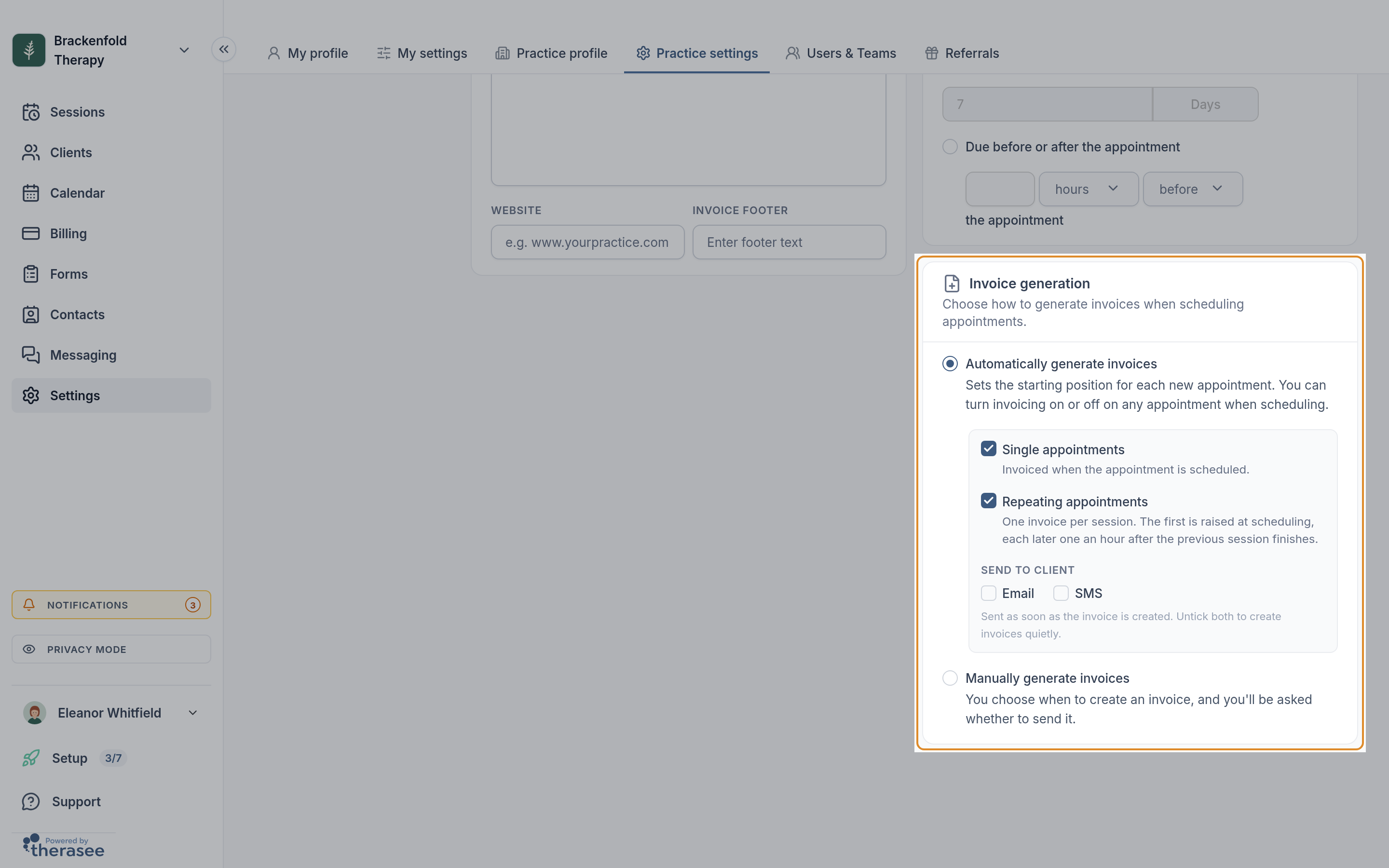
- Invoices that write themselves. On the same Billing page, in Invoice generation, she chooses Automatically generate invoices, ticks Single appointments and Repeating appointments, and under Send to client ticks Email. In Payment terms she chooses Due before or after the appointment, set to 48 hours before.
- Reminders. Under Settings, Practice settings, Notifications, she ticks Email on the appointment reminder 24 hours before each session, and adds an invoice reminder one day after the due date. See What your clients are sent.
One more thing makes the first session simpler: on her service, Eleanor ticks Process payments at the time of booking. A new client then pays when they book, so the first session is settled before you have even met.
2. A new client books
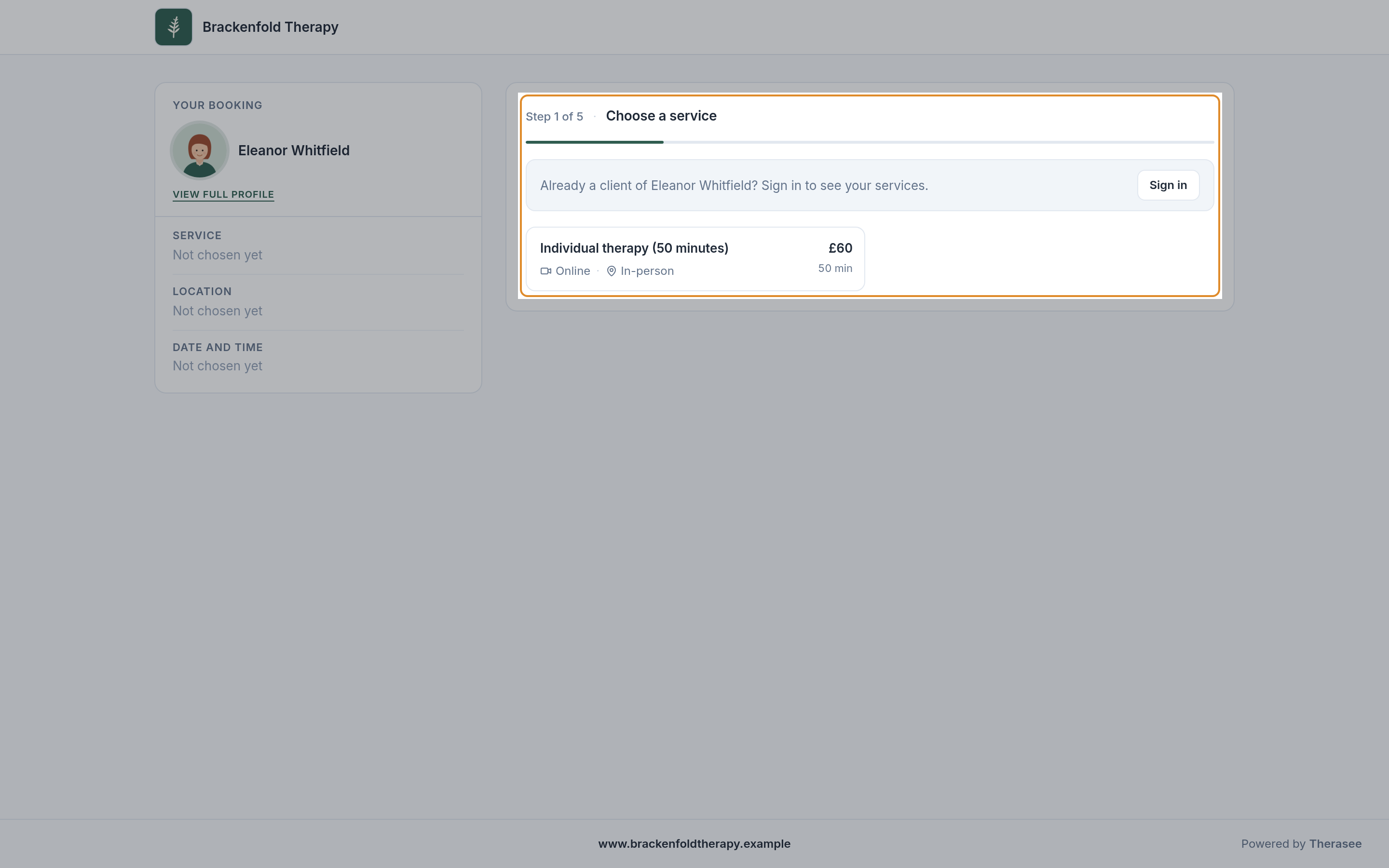
Laura Kendrick finds Brackenfold Therapy online and selects Book an appointment. She chooses the service, online or in person, and a time that suits her, gives her name, email address and phone number, answers Eleanor's booking question, and pays.
On Eleanor's side, three things have already happened by the time she next looks at her phone:
- Laura is on her Clients list as a Prospect, tagged New booking, with her answer to the booking question saved on her record.
- The session is on Eleanor's calendar.
- The invoice shows in Billing as Paid.
Not every client books themselves. If someone emails or calls first, add them yourself from Clients with the + button and book their first session from the calendar. Everything from here on is the same. See Adding a client and Booking an appointment.
3. Welcoming them in

Booking online doesn't give a client access to your client portal. That stays your decision, which is the right way round: you open the door once you have decided to work with someone.
Eleanor's welcome takes about a minute:
- On Clients, she selects Laura's status and changes it from Prospect to Active.
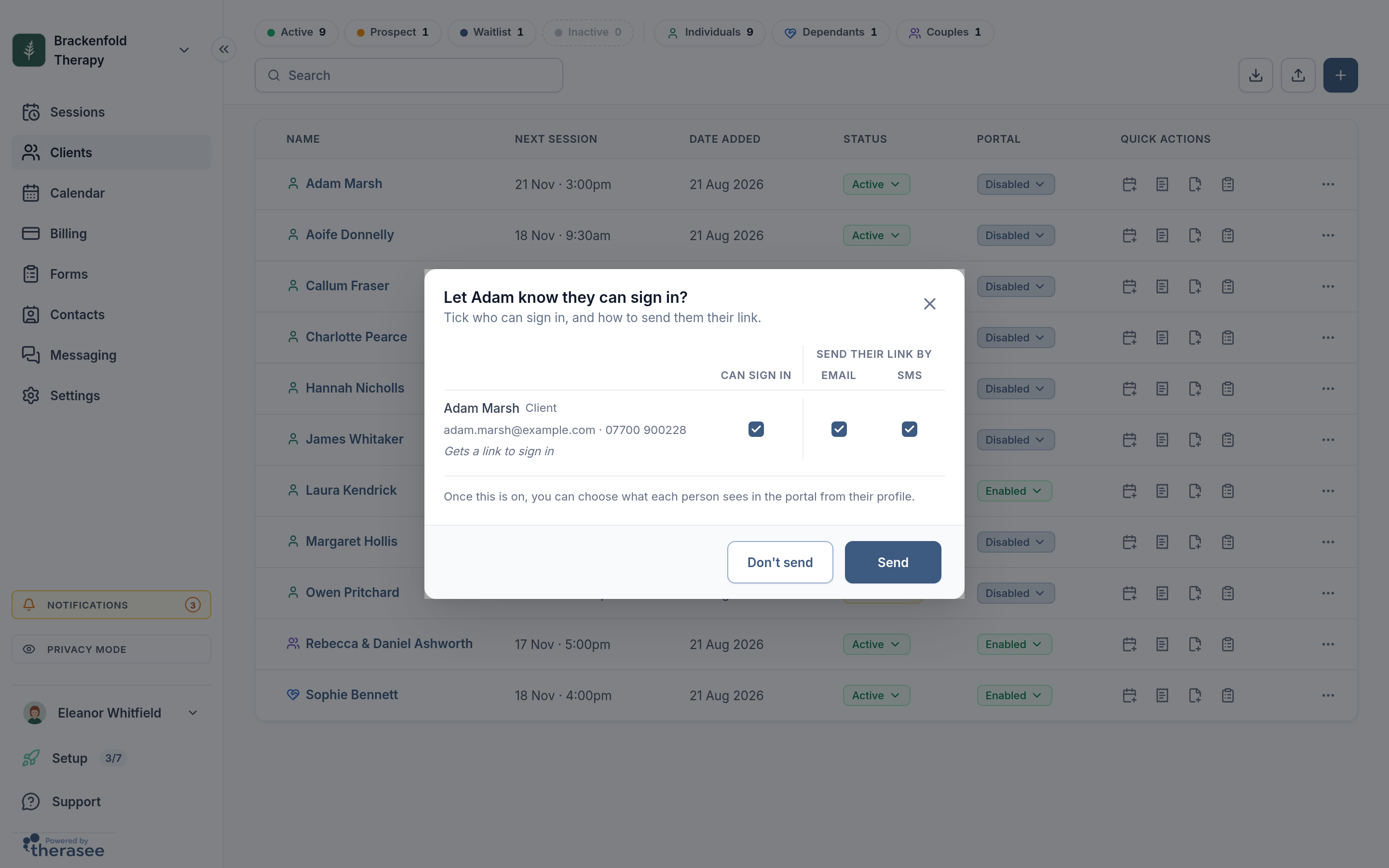
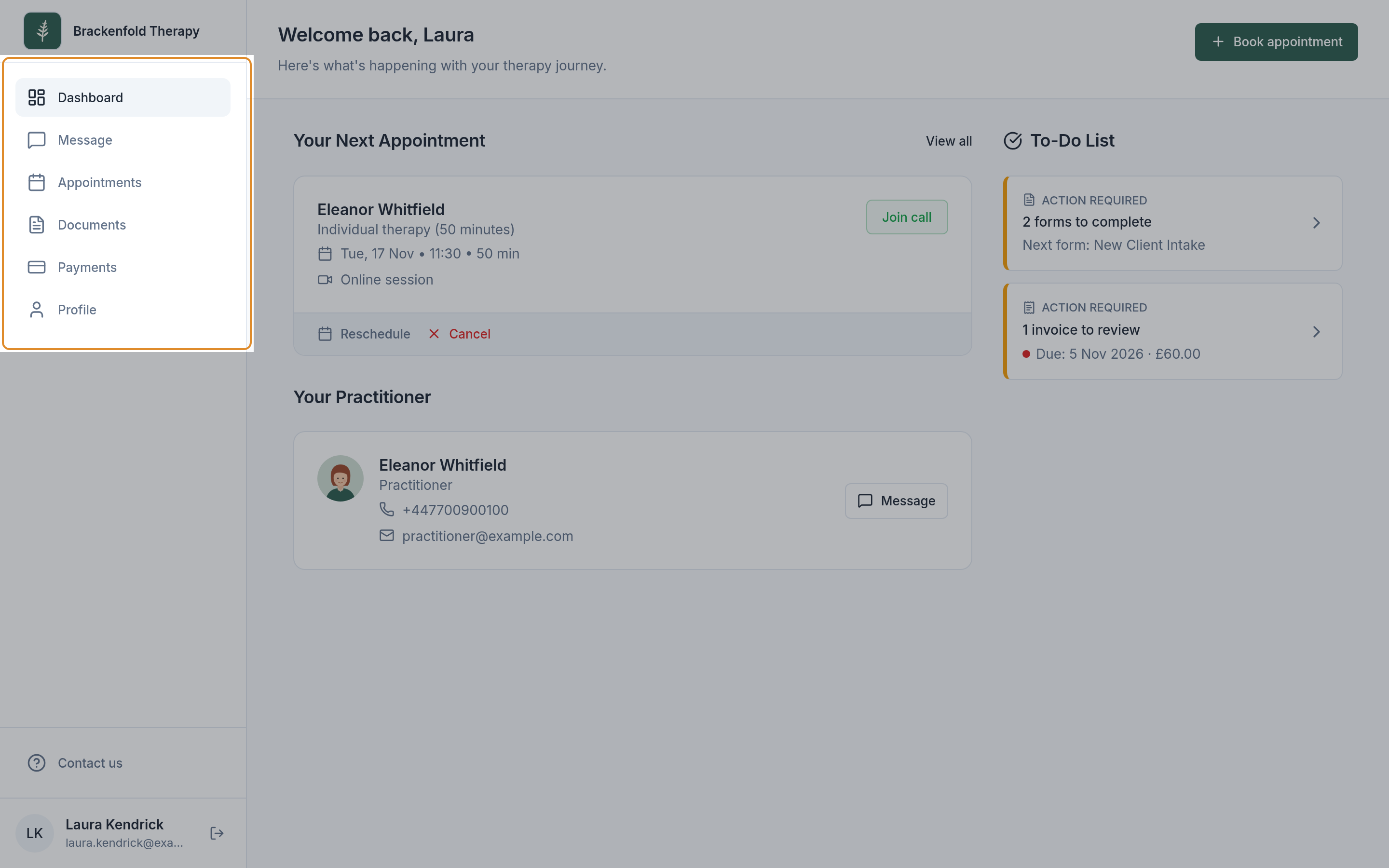
- In Laura's row, she selects Disabled in the Portal column, then Enabled, ticks Can sign in, chooses Email and selects Send. Laura receives "Your client portal is ready", and signs in with a code sent to her email, with no password to remember.
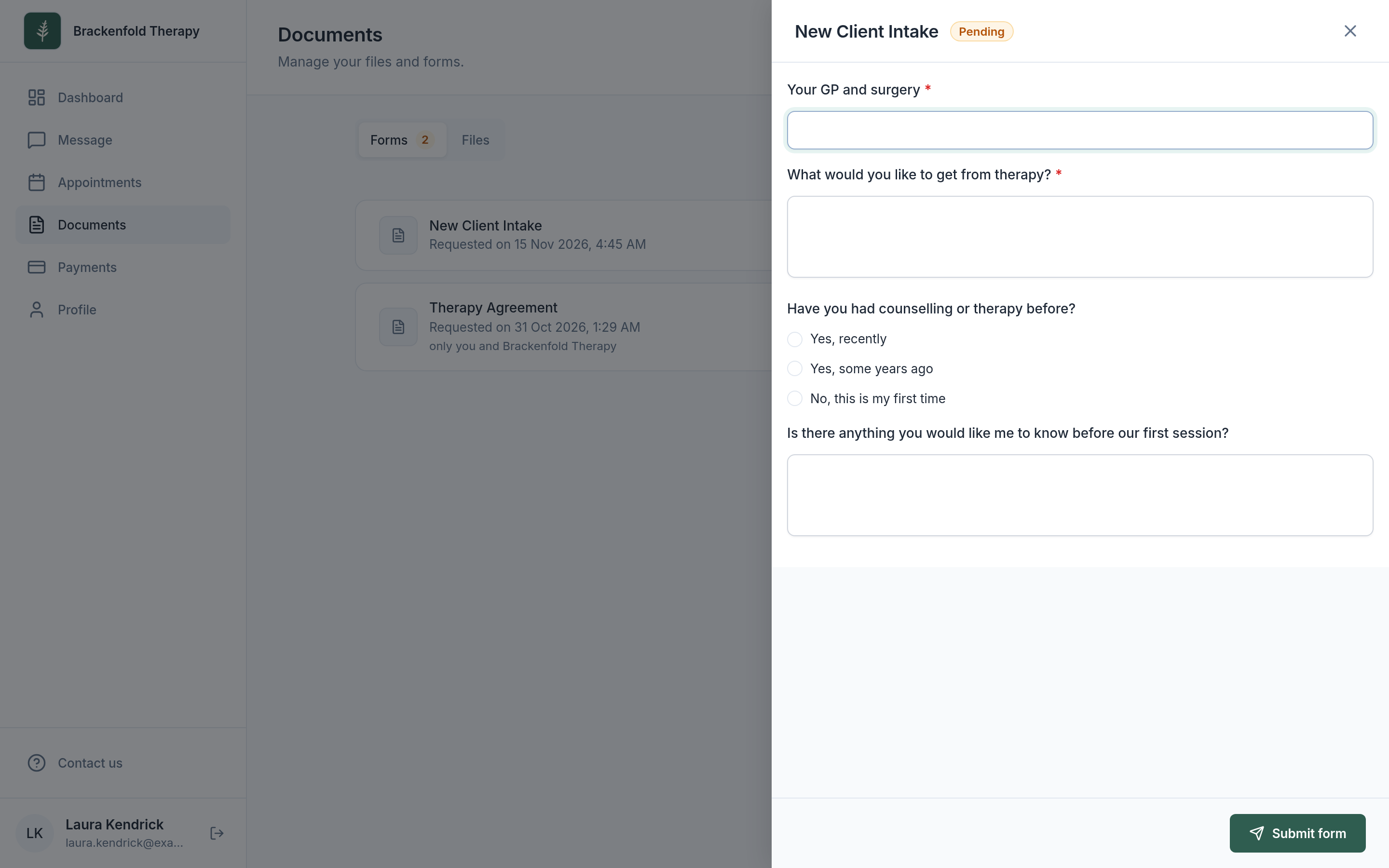
- In Messaging, she selects Create, chooses Laura under Select client and selects Add, then sends her welcome message, which carries her intake form and therapy agreement.
The welcome message is a message template, written once and reused for every new client. Someone who manages your practice settings creates it under Settings, Practice settings, Messaging: give it a name, write the message, attach your forms with Add forms, and select Create. In a conversation, the Add a message template button under the message box fills it in. It goes in exactly as written, so keep it free of names. Here is Eleanor's, to adapt:
Welcome template: "Hello, and thank you for booking with me. Before we meet, please could you fill in the two short forms attached: an intake form, so I know a little about you and what brings you to therapy, and our therapy agreement, which covers fees, cancellations and confidentiality. They take about ten minutes. If anything feels unclear, reply here and I'll get back to you. I look forward to meeting you. Eleanor"
Laura finds both forms on her to-do list when she signs in, fills them in and signs, and each one shows as Completed on her record. A form that also needs Eleanor's signature, such as the agreement, shows Action required until she signs it herself. See Creating and sending forms and Turning on the client portal.
4. The first session
The day before, Laura gets her reminder. For a video session it includes the joining link, and the same session sits at the top of her portal with a Join call button.
Eleanor starts the call from the session a few minutes early. Laura waits in the waiting room until Eleanor selects Admit, so nobody ever walks into a session that is already under way. If Eleanor is running a little late, she can use Chat to tell Laura while she waits. For an in-person session nothing changes in Therasee: the room comes from the location on the booking. See Running a video session.
5. Making it weekly
At the end of the first session, Eleanor and Laura agree to meet every Tuesday at 11:30. This is the moment the workflow starts working for you, so it is worth getting right.
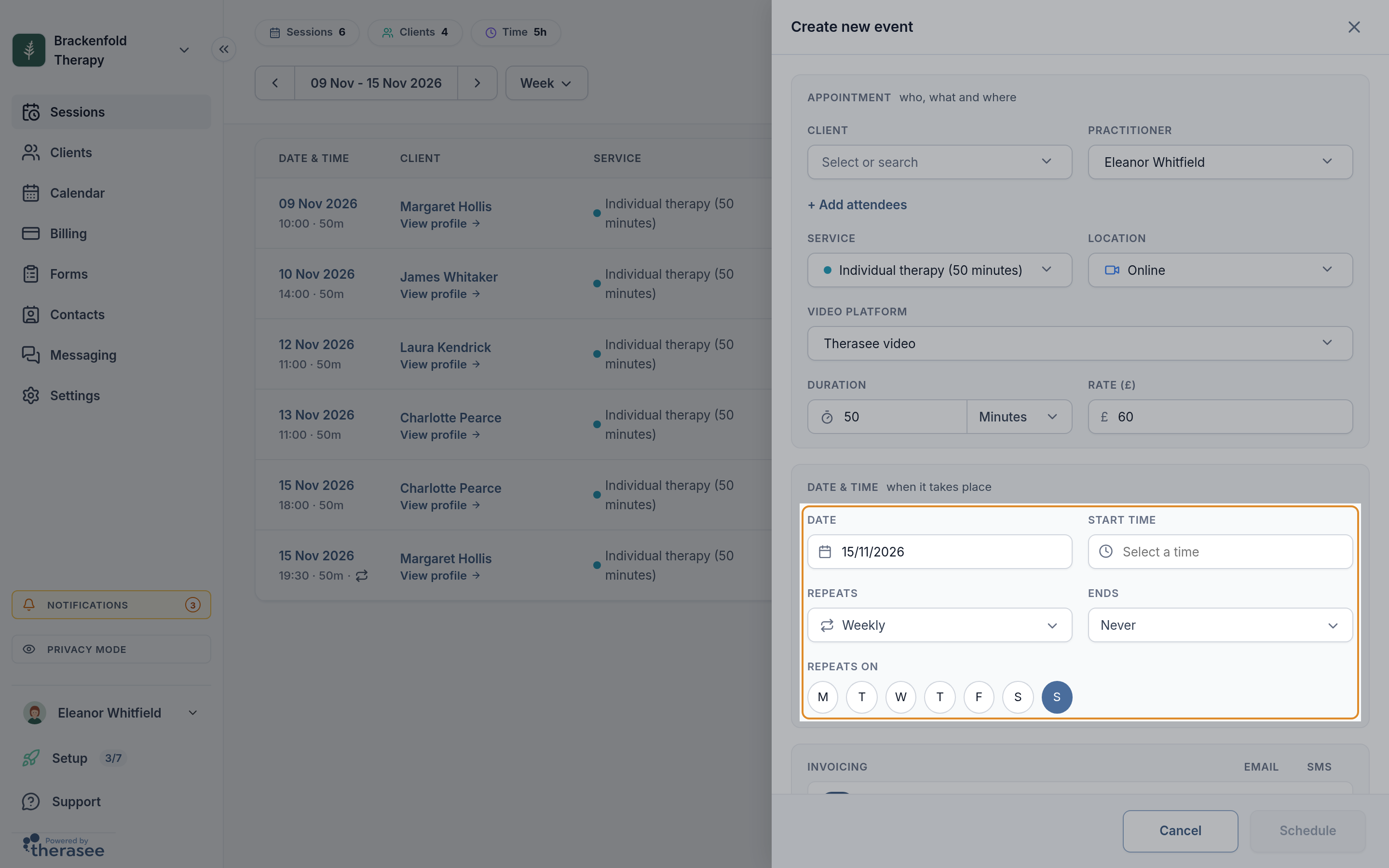
Eleanor clicks the slot for next Tuesday on her calendar and books Laura's ongoing sessions as one series:
- She chooses Laura, the service and the location. Duration and Rate fill in from the service.
- Under Date & time, she sets Repeats to Weekly (you can also choose biweekly, monthly, or any other recurring pattern you want) and leaves Ends on Never.
- In the Invoicing card, Invoice each session automatically is already on, because she ticked Repeating appointments in her billing settings.
- She selects Schedule, then Schedule and send so Laura gets a confirmation.
Start the series from the next session rather than the first one: a new series includes every date from its first session onwards.
A series is one booking with a pattern, so the whole thing keeps the same service, location and fee, and each session gets its own reminder in turn. Here is how the invoices then fall into place:
- The invoice for the first session in the series, 17 November, is raised and emailed the moment Eleanor books it on 10 November. With payment terms of 48 hours before, it falls due at 11:30 on Sunday 15 November.
- Each later invoice is raised about an hour after the previous session in the series finishes. Laura's 17 November session ends at 12:20, so shortly after 13:20 the invoice for 24 November is raised and emailed to her.
- That one falls due at 11:30 on Sunday 22 November, so Laura has five days to pay it, from the email or from her portal.
Eleanor doesn't touch any of this. Across 16 weekly clients that is around 69 invoices a month, roughly £4,160, raised and sent without her typing a single one.
If you would rather not run a series with no end date, choose an end date or a number of sessions under Ends, and book a new series when you review the work together. See Booking an appointment for every option.

6. After each session: notes, and getting paid
Your note
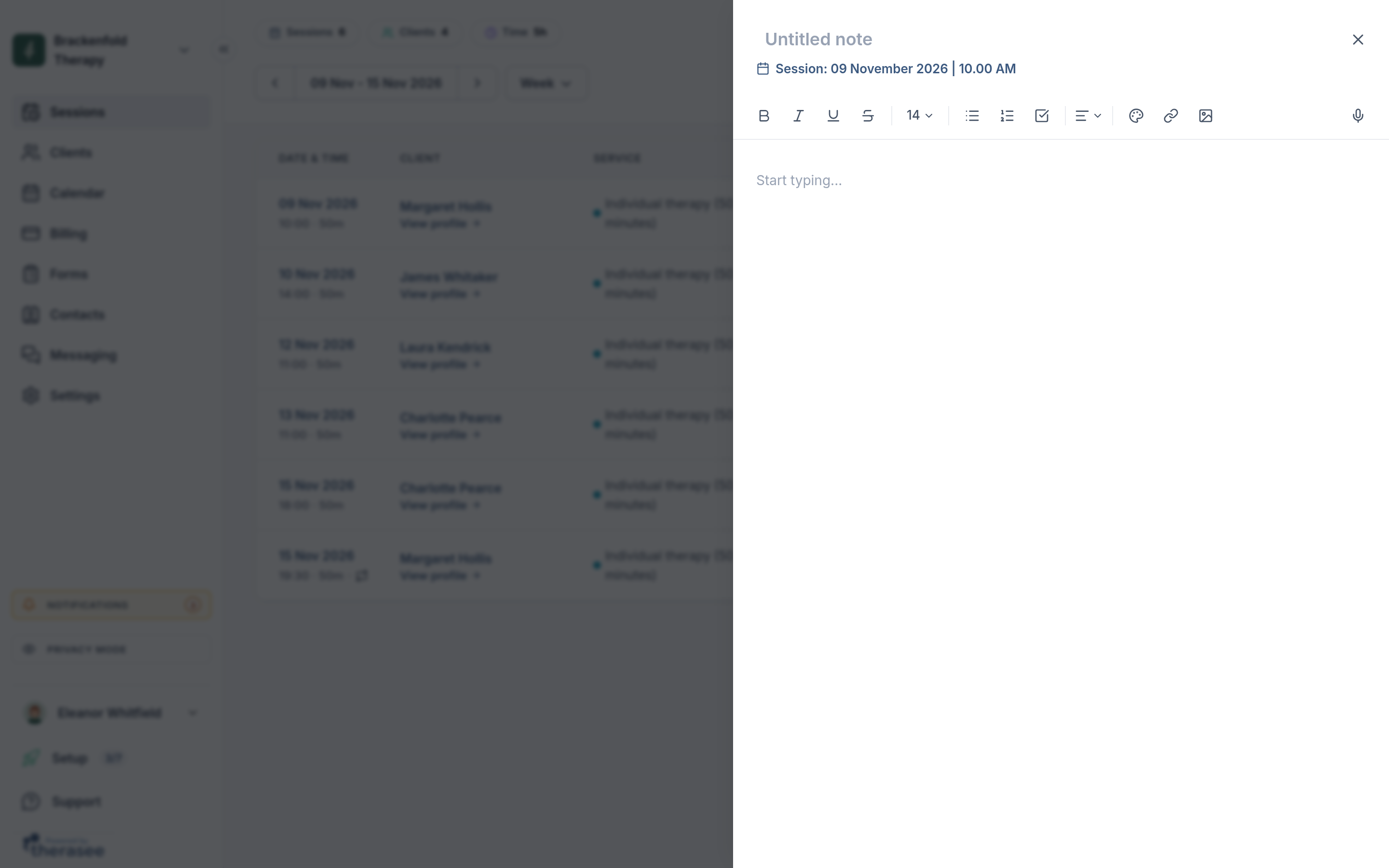
This is the one job the workflow leaves with you after every session. On Sessions, Eleanor selects the icon in the Notes column beside the session. The note editor opens already linked to that session, so she only has to write. She types a title, writes her note and selects Save. Each session in a series has its own note, and clients never see your notes.
If you like the same structure every time, write it once and use Duplicate note on your client's Notes tab to start each new note from it. A simple shape many practitioners use:
Note structure: What the client brought. What we worked on. What I noticed (themes, risk, change). Agreed for next time. Anything for supervision.
Prefer to speak your notes? The microphone at the top right of the editor dictates straight into the note. See Writing session notes.
Getting paid
Laura opens the invoice email and selects View and pay, or selects Pay online on the invoice in her portal. Either way the invoice turns Paid by itself, Laura gets a receipt, and Eleanor gets a notification.
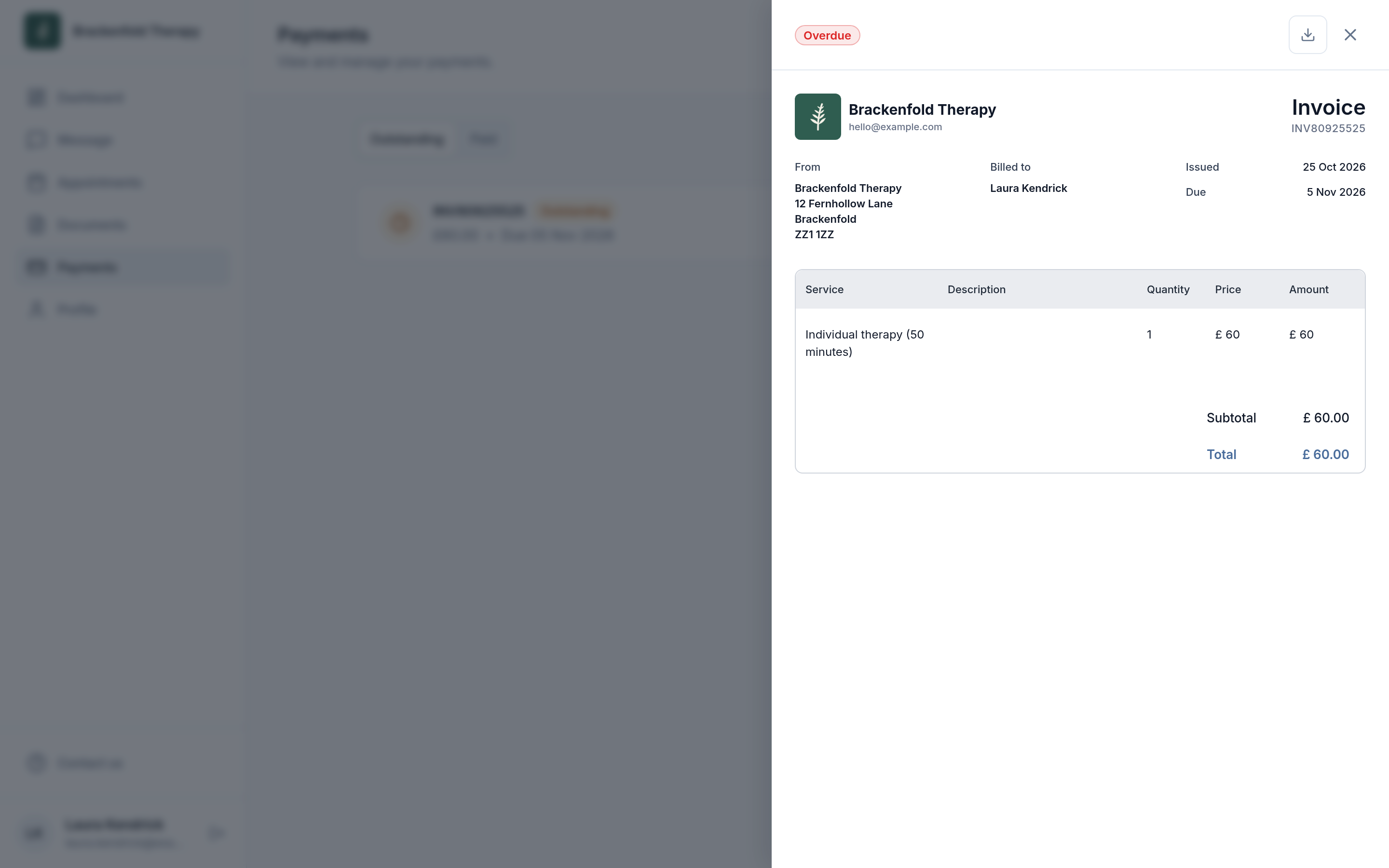
If an invoice is still unpaid a day after it was due, the invoice reminder Eleanor set up goes out on its own, and reminders stop as soon as it is paid. A few of her clients prefer bank transfer. When one of those payments arrives, Eleanor selects Mark as paid on the invoice's row in Billing, chooses Bank transfer and confirms. See Creating and sending an invoice.
A week in Eleanor's practice
Once a few clients are set up this way, the week settles into a quiet rhythm:
- Every morning: a glance at her calendar, and at the notifications for new bookings, messages and payments.
- Before each session: nothing. The reminder has gone, the invoice has usually been paid, and the joining link or room is on the booking.
- After each session: her note, ideally while it is fresh.
- Friday afternoon: ten minutes in Billing, marking any bank transfers as paid and checking for anything overdue.
- When a new client books: the one-minute welcome in part 3.
When things change
Real weeks are not tidy. Here is how Eleanor handles the common changes.
- A client cancels. Under Settings, Practice settings, Appointments, Eleanor lets clients cancel or reschedule from their portal up to 48 hours before, matching her agreement. Closer to the session, clients are asked to contact her instead, and she marks the session Cancelled herself. For a weekly client the session's invoice has usually been raised already, and often paid. An unpaid invoice can be edited or deleted from its row in Billing. If it has been paid and her policy gives a refund, she refunds it in Stripe. See Cancellations and no-shows.
- A client doesn't turn up. She marks the session No show. The session stays on the calendar, nothing is sent to the client, and its invoice stands.
- Eleanor takes a holiday. She blocks the dates out so nobody can book them online, and cancels the sessions in those weeks one by one with This event, so each series carries on afterwards. See Blocking out time.
- The work comes to an end. After the last session, she opens the next upcoming one in the series, chooses Cancelled, then This and following events. Earlier sessions are untouched. The invoice for that next session has usually been raised already, so she deletes it in Billing if it is unpaid, or refunds it in Stripe if it has been paid. She changes the client's status to Inactive when the work is fully finished, and their record, notes and forms stay on file.
Make it yours
Eleanor's setup is one good starting point, not the only one. These are the changes practitioners make most often:
- Take payment after the session instead. Invoices are still raised ahead of each session; to have them fall due afterwards, in Payment terms choose Due a set number of days after the invoice is issued, or Due before or after the appointment set to after.
- Bill monthly. Leave automatic invoicing off for series, and at the end of each month put the sessions on one invoice: sessions not yet invoiced are listed under Non invoiced when you create it.
- Fortnightly clients. Choose Every 2 weeks under Repeats. Everything else works the same way.
- A reduced fee for one client. Change the Rate when you book their series, and every session in it is booked at that rate.
- No client portal. Share forms by email from the client's Forms tab, and invoices still arrive by email with a link to pay.
- Taking enquiries before bookings. If you prefer a conversation before anyone books, turn on your contact form. People who send it are added to your client list as Prospects, tagged New contact form, and you book their first session once you have spoken.
Questions practitioners ask
Do I have to use online booking?
No. You can book every session yourself from the calendar. Online booking simply saves the back and forth for new clients, and clients can only ever book within the hours and rules you set.
Can a client book their own weekly series?
Clients book one session at a time. A weekly series is something you set up, usually after the first session, as in part 5.
What if a client pays for a session and then cancels?
Cancelling doesn't refund automatically. If you decide to refund, do it in your Stripe account; the invoice in Therasee stays marked paid.
Will my clients be emailed every time I write a note?
No. Notes are private to you and your practice. Clients never see them and are never told when one is written.
How long does this take to set up?
The one-off settings in part 1 take most practitioners an afternoon. After that, each new client takes about a minute to welcome, and each weekly series about the same to book.
Workflows take a few weeks to feel natural, and the best ones are adjusted as you go. Start with what you need for your next new client, and come back to the rest when you are ready.
Was this helpful?