Connecting Stripe and taking card payments
Connect a Stripe account so clients can pay invoices by card and pay when they book online, or invoice with bank-transfer instructions instead. Covers fees, payouts, refunds, payment status and disconnecting.
Updated 4 November 2026
Connecting a Stripe account lets your clients pay you by card: from an invoice, and, if you choose, when they book a session online. Stripe is a payment provider. It takes the card payment, checks your identity, and pays the money into your bank account. Therasee connects to your Stripe account so it can create the payment pages and mark invoices as paid.
Stripe is optional. Everything else in billing works without it: you can create and send invoices, chase them with reminders and record payments yourself. If you would rather clients pay by bank transfer, see Invoicing without Stripe below.
Before you start
- Who can connect. The Connect Stripe button appears only for people who can change practice settings. If you cannot see it, ask whoever manages your practice.
- Check your billing currency first. Under Settings, Practice settings, Billing, the Currency & Tax card offers GBP or EUR. Clients are charged in the currency on the invoice. The currency locks once you issue your first invoice; after that, support can help you change it. Ideally, connect a Stripe account that pays out in the same currency.
- Have your details to hand. Stripe asks about you and your practice and for the bank account your money should be paid into. You can use an existing Stripe account or create a new one during the steps below.
Invoicing without Stripe
If you do not connect Stripe, clients pay you however you tell them to, most often by bank transfer, and you mark each invoice as paid when the money arrives.
- Go to Settings, Practice settings, Billing and find the Invoice content card ("What's shown on every invoice you create.").
- In Default note, type your payment instructions: for example the account name, sort code and account number, and what to use as the payment reference (the invoice number works well).
- Click Save on the card. A message says Invoice content saved.
The note is copied onto every new invoice, so it appears on the invoice your client opens from the email or text, in your client portal and on the PDF. You can change it on any single invoice in the Note box of the invoice form, for example to give a different reference. Invoices you have already created keep the note they were made with.
What your clients see without Stripe:
- Invoice emails have a View button, and the invoice is attached as a PDF.
- In your client portal, the Payments page lets them view and download invoices, with no Pay online button.
- Clients who book online are booked straight away and invoiced in the usual way, because taking payment at booking needs Stripe.
When a payment reaches your bank, record it with Mark as paid and choose Bank transfer (steps under Marking an invoice paid yourself below).
You can also do both. With Stripe connected, the payment instructions in your note stay on every invoice, so clients can choose to pay by card with Pay online or by bank transfer.
Connecting Stripe
Go to Settings, Practice settings, Billing. The Online payments card is at the top, marked Not connected.
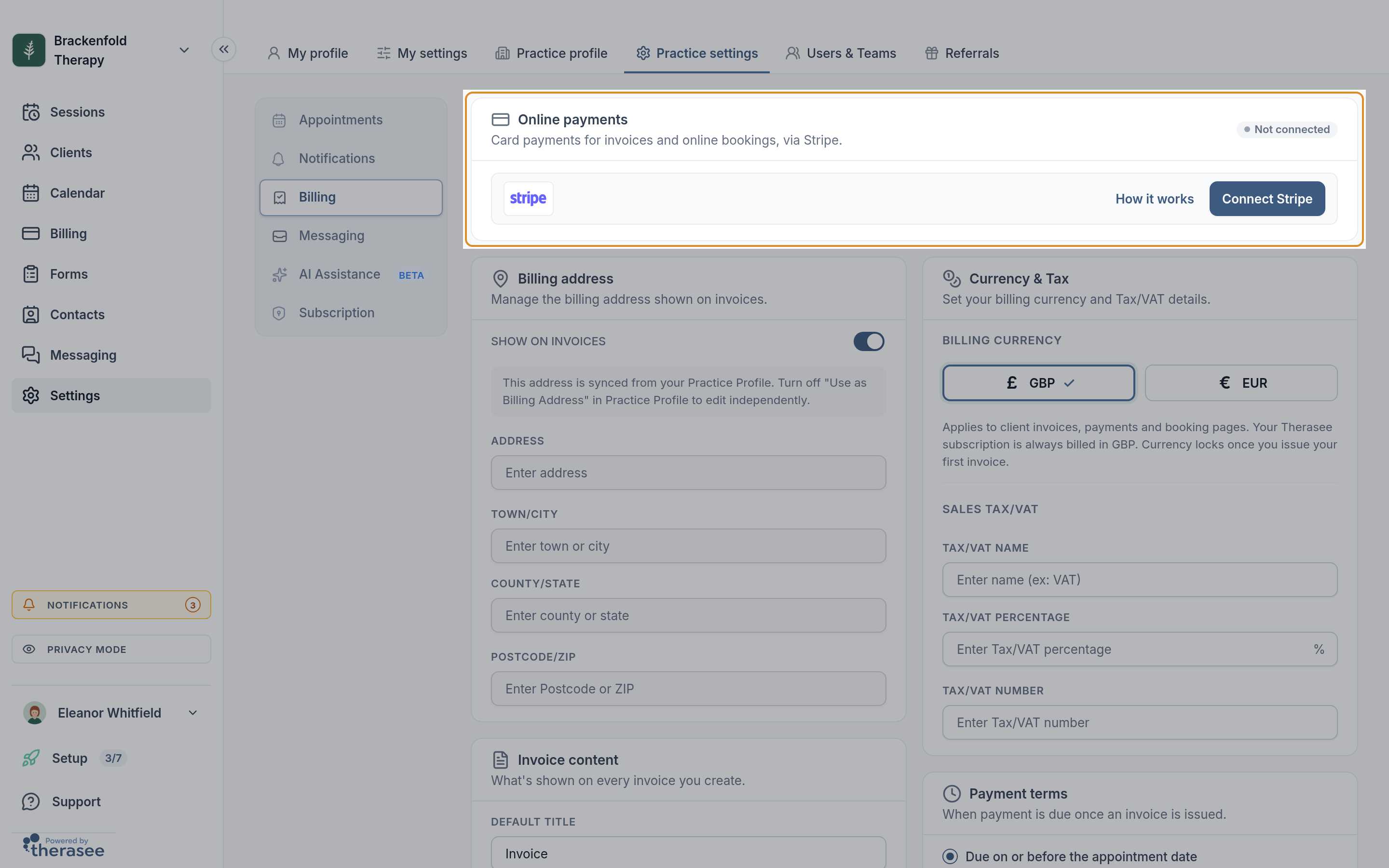
- Click Connect Stripe. You are taken to Stripe's own website.
- Sign in to your Stripe account, or create a new one. Your email address is filled in for you.
- Follow Stripe's steps. It asks for your details, your business details and your bank account for payouts. Exactly what it asks depends on your country and the type of business you run.
- When you finish, Stripe sends you back to the Billing page and a message says Stripe connected successfully.
If you cancel on Stripe's pages, you come back to Billing with the message Stripe connection was cancelled. Nothing has changed, and you can click Connect Stripe again whenever you are ready. If a message says the link expired, start again from Connect Stripe.
Setup incomplete and Connected
Once your account is linked, the badge on the Online payments card shows where things stand.
- Setup incomplete: Stripe still needs something from you, or has not finished checking your details. Clients cannot pay online yet. Click Finish setting up Stripe to go back to Stripe and pick up where you left off. How long Stripe's checks take is up to Stripe; it may contact you if it needs more information. If you linked the wrong Stripe account, click Disconnect and link a different account.
- Connected: Stripe can take payments and pay you out. The card shows View on Stripe, which opens your Stripe Dashboard, and Disconnect.
- Connection invalid: Therasee can no longer reach the Stripe account. Click Reset and reconnect Stripe and complete a fresh setup.
What connecting turns on
Pay online on invoices
As soon as the card shows Connected, every unpaid invoice can be paid by card. You do not need to change anything on your invoices.
- Invoice emails show a View and pay button instead of View, and reminder emails and texts invite the client to pay online.
- In your client portal, unpaid invoices on the client's Payments page have a Pay online button, both in the list and at the top of the open invoice.
- Pay online opens a secure Stripe payment page showing your practice name and logo, the invoice and the amount. The client enters their card details; their bank may ask them to confirm.
- When the payment goes through, the invoice turns Paid in Billing by itself, the client receives a receipt email with the invoice attached, and you get a Payment received notification.
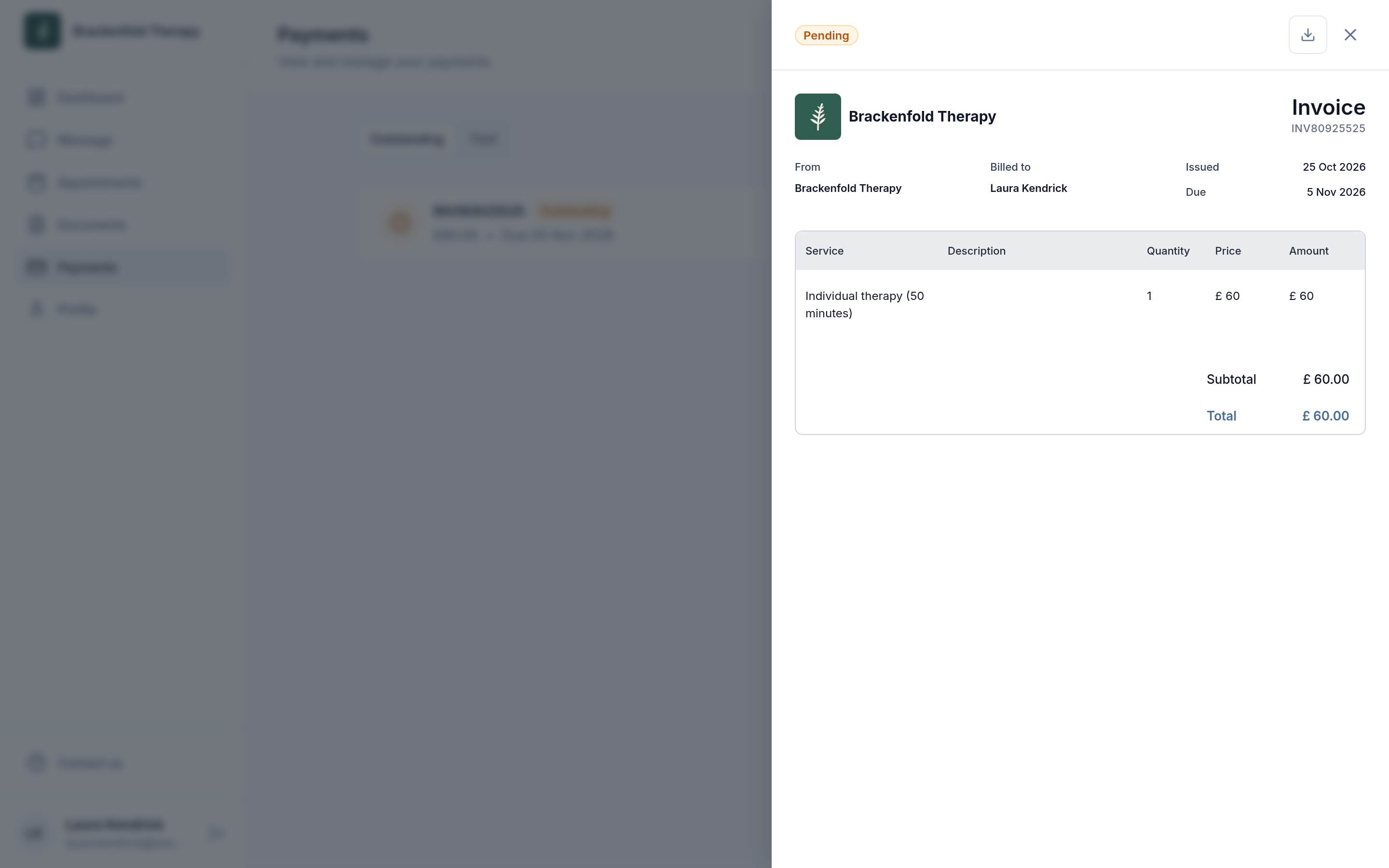
For the client's side step by step, see Paying an invoice. For creating and sending invoices, see Creating and sending an invoice.
Payment at the time of booking
You can ask clients to pay in full when they book a particular service online. This is set per service.
- Go to Settings, Practice profile, Services.
- Click the service's name to edit it, or the + button (Add service) for a new one.
- Tick Process payments at the time of booking ("Clients pay for this service at the time they book").
- Click Save.
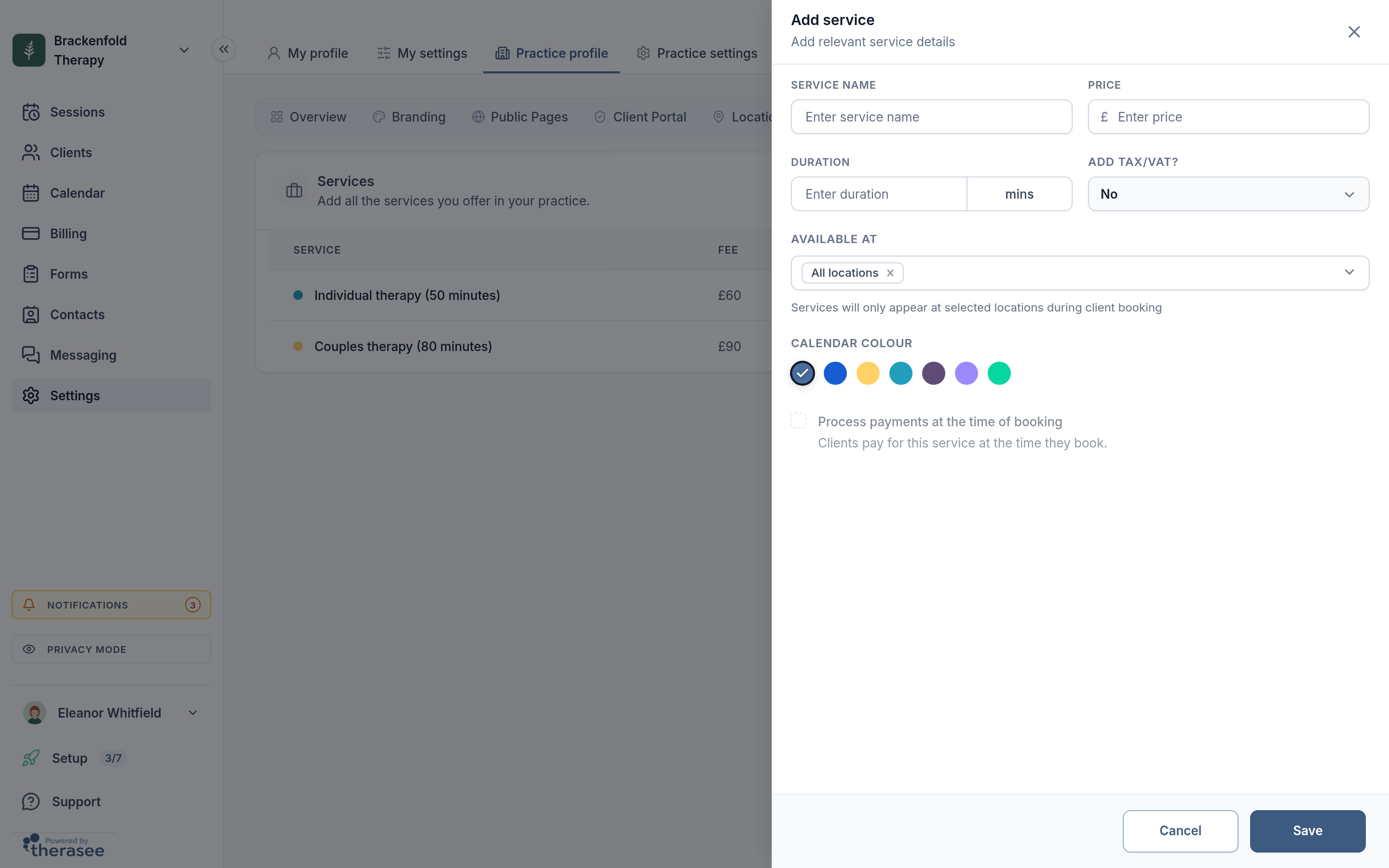
The tick box is greyed out until your practice is connected to Stripe (the tooltip reads "Connect to Stripe to receive online booking payments") and while the price is 0.
When a client books that service in your client portal, the last step is called Review and pay. It shows the price, any Tax/VAT and the total, with a note that they will pay securely by card on the next screen, and the button reads, for example, Pay £70.00 and book. They pay on Stripe's page and come back to a confirmation.
- The appointment is booked only once the payment has gone through. If the client leaves the payment page without paying, nothing is booked and they can start again.
- A paid booking arrives with its invoice already marked Paid, so there is nothing to chase.
- This applies only to bookings clients make online. Appointments you book yourself are invoiced in the usual way.
See Setting up your services and Letting clients book online.
How payment status updates
An invoice paid through Pay online turns Paid as soon as the client completes the payment on Stripe's page. You do not need to do anything. At the same time you get a Payment received notification, the payment is added to the client's timeline and the client is emailed a receipt. Stripe can also send the client its own receipt: this is the Successful payments setting under Customer emails in your Stripe Dashboard settings.
If a client tells you they have paid but the invoice still shows Pending or Overdue:
- Refresh Billing to make sure you are seeing the latest status.
- Click View on Stripe on the Online payments card and look for the payment in your Stripe Dashboard, matching it by amount and date.
- If Stripe shows the payment as incomplete or failed, the client did not finish paying. The invoice stays unpaid and they can use Pay online again.
- If Stripe shows the payment as succeeded, record it on the invoice yourself with Mark as paid, choosing External card and the date of the Stripe payment.
Invoices change by themselves only for payments made through Pay online. A payment the client makes another way, such as a bank transfer or a payment link you created in Stripe yourself, is recorded with Mark as paid.
Marking an invoice paid yourself
- In Billing, click the tick-in-a-circle icon (Mark as paid) on the invoice's row.
- Under Payment method, choose Bank transfer, External card or Cash.
- Check the Payment date (today or earlier) and click Confirm.
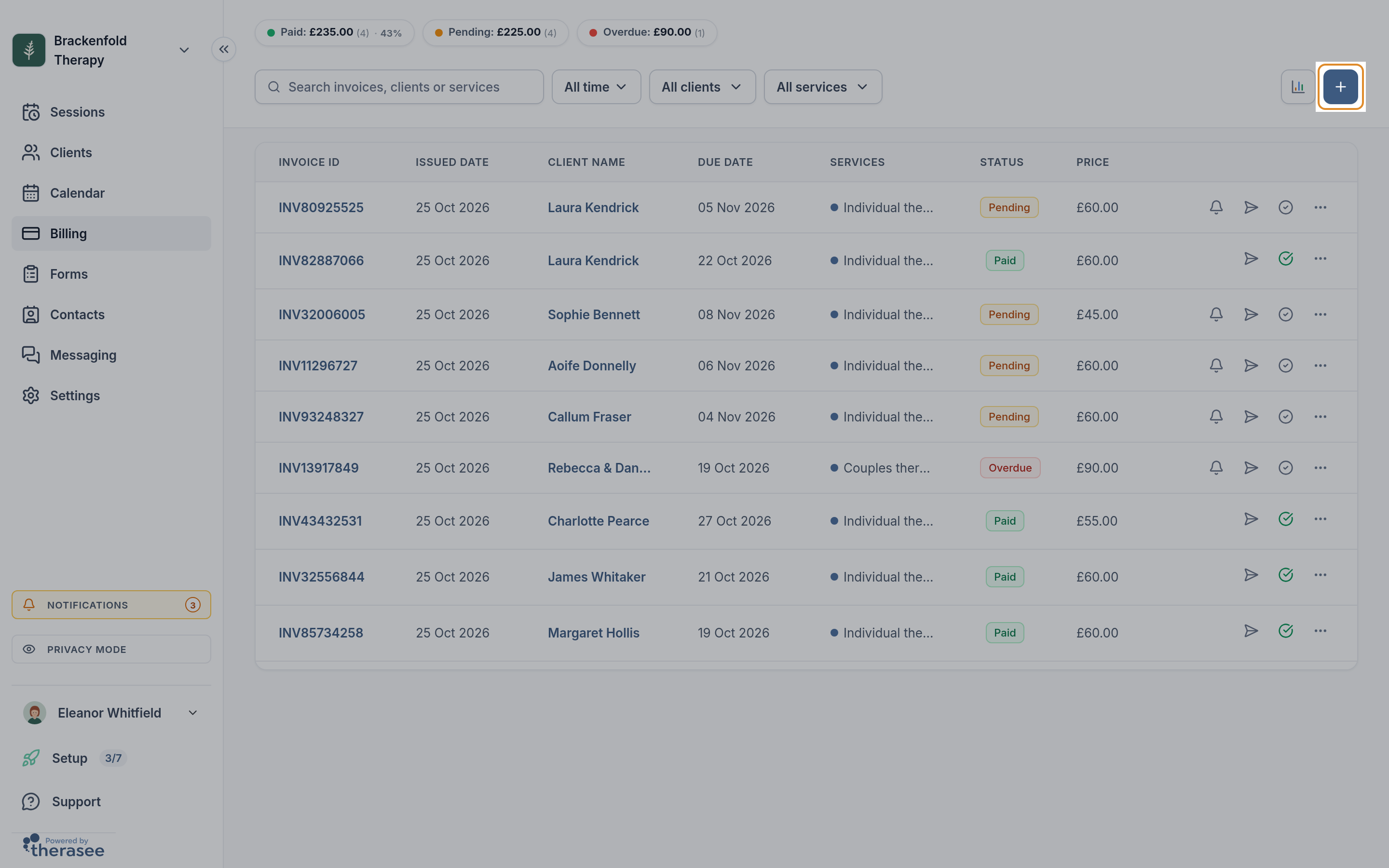
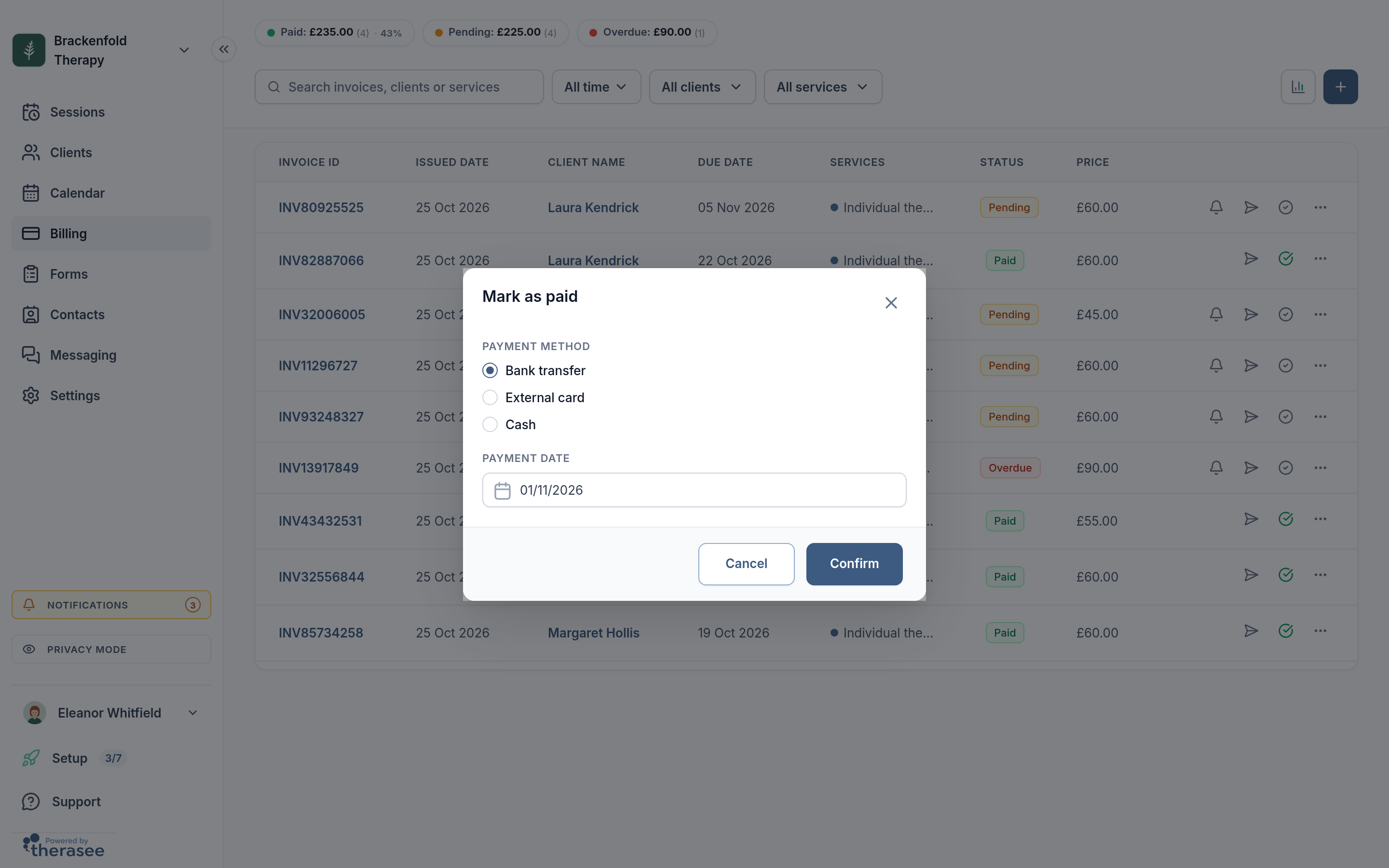
The invoice moves to Paid, any reminders still to come are cancelled, and the client can no longer pay it online, so they cannot pay twice. Marking an invoice paid yourself does not email the client a receipt; if they would like confirmation, let them know through secure messaging. For more on invoice statuses, see Creating and sending an invoice.
Fees
Two kinds of fee come out of each online payment before it reaches you:
- Stripe's processing fee, charged by Stripe to your Stripe account at Stripe's rates for your account. Your Stripe Dashboard shows the fee on each payment.
- Therasee's platform fee of 1% of the amount paid, collected through Stripe at the same time.
Payments you record yourself with Mark as paid (bank transfer, external card or cash) have no fees from Therasee. Your Therasee subscription is separate and billed in GBP under Settings, Practice settings, Subscription.
Payouts and refunds
Money from card payments goes into your Stripe balance and Stripe pays it into your bank account. When and how often that happens, and which bank account it goes to, are set in your Stripe Dashboard; click View on Stripe on the Online payments card to open it.
Refunds are also made in your Stripe Dashboard: find the payment and refund all or part of it. The invoice in Therasee stays Paid, so let the client know about the refund yourself, for example through secure messaging.
Disconnecting Stripe
- On the Online payments card, click Disconnect.
- A box asks Disconnect from Stripe? and explains that you won't be able to take online payments until you reconnect. Click Disconnect to confirm, or Cancel.
What happens next:
- The card shows Not connected. Pay online disappears from invoices, and invoice emails go back to a View button.
- Unpaid invoices stay as they are, so you can still record payments with Mark as paid.
- Process payments at the time of booking is switched off on all your services, and clients can book those services without paying.
- Your Stripe account itself stays open, with its payments and payout history. Disconnecting only stops Therasee using it.
To reconnect, click Connect Stripe again. Choose the same Stripe account to carry on where you left off, or a different one to switch. Payment at booking stays off after you reconnect, so tick it again on each service that needs it.
Was this helpful?