Viewing and paying your invoices
Find your invoices in your portal, open and download them, and pay online by card when your practitioner takes card payments. Also covers invoice emails, reminders and other ways to pay.
Updated 4 November 2026
You can see, download and, if your practitioner takes card payments online, pay your invoices from your client portal.
Where your invoices are
Your invoices live on the Payments page of your portal. There are two ways to get there.
- From your home page. When you have an invoice waiting, your home page shows a to-do item such as 1 invoice to review, with the due date and amount (for example Due: 14 Oct 2026 · £70.00). Select it to go straight to Payments.
- From the menu. Choose Payments in the menu. On a phone it is in the bar along the bottom of the screen.
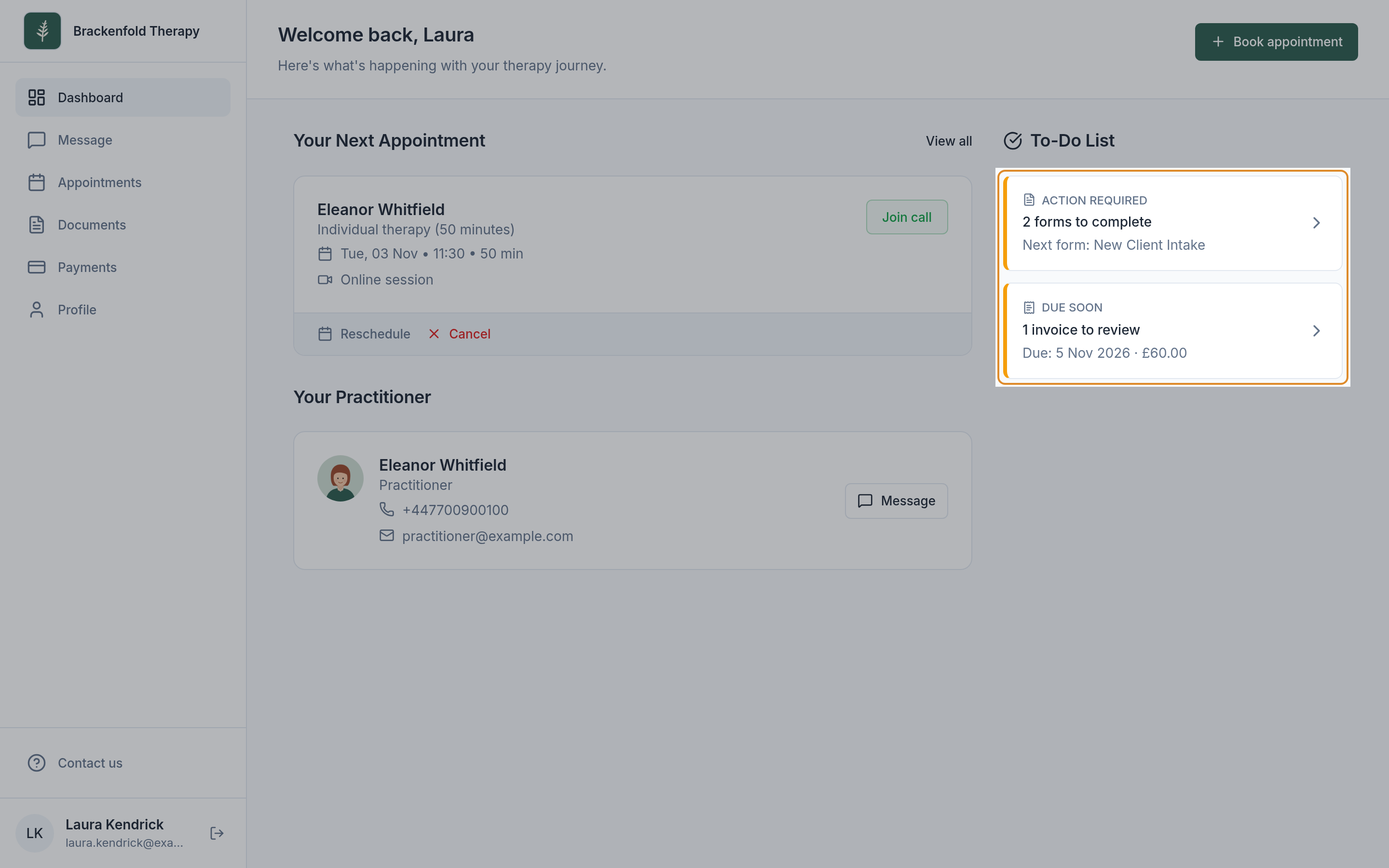
The label on the item shows timing: UPCOMING, DUE SOON (within a week) or ACTION REQUIRED (due today or past its due date).
If there is no Payments option in your menu, your practitioner shares invoices another way, usually by email. The link in their email works in the same way as described below.
Outstanding and Paid
The Payments page has two tabs.
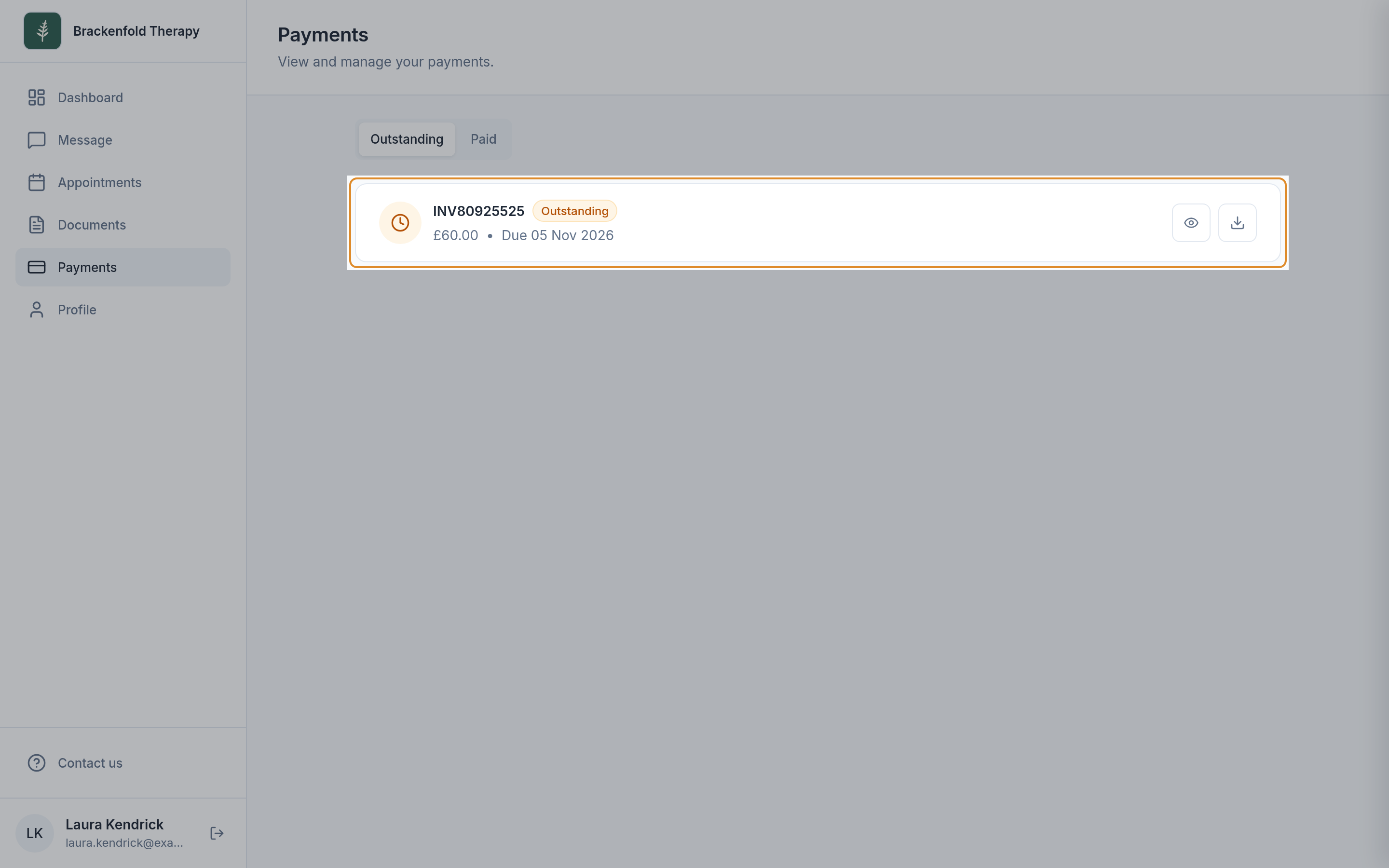
- Outstanding shows invoices that are still to be paid. Each one shows the invoice number, the amount and when it is due, for example Due 14 Oct 2026.
- Paid shows invoices that have been settled, whether you paid online or your practitioner recorded a payment you made another way.
Each invoice has an eye icon (View invoice) and a download icon (Download invoice). Unpaid invoices also have Pay online when your practitioner takes card payments.
Opening an invoice
- On the Payments page, select the eye icon (View invoice) next to the invoice.
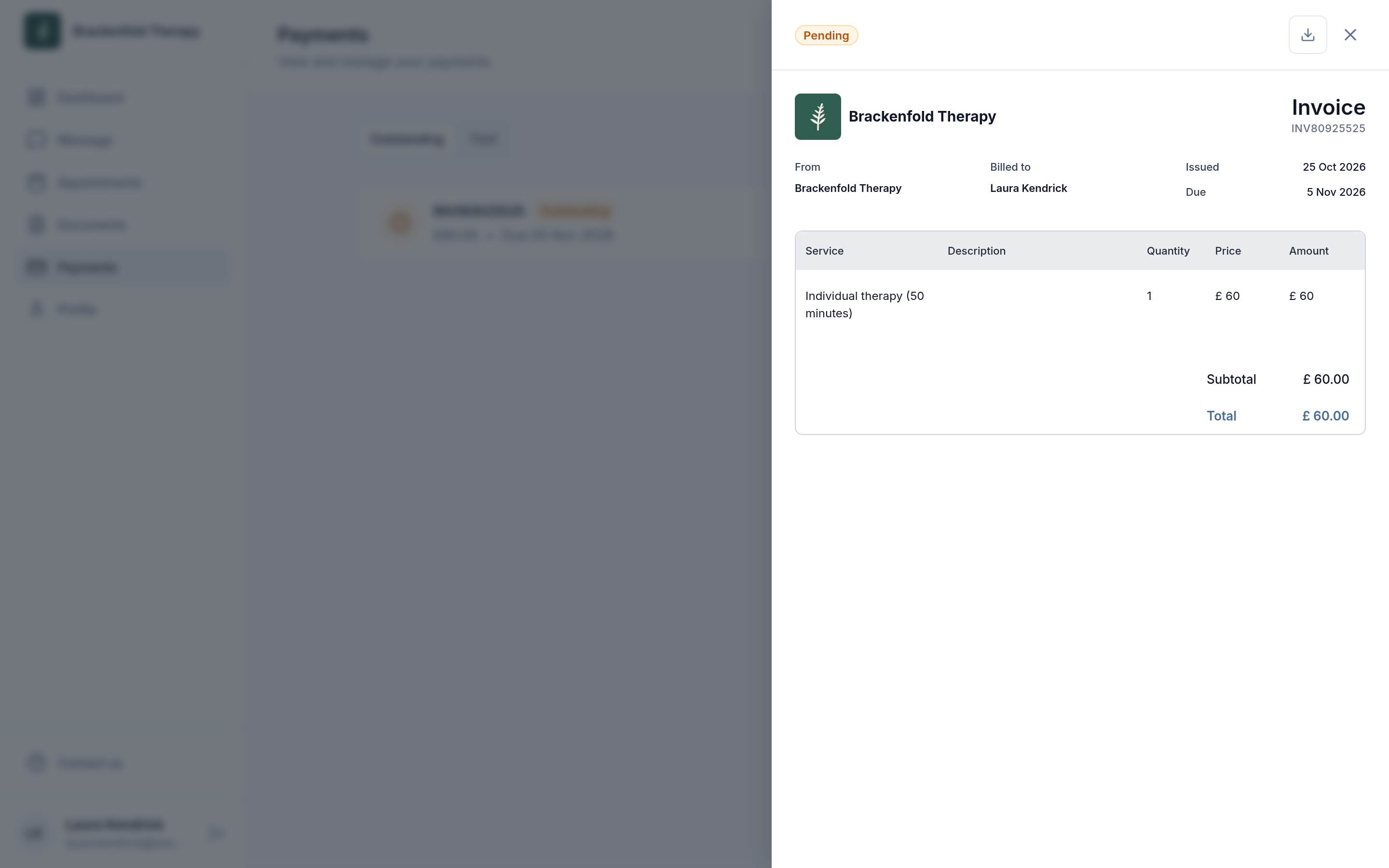
- The invoice opens in a panel. It shows who it is from, who it is billed to, the date it was issued, the due date, each service with its price, and the total. Any note your practitioner has added appears at the bottom.
- A label at the top tells you where things stand:
- Pending: the invoice is waiting to be paid and the due date has not passed.
- Overdue: the due date has passed and the invoice has not been paid yet. You can still pay it in exactly the same way.
- Paid: the invoice is settled, and the panel shows the date it was paid.
- To close the panel, select the X at the top right.
On the Payments list itself, unpaid invoices are marked Outstanding whether or not they are overdue. Open the invoice to see whether it is overdue.
Downloading an invoice
Select the download icon, either on the Payments list or at the top of an open invoice. A PDF copy saves to your device, named after the invoice number. Downloading a paid invoice gives you a copy that shows it as paid, useful for your records.
Paying online by card
You can pay online when your practitioner has set up card payments. If they have, unpaid invoices show a Pay online button.
- Select Pay online, either on the Payments list or at the top of the open invoice.
- You are taken to a secure payment page run by Stripe, a payment provider. It shows your practitioner's practice name, the invoice and the amount.
- Choose how to pay, for example by card, enter your details and confirm the payment.
- Your bank may ask you to confirm the payment, for example in your banking app or with a code sent by text. This is a normal security check, often called 3D Secure. Follow your bank's instructions and keep the page open until it finishes.
- When the payment goes through, you are brought back to the invoice, which now shows Paid.
If you change your mind or go back before paying, nothing is taken. You return to the invoice and can select Pay online again whenever you are ready.
If a message says online payment isn't available right now, try again later or ask your practitioner about another way to pay.
What you receive after paying
- An email with the subject Receipt for invoice followed by the invoice number, confirming the payment, sent to the email address the practice holds for you. A PDF copy of the invoice is attached.
- A note in your messages with your practitioner confirming your payment has been received.
- Depending on how your practitioner has set up their Stripe account, Stripe may also email you its own payment receipt.
Your practitioner is told that your payment has arrived, so you do not need to let them know yourself.
Paying from an email or text
When your practitioner sends you an invoice, you receive an email with the amount and due date, a PDF copy attached, and a button: View and pay if they take card payments, or View if they do not. Your practitioner may also send a text message with a link.
The link opens the invoice directly, so you do not need to sign in first. From there you can select Pay online or download the invoice, exactly as above. So someone else who pays your fees, such as a parent, can pay from the email without a portal account. The receipt is sent to the email address on your record.
Reminders
Your practitioner may arrange reminders for unpaid invoices, sent by email, text or both, a set number of days before or after the due date. A reminder email has the subject A reminder about invoice followed by the invoice number, and the same View and pay or View button.
Once an invoice is paid, any reminders still scheduled for it are not sent. If you have paid another way and still receive a reminder, let your practitioner know so they can mark the invoice as paid.
Paying another way
If your practitioner does not take card payments online, or you would prefer to pay differently, for example by bank transfer or in person, ask your practitioner how they would like to be paid. Once they record your payment, the invoice moves to Paid. You can contact them through messages in your portal.
For a question about an amount, or about a refund, please contact your practitioner directly.
Paying before an online session
Some practitioners ask for payment before an online session. If so, your home page shows Make payment for that session instead of Join call. Select it to pay in the same way as above; once paid, you can join the session as usual.
Was this helpful?