Completing a form your practitioner sent you
How to find a form your practitioner has sent you, fill it in, sign it and submit it, and what happens afterwards.
Updated 4 November 2026
Your practitioner may ask you to fill in a form, such as an intake form, a questionnaire or a consent form. Here is how to find it, fill it in and send it back. Nothing is sent until you choose to submit.
How you will know there is a form for you
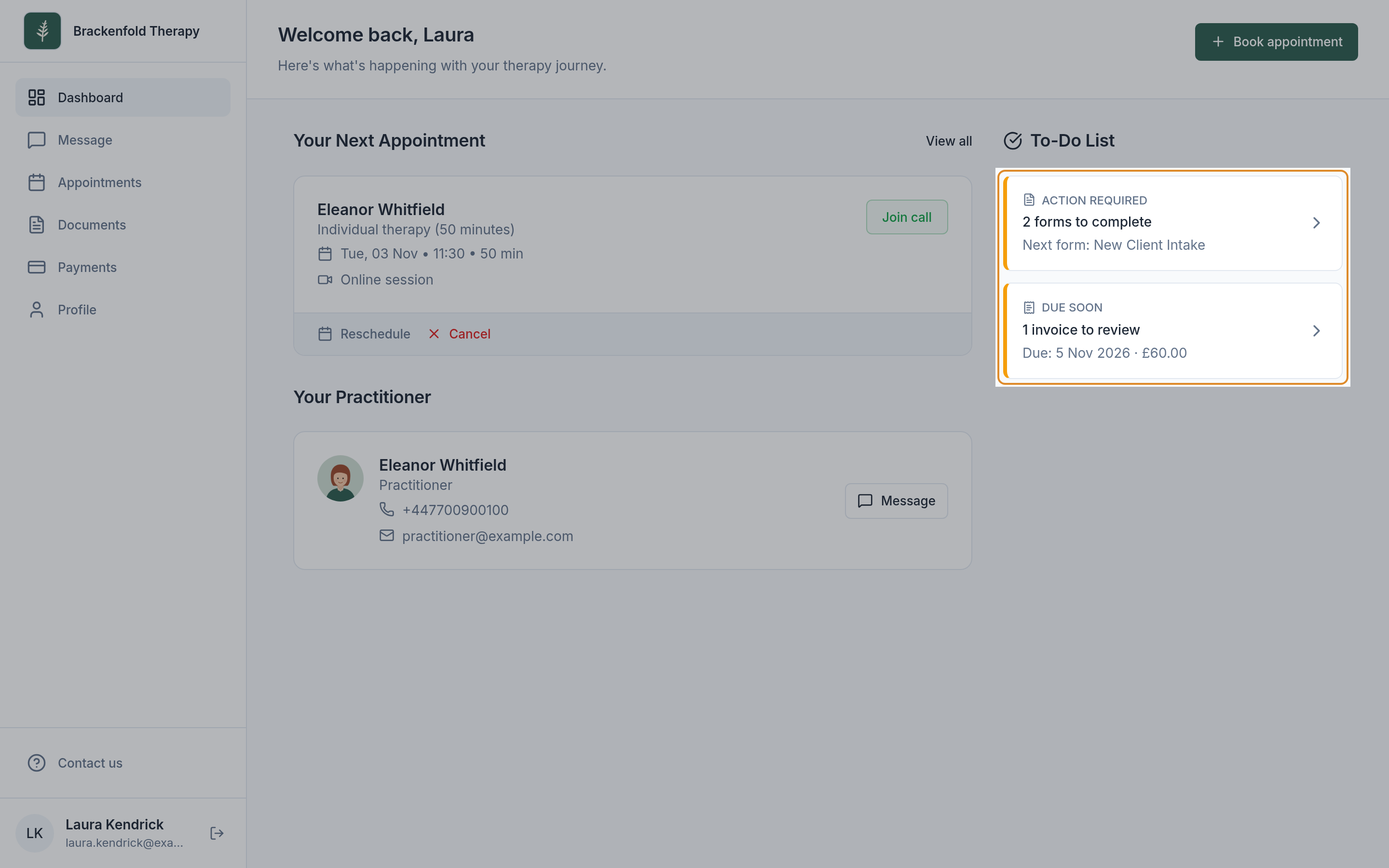
All of these lead to the same form, so use whichever is easiest.
- By email. You will get an email from your practice, often with the subject A form to complete, with a Complete form button. Your practitioner may also send the link by text message.
- On your portal home page. When you sign in, the To-Do List shows an item such as 1 form to complete, marked ACTION REQUIRED, with the name of the next form underneath.
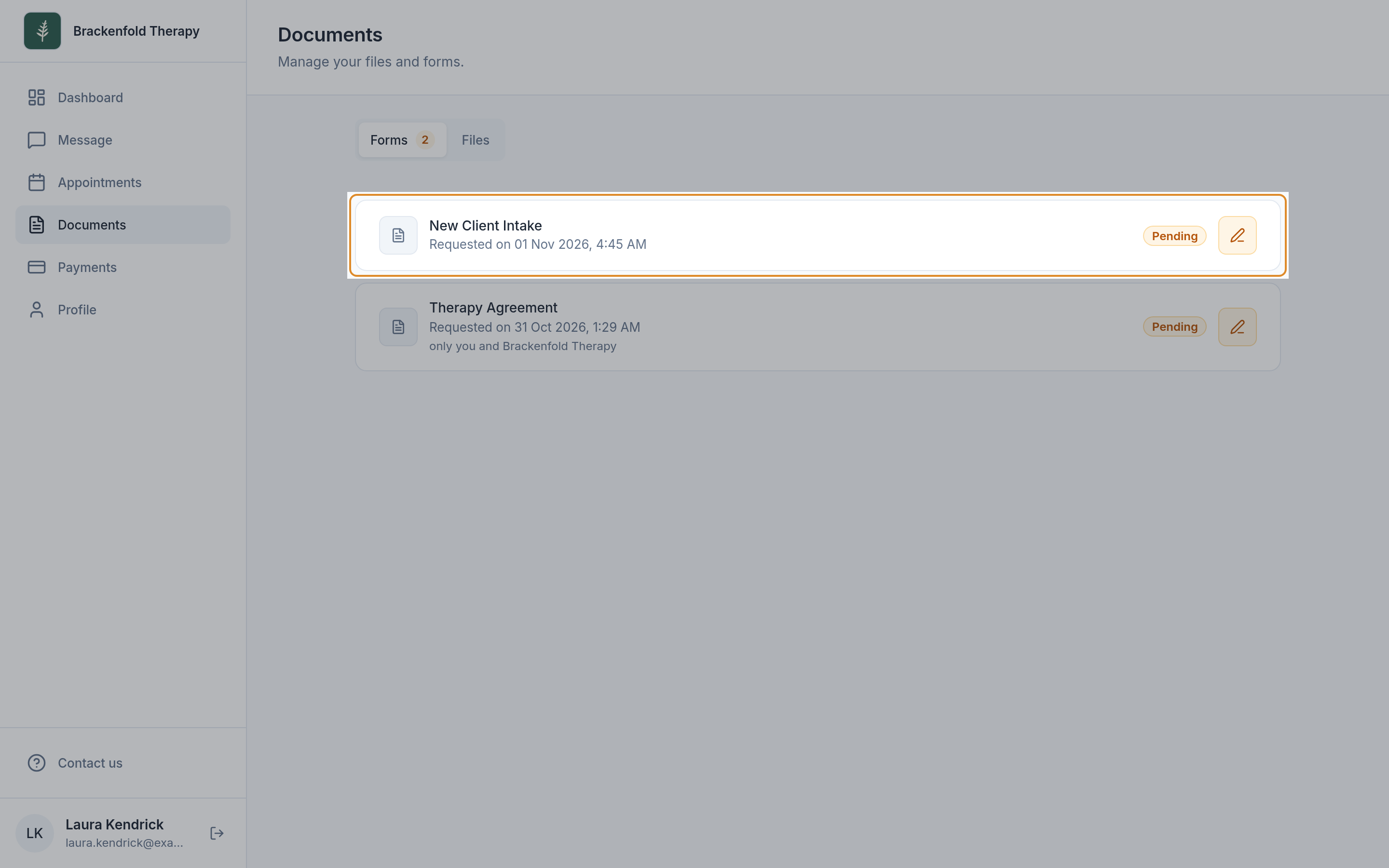
- In Documents. Every form your practitioner has sent you is listed under Documents, on the Forms tab.
- In your messages. A form can also appear in your conversation with your practitioner, and you can open it from there.
Opening a form from the email link
You do not need to sign in to use the email link. Complete form opens the form directly, with your practice's name, the form's title and a Pending label.
You may see Have a portal account? Log in to view all your forms at the top. Signing in is optional.
If the page says This form would not load, try the link again, or sign in and look in Documents. If it still does not open, let your practice know.
Opening a form in your portal
- Sign in to your portal (see signing in to your client portal).
- Select the form item on the To-Do List, or choose Documents in the menu and then the Forms tab.
- Forms to fill in are listed first, marked Pending. Completed ones are marked Submitted.
- Select the form (or its pen icon, Fill in form). It opens in a panel over the page.
Who will see your answers
Many forms show a note above the first question saying who will see what you write, for example Only [your practice] will see what you write. If other people are on your record, such as a partner in couples work, the note says whether they will see it too. A shorter version appears under the form's name in your list.
Filling in the questions
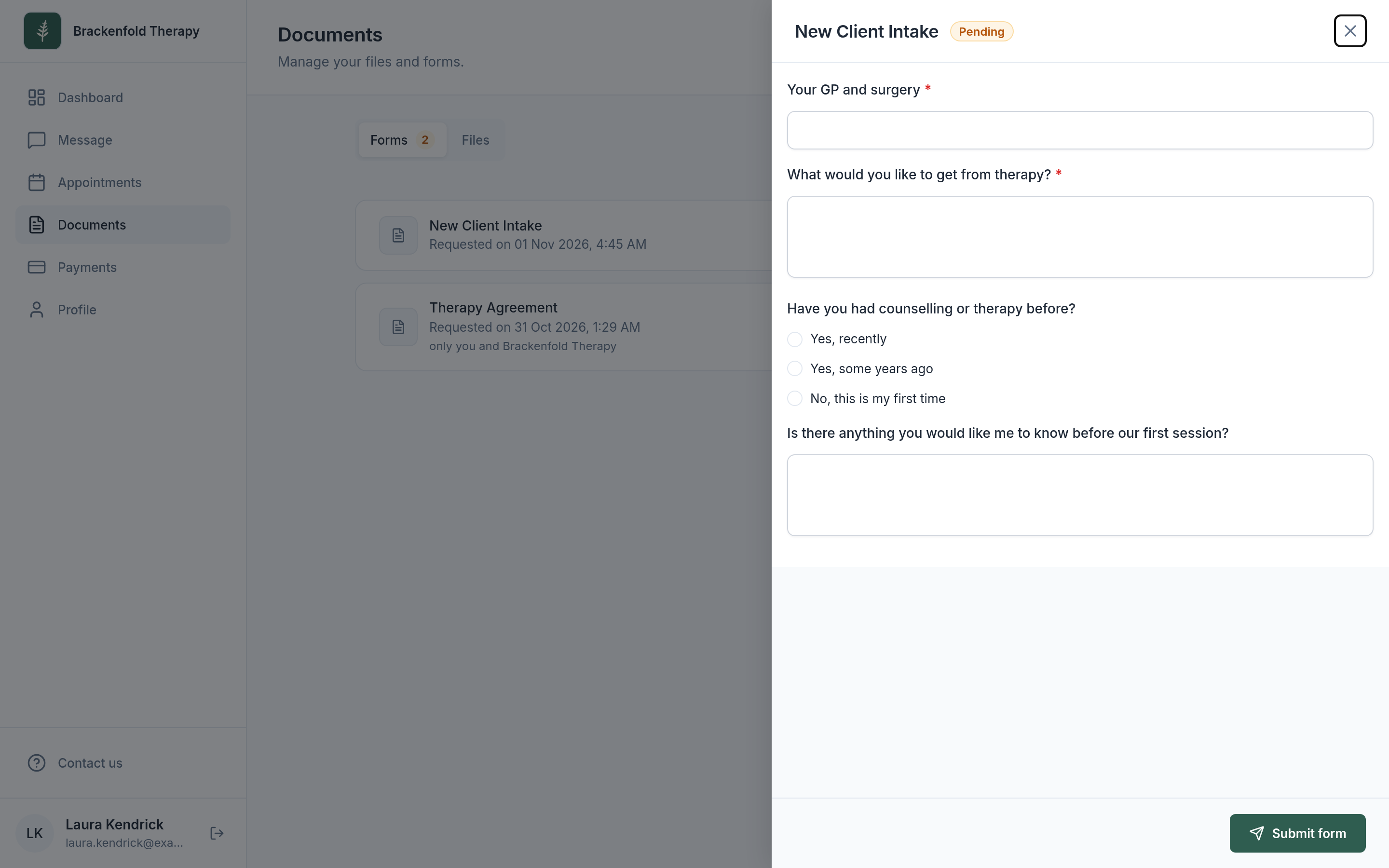
Work down the form from top to bottom. Questions marked with a red star (*) are required. You may meet:
- Written answers: a short box or a larger box for longer answers.
- Choices: Yes or No, pick one option, tick all that apply, or a drop-down list (Select an answer).
- Dates, including your date of birth, chosen from a calendar.
- Contact details: your name, email address, phone number or postal address.
- Statements to agree to: a sentence with a tick box beside it. Tick the box to confirm you agree.
- Signatures (see below).
Some forms also include text, images, videos or PDF documents to read. These do not need an answer.
Signing a form
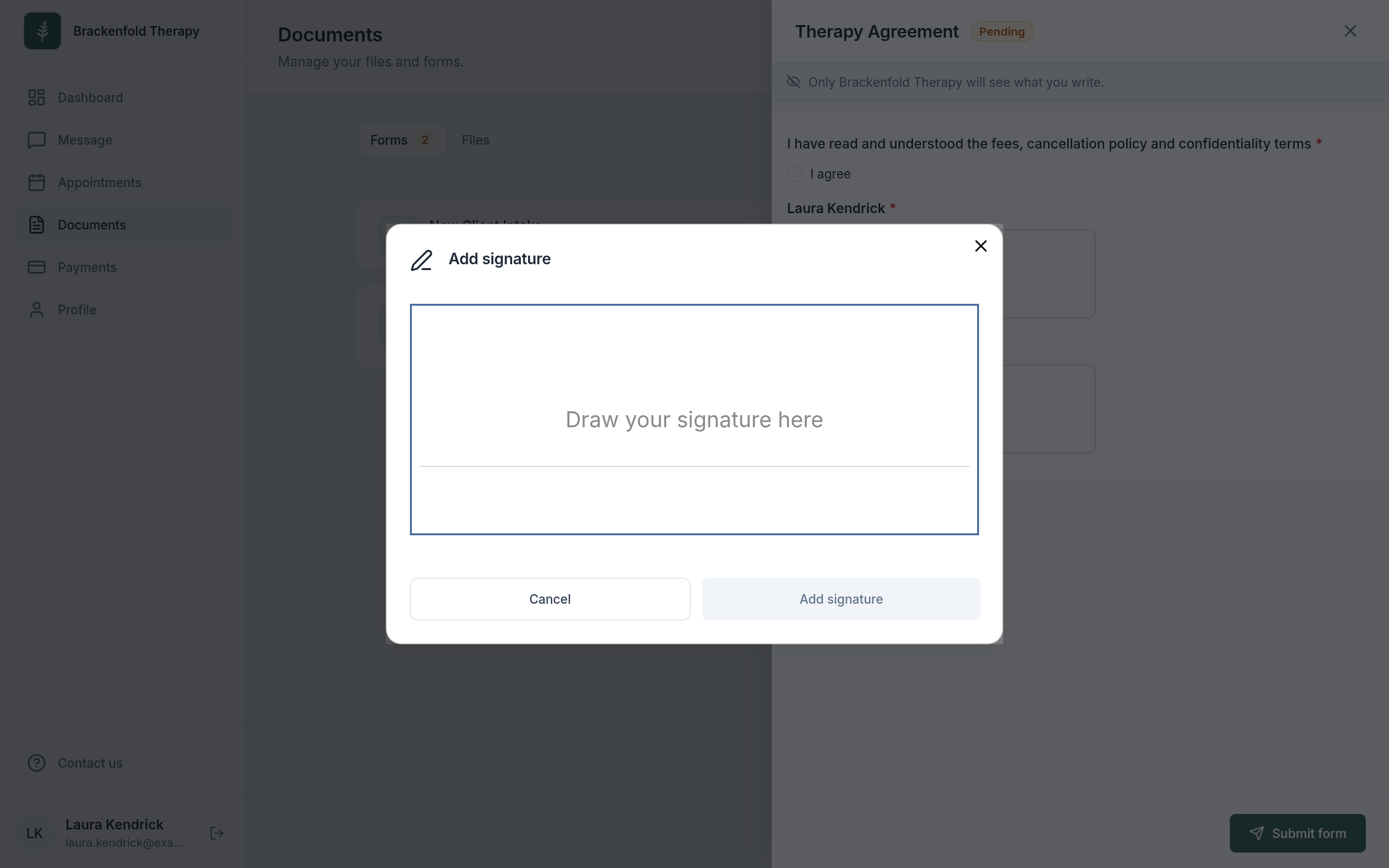
- Select Signature under the signature question. The Add signature window opens.
- Draw your signature in the box with your finger, stylus or mouse.
- Select Add signature. Your signature appears on the form. If the question also asks for a date, today's date is filled in for you.
To redo it, point at your signature, select Clear and sign again. A signature space for your practitioner is locked; they complete it themselves.
If a form needs more than one person to sign, each space is labelled with who it is for. Someone signing on the same screen as you selects I am [their name] first. Otherwise their space shows Waiting for [their name] and they sign using their own link.
Submitting the form
Your answers are saved when you submit. If you close the form before submitting, what you have typed is not kept, so allow enough time to finish in one go.
- When you have answered everything you want to, select Submit form at the bottom.
- If a required question has no answer, a message such as This is a required question appears under it. Fill it in and select Submit form again.
- A window asks Ready to submit? Select Submit to send it, or Cancel to go back and check your answers.
- You will see Thank you! Your submission has been recorded. The form is now marked Submitted.
After you submit
- Your practitioner receives it straight away. The completed form is added to your record with the practice.
- You can look back at it. Open it from Documents, Forms and select Download PDF to keep a copy. On the email-link page, use the download icon at the top.
- A submitted form cannot be edited. If you want to change or add something, send your practitioner a message (see messaging your practitioner) and they can tell you what to do next.
Files in Documents
Next to Forms is the Files tab, listing files shared between you and your practice. Select the eye icon to view one or the download icon to save it.
If your practitioner has asked you for a file, the request appears here marked Requested. To send it, open your messages with your practitioner and select Upload on the request.
If you cannot see a form
- Make sure you are looking at the Forms tab in Documents, not Files.
- If there is no Documents in your menu, open the form with the Complete form button in the email from your practice.
- A form your practitioner has withdrawn is no longer available to fill in. Ask them if you are not sure whether it is still needed.
Was this helpful?