Finding your way around your client portal
A tour of your client portal: your next appointment, your to-do list, each page in the menu, keeping your details up to date and choosing how you are notified.
Updated 4 November 2026
Your practitioner's client portal is a private space for your appointments, messages, forms and invoices. It carries your practice's own name and logo. This guide shows you where things are and what each part is for.
If you have not signed in yet, see signing in to your client portal. There is no password: you sign in with a one-time code each time.
The home page
After you sign in you land on the Dashboard. At the top it says Welcome back with your first name. If your practitioner lets you book online, a Book appointment button sits at the top right.
Your Next Appointment
This card shows your next session: your practitioner, the type of session, the day, time and length, and where it takes place (Online session, Telephone session, or the venue's name and address).
- For an online session the card has a Join call button. If the session needs to be paid for in advance and is not paid yet, you will see Make payment there instead. See joining a video session.
- Along the bottom of the card are Reschedule and Cancel. If the session is too close to change under the practice's cancellation policy, a note asks you to contact the practice instead. See booking and changing appointments.
- View all, next to the heading, takes you to your full list of appointments.
If nothing is booked, the card says No upcoming appointments, with a Book appointment button if your practitioner allows you to book yourself.
Your To-Do List
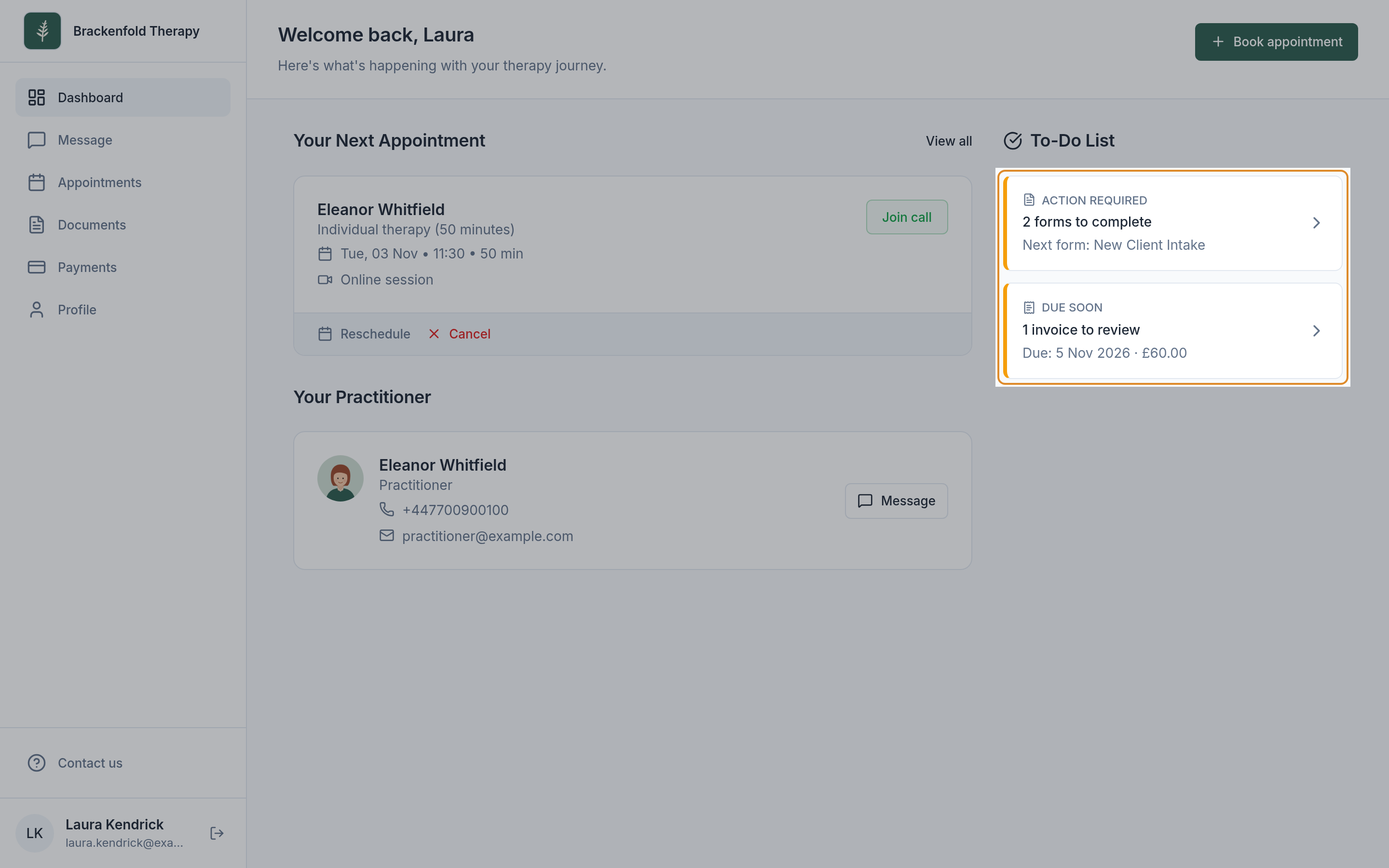
The To-Do List gathers what is waiting for you. Select an item to go straight to the right page. You might see:
- Forms to complete, labelled ACTION REQUIRED, with the name of the next form. It opens Documents. See completing a form.
- Invoices to review, with the earliest due date and amount. The label shows how soon it is due: UPCOMING, DUE SOON (within a week) or ACTION REQUIRED (due today or overdue). It opens Payments. See paying an invoice.
- Check inbox, labelled NEW MESSAGE, when you have an unread message from your practitioner.
When there is nothing to do, the list says All caught up. Items disappear on their own once you have dealt with them.
Your Practitioner
When you have an upcoming appointment, a card shows the practitioner you are seeing, with their role and, where they have added them, their phone number and email. Its Message button opens your messages.
The menu
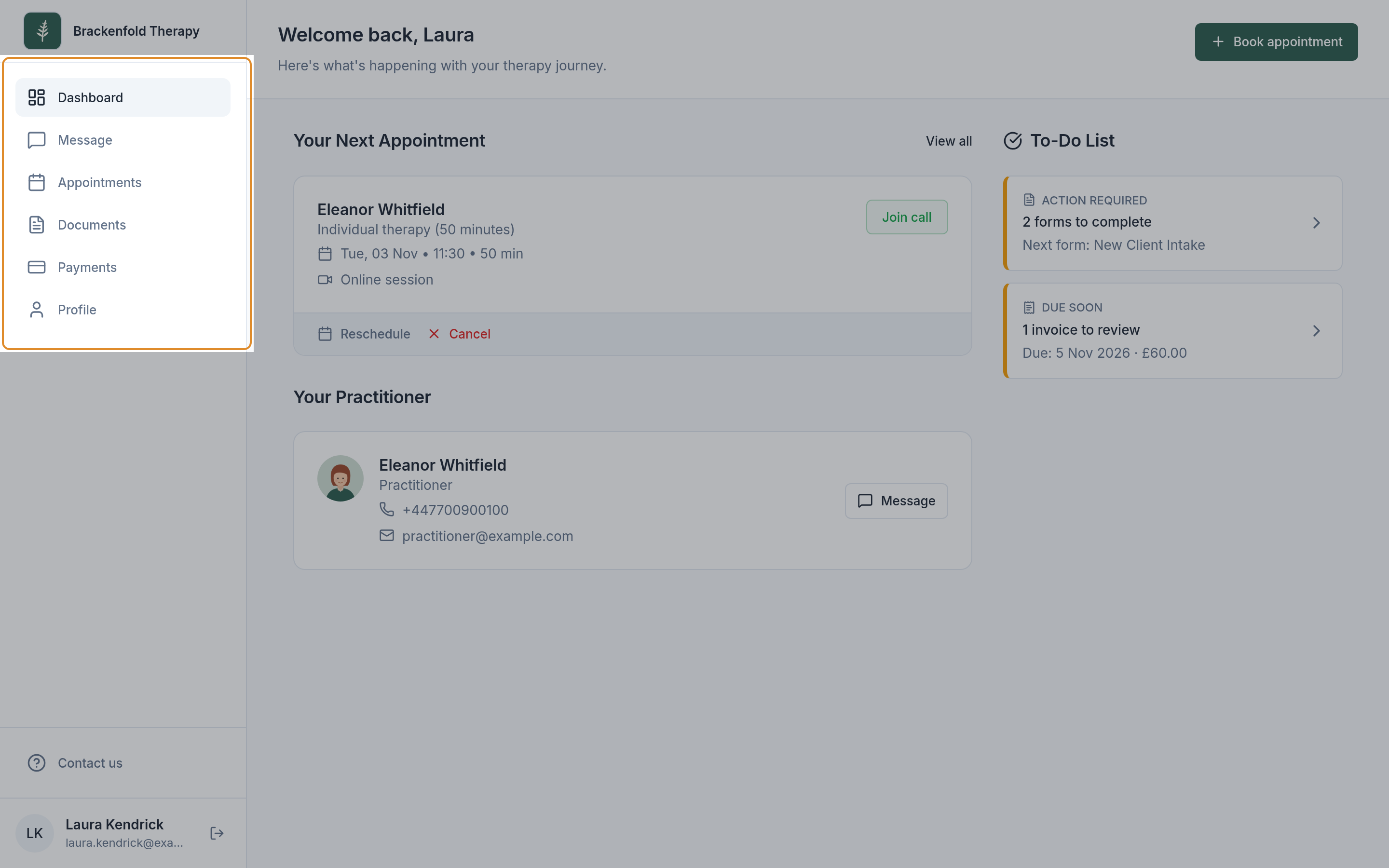
On a computer the menu runs down the left-hand side. On a phone, the main pages sit along the bottom of the screen and the menu button at the top right opens the full list.
- Message: a private conversation with your practice. A dot on the icon means there is something new. See messaging your practitioner.
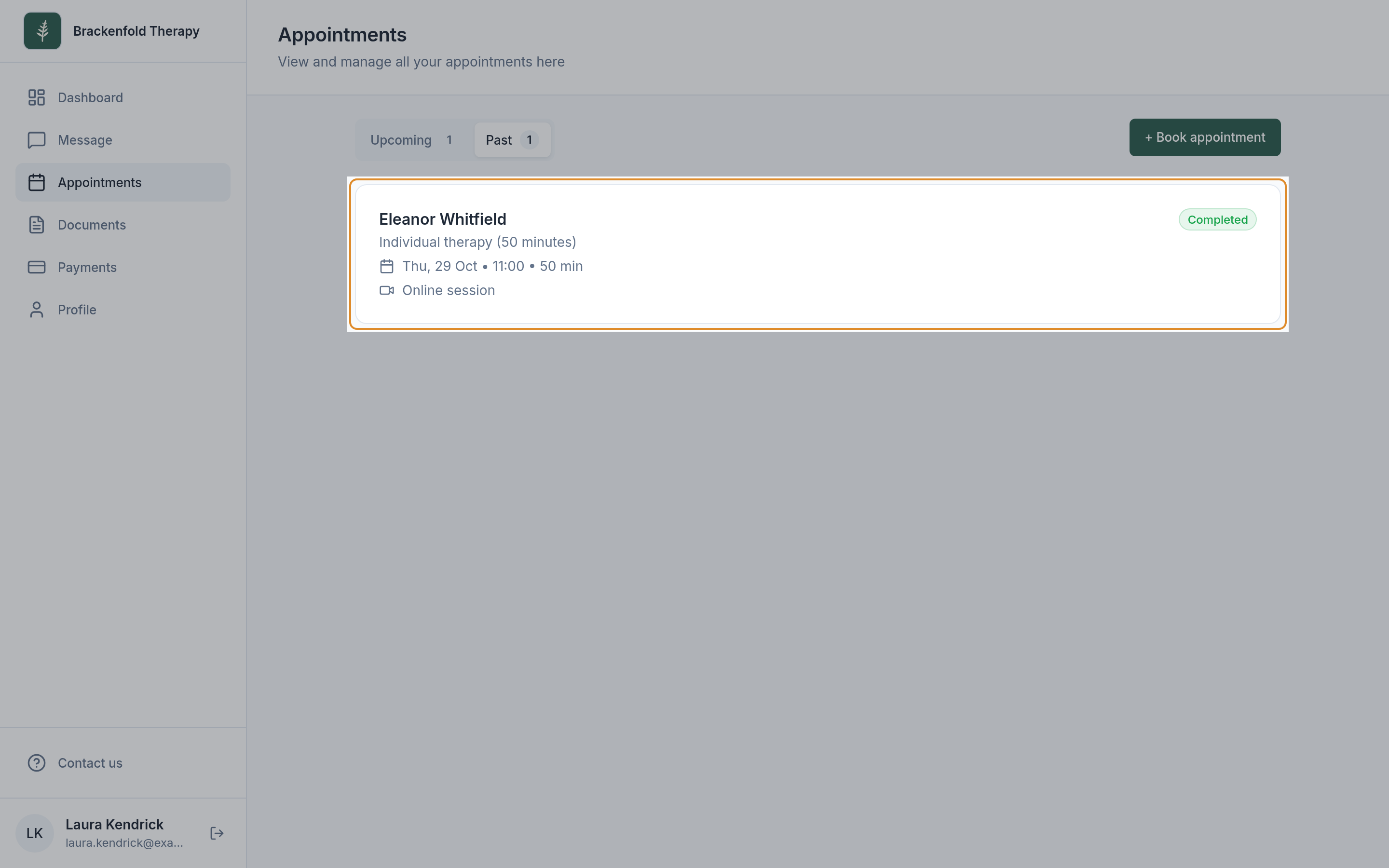
- Appointments: your Upcoming and Past sessions, where you can join, reschedule or cancel.
- Documents: Forms to fill in or already sent, and Files: files your practitioner has shared with you, files you have sent, and any file they have asked you to upload.
- Payments: your Outstanding and Paid invoices, to view, download or pay.
- Profile: your own details (see below).
At the bottom of the menu, Contact us shows the practice's email address and phone number. To sign out, use the sign-out icon next to your name on a computer, or Logout in the menu on a phone. Log out when you use a shared computer.
Why some pages may be missing
Your practitioner chooses which parts of the portal you see. If they do not send invoices through the portal, for example, Payments will not be in your menu; if they do not take online bookings, you will not see Book appointment. This is how your practitioner has set things up, not a problem with your account. If you expected something that is not there, use Contact us.
If you look after someone else's record
If you can see more than one record, for example as a young person's responsible adult or for sessions with a partner, a Viewing box appears at the top of the menu. Select it to switch records. A banner reminds you whose record is open.
Keeping your details up to date
- Select Profile in the menu.
- Under Your details, change what you need: your first and last name, email, phone number, date of birth, gender and time zone. Fields marked * must be filled in.
- Select Save changes. The button becomes available once you have changed something. A message confirms your details were updated.
- To change your address, edit the fields under Your address (address, town or city, county or state, postcode) and select Save changes in that section.
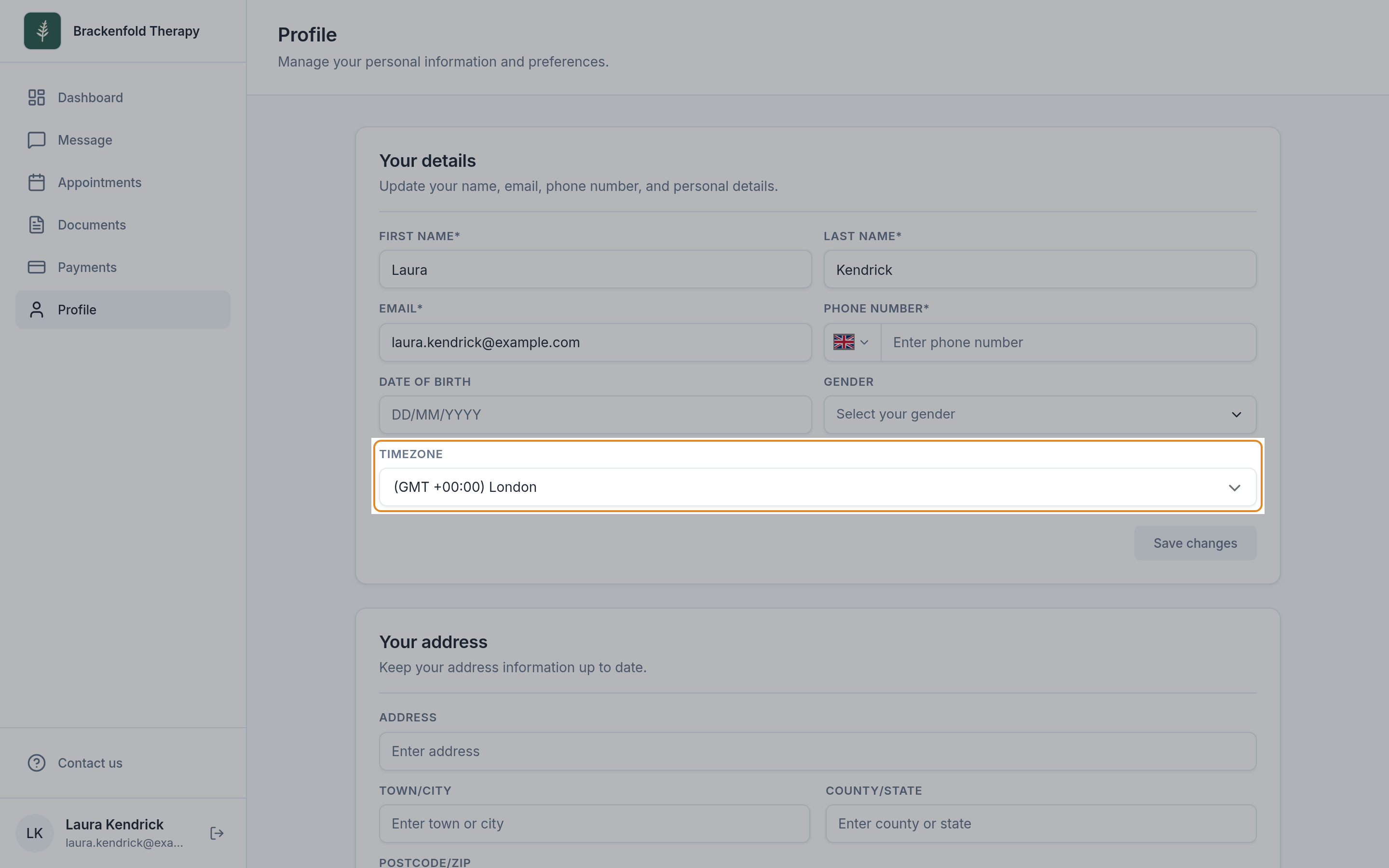
Your practitioner sees the updated details on your record. If you change your email address or phone number, use the new one next time you sign in. The time zone you choose is used for appointment times in the emails and texts the practice sends you; the portal itself shows times in your device's time zone. An email address or phone number already used by someone else at the practice cannot be saved; contact the practice for help. If your details are shown without boxes to edit, contact the practice to change them.
Notifications
On your home page you may see Enable notifications to get alerts when you receive messages. Select Enable, then allow notifications when your browser or phone asks. You will then be alerted to new messages, new forms, invoices and upcoming appointments. Select the X if you would rather not; the banner will not ask again on that device. To change your mind later, use your browser or phone's notification settings for this site.
You only get alerts for the parts of the portal your practitioner has switched on for you. Message alerts show your practitioner's initials, not what the message says.
On a phone you may also see Install the app, which adds the portal to your home screen. On an iPhone, tap Share, then Add to Home Screen.
The practice may also email you about appointments, forms and invoices. An email about a new message only tells you it has arrived and has a Read message button: the message itself stays in your portal and is never included in the email.
Was this helpful?