Signing in to your client portal
How to sign in with a 6-digit code sent to your phone or email, what to do if the code does not arrive, and how to sign in for a child you look after.
Updated 4 November 2026
Your practitioner's client portal is a private space for your appointments, forms, messages and payments. There is no password to remember: each time you sign in, you are sent a 6-digit code by text or email, and you type it in.
Where to find your sign-in link
Each practice has its own portal, with its own link, name and logo. Your practitioner will usually send you the link in one of these ways:
- An email with the subject "[practice name] - Your client portal is ready", with a Sign in button.
- A text message saying you now have access to the practice's secure client portal, with a link.
- The practice's portal page, which has a Client sign in button at the top.
Bookmark the sign-in page, or keep the email, so you can find it again. If you see more than one practice, use the link each one sent you.
Signing in, step by step
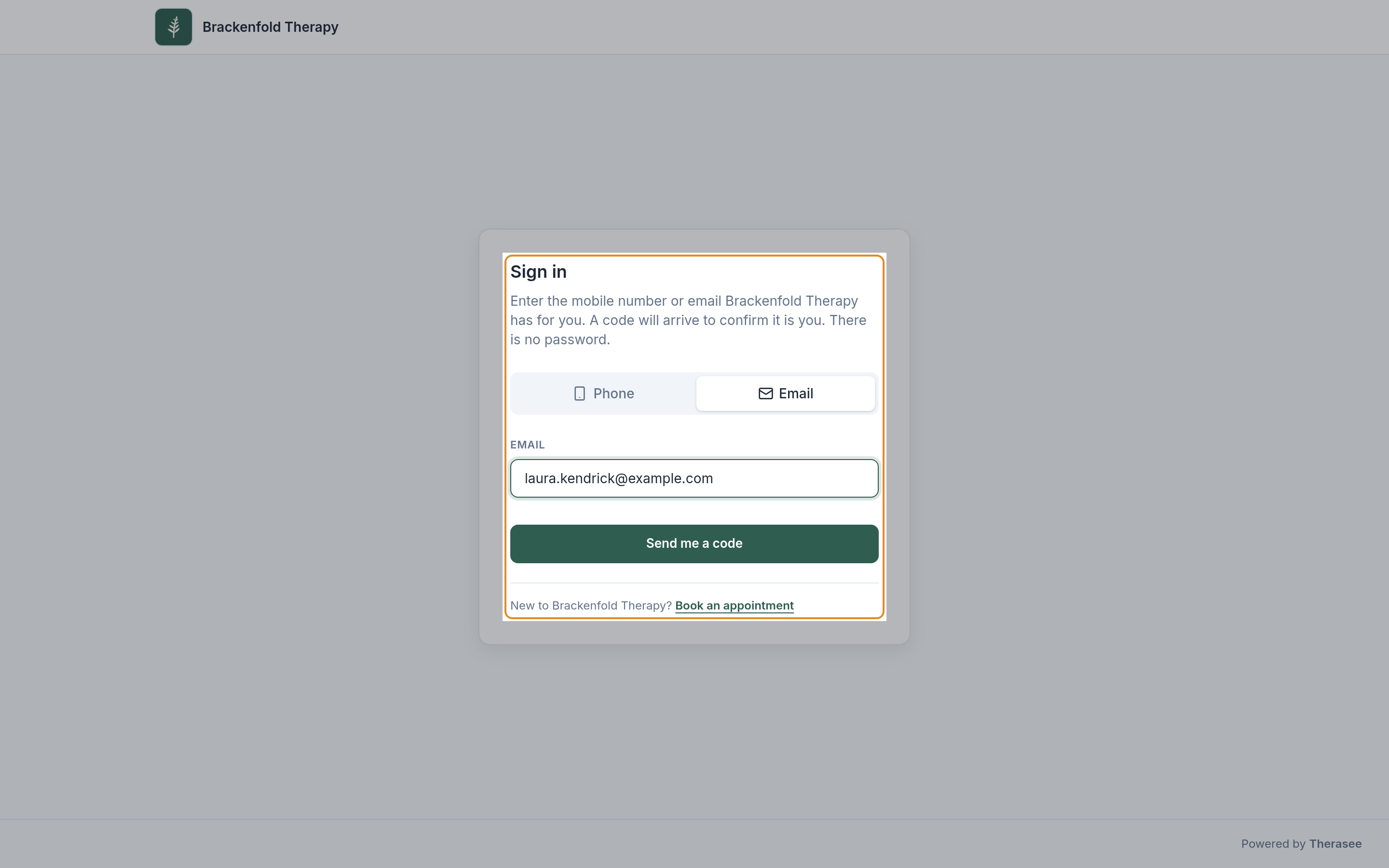
- Open the link from your practitioner. You will see a page headed Sign in, with the practice's name at the top.
- Choose how you would like to receive your code: Phone (a text message) or Email. The screen starts on Phone; tap Email to switch.
- Enter the mobile number or email address your practitioner has for you. It needs to match what they hold on your record. For a phone number, check the country next to the box is right.
- Click or tap Send me a code.
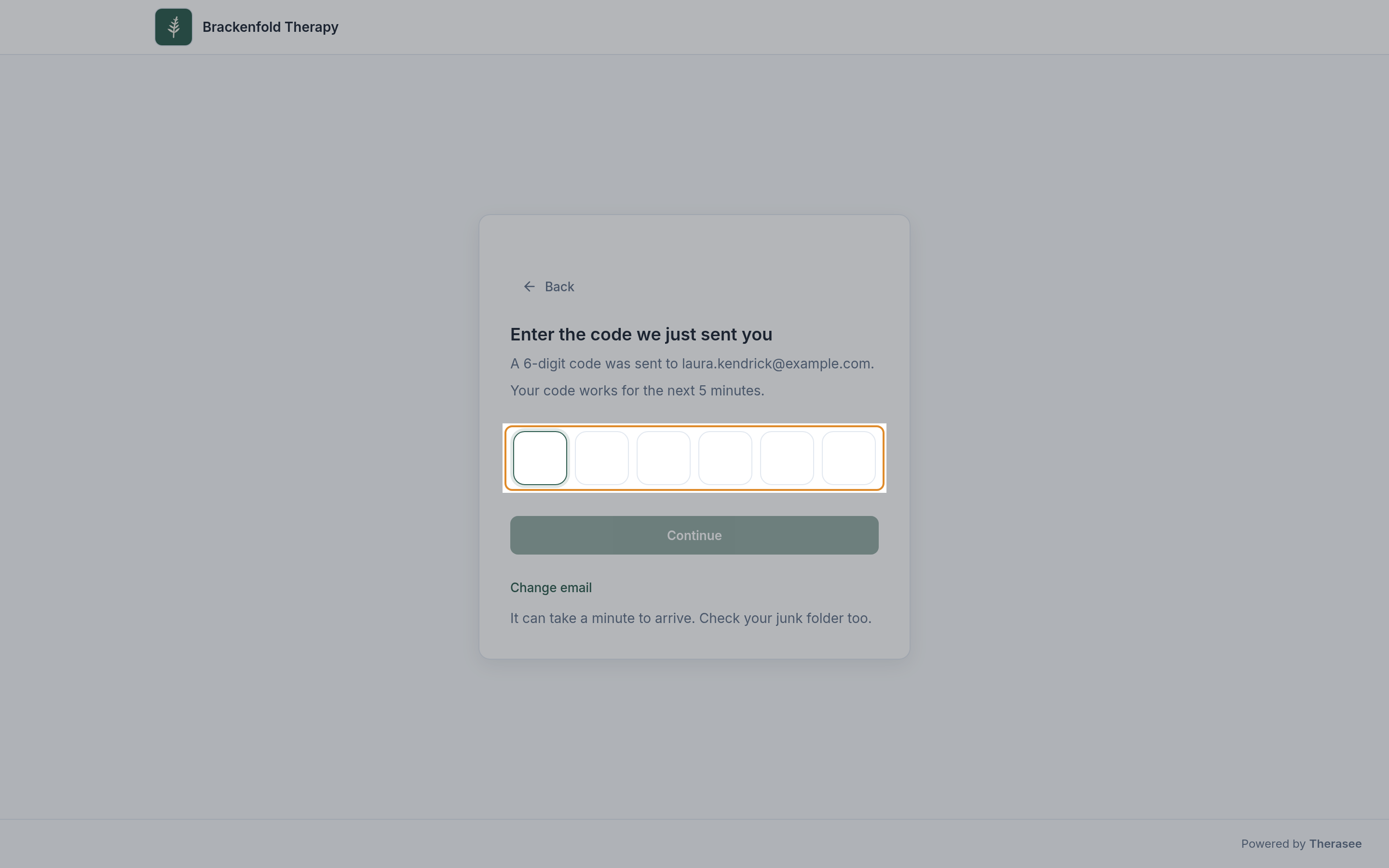
- A new screen appears headed Enter the code we just sent you, telling you where the code was sent. Find the code in your texts or your inbox.
- By email, the subject line starts with the code itself, for example "123 456 is your [practice name] sign in code", so you can often read it straight from the notification without opening the email.
- By text, many phones offer to fill the code in for you above the keyboard.
- Type the 6 digits into the boxes. The Continue button becomes available once all six are filled in.
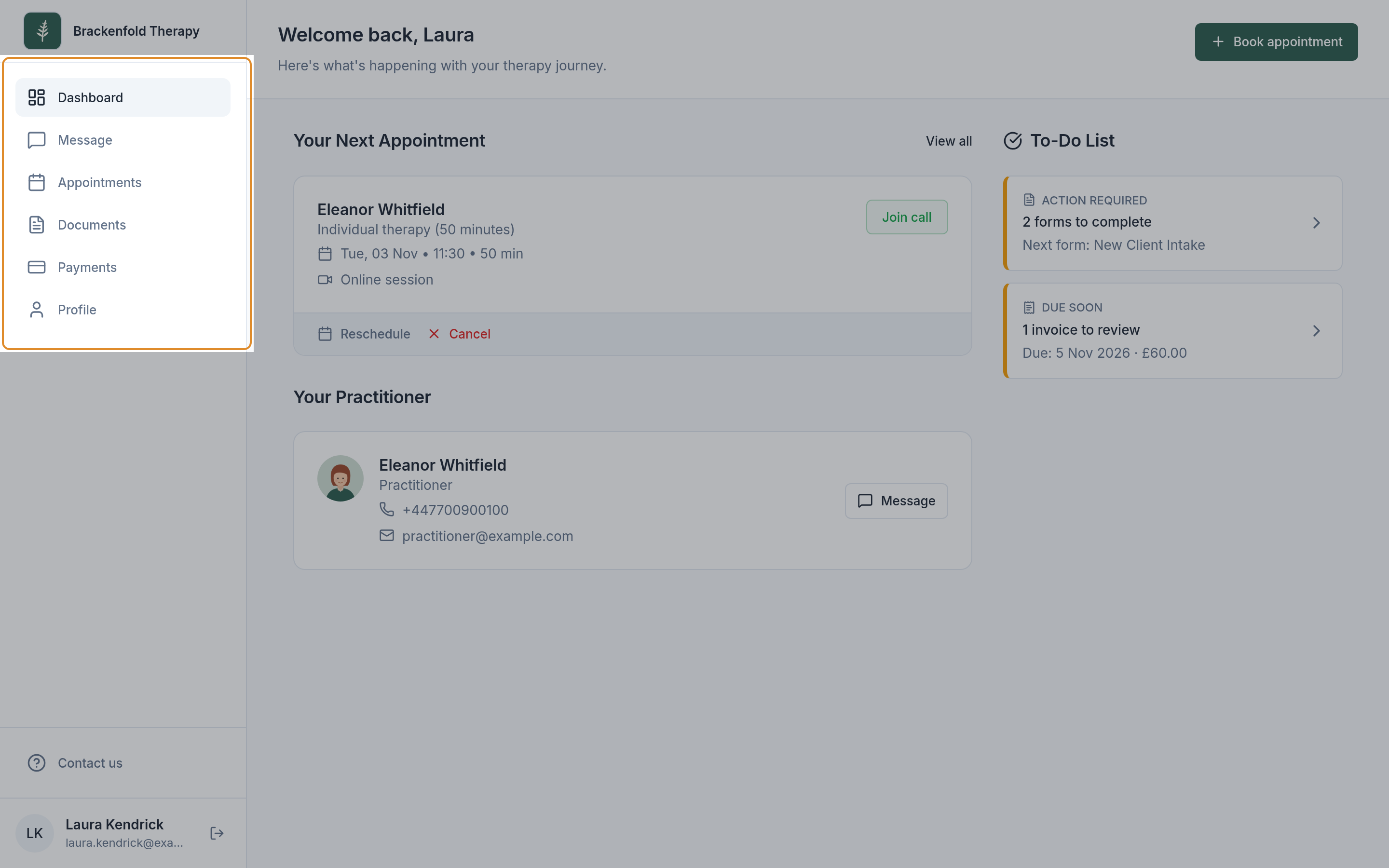
- Press Continue. You are taken to your portal's home page.
Never share your code with anyone, including the practice.
If the code has not arrived
A code can take up to a minute to arrive. While you wait, the screen shows It can take a minute to arrive. Check your junk folder too.
- Check your junk or spam folder if you asked for an email code.
- Check where it was sent. The code screen shows the number or address. If it is wrong, press Change number (or Change email), correct it and ask again.
- Ask for a new code. After a minute, a link appears: Didn't get it? Send a new code. Press it and you will see New code sent. Use the newest one. Only the most recent code works, so if several arrive, use the last one.
- Try the other method. If texts are not getting through, go back and choose Email, or the other way round, if your practitioner holds both.
If the code has expired or is not accepted
Each code works for 5 minutes. After that, the screen shows That code has expired. Send a new one. Press Didn't get it? Send a new code and use the new one.
If a code is not accepted, the boxes clear so you can try again; check you are using the newest code. After 5 wrong tries the code stops working, to protect your account, and you will see Too many wrong attempts. Request a new code.
If you are told you do not have access
Your practitioner decides who can use their portal. If you see a message instead of a code:
- Looks like you do not have access to the portal. Please contact the practice. Ask your practitioner to give you access.
- Looks like you don't have an account. The details you entered do not match what the practice holds. Check for typing mistakes, try your other contact detail, or ask your practitioner which details they have for you.
- These sign-in details are linked to more than one person. Please contact the practice. This can happen when family members share a phone number or email address. Your practitioner can sort it out.
- Sorry, your account is no longer available. or Sorry, you cannot enter this practice. Please contact your practitioner directly.
If the page says We couldn't find a practice in the link you've entered, check the link is complete, or ask your practitioner to send it again.
Signing in for a child or someone you care for
If your practitioner has given you access to a child's record (or someone else you are responsible for), you sign in with your own mobile number or email address, the one the practice holds for you, not theirs. The steps are exactly the same.
- If you can see only one record, you go straight to it.
- If you can see more than one (for example your own record and your child's, or two children), a screen asks Who are you here for? Choose the person. You can switch at any time.
- While you are in someone else's record, a banner at the top of each page says, for example, You're viewing [name]'s record as their responsible adult. Use Switch record in that banner, or the Viewing box in the menu, to change record.
Couples sharing a record sign in the same way. If a record you expected is missing, ask your practitioner.
Staying signed in and signing out
The portal keeps you signed in on that device for a while, so you will not need a code on every visit; opening the sign-in link takes you straight to your home page. If you have been away for some time, you will be asked for a new code, then taken back to the page you were on.
To sign out:
- On a computer, click the sign-out icon next to your name at the bottom of the menu on the left.
- On a phone, tap the menu button at the top right, then Logout at the bottom of the menu.
Confirm with Log out. Always sign out on a shared or public device.
Using a phone or a computer
The steps are the same on a phone, tablet or computer, in a web browser, with nothing to download. You can read the code on one device and type it on another, for example a text on your phone and your laptop, within the 5 minutes. On a phone, your home page may offer Install the app to add the portal to your home screen; this is optional. Your portal's home page explains what you will find there.
Was this helpful?