Joining a video session
How to join an online session from your portal, email or text, allow your camera and microphone, wait to be let in, and what to do if you cannot see or hear.
Updated 4 November 2026
If your appointment is an online session, you join it by video from your phone, tablet or computer. There is nothing to download: the call opens in your web browser.
Before your session
Find a quiet, private space, charge your device, and connect any headphones before you join. Close other apps that might be using your camera, such as another video call.
Three ways to join
All three take you to the same call.
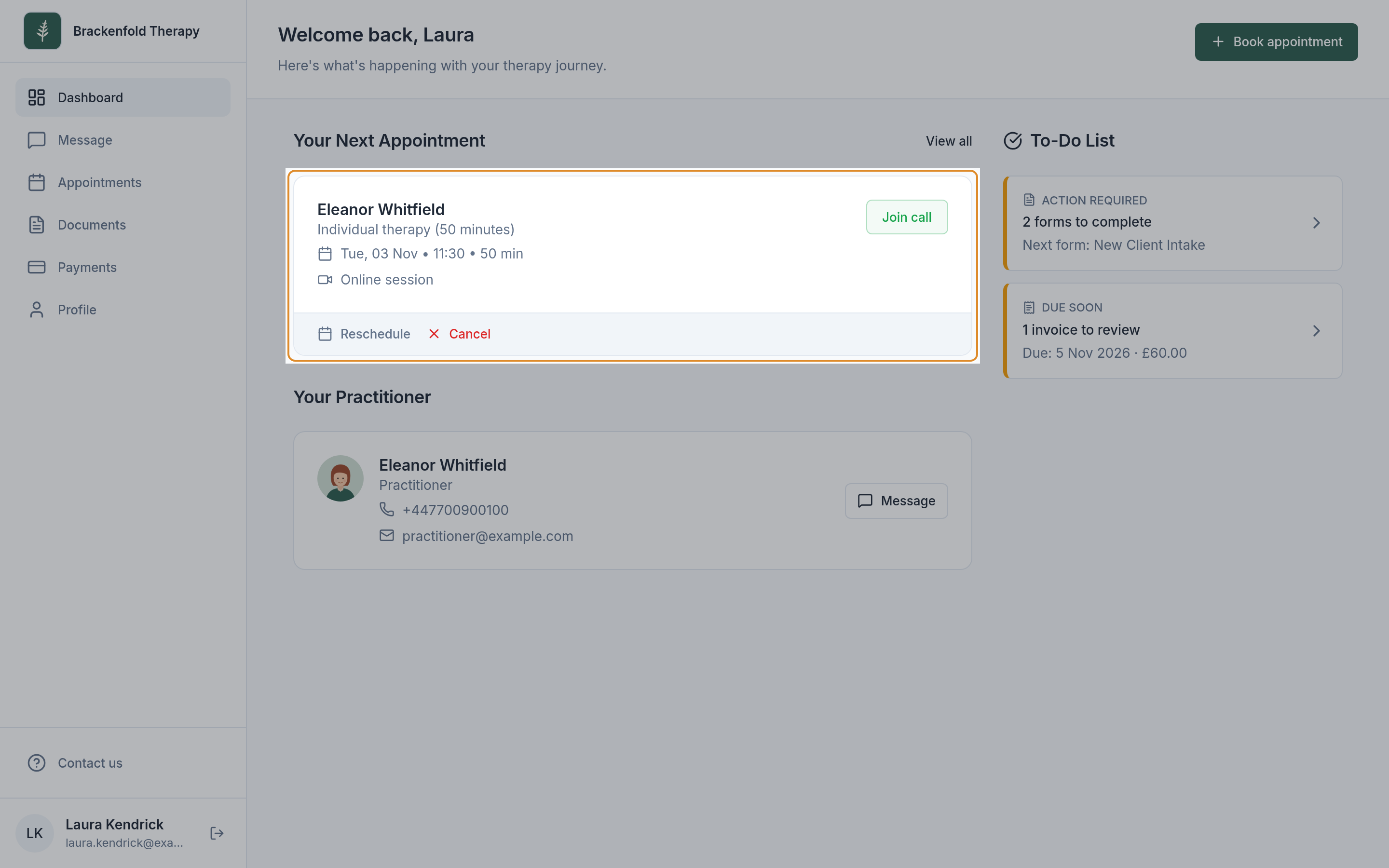
1. From your portal's home page
- Sign in to your portal. If you need help, see signing in to your portal.
- Under Your Next Appointment, find your online session. It is marked Online session.
- Select Join call. The call opens in a new tab or window.
2. From your Appointments page
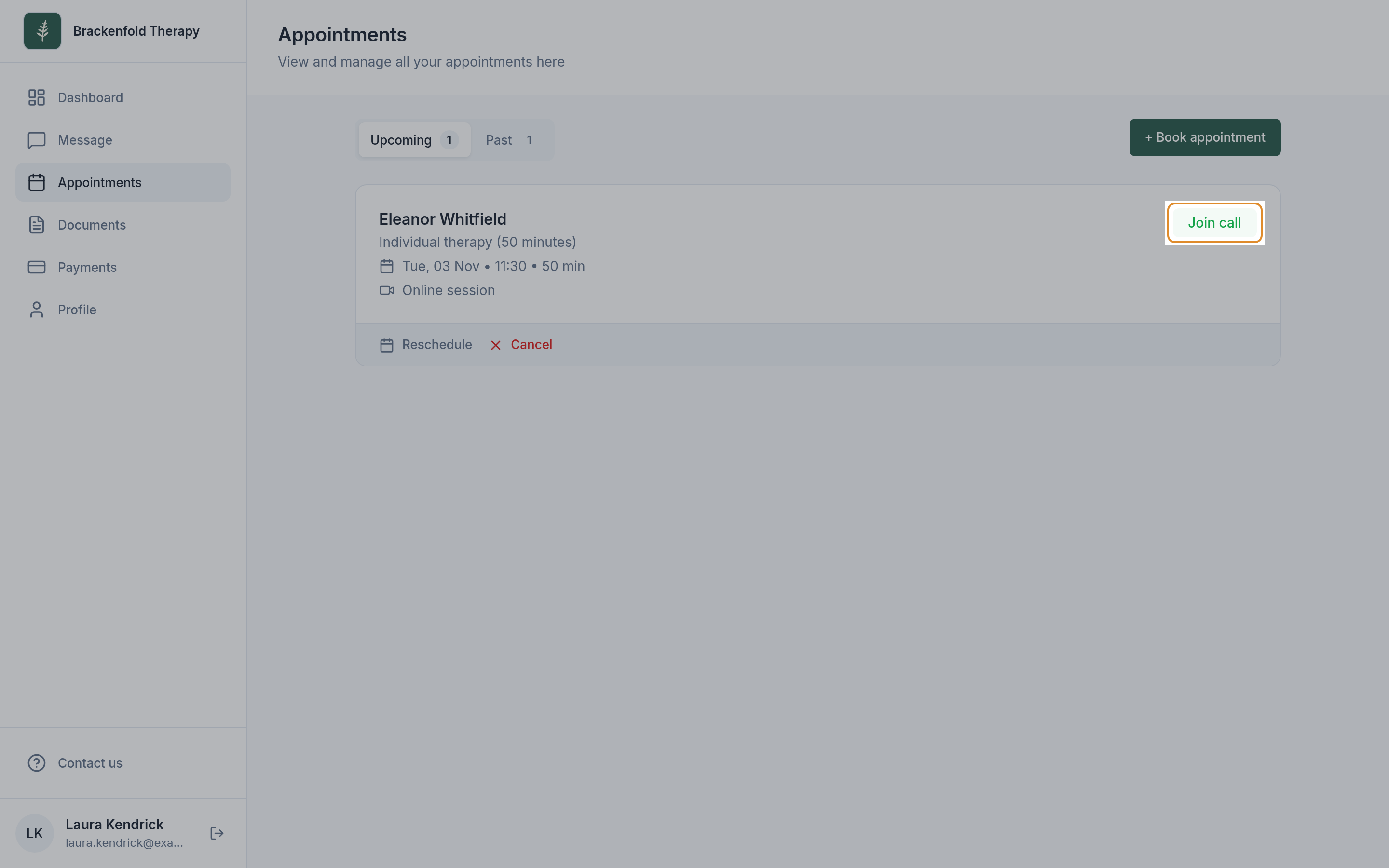
- In your portal, select Appointments in the menu.
- On the Upcoming tab, find the appointment. Online sessions show a video icon and the words Online session.
- Select Join call on that appointment. The call opens in a new tab or window.
3. From your email or text message
Your confirmation and reminder emails for an online appointment have a Join session button. If your practitioner sends text messages, the confirmation and reminder texts end with Join: followed by a link. Select the button or link to open the call.
If you see Make payment instead of Join call
Some practitioners ask for payment before an online session. If so, the appointment shows Make payment where Join call would be. Once you have paid, Join call appears. See paying an invoice.
When you can join
You can open the call before your appointment time. Joining early is fine: you wait in a waiting room until your practitioner lets you in, so you will never walk in on someone else's session. If your practitioner is running a little late, stay on the page and they will let you in when they are ready.
What happens when you open the call
- The call page opens. It shows your practitioner's practice name or logo at the top. You do not need to sign in again.
- Your browser asks to use your camera and microphone. Choose Allow. This is needed so your practitioner can see and hear you.
- You see a preview of yourself. Only you can see it.
- Use the camera and microphone buttons under the preview to turn either off before you join, if you prefer. When the camera is off, you see Camera is off.
- Use the settings (gear) button to choose a different Camera, Microphone or Speaker, for example if you have plugged in headphones.
- Select Join Visit.
- You wait in the waiting room. You see Asking to join meeting…. Your practitioner can see you are waiting. Stay on this screen and they will let you in when your session is ready to start. If your practitioner sends you a message while you wait, a chat box opens on this screen so you can reply.
- Your practitioner lets you in and the session begins.
Allowing your camera and microphone
If you selected Block by mistake, or your browser did not ask, you see Camera and mic access blocked. Here is how to allow access, then select Retry.
- Chrome or Edge on a computer: select the blocked camera icon in the address bar, choose to allow your camera and microphone, then reload the page.
- Safari on a Mac: go to Safari > Settings for this website and choose Allow for camera and microphone.
- iPhone or iPad (Safari): tap the aA button in the address bar, then Website Settings, and set Camera and Microphone to Allow. If that does not help, check Settings > Safari > Camera and Microphone.
- Android (Chrome): tap the icon at the left of the address bar, then Permissions, and allow Camera and Microphone. If that does not help, check Settings > Apps > Chrome > Permissions.
If you see Camera or microphone unavailable., your camera or microphone is switched on for another app. Close other video apps and browser tabs that might be using it, check your camera and microphone are connected, then select Retry.
If you would rather sort it out once you are in the call, select Continue without checking and then Join Visit.
Which browsers work
Use an up-to-date Chrome, Edge, Firefox or Safari. On an iPhone or iPad, Safari works best; on Android, Chrome works best. If a link opens inside your email app and the call does not start, open it in Safari or Chrome instead.
If you cannot hear or see each other
- Turn your volume up and check your device is not on silent.
- Check the microphone and camera buttons at the bottom of the call are on. A line through the icon means it is off.
- Check your headphones are connected, or disconnect them to use your device's own speaker and microphone.
- If the picture freezes or the sound breaks up, move closer to your Wi-Fi router, or switch between Wi-Fi and mobile data.
- Still stuck? Close the call tab and select Join call again.
If nothing works, send your practitioner a message from your portal so they know what is happening. See messaging your practitioner.
If your practitioner uses a different video service
Some practitioners hold sessions on another service, such as Zoom or Google Meet. In that case Join call, and the Join session button in your emails, take you straight to that service instead. It may ask you to download its app or type your name, and its screens look different from the ones described here.
If the link does not open the call
- Oops! This link seems to have expired. The appointment has been cancelled, or finished more than a day ago. Check your Appointments page.
- Hmm. We couldn't find a call in the link you've entered. Part of the link may be missing. Use Join call in your portal instead.
Leaving the call
When your session is over, select the red hang-up button (Leave the meeting) at the bottom of the call. If your practitioner leaves first, select it to leave too. You see Your session has ended, and you can close the page. If you left by accident, select Join call again to rejoin. You wait in the waiting room again until your practitioner lets you in.
Was this helpful?