Booking, rescheduling or cancelling an appointment
How to book a session from your portal, what to expect if you pay when booking, and how to reschedule or cancel an appointment when your practitioner allows it.
Updated 4 November 2026
If your practitioner lets you book online, you can book sessions from your portal, and move or cancel them there too. This guide walks through each, and explains what to expect when an option is not offered.
Booking an appointment
Nothing is booked until you press the button on the last step, and each step after the first has a Back button, so you can look around freely.
- Select Book appointment. It is at the top right of your Dashboard, and on the Appointments page as + Book appointment. If you cannot see it, online booking is not available for you at the moment; message your practitioner instead.
- If the practice has more than one practitioner, choose who you would like to see and select Continue on their card. If you have seen someone there before, they are usually chosen for you, with a Change practitioner link if you want someone else.
- Choose a service. Each service shows its price (or Free), its length, and how it is offered: Online, Telephone or In-person. Select the one you want. If there is only one service you can book, this step is skipped. If you have a usual service, it is chosen for you, and Book a different session on the next step lets you pick another.
- Choose a location. Pick Online session (a secure video link), a telephone session, or one of the practice's rooms, which shows its address.
- Choose a date and time. Days with free times are highlighted on the calendar. Select a day to see its times, grouped into Morning, Afternoon and Evening. Tap a time once to pick it (it shows NEXT), then tap it again to continue.
- Review and book. Check the location and the price, then select Book appointment. If the session needs paying for now, this step is called Review and pay and the button shows the amount; see the next section.
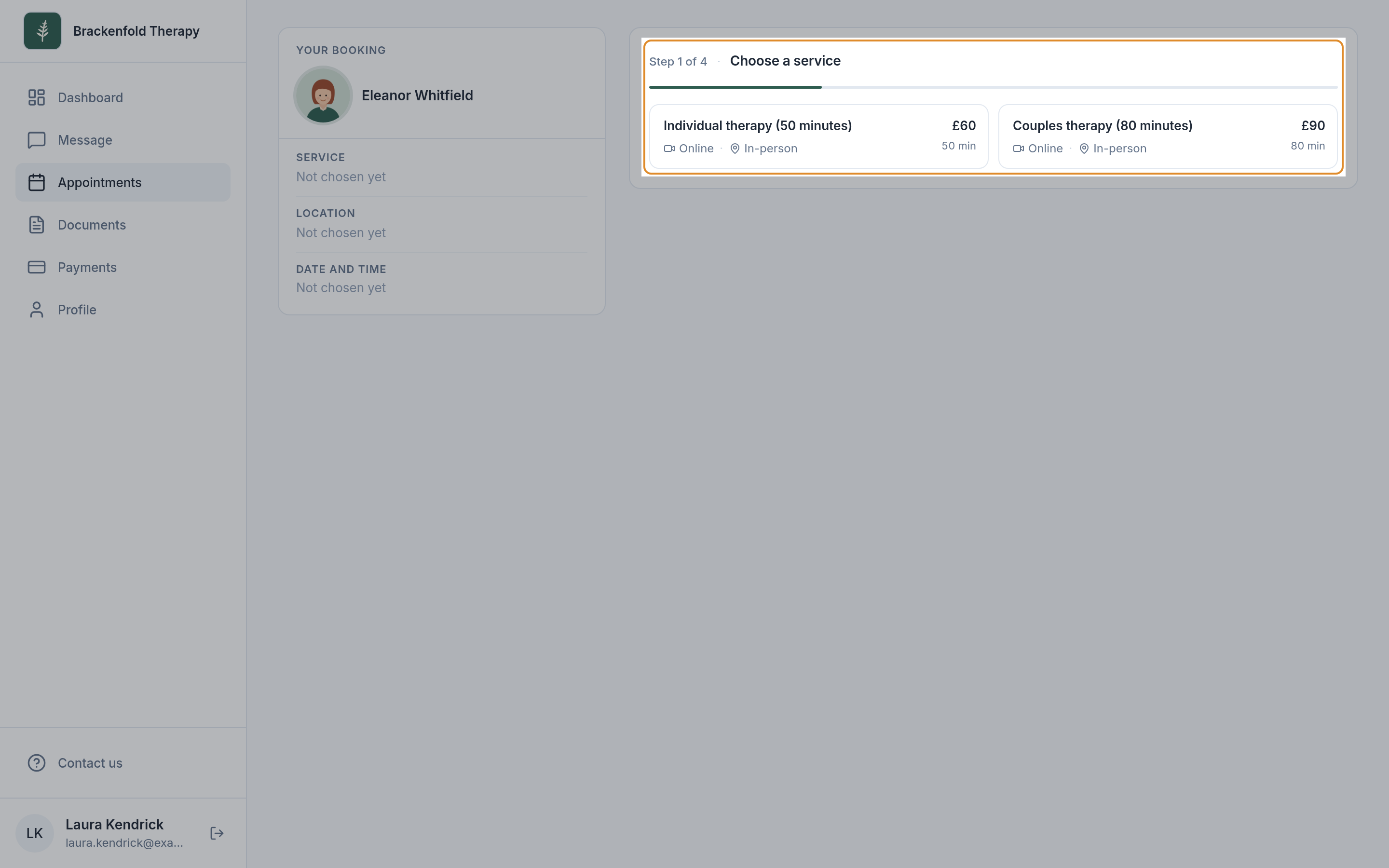
The top line shows how far along you are, for example Step 3 of 4. A Your booking panel keeps track of your choices, with a Change link against each.
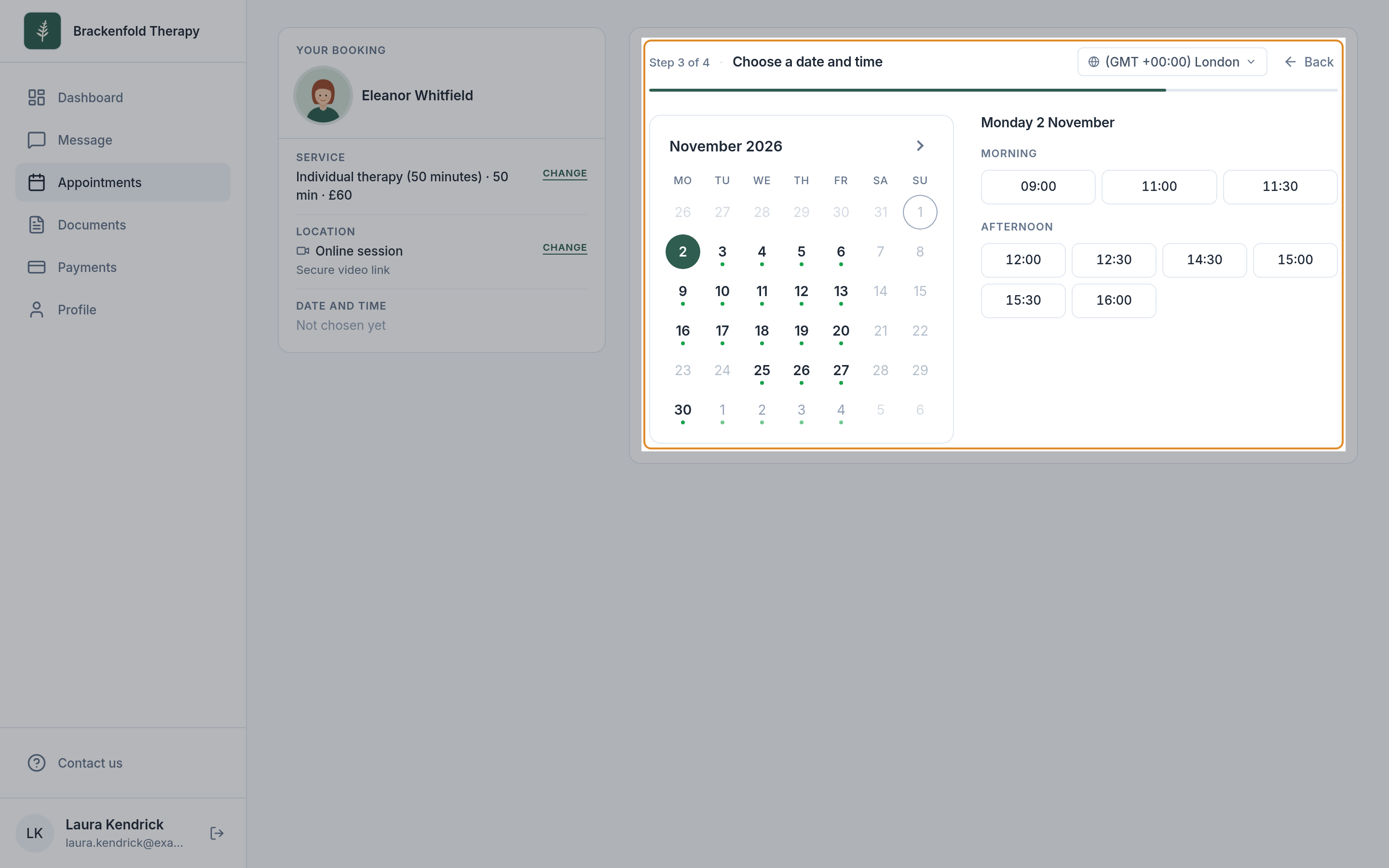
Times are shown in your own time zone, named at the top of this step. Select it if you need a different one.
When the booking is made you will see Your appointment is booked, with the date, time and place. Add to calendar saves it to your own calendar. The appointment then appears under Upcoming on your Appointments page.
If you need to pay when you book
Some practices ask for payment at the time of booking. When they do, the last step shows the price, any VAT and the total, with the note You'll pay securely by card on the next screen. Select the button showing the amount, for example Pay £60.00 and book, to go to the card payment page. Your appointment is booked once the payment goes through. If it does not, you are offered Try again, and nothing is booked until it does.
If an online session your practitioner booked for you needs paying before it starts, its card on the Appointments page shows Make payment in place of Join call. For other bills, see paying an invoice.
Why you might not see the time you want
The calendar only offers times your practitioner can take a booking for. That depends on the hours they work at the location you chose, sessions already booked and time they have set aside. Many practitioners also ask for some notice and only open their diary a certain distance ahead, so very near and far-off dates may have no times.
- If the month you are looking at is full, you will see a Next available date. Select See times to jump to it.
- If there is nothing to book online at all, you will see No times to book. Message your practitioner and they can arrange a time with you.
- Trying a different location can show different times, because practitioners often work set days at each place.
Booking as a new client
A practice may also have a public booking page, which it may link from its website. The portal's sign-in page links to it too, as Book an appointment. You make the same choices, plus a Your details step for your name, email address and phone number, with room for a message to the practitioner. If you have booked there before, select Sign in next to Booked here before? and your choices are kept. When a practice is not taking new clients, the page may offer a waiting list instead; existing clients can still sign in and book.
Rescheduling an appointment
- Select Appointments in the menu to see your Upcoming appointments.
- On the appointment you want to move, select Reschedule.
- Choose a location. Your current one is marked Current and already picked. Tap it again to keep it, or tap a different location and then tap it again (Confirm change).
- Choose a date and time, in the same way as when booking: tap a time, then tap it again.
- Confirm changes shows the Original appointment and the New Appointment side by side. Select Confirm appointment.
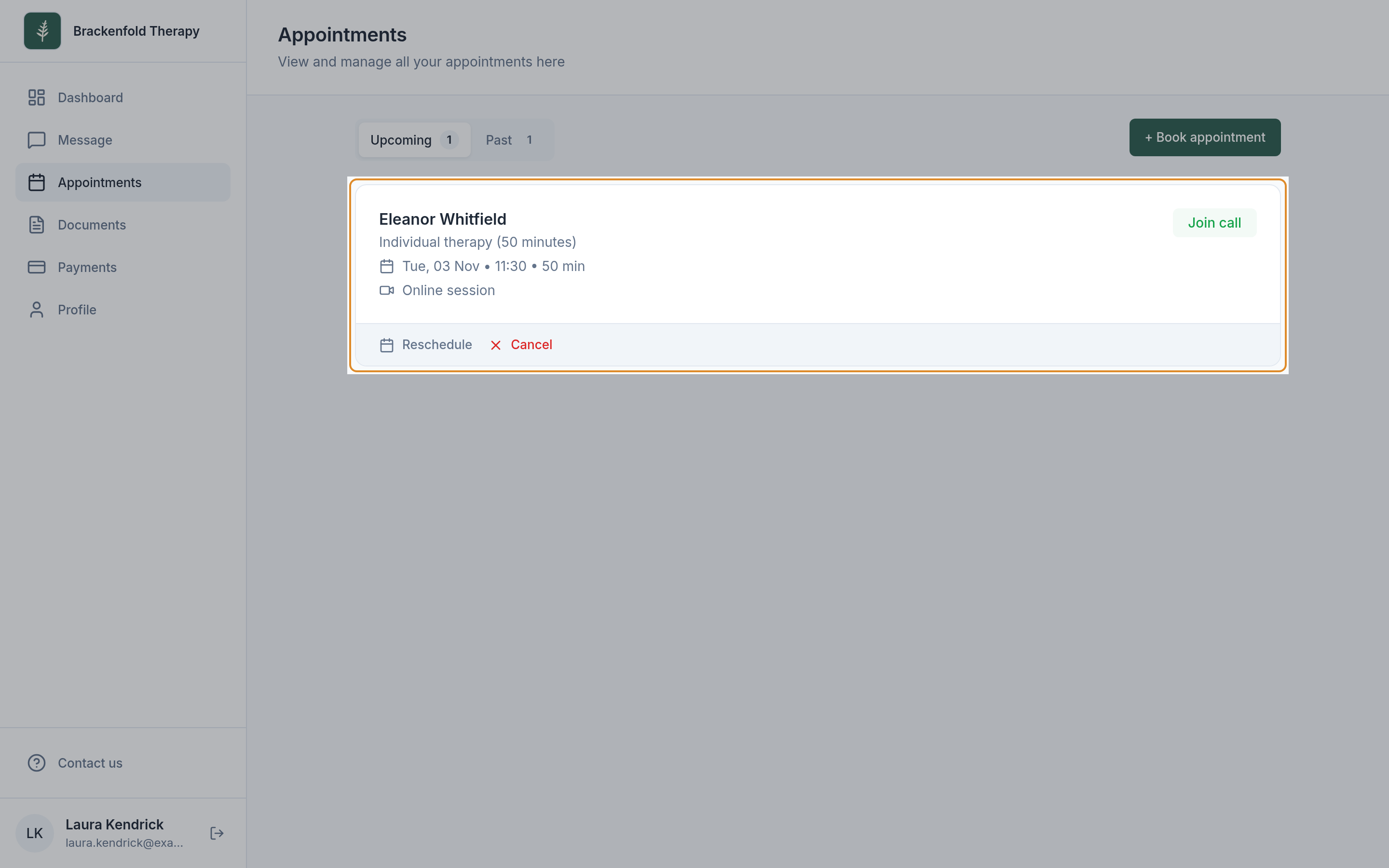
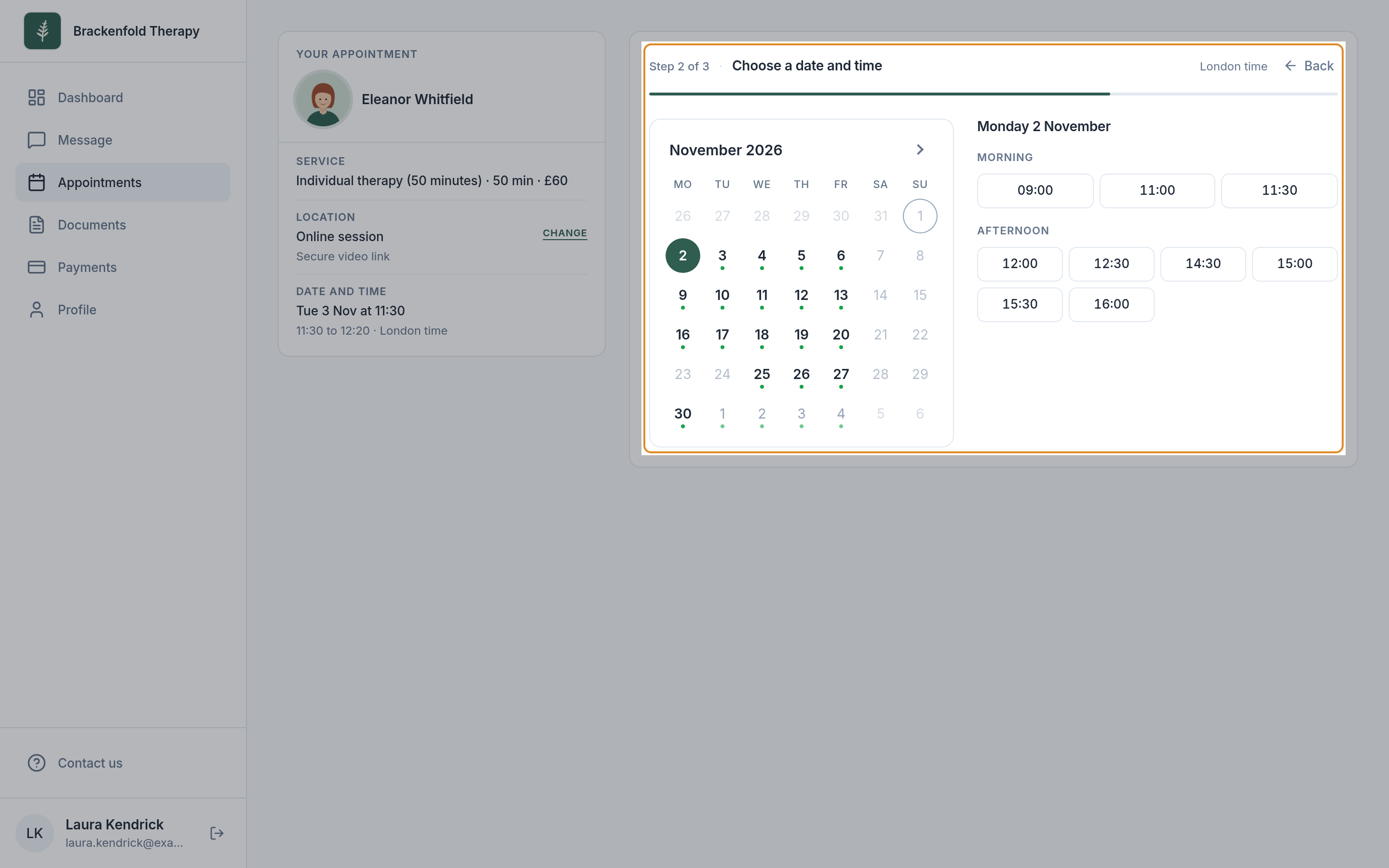
You will see Appointment details successfully updated! with the new time. The service stays the same; to change it, ask your practitioner.
Cancelling an appointment
- On the Appointments page, select Cancel on the appointment.
- A box headed Need to change plans? opens. If a different time would suit you better, select Reschedule instead.
- To go ahead, select Cancel Appointment. To leave it as it is, select Keep Appointment.
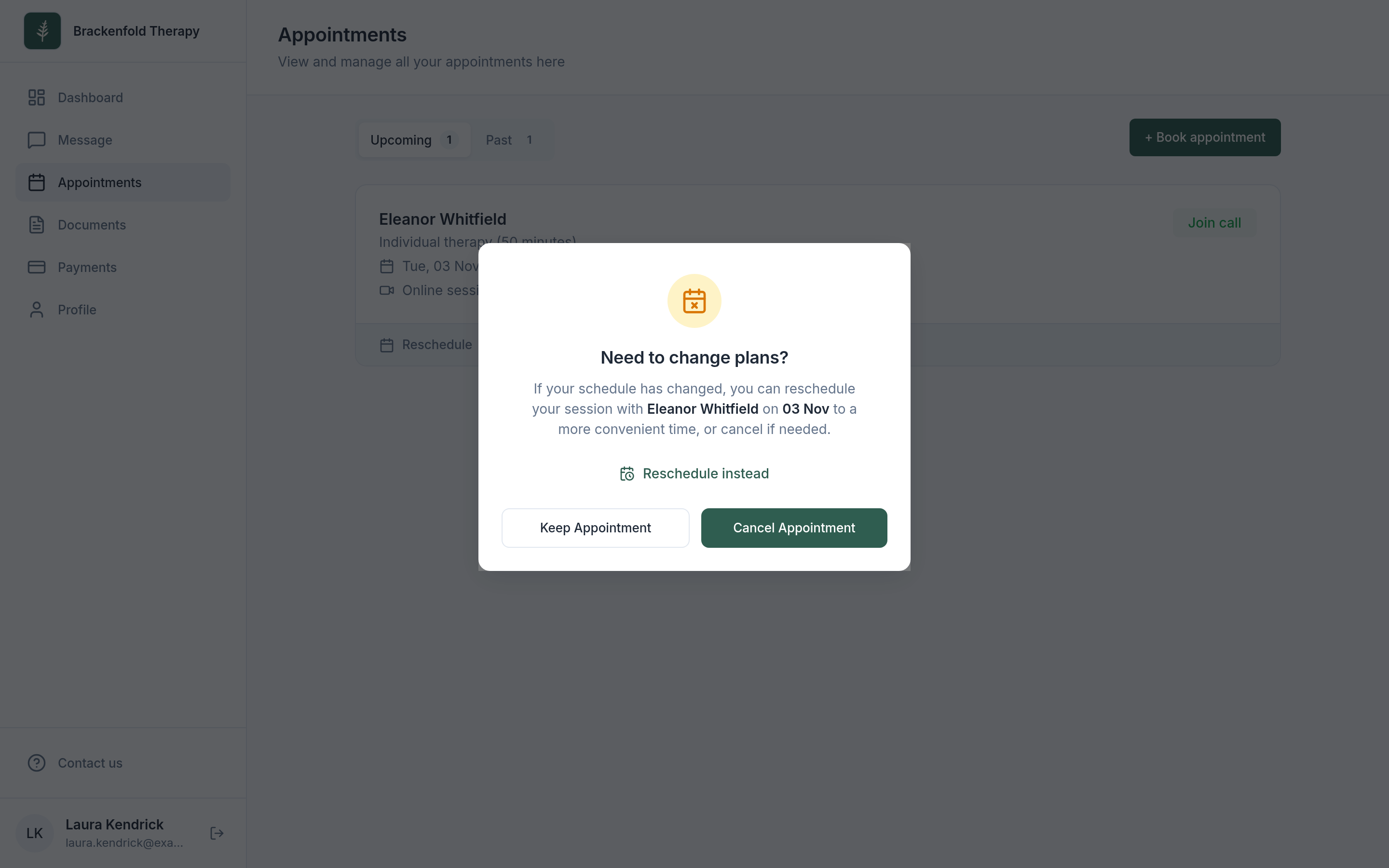
The appointment stays on your list marked Cancelled. If you have already paid for it, the box says so: ask the practice about a refund, as they handle those directly.
When Reschedule and Cancel are not offered
Each practice sets its own cancellation policy. Some ask that changes are not made online close to a session, for example within 24 hours; others prefer all changes to go through them. In those cases the appointment shows a short note in place of the buttons, such as "Cancellations and rescheduling are not permitted within 24 hours of the appointment", and asks you to contact the practice. Once a session has started it can no longer be changed online.
Send your practitioner a message and they can make the change for you.
Regular (repeating) appointments
If you have a regular weekly or fortnightly slot, each session appears on its own in your Upcoming list. Rescheduling or cancelling changes only the session you chose; the rest of your series stays as it is. To change the whole arrangement, talk to your practitioner.
Who is told
Your practitioner is notified when you book, reschedule or cancel, so there is no need to message them as well. Depending on how your practice has set things up, you may also get an email (and sometimes a text) confirming each change. To join an online session, see joining a video session.
Was this helpful?