Messaging your practitioner
How to send your practitioner a secure message through your portal, add a photo or file, and know when they have replied.
Updated 4 November 2026
Your portal has a secure message thread between you and your practitioner's practice. You can use it to ask a question, let your practitioner know something, or send a document they have asked for.
Opening your messages
First, sign in to your portal. If you have not done that before, see Signing in to your portal. Then use any of these:
- Message in the menu (down the left on a computer, or in the menu and along the bottom of the screen on a phone).
- The Message button on the Your Practitioner card on your home page. This card appears when you have an upcoming appointment.
- Check inbox in your To-Do List, which appears with a NEW MESSAGE label when your practitioner has sent you something you have not read yet.
- Contact us, then Send a message via portal.
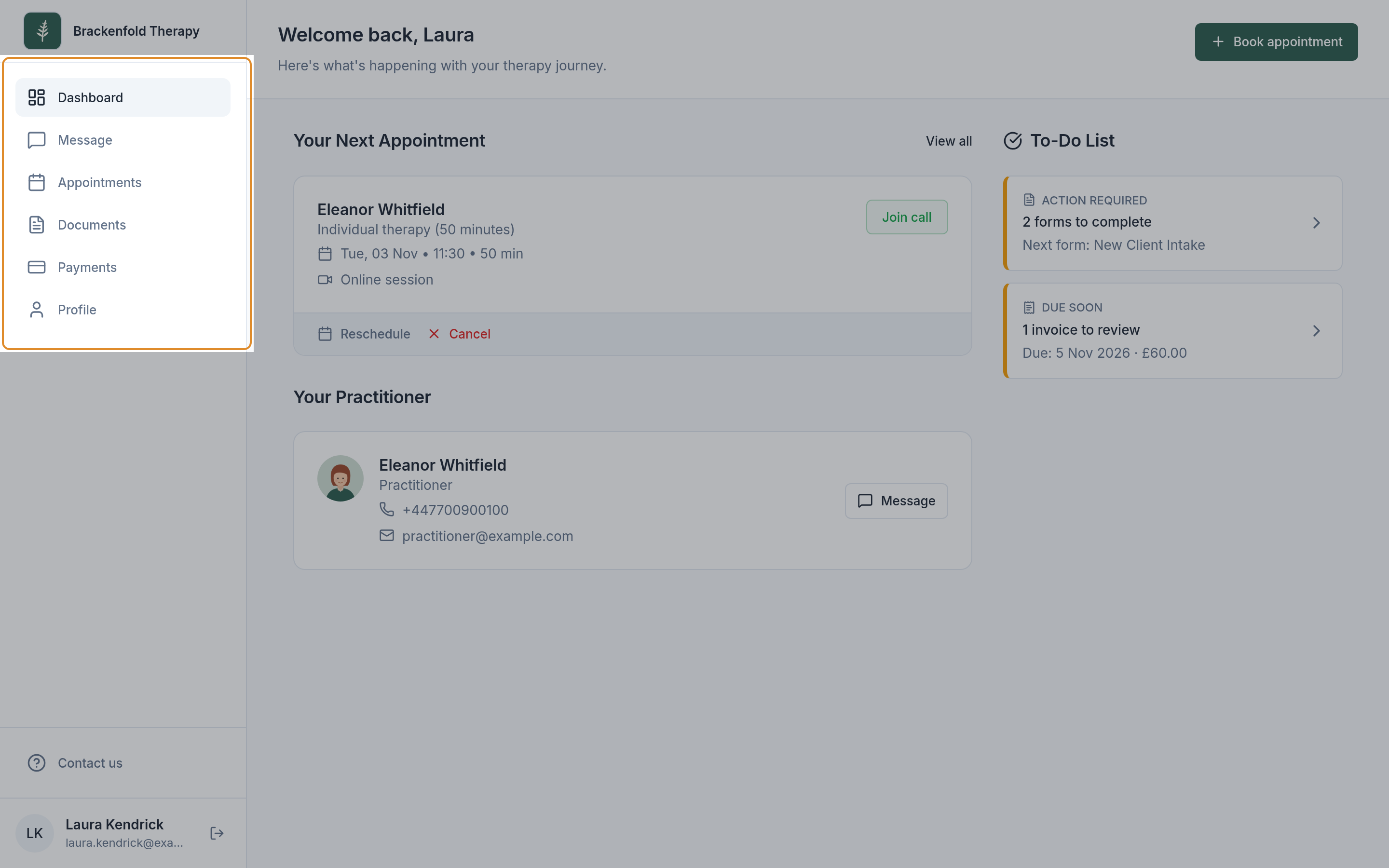
A small dot next to Message in the menu means there is something new from your practitioner.
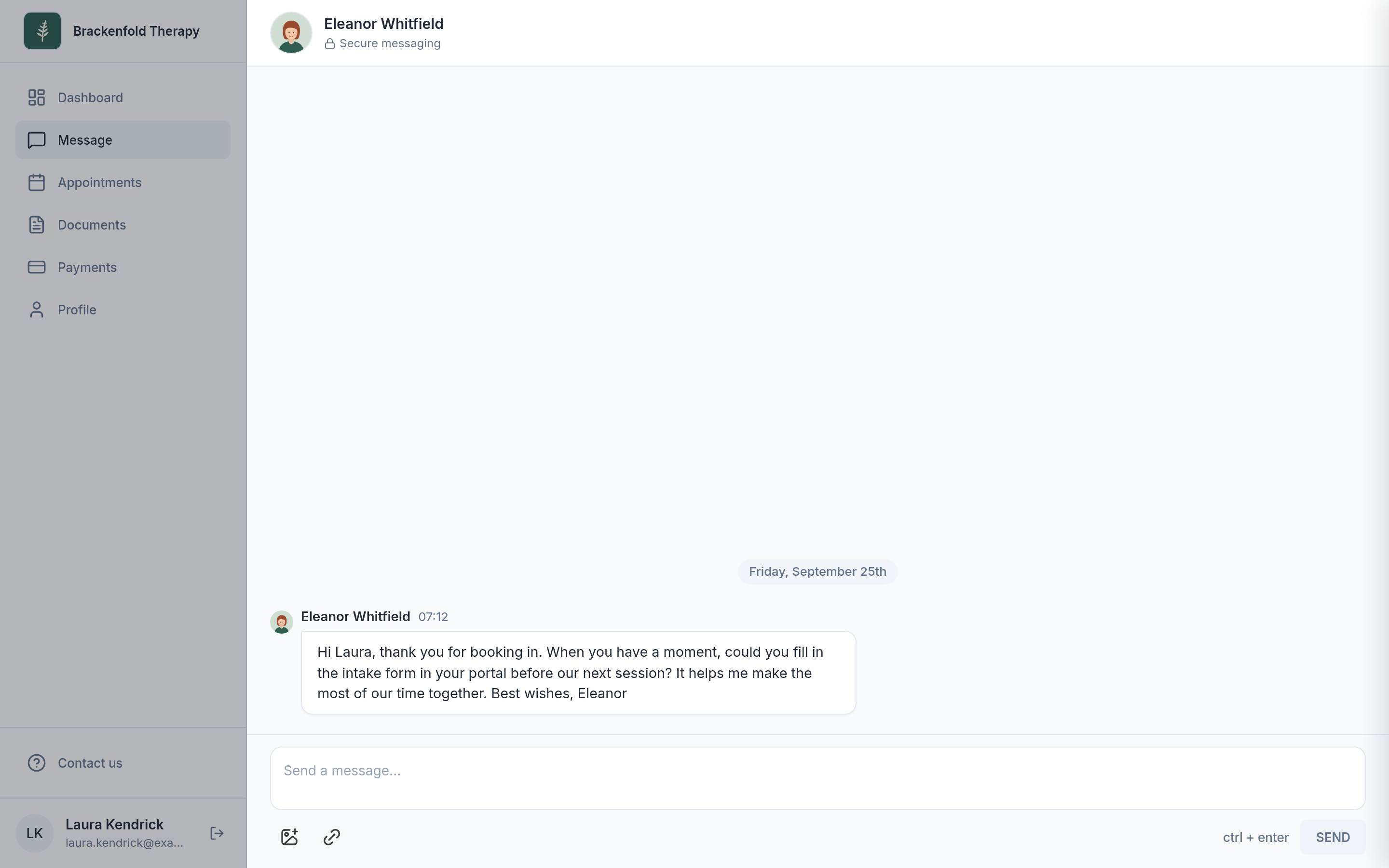
At the top of the thread you will see your practitioner's name (or the practice's name) and the words Secure messaging. Earlier messages are further up: scroll up and older ones load as you go.
Writing and sending a message
- Click or tap in the box at the bottom that says Send a message...
- Type your message. Pressing Enter starts a new line, so you can write in paragraphs without sending by accident.
- When you are ready, click or tap SEND. On a computer you can also press ctrl + enter (on a Mac, cmd + enter); the shortcut is shown next to the button.
Your message appears in the thread straight away, with the time you sent it. The SEND button only becomes active once you have typed something or added an attachment. A single message can be up to 6,000 characters long.
Adding a photo or a file
Below the message box are two icons:
- Attach a photo (the picture icon) lets you choose one or more images from your device.
- Attach a file (the link icon) lets you choose other documents, such as a PDF or a letter.
The files you choose appear above the icons before you send, so you can check them. You can add a few words to go with them, or send them on their own. All the attachments in one message can add up to 25 MB. If they are larger than that, you will see Total file size is too big; choose Got it, then send fewer files at a time or use smaller versions.
Your practitioner may also send you forms to fill in through your messages. These appear in the thread and open when you select them; see Completing a form.
Deleting a message you sent
Next to the time on each message you have sent there is a menu (three dots). Choose Delete, then Delete again to confirm. The message is removed from the conversation for you and your practitioner.
How you will know your practitioner has replied
When your practitioner sends you a message, you may be told in one or more of these ways, depending on what your practitioner's practice has set up:
- Email. The subject is You have a new message, with a Read message button that takes you to your portal. The email never contains what the message says; you read it after signing in.
- Text message. A short text saying you have a new message from the practice, with a link to your messages.
- Notifications on your device. Your home page may show Enable notifications to get alerts when you receive messages. Choose Enable and allow notifications when your browser or phone asks. You will then get an alert such as New message from followed by your practitioner's initials.
A few things are worth knowing:
- The ten-minute rule. After you are sent an email or text about a new message, further messages in the next ten minutes do not send another one. If your practitioner sends several messages close together, you get one email or text, not one for each. Open your messages to see them all.
- If you have been using your portal in the last few minutes when a message arrives, you may not get an email or text about it.
Your practitioner can see when you have opened the thread and read their latest message.
Messaging is not for emergencies
Your practitioner may not see your message straight away. If you or someone else is in danger or needs urgent help, call 999, or contact NHS 111 if it is urgent but not an emergency.
If you cannot see Message
Your practitioner chooses which sections appear in your portal. If there is no Message in your menu, messaging is not turned on for you, and any link to your messages will take you to your home page instead. You can still reach your practitioner using the email address or phone number under Contact us. If you would like to use messaging, ask your practitioner whether they can turn it on for you.
Who can read your messages
Your message thread is shared between you and your practitioner's practice. Members of the practice team who have access to your record can read it. Other clients cannot see it. The emails and texts that tell you about a new message never include what the message says.
Was this helpful?