Messaging a client, and what they actually receive
Secure messages stay inside the portal, one client at a time. What lands in your client's inbox is a prompt to sign in, never the message itself, and you can choose to be emailed or notified when a client replies.
Updated 4 November 2026
Messages between you and a client live inside the portal, not in email. That is the whole point of them: the conversation stays in one place, attached to the client's record, and nothing clinical travels through an ordinary inbox.
The part worth understanding before you start is what your client is sent when you message them, because it is not what most people assume.
Sending a message
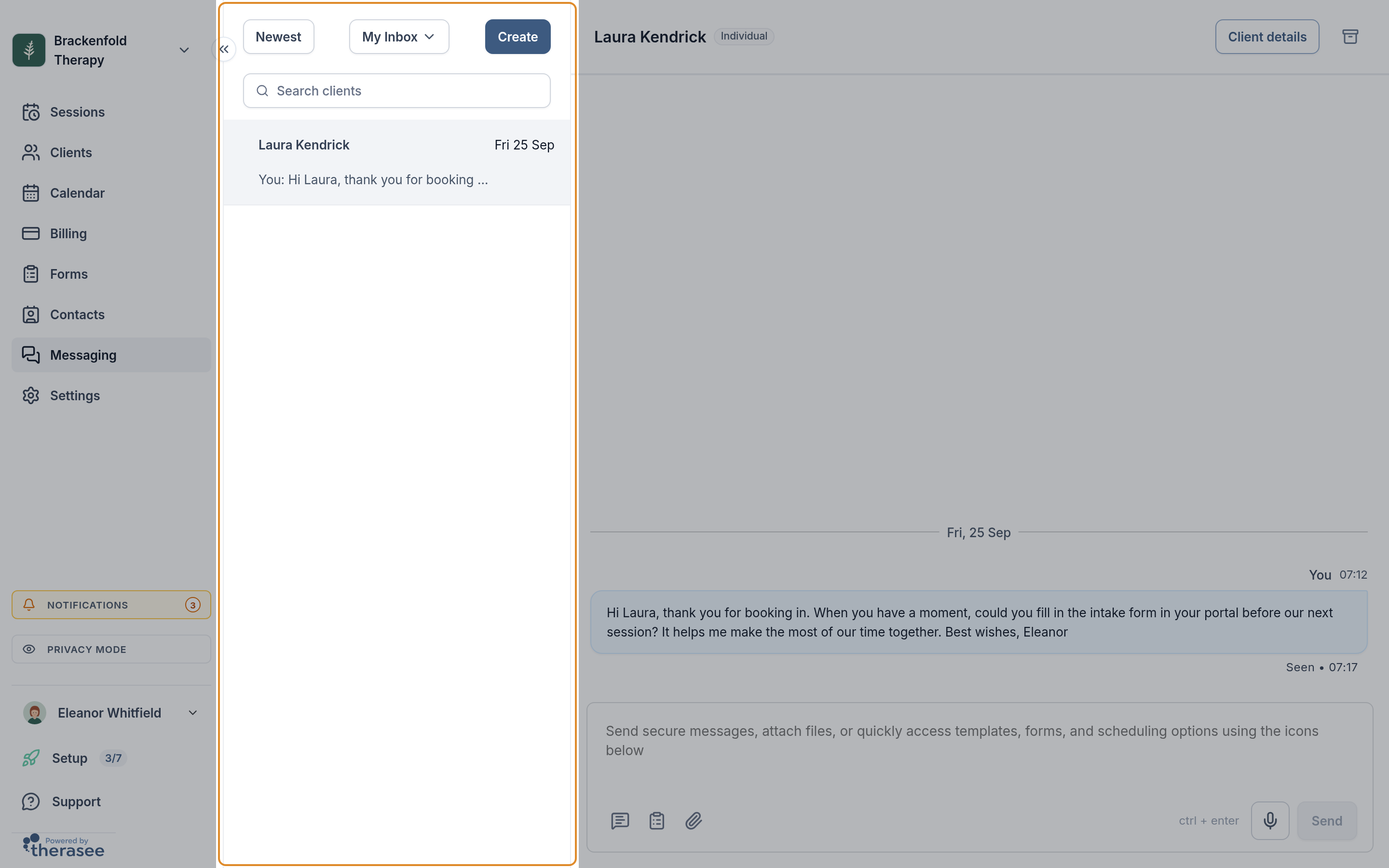
- Go to Messaging.
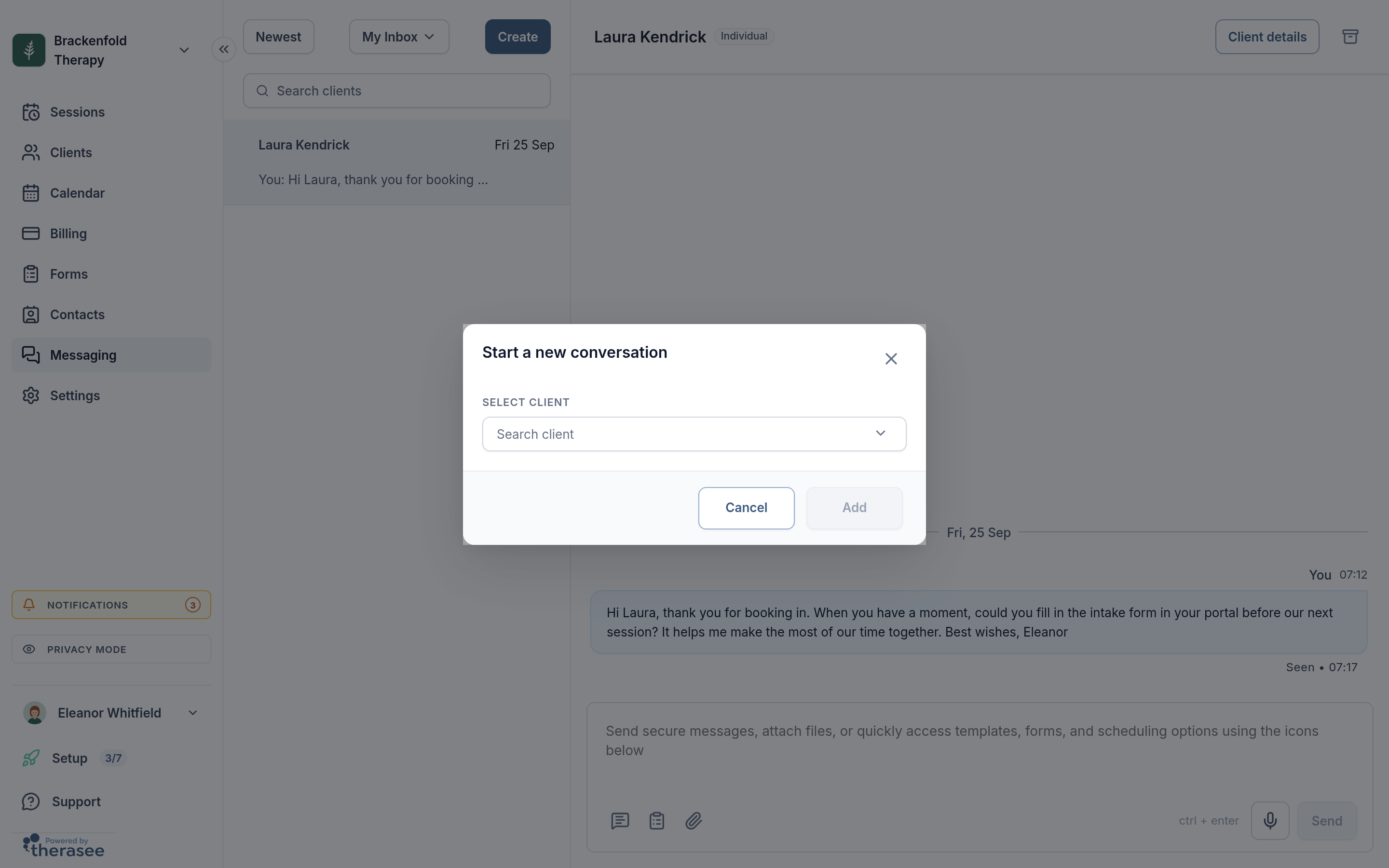
- Pick the client from the list. To start a new conversation, select Create, search for the client under Select client and select Add.
- Type your message and select Send.
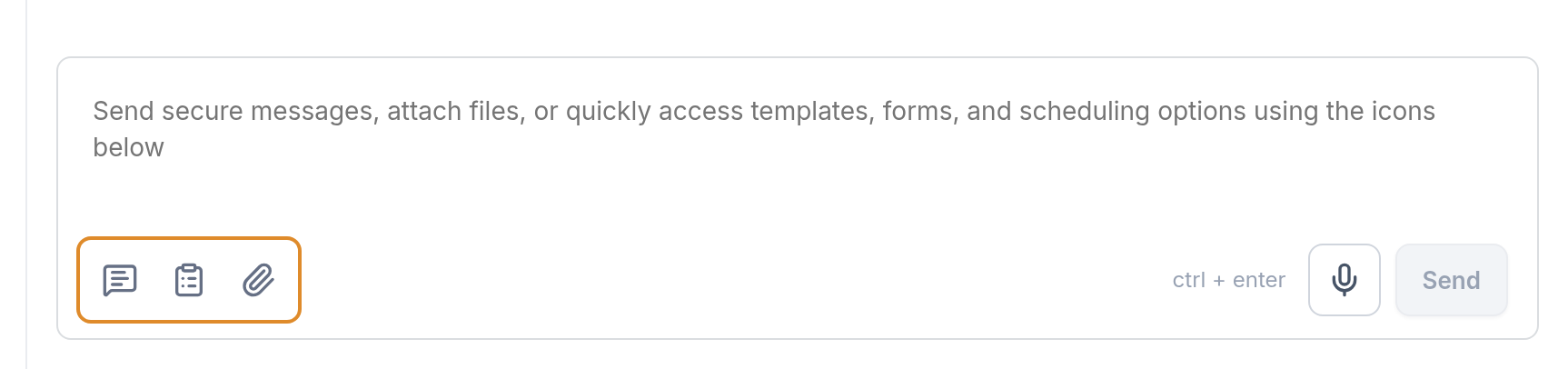
The buttons under the message box let you add a message template (Add a message template), attach a form for the client to complete (Attach a form) or attach a file (Attach a file). Files stay inside the portal rather than being carried as email attachments.
One client at a time
Each conversation belongs to one client, and a message goes only to the client whose conversation it is in. There is no option to send one message to all of your clients, or to a group of them, at once. When something applies to everyone, such as a change of room, holiday dates or new cancellation terms, save the wording once as a message template (see Message templates below) and send it into each client's conversation in turn. Each client then receives it privately, in their own thread, and can reply to you there.
What your client receives
This is the thing to know. Your client is sent a short notification, and it does not contain your message. It says only that there is a new message from your practice, and gives them a link to sign in and read it. The email version tells them so in as many words: the contents of a message are never put in an email.
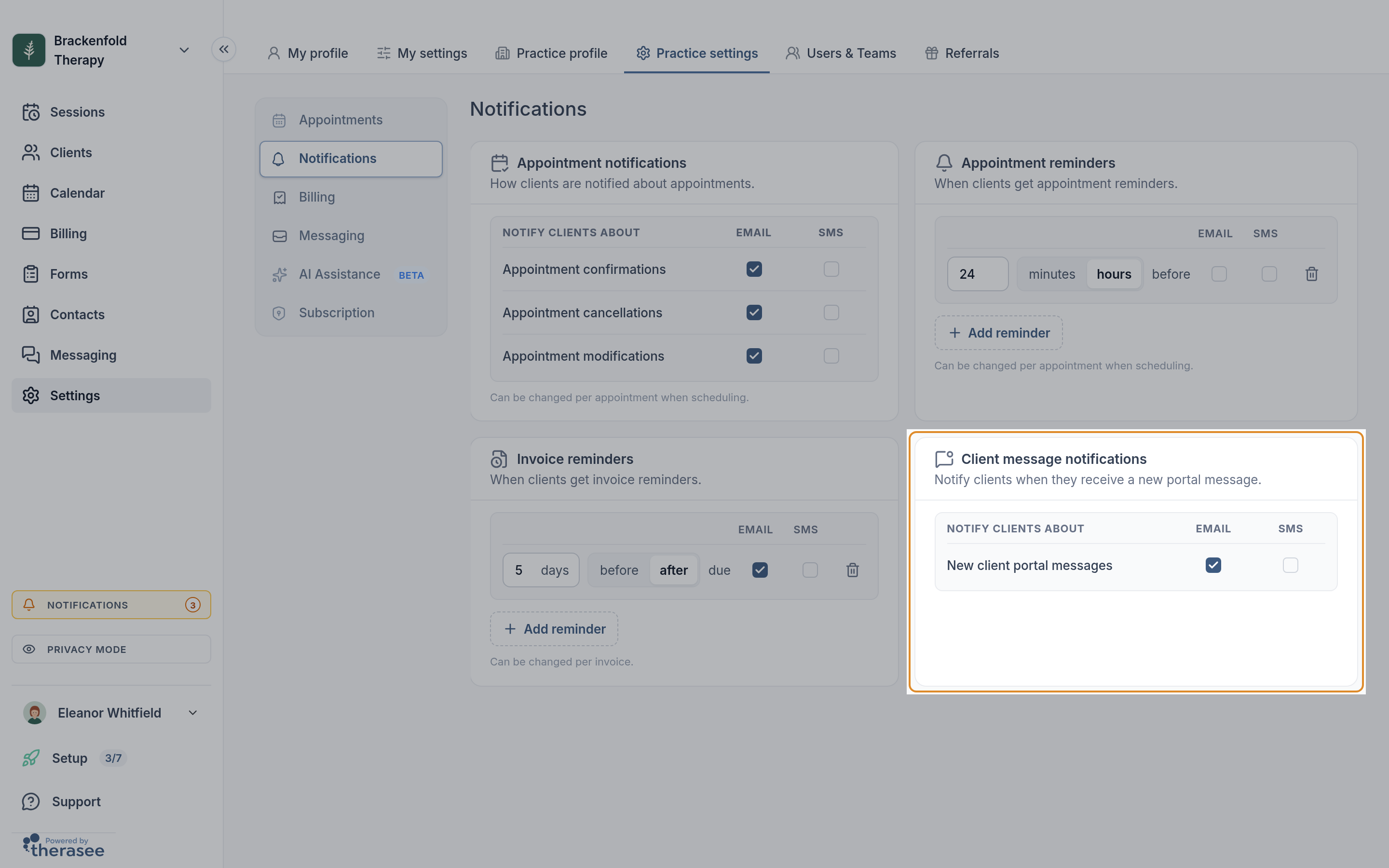
Whether that notification goes by email, by text message or both is a practice-wide choice. It is set in Settings, Practice settings, Notifications, on the card called Client message notifications, which has an Email and an SMS tick against New client portal messages. Only someone who can change your practice's settings can change these ticks. If both are left unticked, clients still see new messages when they next sign in, but nothing prompts them to look.
So the content of what you write never leaves the portal. If a client's phone is unlocked on a kitchen table, what is visible is that your practice has been in touch, not what about. For anyone working in therapy this is usually the difference between messaging being usable and not.
The practical consequence is that a client has to sign in to read anything you send. A message is not a way to reach somebody urgently, and it is not a substitute for a phone call when something is time-critical.
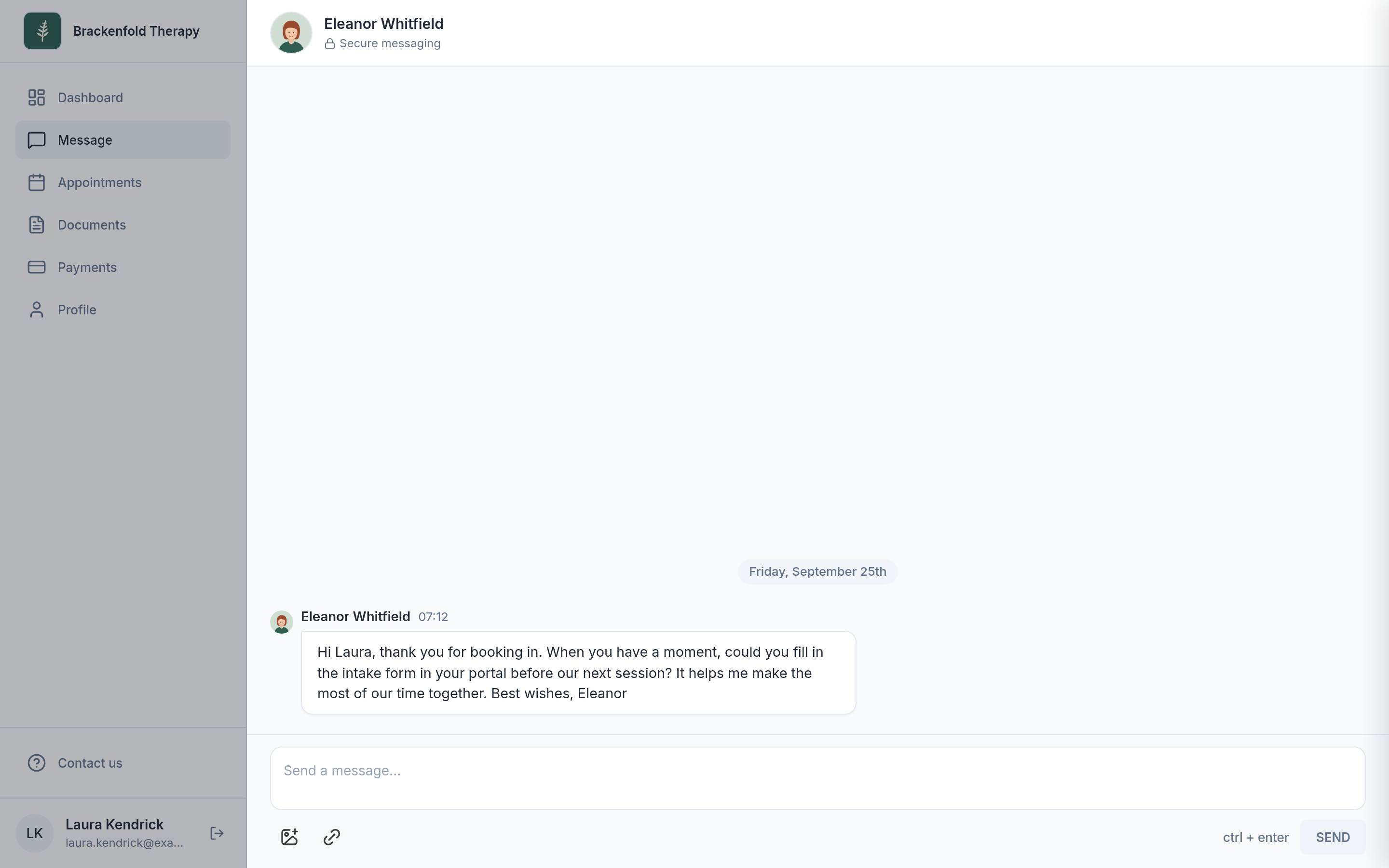
They will not get a notification for every message
If you send several messages in a row, your client is notified once and then not again for ten minutes. A thought followed by a correction followed by an attachment produces one notification, not three.
This is deliberate, and it is worth knowing in the other direction too: after they are notified about a message, further messages in the next ten minutes do not notify them again. When something genuinely needs their attention, leave a gap before sending it. Forms are not covered by this: the client is told about each form you send.
When a client messages you
A client's reply appears in Messaging straight away, with an unread count against their conversation. To hear about it when you are not looking at Messaging, turn on your own message notifications. These are personal: each practitioner in a practice sets their own, and they are separate from what your clients are sent.
- Go to Settings, My settings, Notifications.
- In the Notify me when list, find New message received.
- Tick Email to be emailed about new messages.
- Tick In-app to get a notification from your browser. If the In-app ticks cannot be selected, click Enable in the note above the list and allow notifications when your browser asks. If the note says notifications are blocked, allow them for Therasee in your browser's site settings, then come back. In-app notifications are set up for each browser, so do this on each computer, phone or tablet where you want them.
- Click Save.
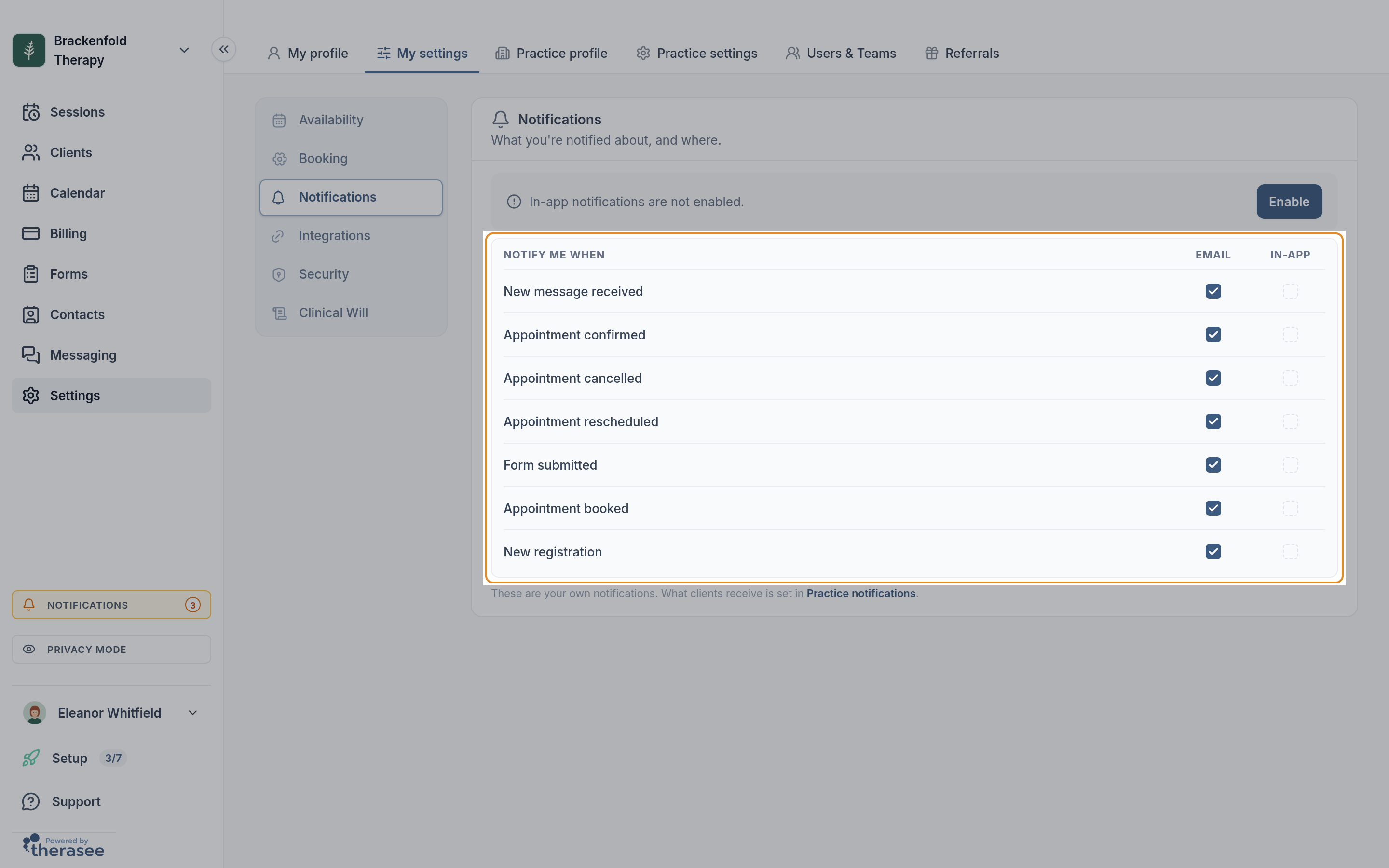
A few things about how these work:
- The email does not contain the message. Its subject is "You have a new message from" followed by the client's name, and it has a Reply on Therasee button that takes you to Messaging. The in-app notification shows the client's initials only.
- The email is for when you are away. If you have been active in Therasee in the last 15 minutes when the message arrives, the email is not sent, because you are likely to see the message in Messaging. In-app notifications arrive either way, so if you often leave Therasee open in a browser tab, turn on In-app as well as Email.
- They go to the client's assigned practitioner. In a practice with more than one practitioner, the practitioner a client is assigned to is notified, or every member of the team the client is assigned to. In a practice of one, that is you. You can see and change who a client is assigned to in the Assigned to field on the client's profile.
- Check the ticks. New accounts start with Email ticked for New message received, but look at the row now so you know which of the two is on.
When a client says they cannot see Messages
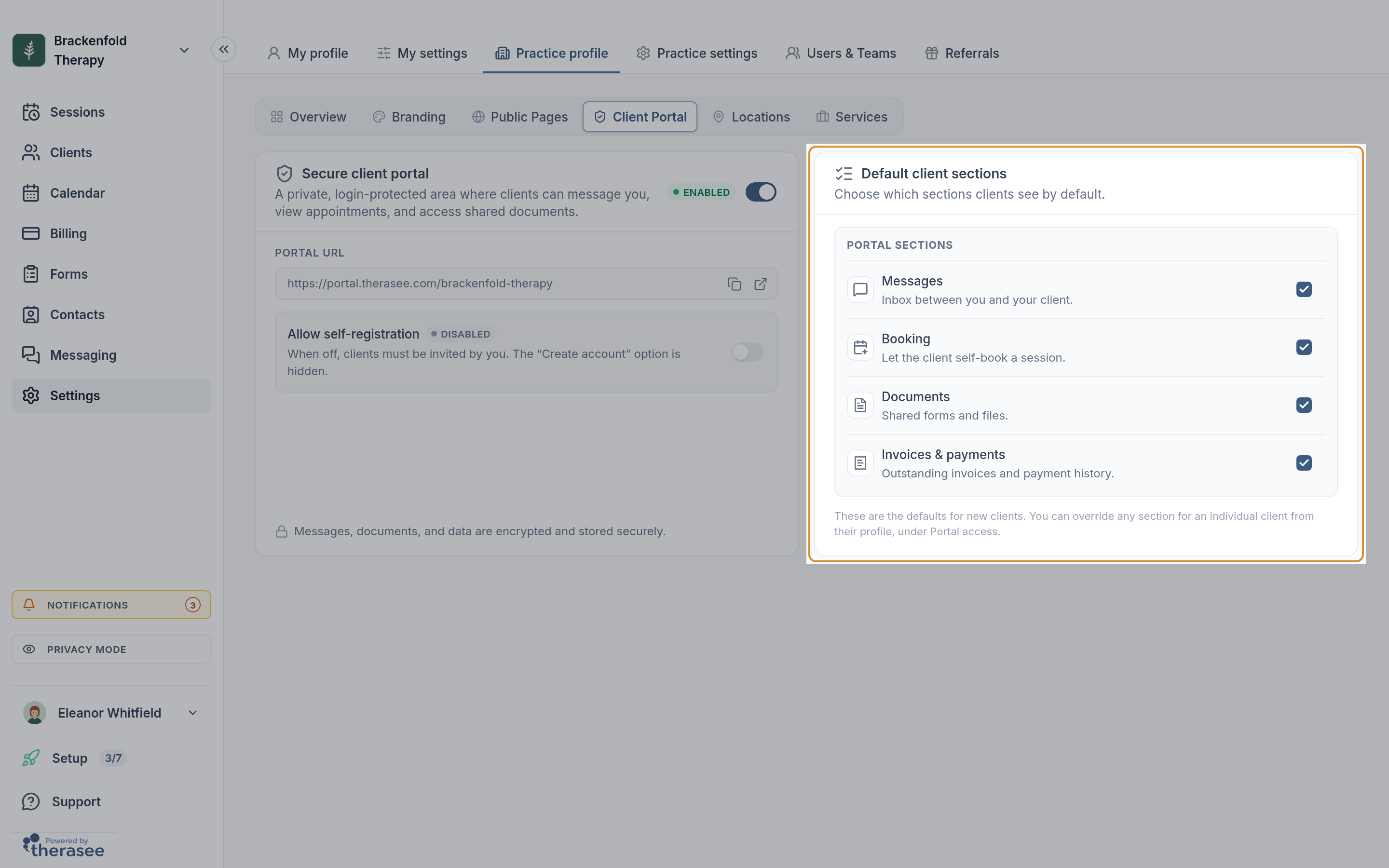
Messages appears for a client when three separate settings are in place. All three have to be on. Turning on one does not turn on the others.
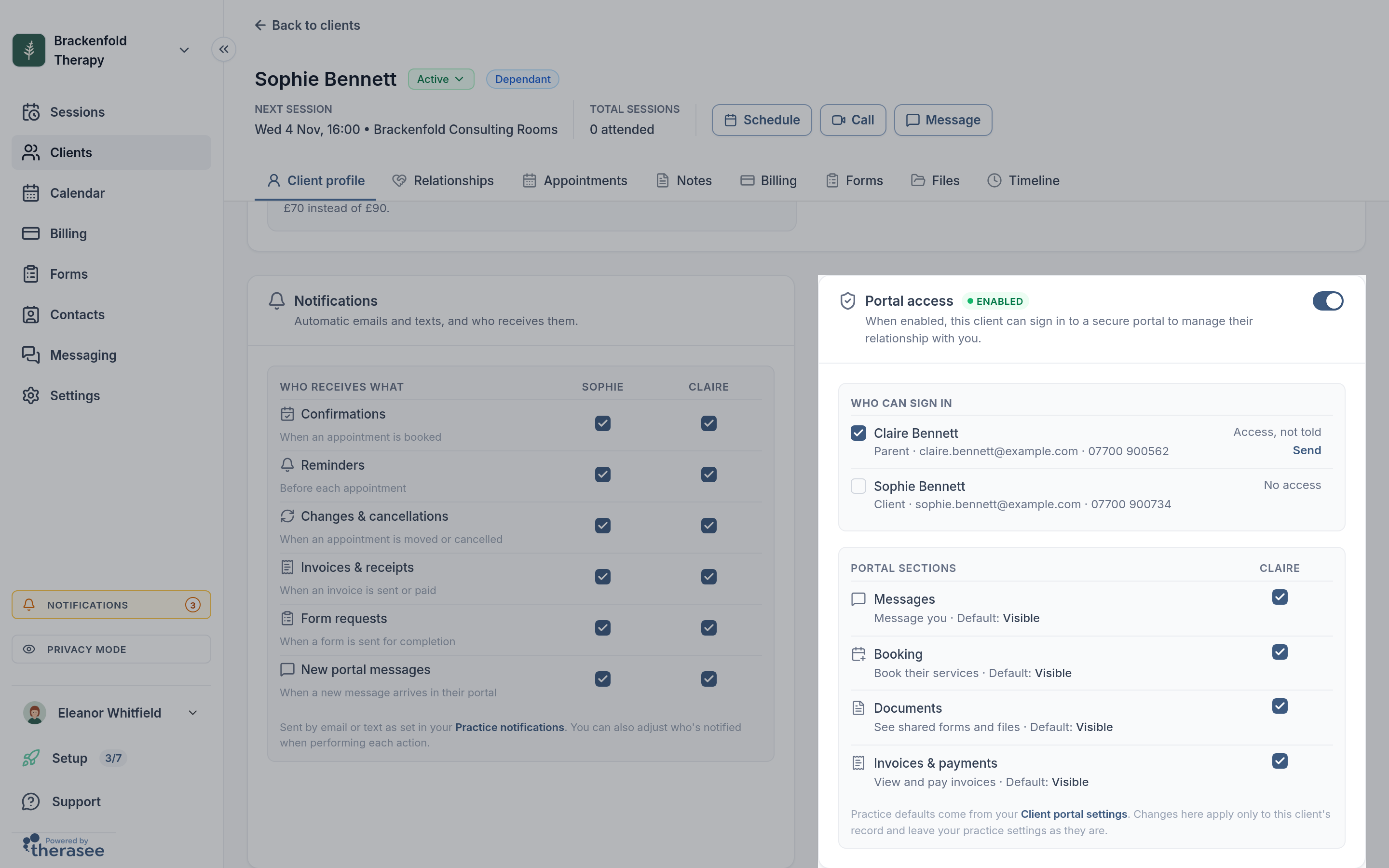
- The client record has portal access turned on. This is the switch on the client's own record.
- That specific person has been given access. Where a record has more than one person attached, such as a parent alongside a young person, access is granted per person, not per record. Someone can be on the record and still have no sign-in of their own.
- The Messages section is visible for their view. A practice can hide sections of the portal, and Messages is one of them.
To check the first two for one client, open their record and look at who has portal access. The list shows each person attached to the record and whether they can currently reach their messages. A person with no email address and no mobile number cannot be given access at all, because there is nothing for them to sign in with and nowhere to send the invitation.
Message templates
If you find yourself typing the same thing often, such as directions to your room, what to expect from a first session, or your cancellation terms, you can save it once as a message template and reuse it. Templates are created under Settings, Practice settings, Messaging. When you are writing a message, select the template button under the message box (Add a message template), search for the template and pick it to fill in your message.
A template can carry more than words. It can include an attachment or a form for the client to complete. That makes it useful for the things you do at a fixed point with every client, such as everything that has to go out before a first appointment.
These are for messages you send by hand. They do not change the wording of automated emails such as appointment confirmations and reminders, which is a separate matter covered in what your clients are sent.
Turning messaging off
If you would rather not offer secure messaging at all, hide the Messages section in your client portal settings. Clients keep the rest of the portal, such as appointments and invoices, and simply have no message area.
This is worth considering deliberately rather than by default. Messaging that nobody monitors is worse than no messaging, because a client reasonably expects a reply to something they have sent through your own system.
Was this helpful?