When a video session isn't working
What to check when you can't tell your client is waiting, they can't get in, the camera won't start or the call keeps breaking up, plus how to switch to another video service and what to send us.
Updated 4 November 2026
Most video problems come down to a few causes: the call tab isn't in view, the browser can't reach the camera, or a connection is struggling. This guide takes them in the order you are likely to need them. For the basics of starting a call, see Running a video session.
You can't tell whether your client is waiting
Clients wait in the waiting room until you let them in. The notice that someone is waiting appears inside the call, so you only see it once you have opened the call yourself.
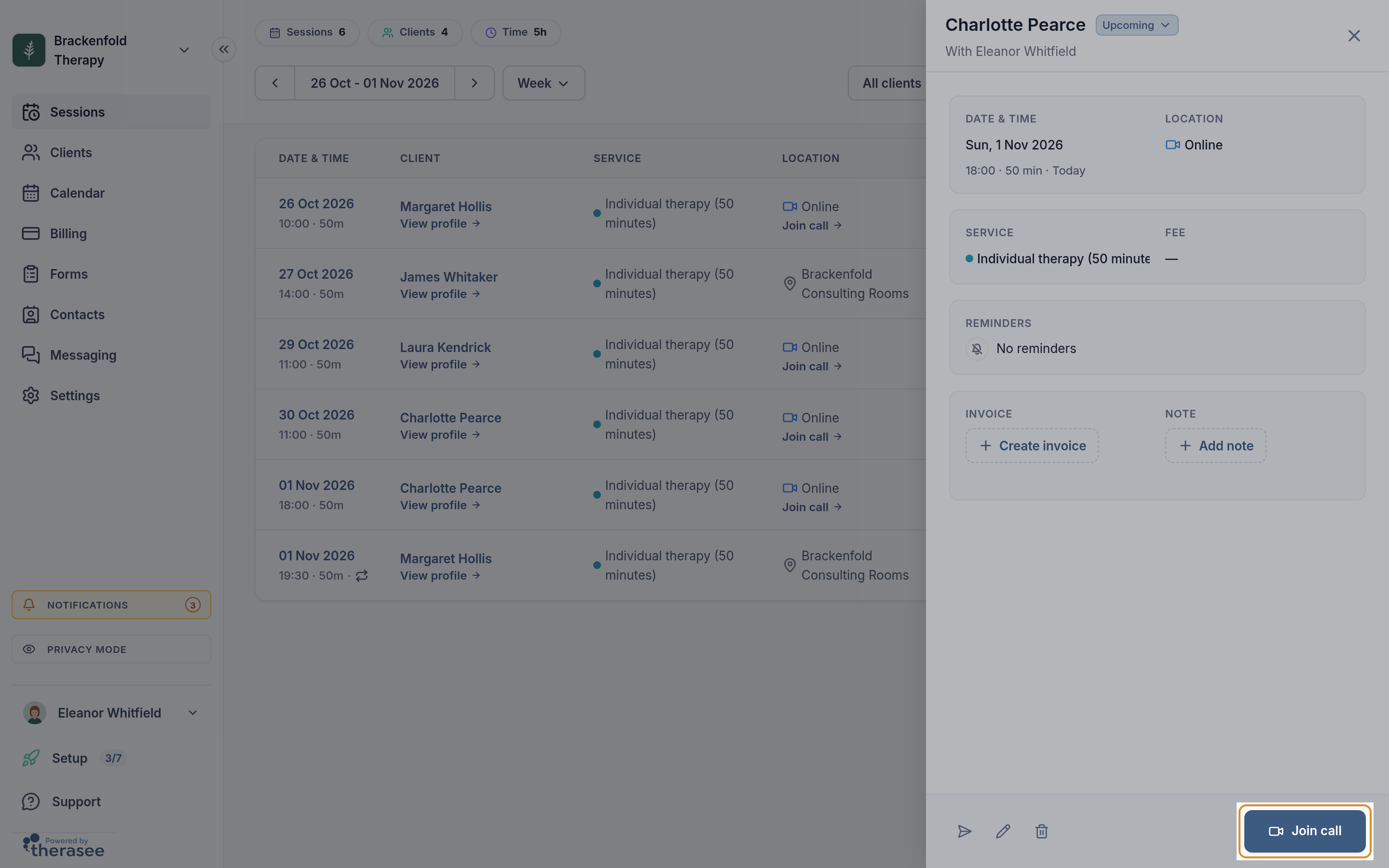
- Watch for the Session starting notice. Up to 15 minutes before an online session, a Session starting soon notice appears in the corner of the portal, with the time and your client's name. At the start time it changes to Session starting now. It shows on any page of the portal while the portal is open, until you join the call. Select Join to open the call, or View to see the session first.
- Open the call a few minutes early. If you closed the notice, select Join call under the session's location in Sessions.
- Look for the waiting-room notice. When a client is waiting, a notice in the call shows their name and Wants to join the meeting, with Admit, Reject and Chat, and a short sound plays. The notice stays until you act on it. If you arrive after your client, the notice appears as soon as you join, and the participants panel in the toolbar lists everyone waiting under Lobby.
- Keep the call tab where you can see and hear it. If you switch to another tab or window while you wait, the notice waits in the call tab. Keep your speakers on and the tab unmuted so you hear the sound. If you still hear nothing, open the call's settings (the gear in the toolbar), go to Notifications and check Participant entered lobby is ticked.
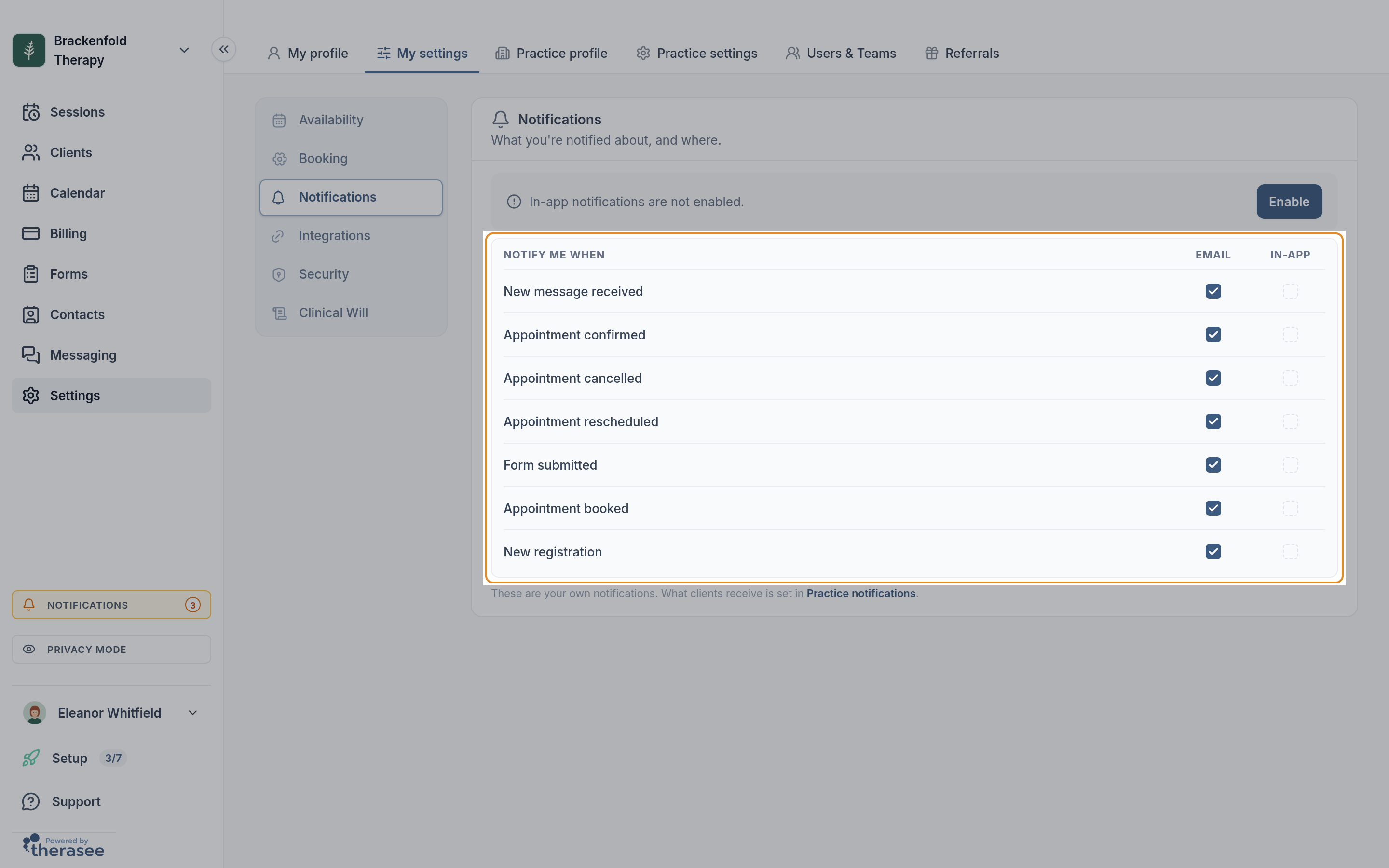
Browser notifications. Under Settings, My settings, Notifications you can turn on in-app notifications (select Enable and allow them when your browser asks). These cover messages, bookings, cancellations, reschedules, forms and registrations; the waiting-room notice always appears in the call itself.
Your client says they can't get in
If nobody appears in the waiting room, your client hasn't reached the call yet. Work through these with them, by phone or a message:
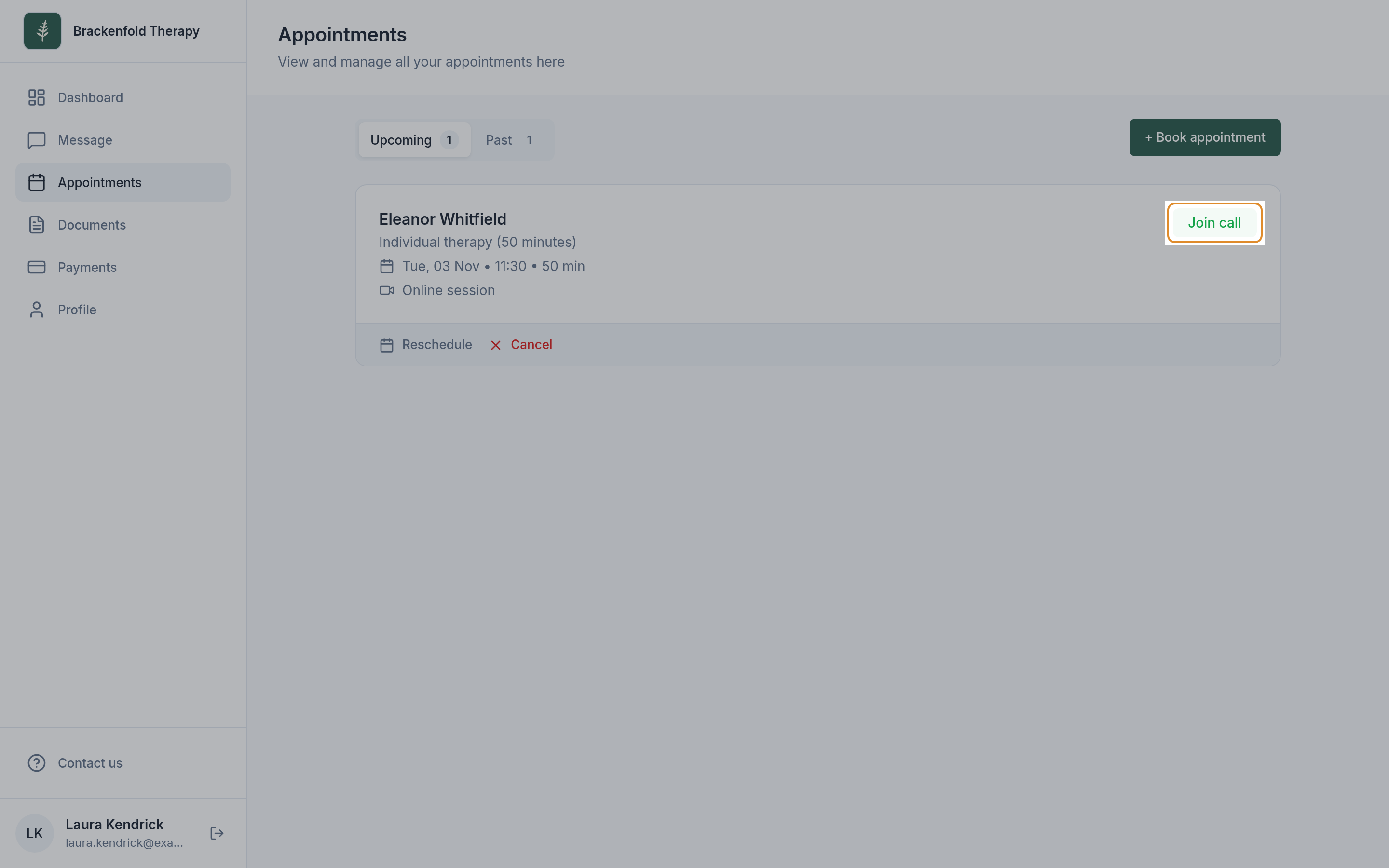
- Are they using their own link? The best route is Join call in their portal, or Join session in their confirmation or reminder email. Each person has their own link, so a partner or family member should use their own rather than a forwarded one.
- Do they see Make payment instead of Join call? If you ask for payment before online sessions, Join call appears once it is paid. See Paying an invoice.
- Are they stuck on the camera check? Camera and mic access blocked. means their browser or device is blocking the camera; Camera or microphone unavailable. means another app is using it. The steps in the next section apply to them too. They can also select Continue without checking and then Join Visit.
- Do they see Asking to join meeting…? Then they are in the waiting room. Check your call for the waiting-room notice, or the Lobby list in the participants panel.
- Does the link show an error? Oops! This link seems to have expired. means the session was cancelled or ended more than a day ago. Hmm. We couldn't find a call in the link you've entered. means part of the link is missing. Joining from the portal avoids both.
The client guide Joining a video session walks them through all of this; it is worth sending before a first online session.
Your camera or microphone isn't working
The same steps help your clients.
- Allow the site in your browser.
- Chrome or Edge: select the camera icon, or the site settings icon, at the left or right of the address bar, allow the camera and microphone, then select Retry or reload the page.
- Safari on a Mac: go to Safari > Settings for this website and choose Allow for the camera and microphone, then select Retry.
- Firefox: select the permissions icon in the address bar and clear any block on the camera or microphone, then reload.
- Allow your browser in your computer's privacy settings. If the browser allows the site but you still see Camera and mic access blocked., your computer may be blocking the browser itself.
- Mac: open System Settings > Privacy & Security, then Camera and Microphone, and turn your browser on. You may need to quit and reopen the browser.
- Windows: open Settings > Privacy & security, then Camera and Microphone, and make sure access is on for apps and for desktop apps.
- Close anything else using the camera. Camera or microphone unavailable. usually means another video app (Zoom, Teams, FaceTime) or another browser tab has the camera. Close it, check the camera and microphone are connected, then select Retry.
- Pick the right device. Before you join, the settings (gear) button under your preview lets you choose your Camera, Microphone and Speaker. A bar under the microphone moves when it hears you, and Test next to Speaker plays a short sound. Once you are in the call, use the small arrows next to the microphone and camera buttons, or the gear in the toolbar, to switch devices.
- Check you aren't muted. A line through the microphone or camera button means it is off.
The picture freezes, the sound lags or the call drops
These are almost always about the connection at one end. Try these in order:
- Get closer to the router, or use a network cable if you can. Wi-Fi through walls and floors is the most common cause.
- Free up bandwidth. Pause large downloads, cloud backups and video streaming on the same network, and close other tabs and video apps.
- Lower the video quality. In the call, open More actions (the three dots) and Manage video quality, and move towards Best performance. Turning off a blurred or virtual background also helps on older computers.
- Turn cameras off. If the sound keeps breaking up, switch video off and carry on with audio only, which needs far less bandwidth. A client on a phone can also try switching between Wi-Fi and mobile data.
To see where the problem is, look for the small signal-strength icon on a video tile and hover over it: it shows that person's connection, such as Good or Poor. On the camera check screen, Test next to Connection tells you whether your device is online (Your connection is stable.); it doesn't measure speed.
If a connection drops, the call tries to reconnect by itself (You have been disconnected. with a countdown). If someone leaves or closes the tab, they can rejoin from the same link: you go straight back in, and your client comes back through the waiting room for you to admit. The call stays open past the booked end time until everyone has left.
A third person needs to join
For a partner, a family member in another house or another professional, give each person their own link so they join under their own name.
- Couples and dependants. Each partner, or each responsible adult, gets their own link in confirmations and reminders. From the session's details, Send invite (the paper plane) also sends each named person their own link. See Working with couples and Working with dependants.
- Anyone else. Link them to your client on the Relationships tab of the client's profile, with an email address. Someone already in Contacts can be added as an Existing contact. Then open the session, select the pencil to edit it, add them under Attending with Search contacts, and save. When you are asked who should hear about the change, keep them ticked and send it: they receive You're invited to join the appointment, with their own Join session button.
Everyone except you waits in the waiting room. When several people are waiting, select View lobby and admit them one by one, or use Admit all.
Switching to Zoom, Google Meet or another service
If a call isn't working and time is short, you can move a session to another service.
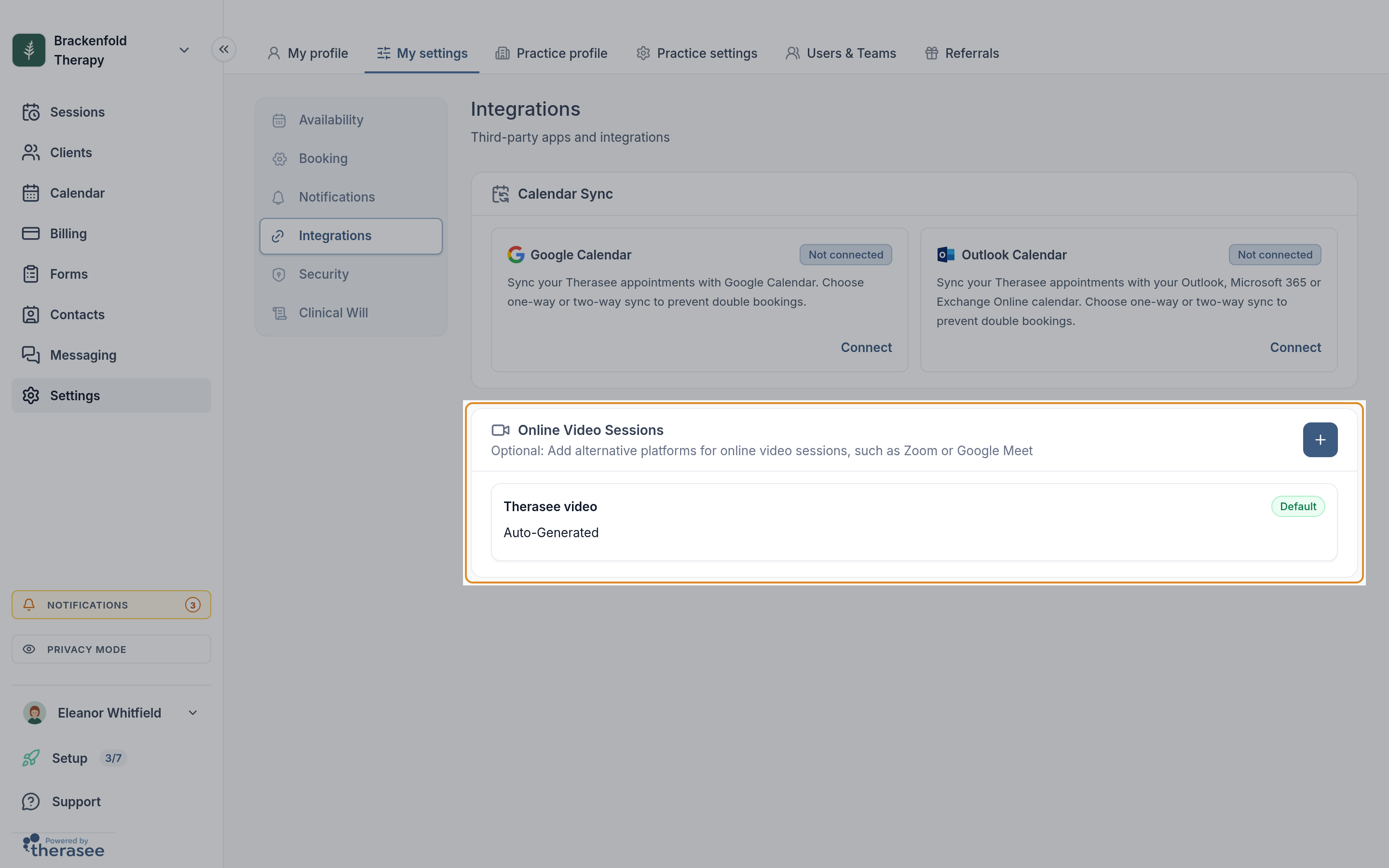
- Add your link once. Go to Settings, My settings, Integrations, select + (Add link) on the Online Video Sessions card, enter a Provider name and your meeting link, and select Create. Leave Make this default unticked if you only want it as a backup.
- For today's session only, the quickest route is to send your client the link directly, for example as a portal message or by email.
- To move the session itself, open it, select the pencil, change Video platform to your other service and save. Choose to send the update message when asked. Join call for you and your client, and the Join session button in later emails, now open that service.
The other service uses its own screens and waiting room, if it has one.
Getting help from us
If a session still didn't work, tell us through Support in the portal's sidebar. We can look it up if you send:
- the date and start time of the session, and which of your sessions it was (for example "my 10:00 on Tuesday"). There is no need to give your client's name;
- the browser and device each person used (for example Chrome on a Windows laptop, Safari on an iPhone), if you know;
- what each person saw: the exact wording of any message, whether your client reached the waiting room, and roughly when things went wrong;
- whether the call was the built-in one or another service.
At the end of a call you can also select Rate video quality to tell us how it went.
Was this helpful?