Working with children and other dependants
How to add a child or other dependant with their responsible adults, and how booking, notifications, portal access, forms, invoices and messages work for them.
Updated 4 November 2026
A Dependant is a client supported by a responsible adult: a child with a parent or guardian, or an adult with a carer. The dependant has their own record; the responsible adults are linked to it and, by default, receive the emails, texts and invoices. For two people seen together, see Working with couples instead.
Before you start
- Dependant records are available to every practice. You'll find them as a Client type in the Add client panel; there's nothing to switch on first.
- A dependant always has at least one responsible adult: someone new, an existing contact, or an existing client.
- Naming someone as a responsible adult never gives them portal access on its own. You decide who can sign in on the dependant's profile.
Add a dependant
- Go to Clients, select the + button, and under Client type choose Dependant.
- In the Dependant card, enter the dependant's First name and Last name (required), and their Date of birth and Gender if you have them.
- If they have their own email, phone or a different address, select + Does the dependant have their own contact details or address? and fill in Their email, Their phone number and address.
- In the Responsible adult card, choose Someone new and type their name, email, phone and address, or Someone existing and search your clients and contacts.
- Set Relationship to the dependant (choose or type one), and tick Parental responsibility and Emergency contact as they apply. Emergency contact is ticked to begin with.
- For a second adult, such as two parents who live apart, select + Add another adult and fill in the Second responsible adult card the same way.
- Check the Communications grid: one row each for Confirmations, Reminders, Changes & cancellations, Invoices & receipts, Form requests and New portal messages, and one column per person. Everything goes to the responsible adult to begin with. The dependant's own column can be ticked once they have their own email or phone.
- Select Register. You'll see Client added.
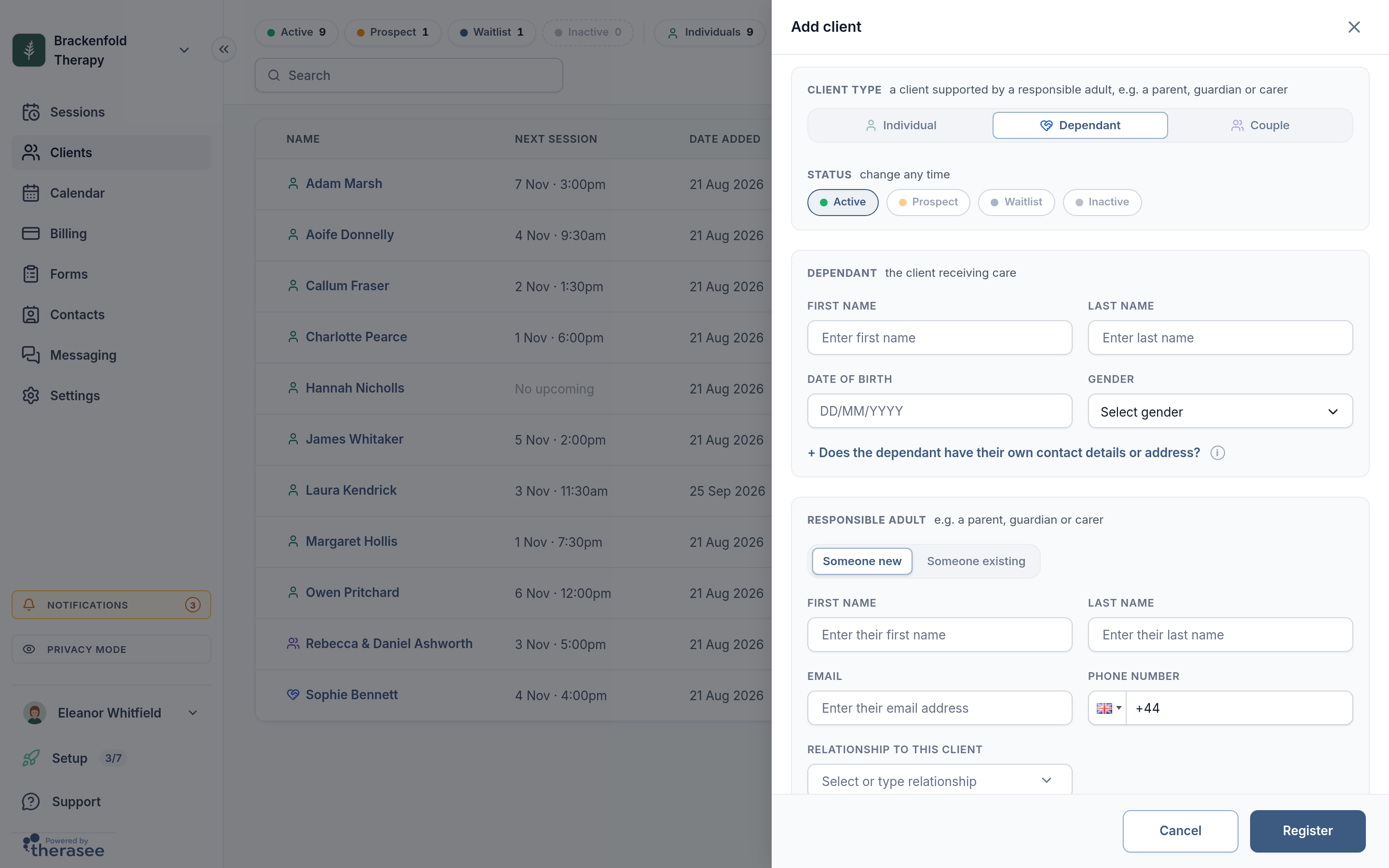
A new adult is saved as a contact, and the first adult becomes the person invoices are addressed to. See Adding a client for the other fields.
Adding or changing responsible adults later
- Open the dependant from Clients. On the Client profile tab, the Client details card shows each responsible adult with pills such as Emergency contact, Receives invoices and Parental responsibility.
- Select + Add responsible adult. The Add to [name]'s care team panel opens with Responsible adult already ticked.
- Choose a person, set the Relationship, and tick Has parental responsibility and Send [name]'s notifications to them as needed (both start ticked). Select Add.
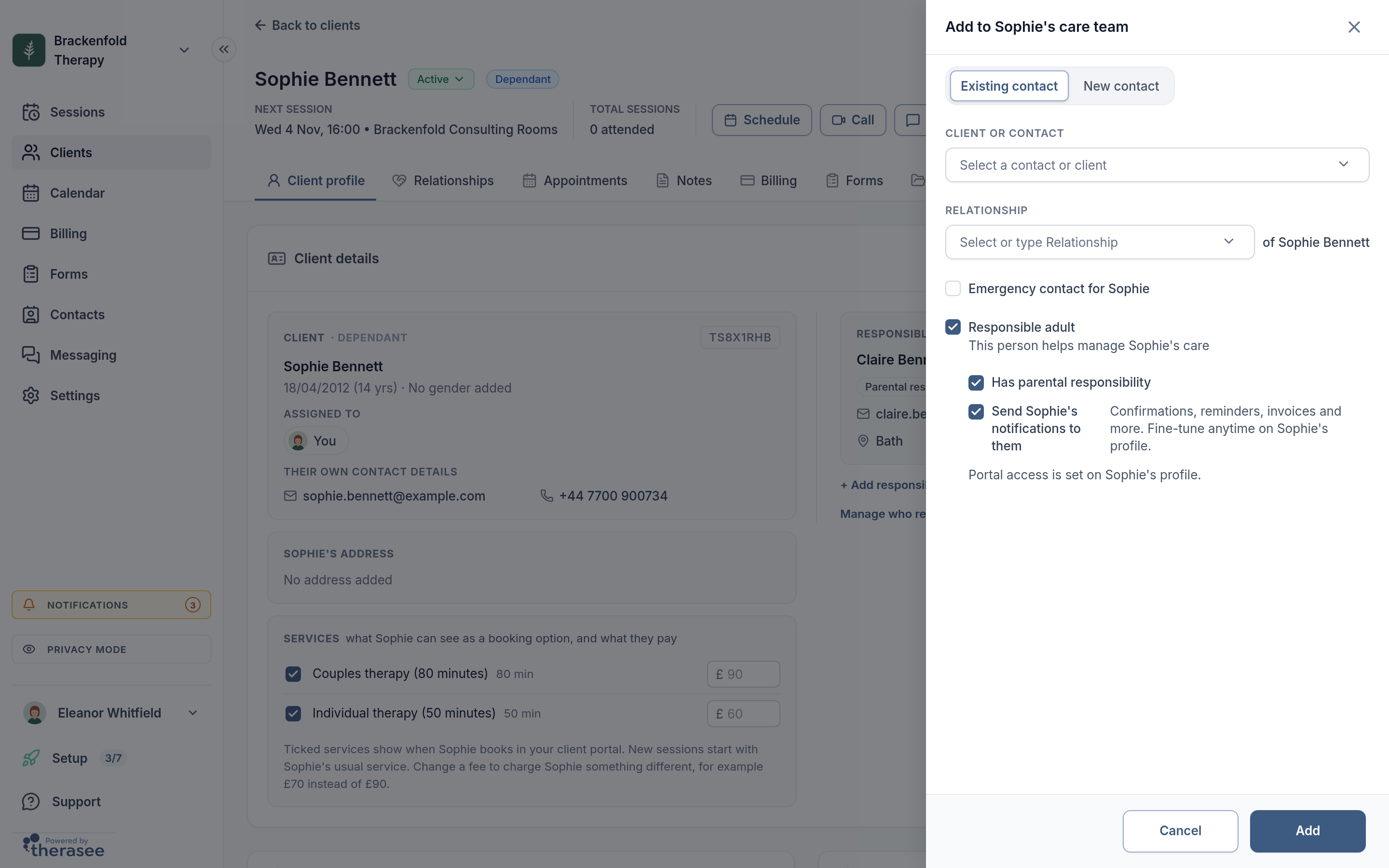
To change or remove someone, open the Relationships tab and use the ⋯ menu on their row: Edit relationship or Remove relationship. Before you confirm a removal, you're told what they currently hold, for example that they receive invoices or notifications, have portal access, are on upcoming appointments, or have unsigned forms. Removing them clears those, so reassign them on the profile afterwards.
To change who receives what later, use the Notifications card on the profile (Manage who receives notifications takes you there). It's the same grid as at registration, and each tick saves straight away.
Booking sessions
- Book as usual (see Booking an appointment) and choose the dependant as the client.
- Under Attending, the dependant is listed. Use Search contacts to add a parent or carer who will be in the room. For a session with the adult alone, add the adult first, then remove the dependant.
- Select Schedule. In Send confirmation?, the Who gets notified grid lists the dependant and each responsible adult with Email and SMS ticks, filled in from the dependant's notification settings. Changes here apply to this appointment only.
- Select Schedule and send, or Schedule without sending.
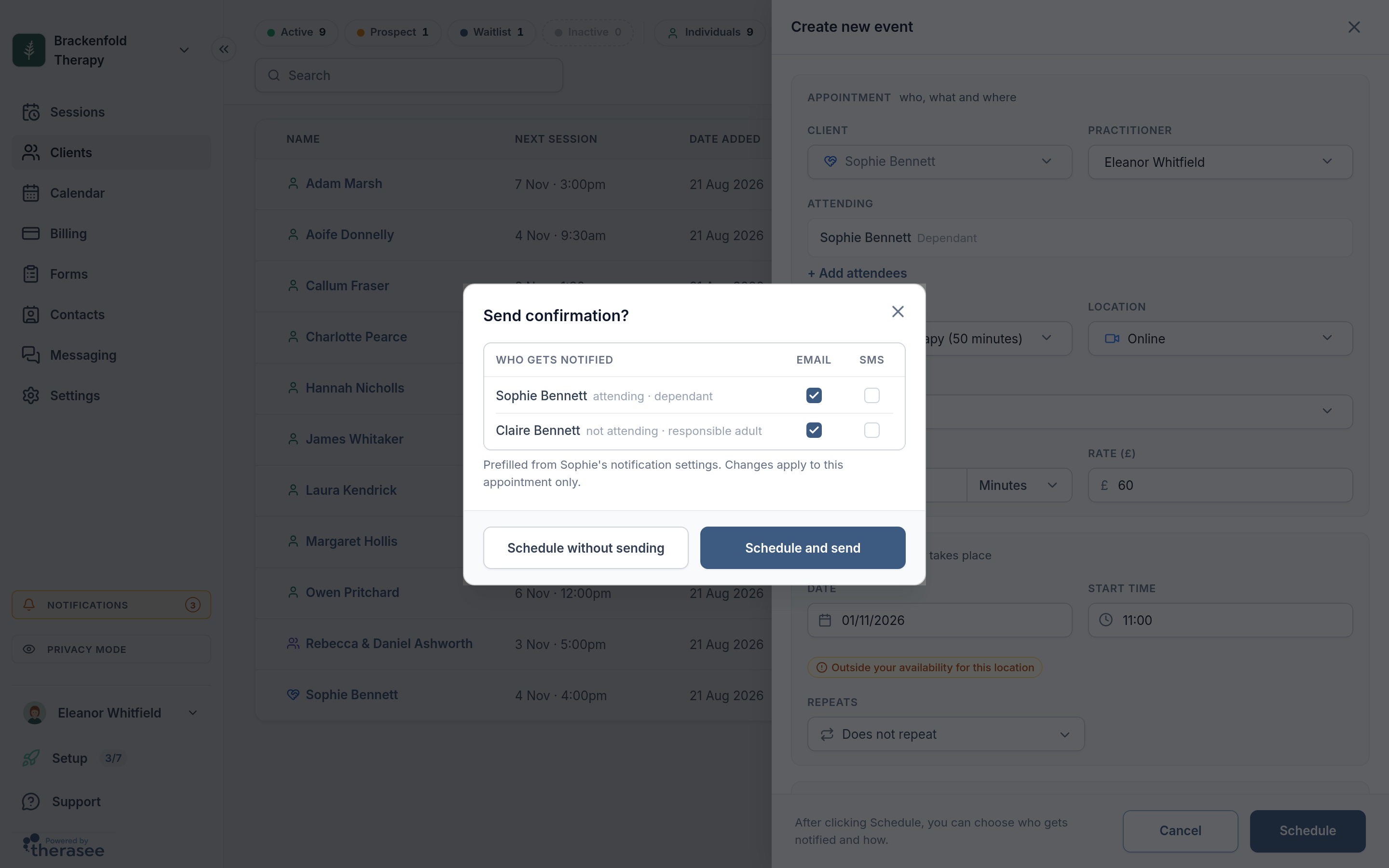
Adding someone to Attending doesn't change who is notified. Reminders follow the Reminders row of the dependant's settings.
Giving responsible adults portal access
A responsible adult signs in to your client portal with their own email or phone number and sees the dependant's record: their appointments, forms, invoices and messages.
- On the dependant's Client profile, find the Portal access card and switch it on.
- In Let them know they can sign in?, tick Can sign in for each adult who should have access, and under Send their link by choose Email, SMS or both.
- Select Send, or Don't send to give access and tell them yourself.
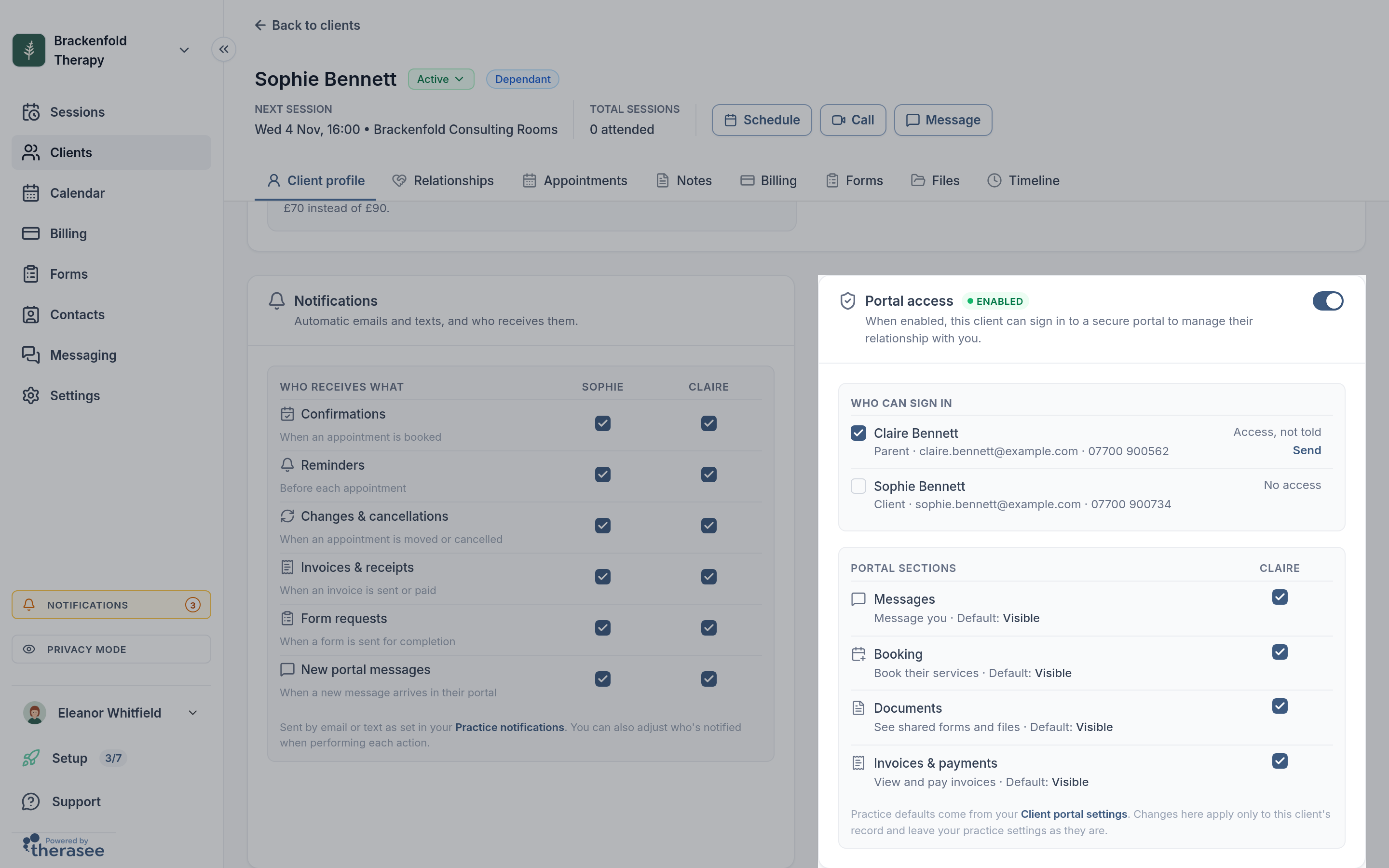
Afterwards, Who can sign in on the card shows each person's status, such as when they were invited or last signed in. Untick someone to remove only their access. Below it you can choose which portal sections (Messages, Booking, Documents, Invoices & payments) each person sees; changes apply to this record only.
When the adult signs in, a banner reads "You're viewing [name]'s record as their responsible adult." If they can reach more than one record, for example two children, or their own record as a client too, they first see Who are you here for? and choose one. They can change at any time with Switch record. Share Signing in to your client portal with adults who are new to it.
Can the dependant have their own access?
Yes, for example a teenager. Their own sign-in is off to begin with. Add their own email or phone number (pencil on Client details, then Save), then tick them under Who can sign in. They see the same record as the adults, so set each person's portal sections with that in mind.
Forms and signatures
When you send a form to a dependant (see Creating and sending forms), you're asked:
- Who completes this form? The responsible adults are ticked to begin with. The dependant can be ticked once they have their own email or phone. With more than one person ticked, choose One form together or A copy each.
- Who can see the answers? If not everyone is completing it, choose Only the people completing it (the default) or everyone on the record.
- Who signs this form? On forms with a signature, the adults with parental responsibility are ticked to begin with. The form gets a signature box for each person you tick. Only people who can see the form can sign it.
Invoices
Invoices are billed to the dependant's bill payer: the first responsible adult, unless you change it. To change the payer, select the pencil on Client details, pick someone in the Billing card (who receives invoices) and select Save. To bill someone not listed, add them on the Relationships tab first. When you send an invoice, the bill payer is filled in as the recipient. Invoice reminders go to whoever is ticked for Invoices & receipts. See Creating and sending an invoice.
Messages
A dependant's record has one conversation. Everyone with portal access to Messages reads and replies in the same thread; the inbox header lists them under Who can view and reply. See Messaging a client.
Notes stay private
Session notes never appear in the client portal, for the dependant or any responsible adult. See Writing session notes.
When a dependant turns 18 or no longer needs support
Nothing changes automatically on a birthday; you decide when the record changes.
- Add the client's own email or phone if they don't have one.
- Select the pencil on Client details, and under Client type choose An individual.
- In Make [name] an individual?, choose Send everything to [name] from now on or Keep the current notification settings, then select Make individual.
- On Portal access, check Who can sign in: tick the client and untick any adults who should no longer see the record.
- Check who receives invoices in the Billing card.
The adults stay linked with their roles until you remove them on the Relationships tab. The same Client type control lets you turn an existing individual into a dependant; you'll be asked to name a responsible adult.
Was this helpful?