Writing session notes
Write a private note for a session or a general note on a client's record, format or dictate it, and lock, duplicate, delete or export your notes. Clients never see your notes and aren't notified when you write one.
Updated 4 November 2026
Session notes are your private clinical record of each client's work with you. A note belongs to one client and can be linked to one of their sessions, or kept as a general note that isn't tied to a session. Clients never see your notes, and they aren't told when you write one: notes don't appear in your client portal, and writing, editing or deleting a note sends your client nothing. There's more on this under Who can see notes below.
Where to find notes
The same note can be opened from several places, whichever suits the moment:
- The Sessions list. Every session has an icon in the Notes column. Hover over it to see Add note (no note yet) or View note (a note already exists for that session).
- The client's profile. The Notes tab lists every note for that client, linked to a session or not.
- The calendar. Select a session to open its details. The Note section shows Add note, or the title of the existing note.
- After a video session. When you end a call, you're asked Add notes for this session now? Choose Add notes to go straight to a note for that session, or Maybe later. Only you see this question; your client's screen simply shows that the call has ended.
Write a note for a session
- Go to Sessions and find the session.
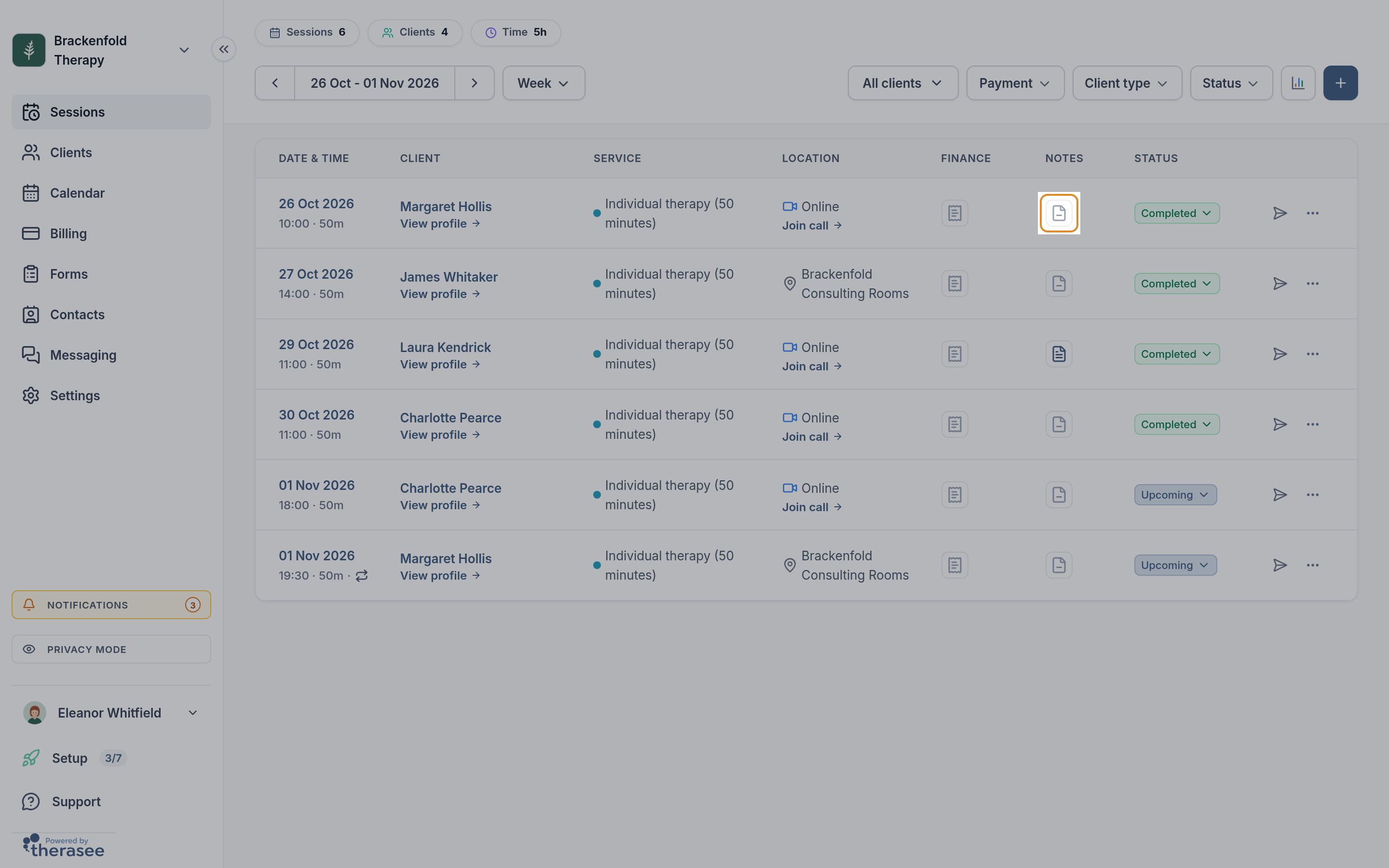
- Select the icon in the Notes column. The note editor slides in from the right, already linked to that session: under the title you'll see Session: followed by the session's date and time.
- Click Untitled note at the top and type a title, for example "Session 4". If you leave it blank, the note is saved as Untitled note.
- Write your note in the main area.
- Select Save at the top right. The Save button only appears once you've changed something, and disappears again when everything is saved.
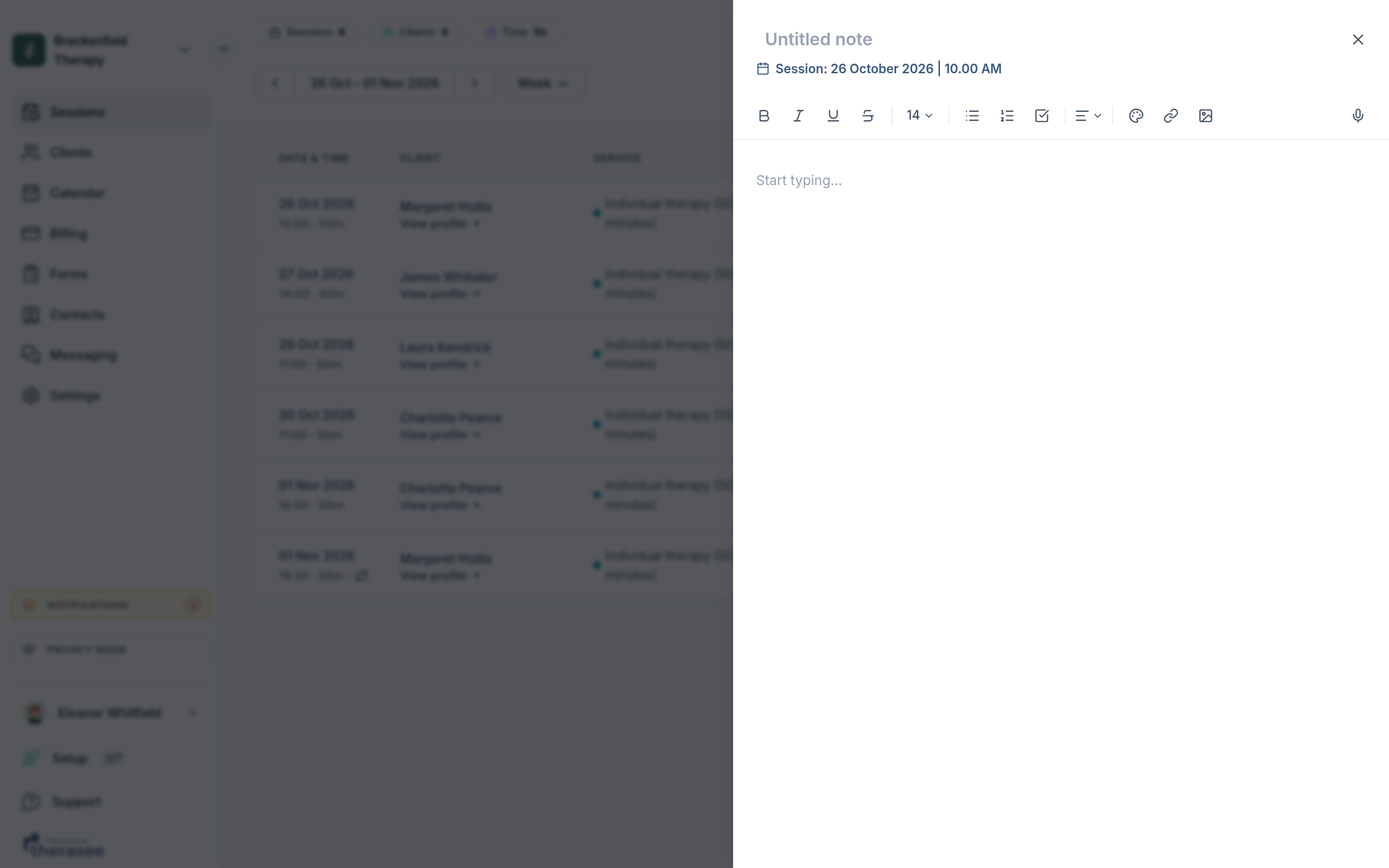
Notes are saved when you select Save. If you close the editor with changes that aren't saved, you're asked what to do: Save & close, Keep editing, or Discard.
Write a general note, or link a note later
- Open the client from Clients and select the Notes tab.
- Select the + button (Add note) beside the search box. If the client has no notes yet, you can also use Add note in the middle of the tab.
- Give the note a title, write it and select Save.
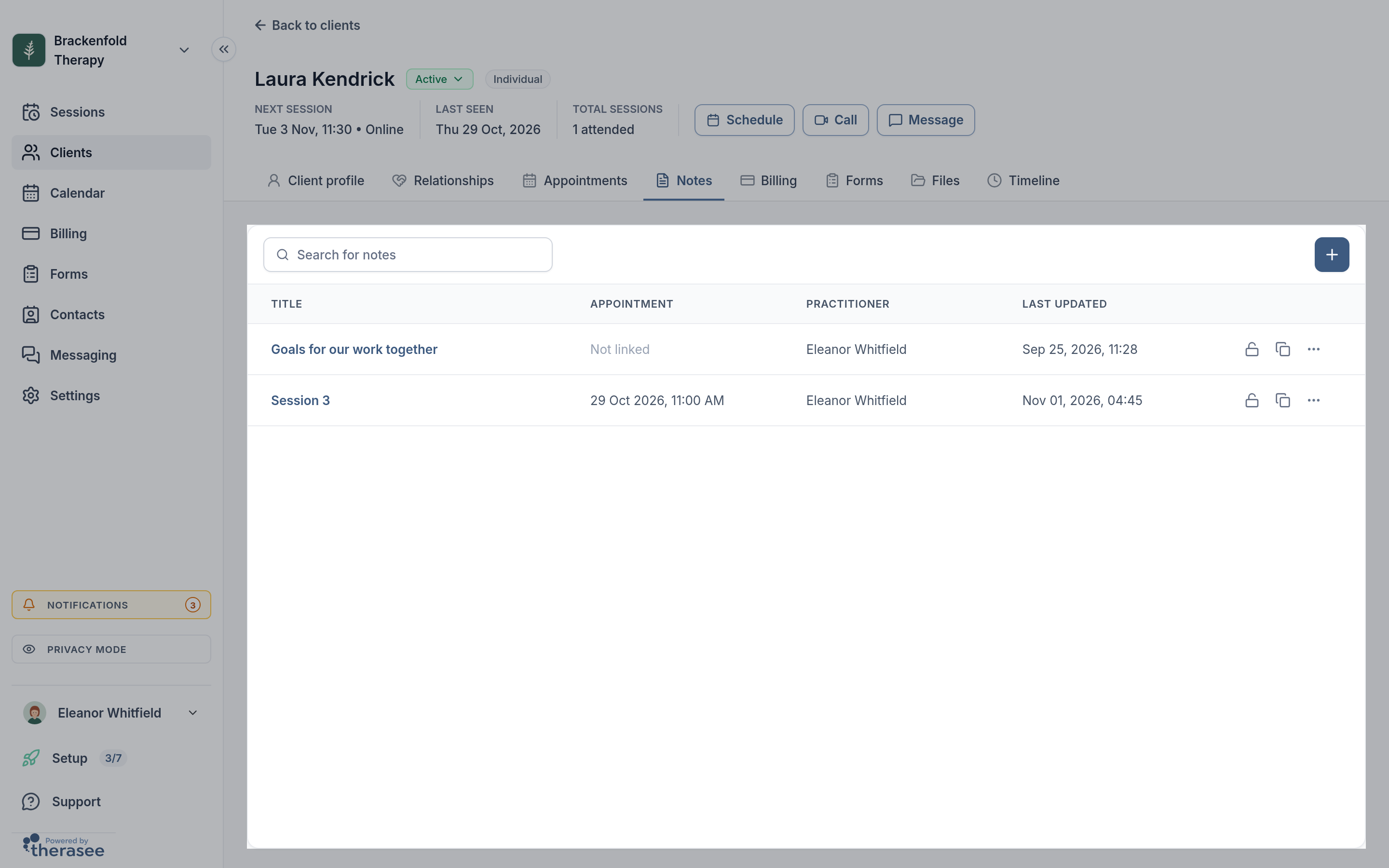
A note written this way shows Not linked in the Appointment column. To link it to a session, open the note and use Link to an appointment under the title, or select Not linked in the list to open the note with the session picker ready. Pick the session's date, then select Save. To move a note to a different session, select the Session: button and choose another date.
The picker lists this client's sessions that don't already have a note, nearest to today first. Link to an appointment only appears when there's at least one such session.
Notes on repeating sessions
If a client has a weekly or fortnightly booking, each session in the series has its own note. Adding, editing or deleting a note doesn't change the booking: the session stays part of its series, exactly as it was. The Notes tab shows the date of the session the note belongs to, not the date the series started.
Each session can have one note. If a session already has one, it won't be offered in the picker, and its icon in the Sessions list opens the existing note so you can add to it.
Using the editor
The toolbar along the top of the editor has:
- Bold, Italic, Underline and Strikethrough.
- Font Size, from 12 to 24.
- Bullet List, Numbered List and Task List (tick boxes, useful for follow-ups).
- Text Alignment and Text Color.
- Link: type or paste a web address and press Enter.
- Insert Image: add a picture from your computer into the note. Select an image in the note to resize it to Small, Medium, Large or Full Width.
Selecting some text also brings up a small menu with the most common formatting.
Notes hold text and images. For documents such as letters, reports or PDFs, use the client's Files tab.
Dictating a note
The microphone button at the right-hand end of the toolbar (Start dictation) turns your speech into text as you talk, in British English. Your browser will ask for permission to use your microphone the first time. Words appear where your cursor is; select the button again (Stop dictation) when you've finished, then check the text and select Save. If you pause for a while, dictation stops by itself; select the microphone again to carry on. Dictation sends your speech to a speech-recognition service to be turned into text.
AI assistance and templates
The AI Assistance page in Practice settings (marked Beta) switches on the AI Form Assistant, which helps you build forms and questionnaires. It doesn't write, read or summarise your notes. Your notes are written by you, typed or dictated.
There isn't a separate template library for notes. If you use the same structure each time, write it once and use Duplicate note (below) to start each new note from it.
Editing, locking, duplicating and deleting
In the client's Notes tab, each note shows its Title, Appointment, the Practitioner who wrote it and when it was Last updated. Use Search for notes to find a note by its title. At the end of each row:
- Lock note (the padlock). A locked note opens read-only: the title, text and session link can't be changed, and the toolbar is hidden. Select the padlock again (Unlock note) when you need to edit it. Locking and unlocking is done from the Notes tab.
- Duplicate note. Makes a copy of the note for the same client, with the same title and text. The copy isn't linked to any session, so link it and rename it as needed.
- More actions (the three dots): Edit opens the note (hidden while it's locked), and Delete removes it after you confirm Delete note. You can also delete an unlocked note with the bin icon at the top of the editor.
Deleting a note can't be undone. The session it was linked to isn't affected, and you can write a new note for it.
Who can see notes
Your clients never see them, and aren't notified
Notes are for you and your practice's team only. However a note is written, whether typed, dictated, or started from the prompt after a video session:
- Clients can't open them. The client portal has no notes page, and notes can only be opened by people signed in to your practice's account. A client signed in to their portal can't reach a note, even for a session they attended.
- Clients aren't told. Adding, editing, linking, locking, duplicating or deleting a note sends no email, text message or portal notification to your client.
- The session doesn't change. Linking a note to a session doesn't alter the appointment. Your client still sees the same date, time and details under their appointments, with nothing to show that a note exists.
- Notes aren't attached to anything clients receive. Confirmations, reminders, invoices and messages never include your notes. See What your clients are sent for everything that does go to clients.
If you want to share something with a client, such as a summary of what you agreed or some homework, send it to them as a message. See Messaging a client.
Your team, and anyone else
- Your team sees what their permissions allow. Under Settings, Users & Teams, each team member's Client documents & notes row has a View access and an Edit access setting: All clients, Assigned only (clients assigned to them), or None. Someone with no view access doesn't see the Notes tab. Adding, locking, duplicating and deleting notes need edit access. The same setting also covers files and forms on a client's record.
- A clinical will. If you set one up, the person you name can read your session notes only if you include them in the access you choose. See Setting up your clinical will.
Exporting notes
- Go to Clients and select the download button (Export clients) at the top right. It's shown on a computer-sized screen, to team members whose permissions let them edit all clients.
- Tick the clients to include.
- Under Export options, keep Clinical notes ticked. Untick anything else you don't need.
- Select Export. When you see Export ready!, copy the Download URL and open it to download a ZIP file.
Inside the ZIP, each client has a folder with a notes folder holding every note as its own PDF, named with the date it was created and its title. Each PDF contains the note's title, when it was created and last updated, who wrote it, and the text of the note. The download link expires after 48 hours; run the export again if you need a new one.
Was this helpful?