Blocking out time for holidays, days off and appointments
Block a day, a few hours or a whole holiday so clients cannot book it online, and what that does and does not do to sessions already booked.
Updated 4 November 2026
Blocked time takes you out of online booking for a stretch of time: annual leave, a bank holiday, a training day, an afternoon at the dentist. While a block is in place, clients booking online are not offered any times inside it. Your usual weekly hours are left alone, so there is nothing to undo afterwards.
A block does not cancel or move sessions already booked in that time, and it does not stop you booking into it yourself. Both are covered below.
Where to find it
Blocked time lives on the Calendar, not in Settings. At the top right of the calendar there is a row of small icon buttons. The second one, a calendar with a cog, shows Block Time & Custom Hours when you hover over it. (The first, Set Availability, is your weekly hours.)
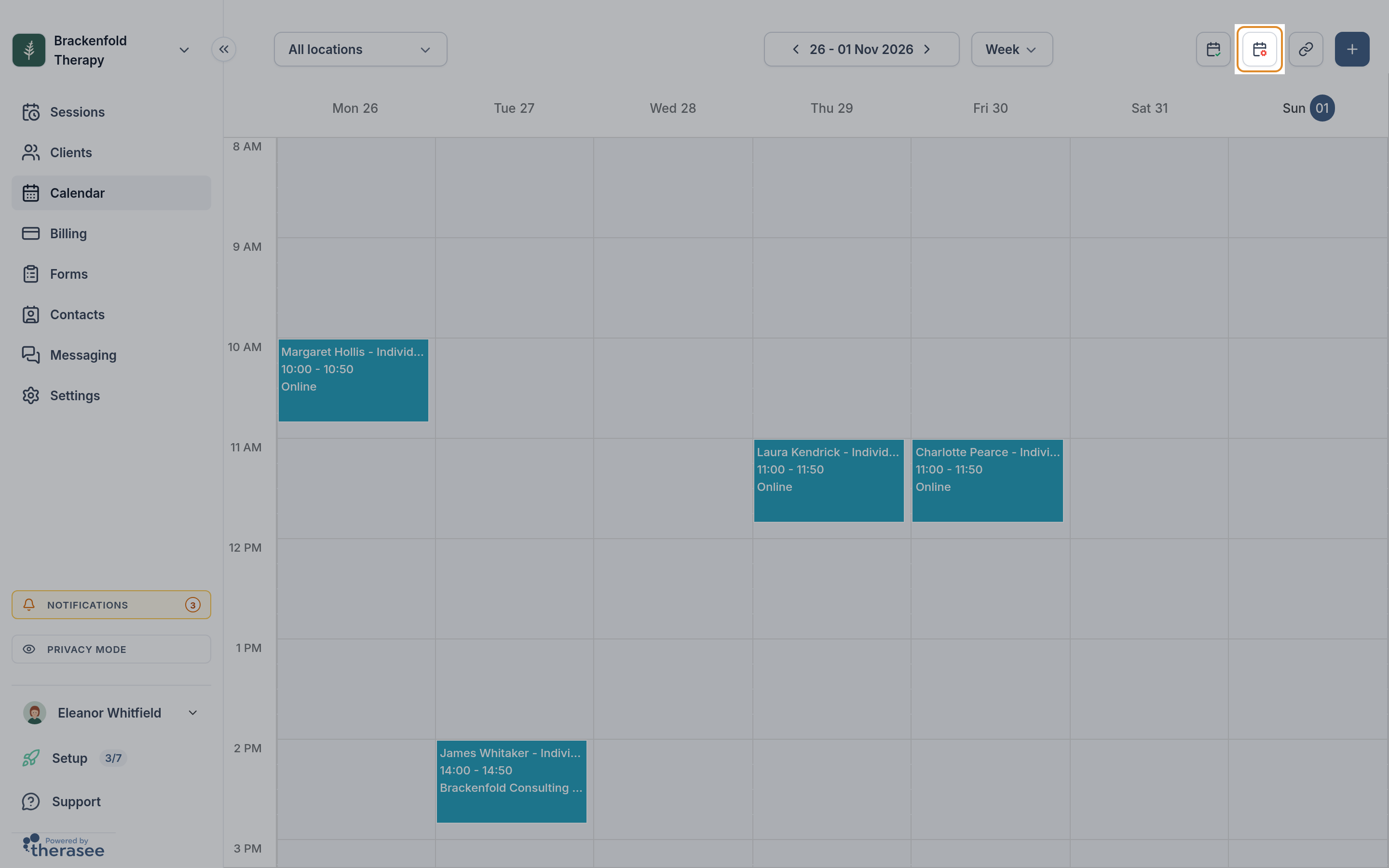
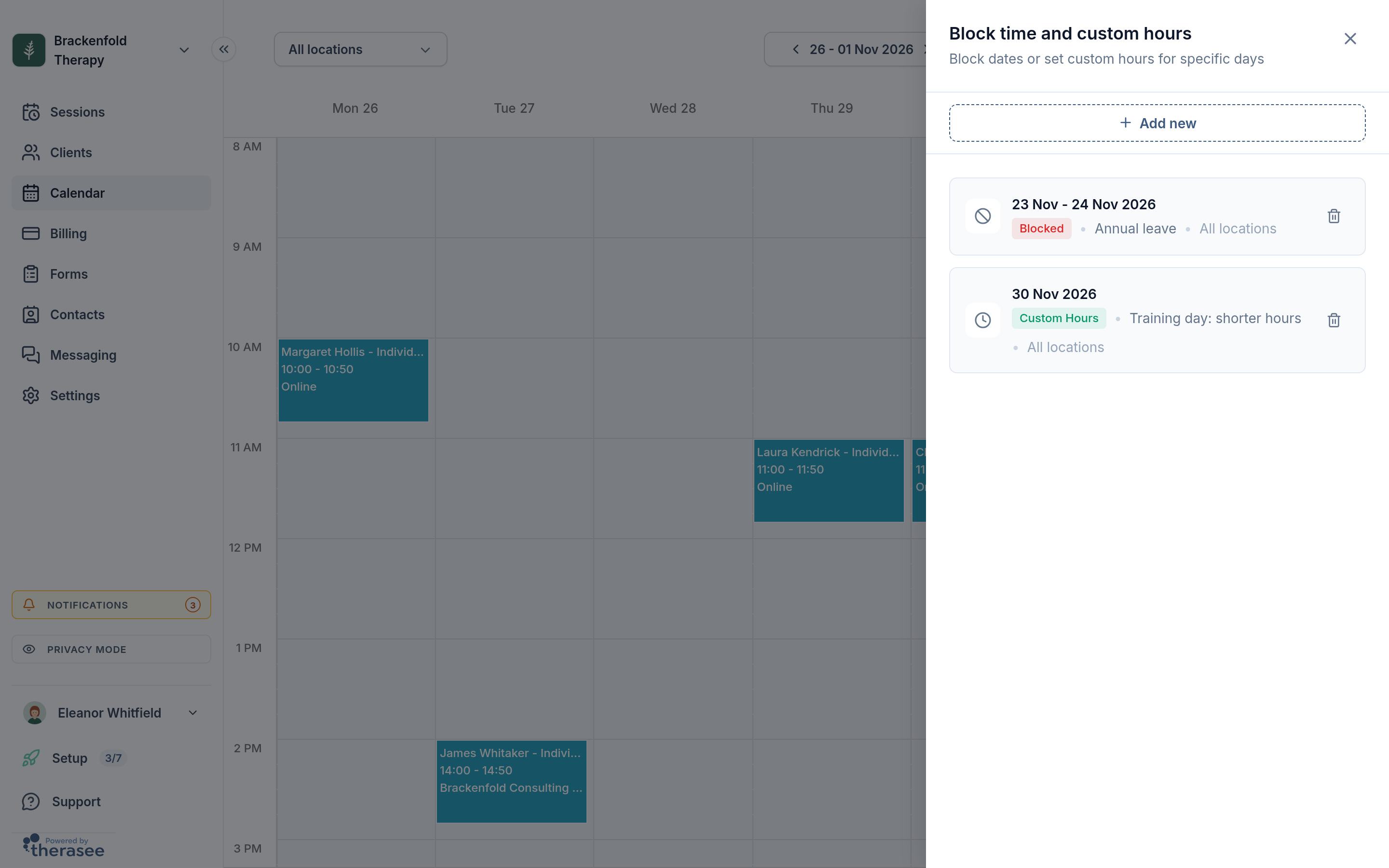
It opens a panel headed Block time and custom hours, listing everything you have coming up.
Blocking a whole day
- Open the Calendar and click the Block Time & Custom Hours button.
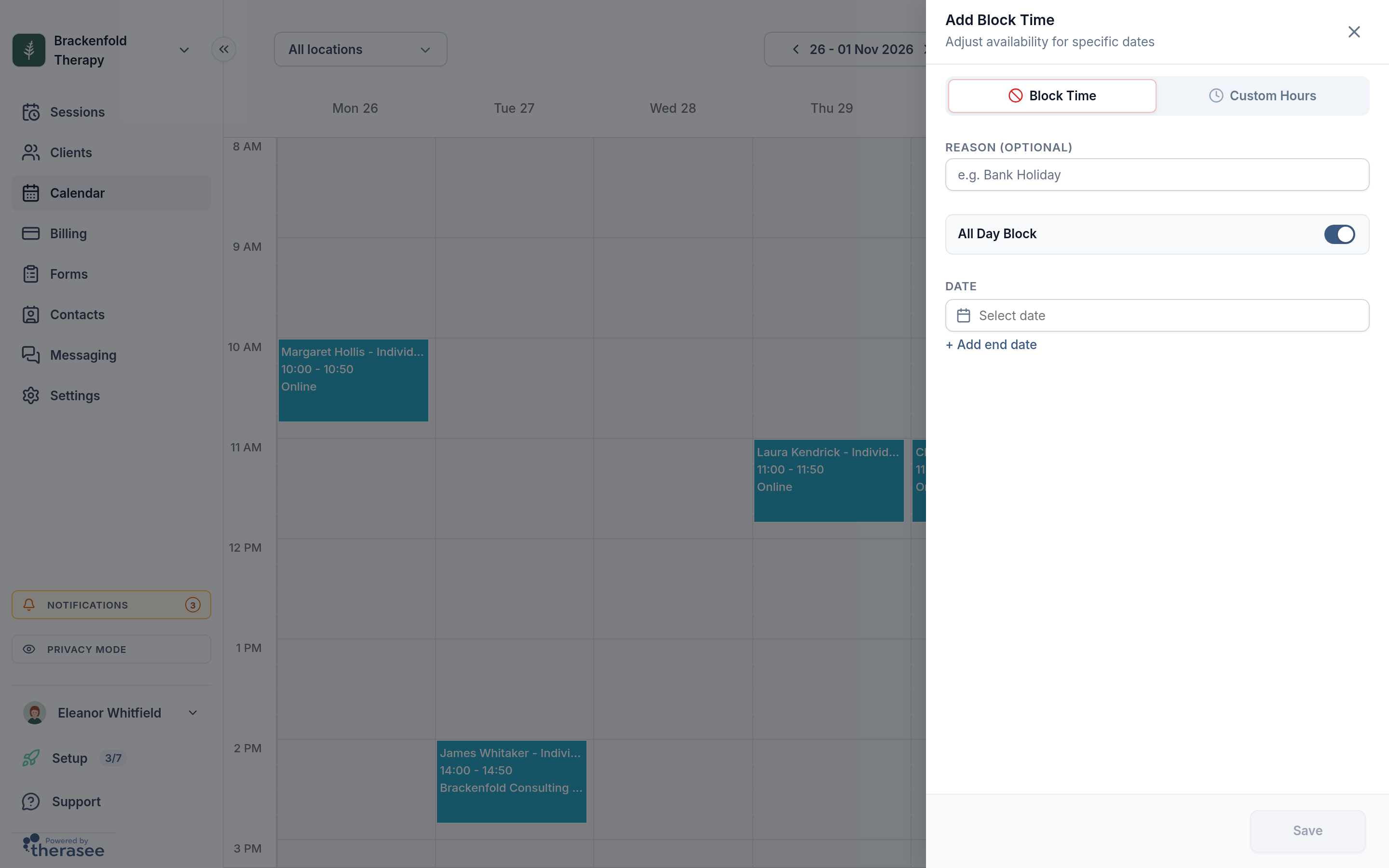
- Click Add new. A panel titled Add Block Time slides in from the right, with Block Time already selected at the top. (The other choice, Custom Hours, is for working different hours on a date and is covered in changing your availability for one week only.)
- If you want a label, type it under REASON (OPTIONAL), for example "Bank Holiday" or "Training".
- Leave All Day Block switched on.
- Under DATE, click Select date and pick the day.
- Click Save.
You will see "Date override added", and the day appears on your calendar as a grey block carrying your reason, or the word "Blocked" if you left the reason empty.
Blocking a holiday or any run of days
- Open Add new as above and pick the first day under DATE.
- Click + Add end date, just below the date. The field splits into START DATE and END DATE.
- Pick the last day under END DATE. Days before the start date cannot be chosen.
- Click Save.
The first and last days are included, and every day in between, weekends too. It is still one block: it appears once in the list, and changing or deleting it changes every day at once. If you added an end date by mistake, Single date in the same place takes it away again.
Blocking part of a day
- Open Add new and switch All Day Block off. START TIME and END TIME appear, set to 09:00 and 17:00 to begin with.
- Pick the date. Add an end date as well if you want the same hours blocked on several days in a row, such as every morning of a course week.
- Set the start time, and an end time after it, and click Save.
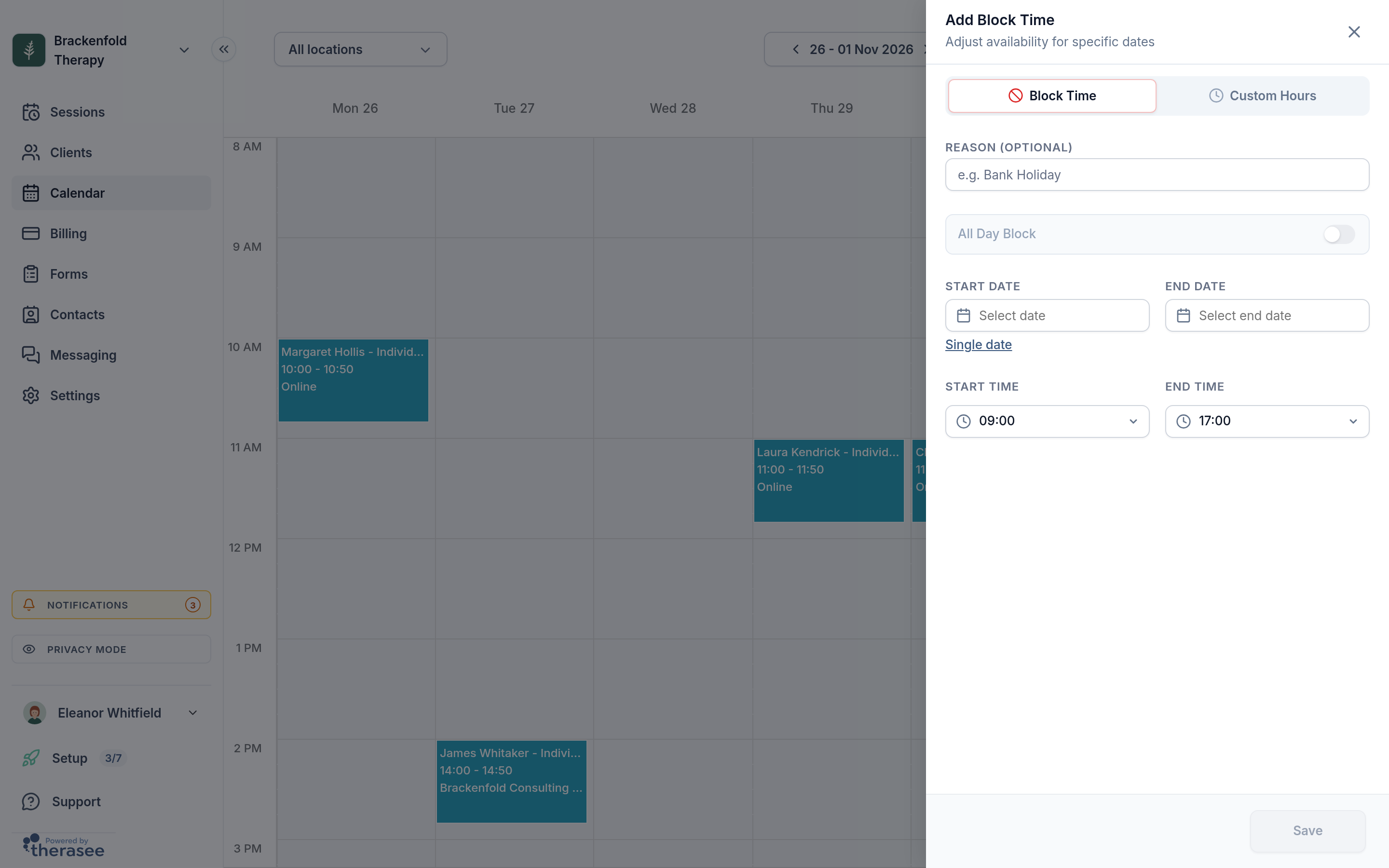
Clients can still book the rest of the day within your normal hours. Any slot that would overlap the blocked hours is removed, including one that would run into it.
A block holds one time range. For two separate gaps on the same day, add two blocks.
Blocks do not repeat. For something that happens every week, such as supervision every Wednesday afternoon, change your weekly hours under Set Availability rather than adding a block for each week.
Who sees the reason
The reason is a label for you and your practice. It shows on the block in your calendar and in the list, and colleagues who can view your calendar will see it too. Clients never see it: the online booking page is only ever sent the times that are free, so a blocked day looks exactly like a day you do not work.
A block covers every location
If you work from more than one location, a block always applies to all of them. There are no location or service choices on the form for blocked time, and the list shows the block as All locations. If you want to stop working at one location on a date but stay open at another, use custom hours for that date instead.
Changing or removing a block
- Click the block on your calendar, or open the Block Time & Custom Hours list and click its row.
- The panel opens as Edit Block Time with everything filled in. Change what you need and click Save. You will see "Date override updated".
To remove a block, click the bin icon at the bottom left of the Edit Block Time panel and confirm with Delete. You can also click the bin at the right-hand end of its row in the list, which asks "Delete date override?" first. The time becomes bookable again straight away, following your usual weekly hours. To shorten a holiday, edit the end date instead.
When editing, Save stays greyed out until you have changed something. If you close the panel with unsaved changes you are asked whether to Save & close, Discard or Keep editing.
Sessions already booked in the blocked time
Blocking time does not cancel, move or notify anyone about sessions already booked in it. A block only changes what online booking offers from then on. If you block a week of leave and a client already has a session on the Wednesday, that session stays in your calendar exactly as it was, the client still expects you, and any reminders set for it still go out.
So when you block time, check what is already in it:
- Look at those dates on the calendar. Sessions still show on top of the grey blocked time. If you use the location filter, make sure every location is showing, or a session could be hidden.
- For a longer block, the Sessions list is quicker: open the date filter, choose Custom and pick the first and last day of the block.
- For each session, decide whether to move it or cancel it. To move one, click it on the calendar, click the pencil icon (Edit event), change the date or time and save. What the client is told when you move or cancel a session is covered in cancellations, reschedules and no-shows.
Repeating sessions
A weekly or fortnightly series carries on straight through a block. Any occurrences that fall inside the blocked dates stay booked. Deal with each one on its own: when you edit or cancel it, choose This event when asked which sessions to change, so the rest of the series is left alone. The same goes for a new series you create later: it is not skipped over blocked dates.
Booking into blocked time yourself
A block only limits what clients can book online. You can still create a session in blocked time yourself. The new appointment form shows a warning under the time, Outside your availability for this location, but it is a warning, not a stop, and you can save. For creating sessions in general, see booking an appointment.
What clients see
On your online booking page, the client picks a date from a month calendar and then a time. A fully blocked day is greyed out and cannot be picked, exactly like a day you do not work. A part-blocked day can still be picked, and shows only the times left outside the block. Nothing tells the client why.
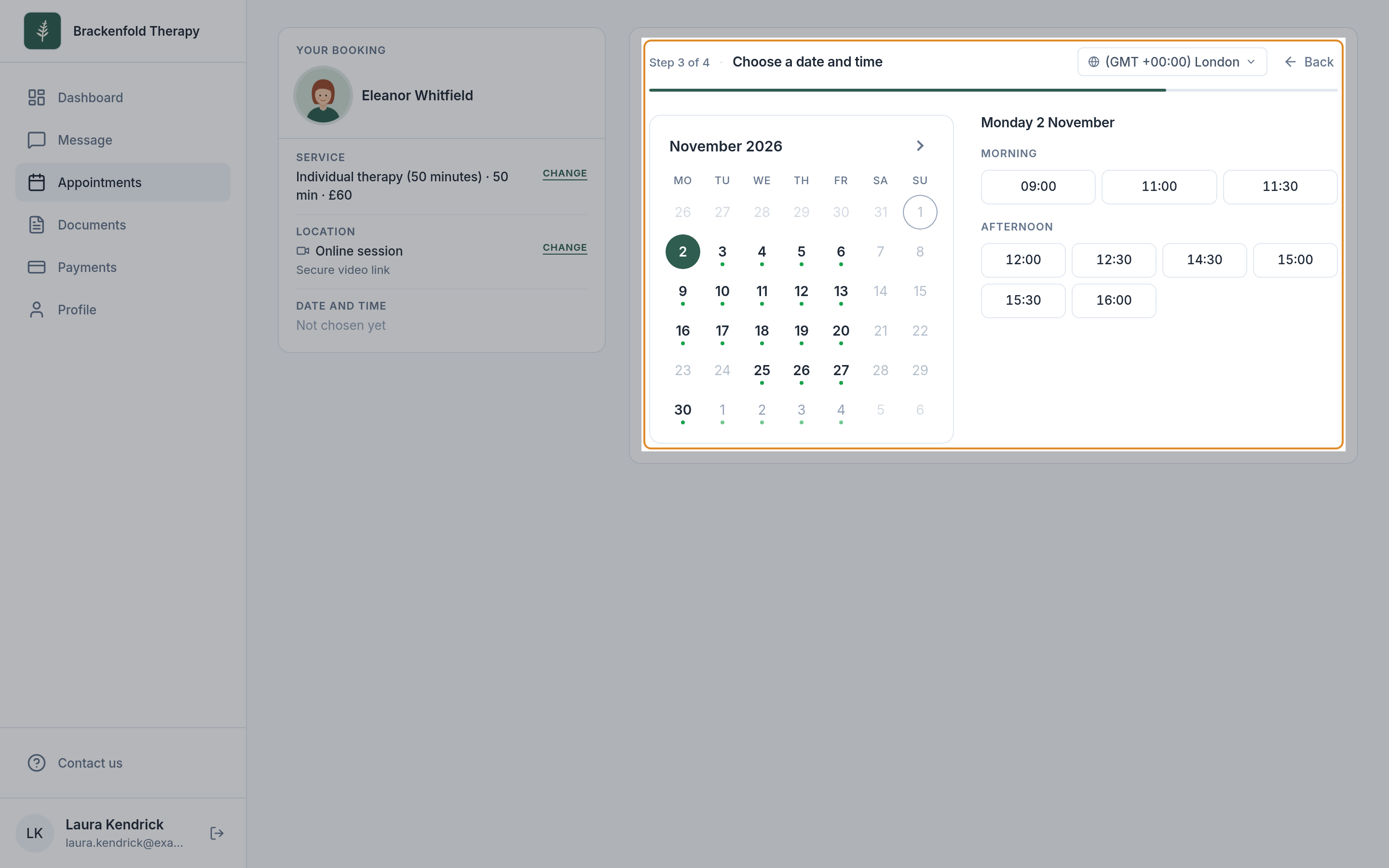
If a block covers every remaining working day in the month they are looking at, the page says "No times in" that month (or "No times left in" it, for the current month) and offers a Next available card with your next free date and a See times button, so a long holiday does not look like a closed practice. Only if there is nothing bookable at all within your booking window does it say you currently have no times available to book online.
The same calendar is used when a client reschedules a session from their portal, so they cannot move a session into blocked time either. Clients are not sent anything when you add, change or remove a block.
If it will not save
- Save is greyed out. No date has been picked yet, or you added an end date and have not picked it, or (when editing) nothing has changed.
- Another entry already covers those dates. A block cannot share dates with another entry, block or custom hours, when either of them is all-day. Two part-day blocks on the same day are fine. Open the list, then edit or delete the existing entry first.
Connected calendars
If you have connected Google Calendar under Settings, Integrations and ticked Show Google Calendar Appointments in Therasee, timed events in your Google calendar also stop clients booking those times, without you adding a block here. All-day Google events do not, so a holiday entered as an all-day event in Google still needs a block in Therasee. Blocks you add in Therasee are not copied to Google Calendar.
Was this helpful?