Changing your hours for particular dates
Work different hours on a day or a run of days, without touching your usual weekly schedule, and what that does to sessions already booked.
Updated 4 November 2026
Your availability has two layers. Your weekly schedule is the pattern that repeats every week. Custom hours change particular dates and leave every other week alone: a Saturday morning you are opening once, a week of evenings while your room is being decorated, a shorter day before a holiday.
Use custom hours for anything that is not permanent. Editing your weekly schedule for one week means remembering to change it back.
Your weekly schedule and one-off dates live in different places
The weekly schedule is under Settings, My settings, Availability. Each day has its own times, locations and services, or shows Unavailable. The first of the two small icons at the top right of the calendar, Set Availability, opens the same weekly schedule.
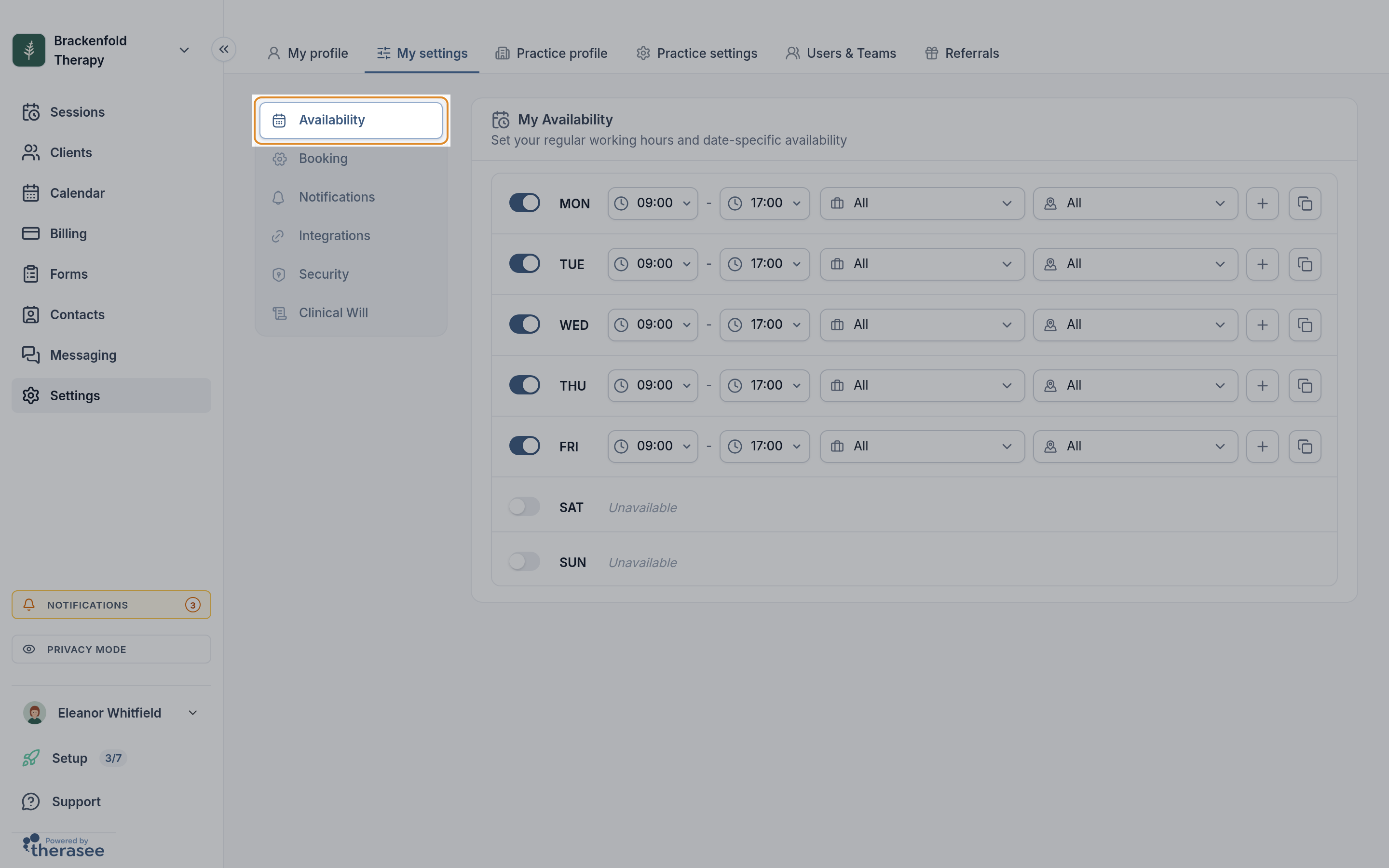
Custom hours for particular dates are only on the Calendar, behind the second icon.
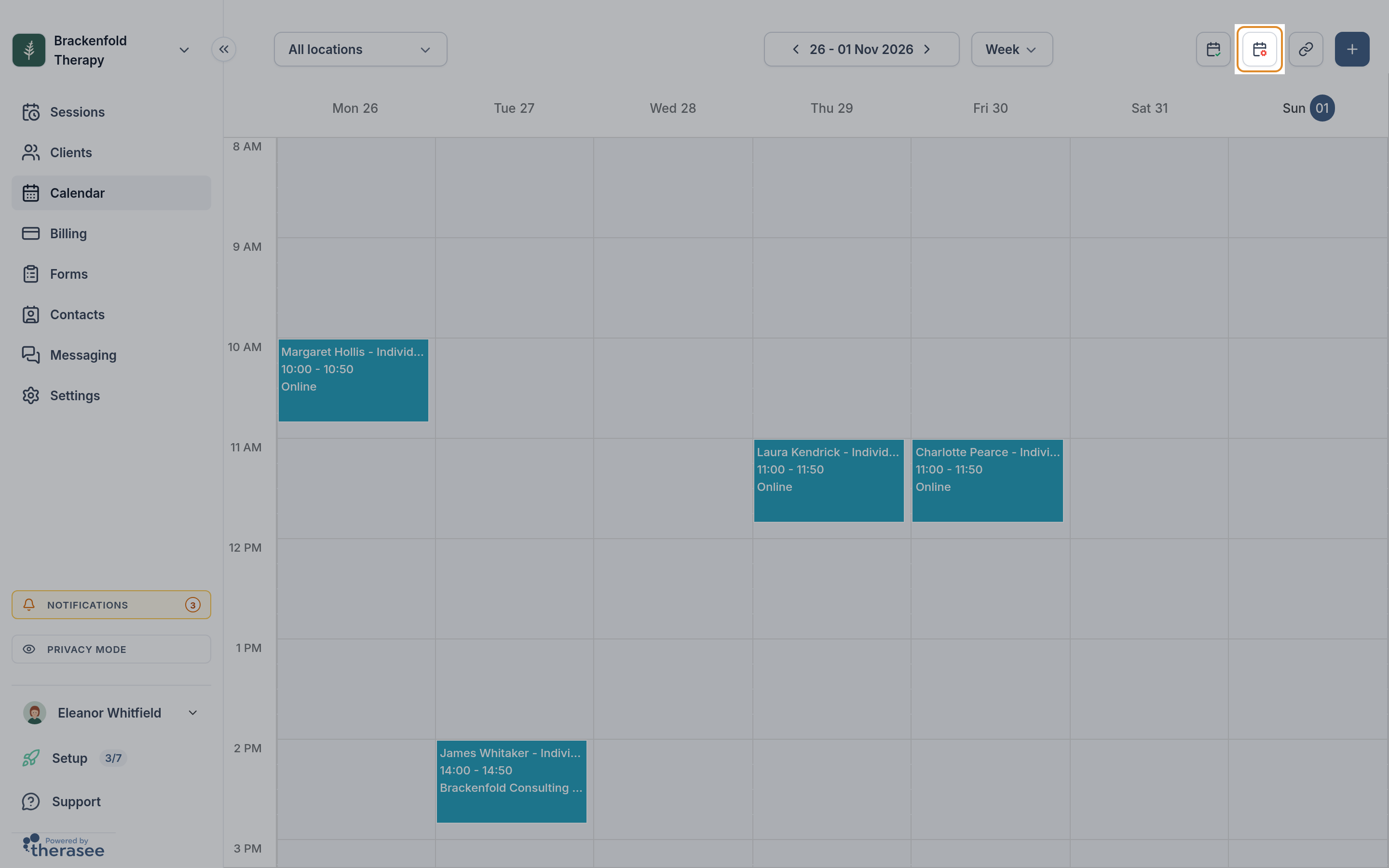
Setting custom hours for a date
Open the form
Open the Calendar and click the second icon at the top right, the calendar with a cog. Its tooltip reads Block Time & Custom Hours.
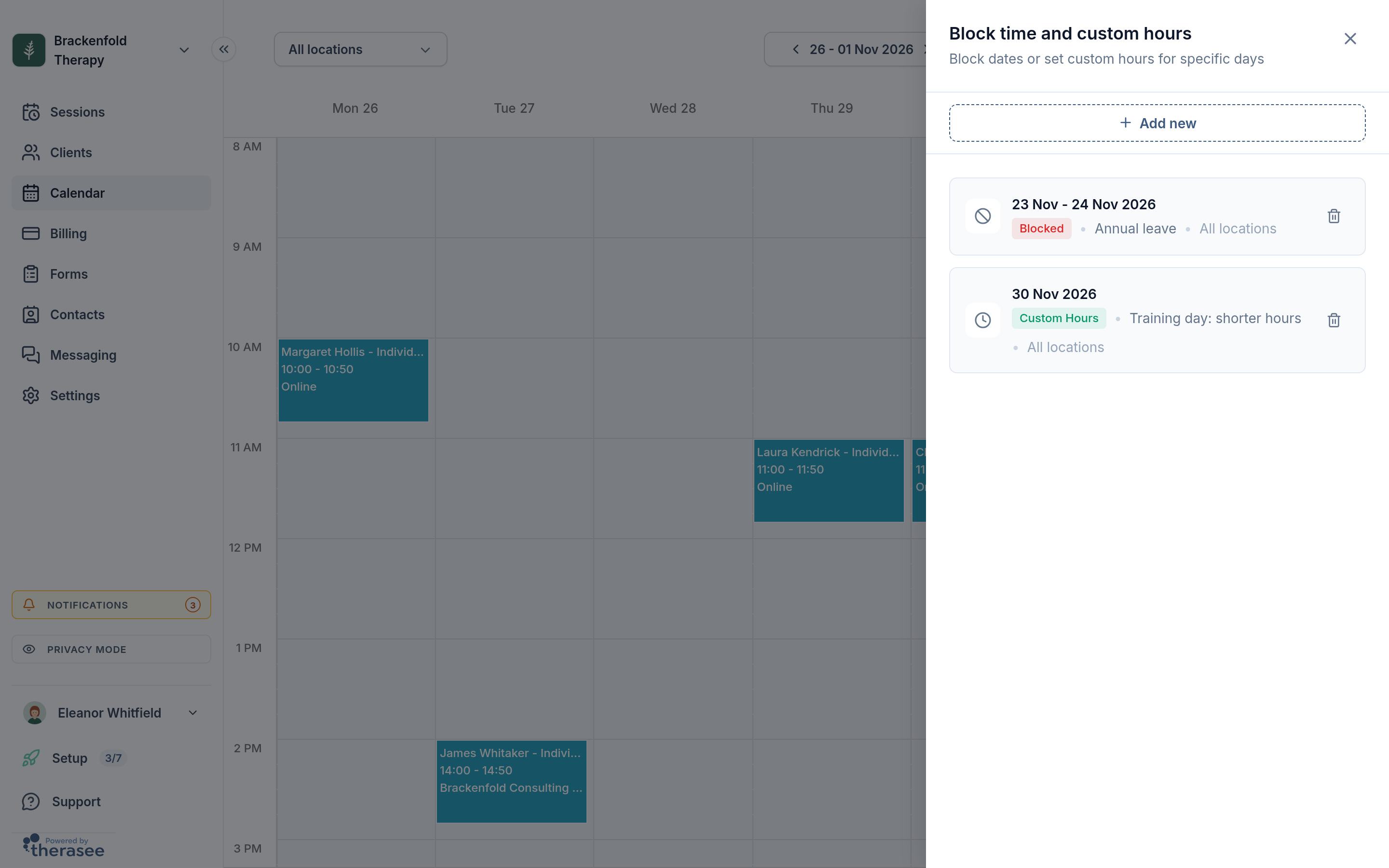
A panel titled Block time and custom hours opens, listing anything you have already set for today onwards. Click Add new.
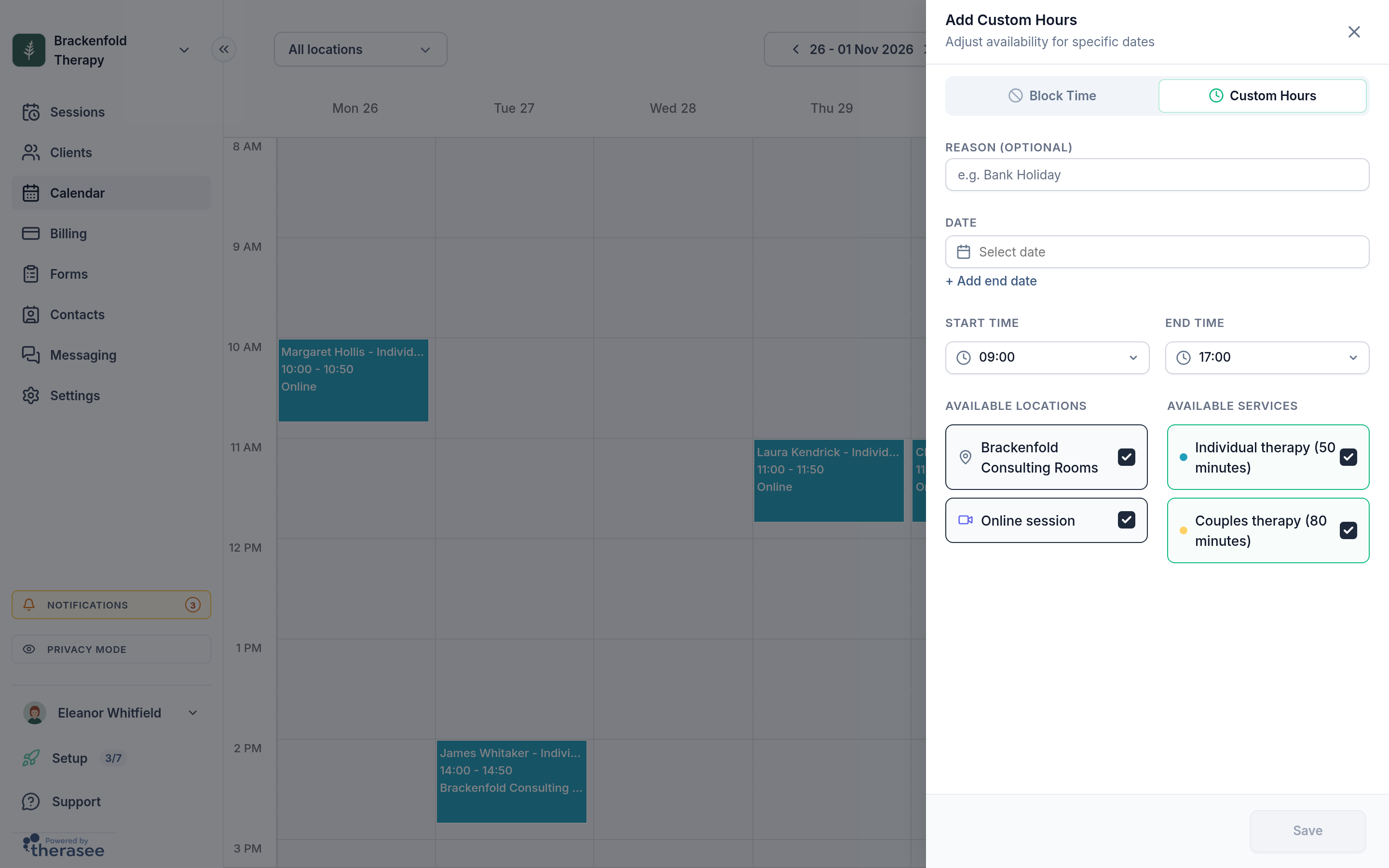
The form opens set to Block Time. Click the Custom Hours card instead. The title changes to Add Custom Hours.
Fill it in
Under REASON (OPTIONAL), add a note if it helps you. Clients never see it.
Under DATE, pick the day. For a run of days, click + Add end date and pick the last day under END DATE. Every day in the range gets the same hours, including weekends.
Set START TIME and END TIME. They start at 09:00 and 17:00 and move in 15-minute steps, in your practice's time zone. Choose an end time after the start time.
Under AVAILABLE LOCATIONS and AVAILABLE SERVICES, everything starts ticked. Untick any location or service you are not offering on that date.
Click Save. You will see "Date override added" and the calendar's shading for that date changes to the new hours.
If Save stays greyed out: pick a date first. If you clicked + Add end date, you also need an end date, or click Single date to go back. When editing, Save only lights up once you change something.
What custom hours do to the day
They replace your weekly hours for that date, they do not add to them. If you normally work 09:00 to 17:00 on Tuesdays and set custom hours of 18:00 to 20:00 for one Tuesday, that Tuesday offers only the evening.
One time range per entry. For your usual day with a gap in it, do not use custom hours. Leave your weekly hours alone and block the gap instead, as described in blocking out time.
The last bookable start is the end time minus the session length. Custom hours of 09:00 to 10:30 fit a 50-minute session starting no later than 09:40.
The following week goes back to your weekly schedule by itself. There is nothing to undo.
If you work at more than one location
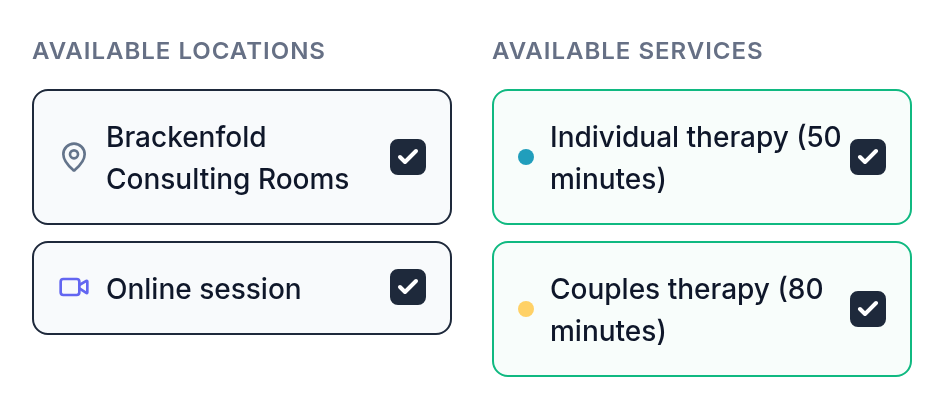
Unticked locations are closed that day, whatever your weekly schedule says. If you normally offer your room and online sessions on a Thursday, and set custom hours for one Thursday with only online ticked, your room is not bookable that day.
Different hours at different locations on the same day: add one custom hours entry per location, each with its own times. Each location can have one set of custom hours per date.
Leave at least one location ticked. To close every location on a date, use Block Time instead.
Leaving every service unticked makes the hours available for all services.
Seeing, changing and removing custom hours
Custom hours are managed from the list rather than the calendar grid.
To see them, click the Block Time & Custom Hours icon. Each entry shows its date or date range, a Custom Hours label, your reason, and its locations: All locations, a location's name, or a count such as 2 locations. Dates that have passed drop off the list.
To change them, click the entry. It opens as Edit Custom Hours. Change what you need, click Save, and you will see "Date override updated".
To remove them, click the bin icon on the entry and confirm with Delete. You can also open the entry and use the bin at the bottom left of the form. The date goes straight back to your weekly schedule, at every location.
Sessions you have already booked
Nothing happens to them. Setting, changing or removing custom hours never cancels or moves a session, and nobody is notified. A session that now falls outside your custom hours stays exactly where it is, on your calendar and your client's.
So if you are narrowing a day, look at the sessions already in it first. Anything that no longer fits, reschedule or cancel yourself so the client is told. See cancellations, reschedules and no-shows.
Booked sessions also still count against the custom hours: a client cannot book over a session that is already there.
Custom hours limit online booking, not you. You can book a session yourself at any time, including outside them. The new session form shows "Outside your availability for this location" as a warning, but lets you save. See booking an appointment.
Custom hours and Block Time on the same date
On any date, Block Time takes priority over custom hours.
An all-day block and custom hours cannot share a date. To switch a date from one to the other, delete or change the existing entry first.
Use either custom hours or a part-day block on a date, not both. For a day with a gap in it, keep your weekly hours for that day and block the gap instead.
Block Time also applies to every location at once. Blocking out time covers it in full.
What clients see in online booking
A client booking online picks a service, then a location, then a date and time. Custom hours only change the last step.
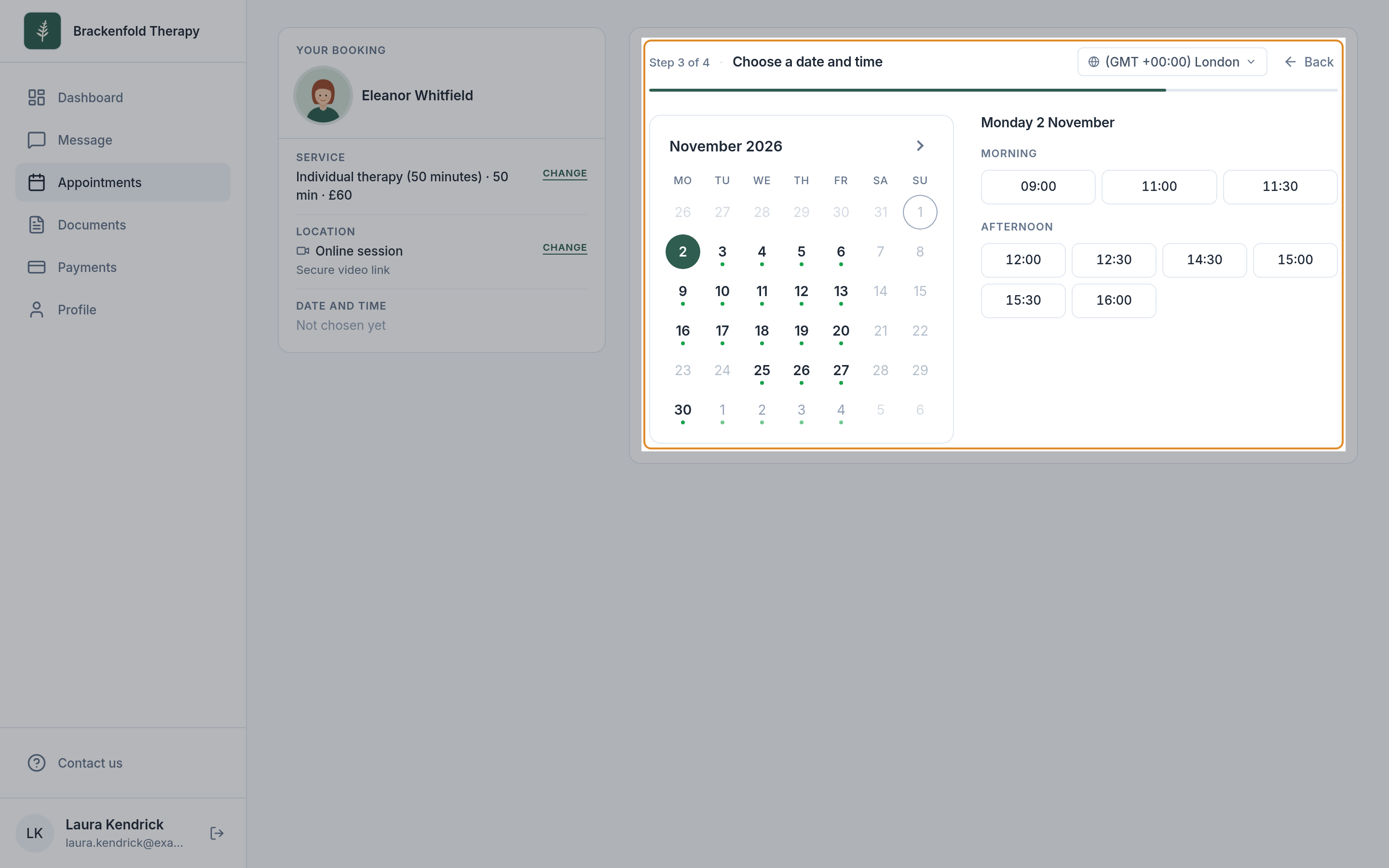
Which locations a client can pick is not decided by your hours. It comes from Services & locations under Settings, My settings, Booking, narrowed to the locations the chosen service is offered at. So a location you only ever work at on custom hours is still offered, as long as it is selected there. A location that is not selected there is never offered, whatever your custom hours say.
On the date itself, the client is offered times inside your custom hours only if the location and service they picked are both ticked on the entry. Otherwise that date simply has no times for them.
A date with no times cannot be picked. If a whole month has none, the client sees "No times in" followed by the month. Clients never see your reason, or that the date differs from your usual week.
Your booking rules still apply: existing sessions, buffer time, minimum lead time and maximum advance booking. Custom hours further ahead than your maximum advance booking do not show until the date comes into range. See letting clients book.
Times are shown in the client's own time zone, which the booking page detects from their device.
Was this helpful?