Setting your working hours
Set the weekly schedule that decides which times clients can book online: working days, start and end times, split days, which services and locations each stretch of time is for, and how time zones work when you or your clients are abroad.
Updated 4 November 2026
Your working hours are a weekly schedule: for each day of the week, the times you are available, and which locations and services each stretch of time is for. Clients booking online are only offered times inside this schedule. It repeats every week until you change it.
A new account starts on Monday to Friday, 09:00 to 17:00. Change it to the hours you actually work before you share your booking link.
Open your weekly schedule
There are two ways in, and both edit the same schedule.
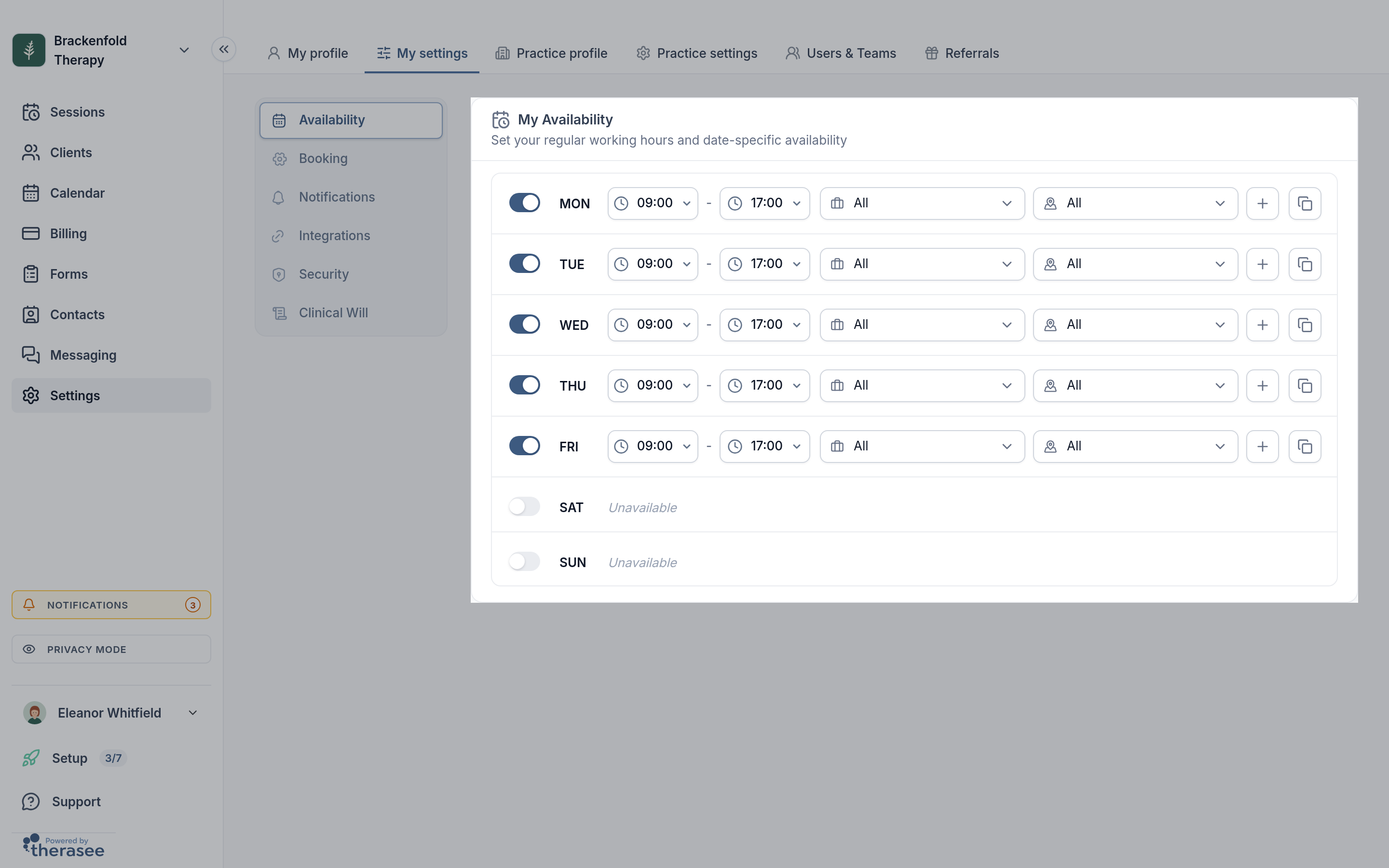
- From Settings: go to Settings, My settings, Availability. The card is titled My Availability.
- From the calendar: open the Calendar and click the first small icon at the top right, a calendar with a tick. Its tooltip reads Set Availability. A panel titled Availability opens showing your week, with your name and your practice's time zone underneath the title. Click the pencil icon to edit.
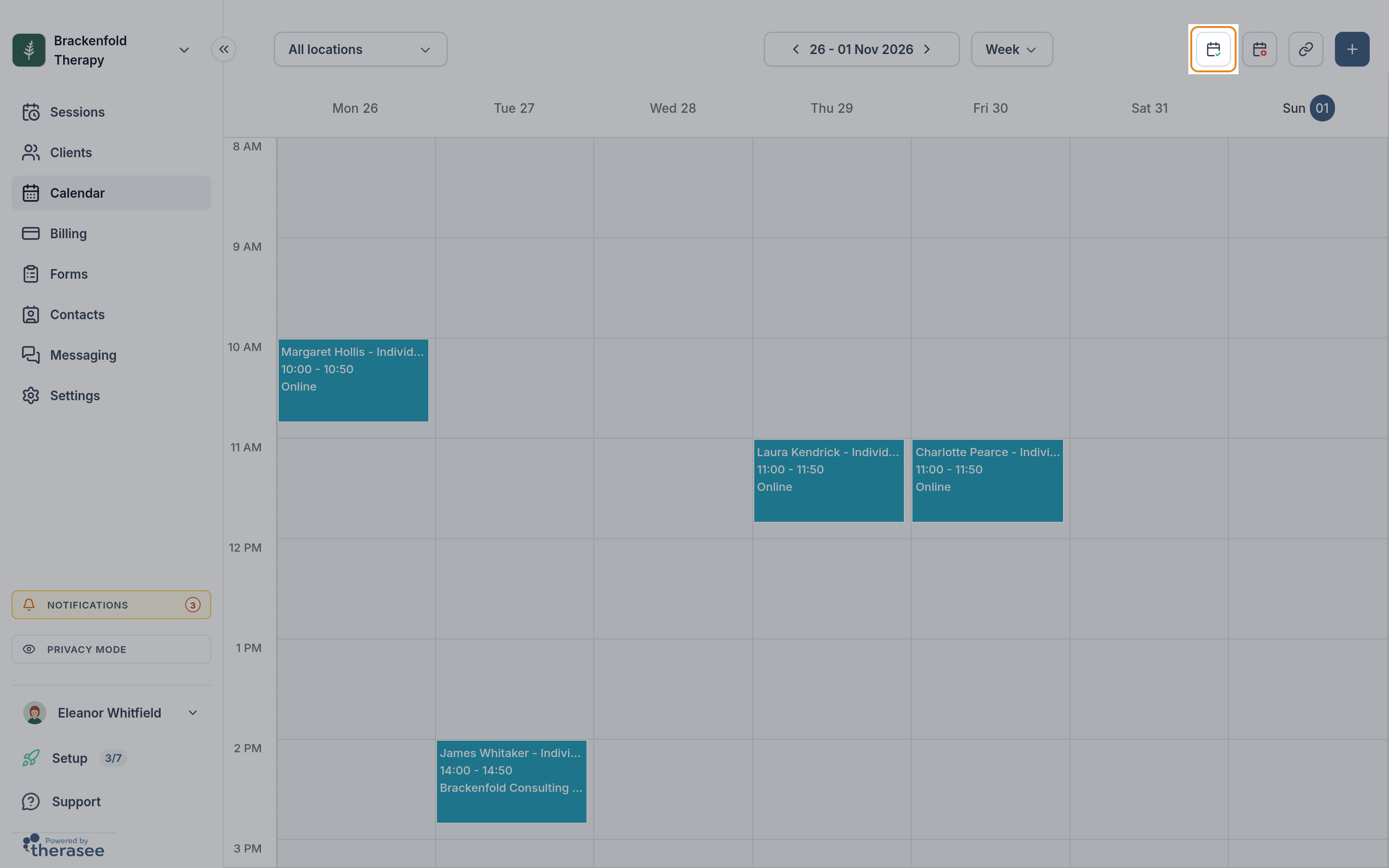
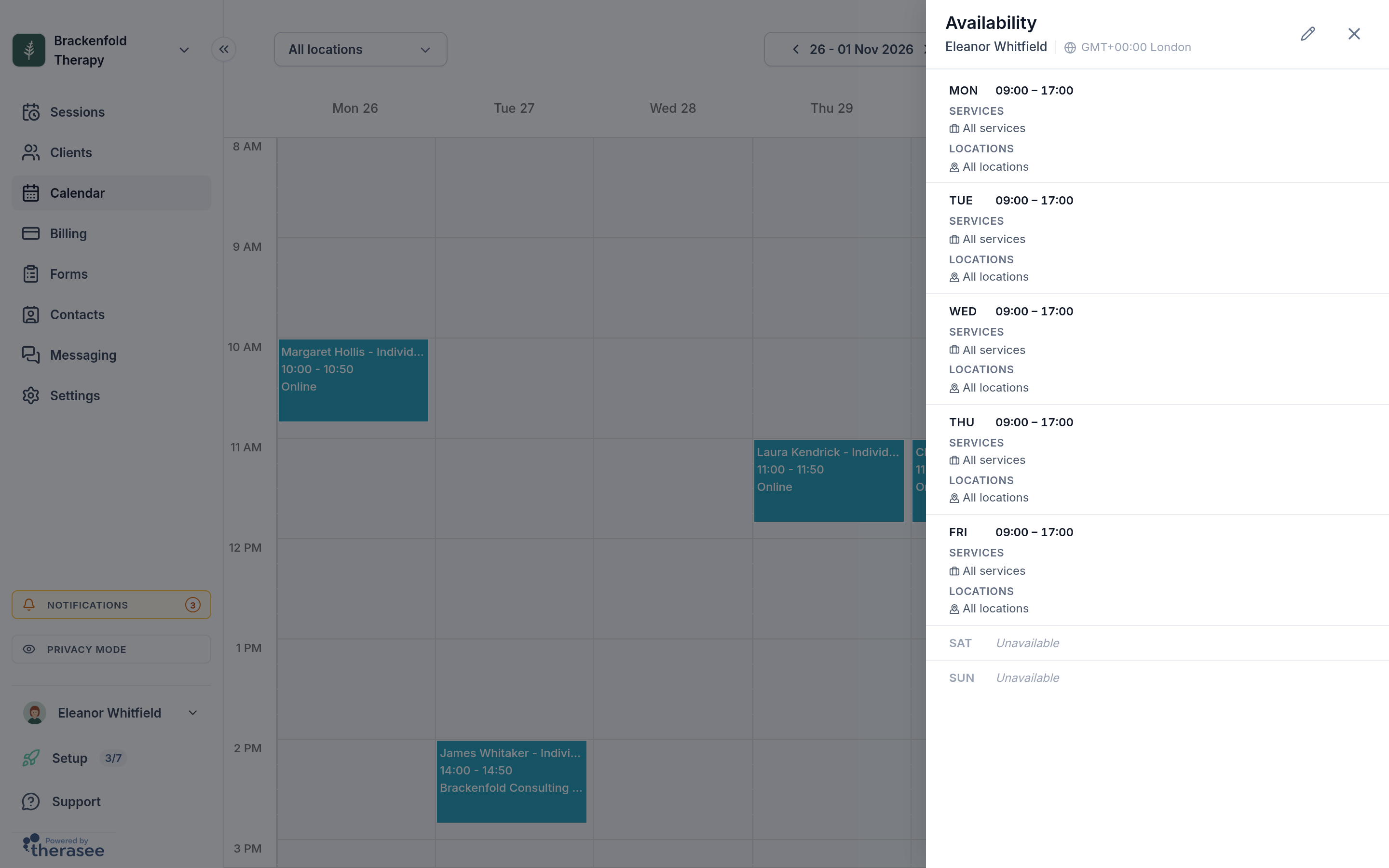
The schedule lists the days from MON to SUN, one row each. A day you work shows its time ranges; a day you do not work reads Unavailable.
Set your hours day by day
- Turn a day on or off with the switch at the start of its row. Turning a day on gives it 09:00 to 17:00 for all your services and locations, ready to adjust. Turning a day off clears its times and shows Unavailable.
- Set the start and end time. Click the first time (it has a clock icon) and pick from the list, then do the same for the second. Times go in 15-minute steps and use the 24-hour clock, so 17:30 is half past five in the evening. Make sure the end time is later than the start time.
- Add a second range on the same day by clicking the + button at the end of the first range (its tooltip reads Add time slot). The new range starts 15 minutes after the last one ends and lasts an hour; change the times as you need. Use this for a split day, such as 09:00 to 12:30 and 14:00 to 18:00. Remove an extra range with its bin icon (Remove time slot). If you remove every range, the day turns off.
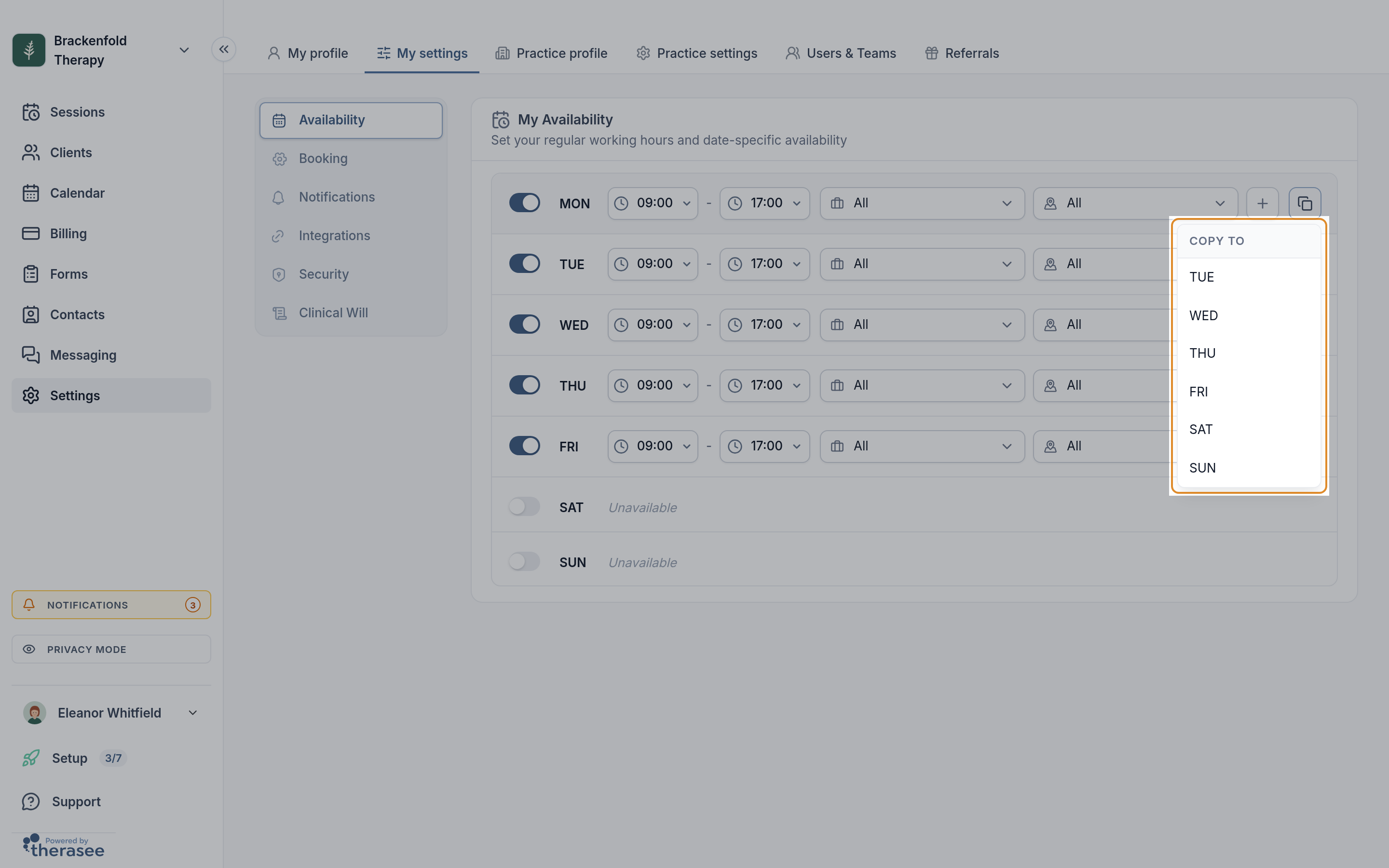
- Copy a day to another day with the copy icon at the end of the row (Copy schedule). A small Copy to menu lists the other days; click one and you will see Schedule copied to followed by the day. Copying replaces that day's hours with this day's, including the location and service choices. Repeat for each day you want the same.
- Save. In Settings, Cancel and Save appear at the top of the card as soon as you change anything. In the calendar panel, they are at the bottom. Click Save; you will see Availability saved.
If you try to leave with changes you have not saved, an Unsaved changes box offers to save them, discard them or let you keep editing.
Choose the services and locations for each range
Each time range has two drop-downs beside it. The one with a briefcase icon is for services; the one with a map pin is for locations. Both usually read All, meaning clients can book any of your services, at any of your locations, during that range.
To narrow a range down, click the drop-down and untick what you do not offer then. The drop-down then shows how many are ticked instead of All. Some examples:
- You see clients in person on Tuesdays and online the rest of the week: on Tuesday, tick only your in-person location; on the other days, tick only the video location.
- You only do couples sessions in the evening: add an evening range on the days you want and tick only your couples service in it. Leave that service unticked in your daytime ranges.
- You work at two rooms on the same day: make two ranges, one for each location, with the times you are at each.
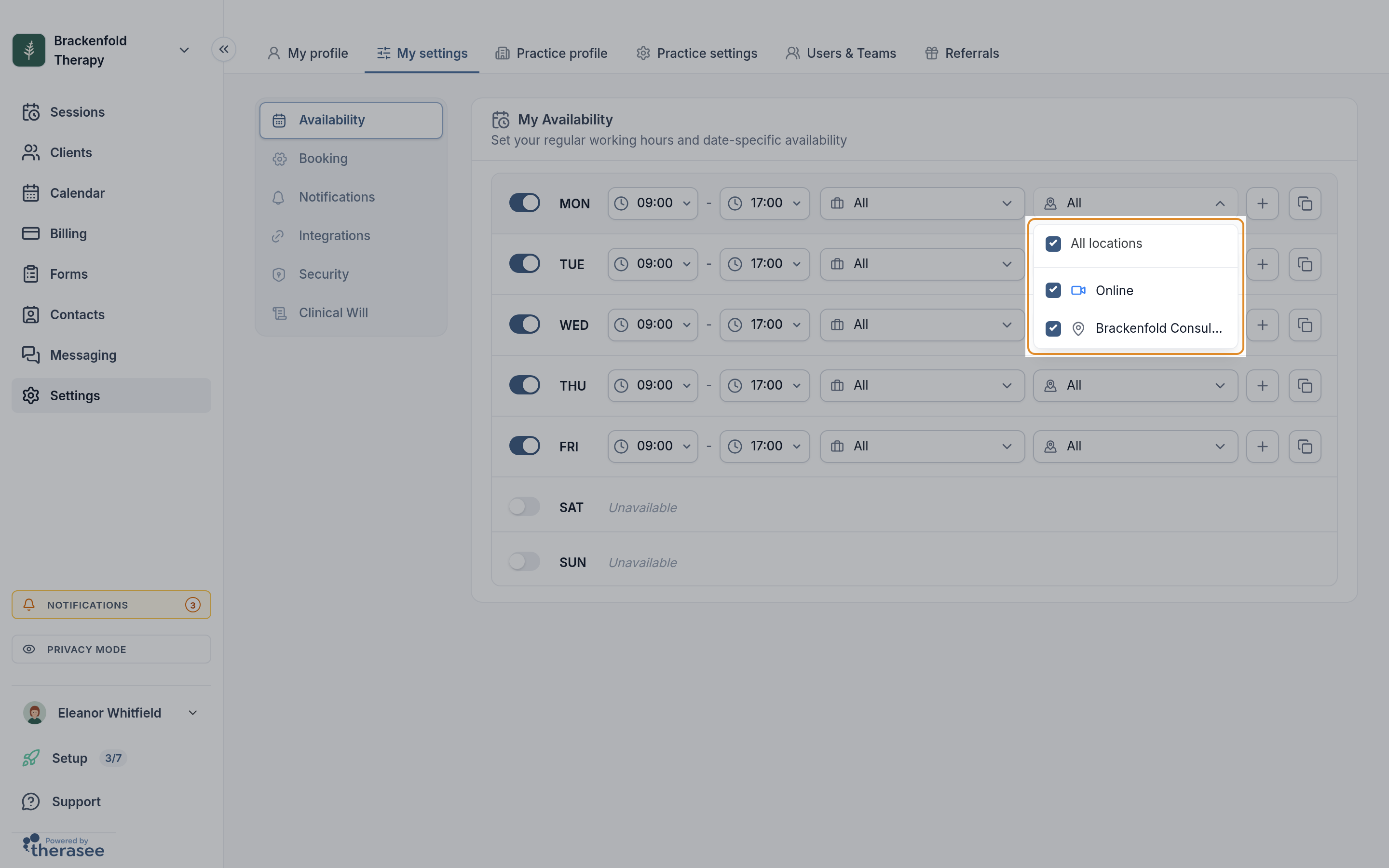
Keep at least one location ticked in every range. When you add a new service or location later, open your weekly schedule and check each range: if a drop-down shows a number rather than All, tick the new one wherever clients should be able to book it.
These choices only shape online booking. What you offer for online booking overall is set separately under Settings, My settings, Booking; see Letting clients book online.
What your schedule does, and what it does not
It decides which times clients can book online
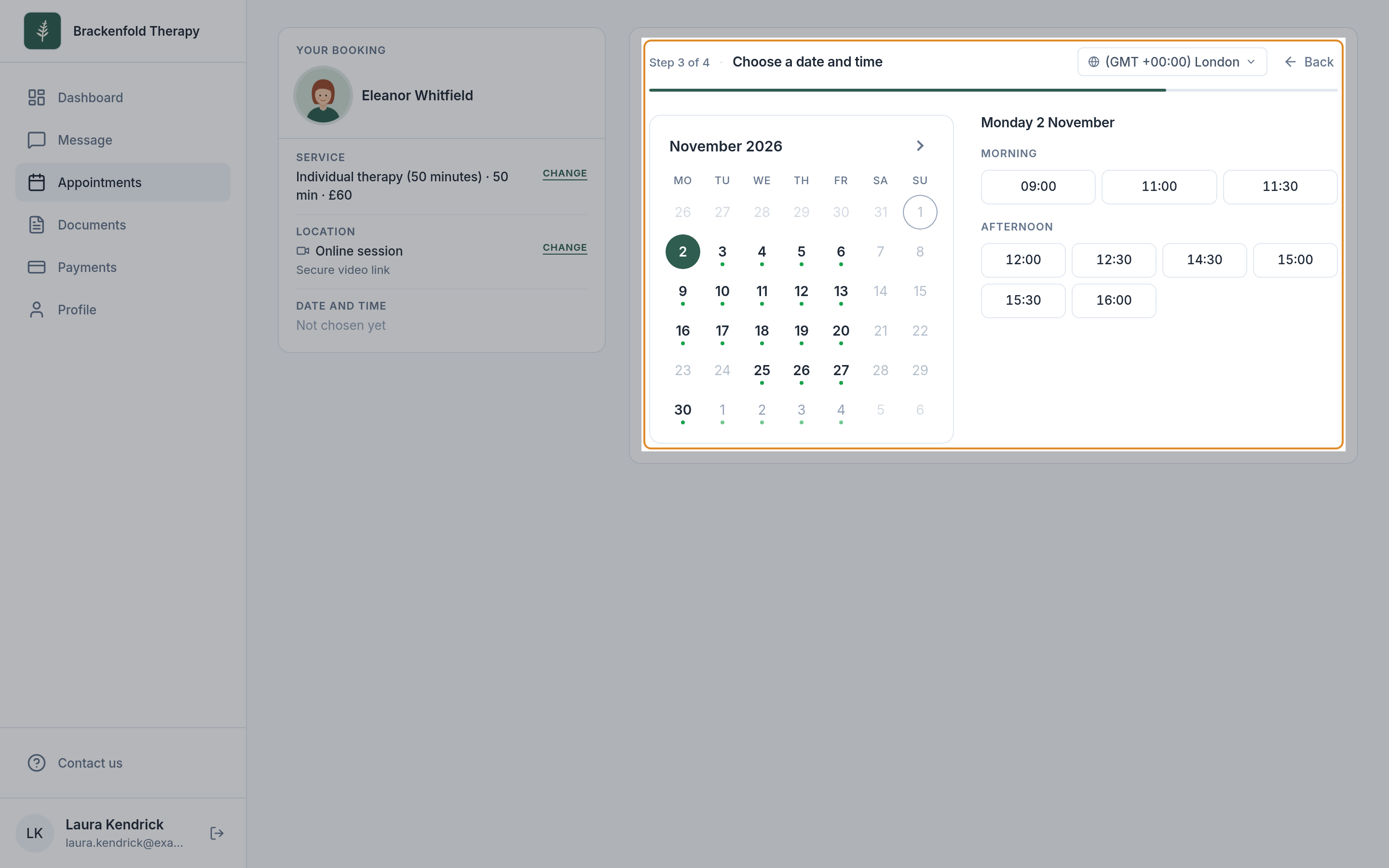
When a client books through your booking page or their portal, they choose a service and a location, then a date and time. The times they see all fall inside the ranges on your weekly schedule that include that service and that location, and a time is only offered if the whole session fits before the range ends. A 50-minute service in a 09:00 to 12:00 range cannot start at 11:30.
On top of that, your booking rules (notice period, how far ahead clients can book, gaps between sessions and how often start times are offered) and anything already in your diary take times away. Days with nothing bookable are greyed out on the client's calendar.
It does not limit what you can book
You and your colleagues can book an appointment for a client at any time, including outside your working hours. If you pick a time outside your schedule, the appointment form shows Outside your availability for this location as a reminder, but you can still save it. See Booking an appointment.
It does not change sessions already booked
Changing your hours only affects which times are offered from then on. Appointments already in your diary stay exactly as they are, even if they now fall outside your hours, and nobody is notified. If you need to move a session, reschedule it from the calendar in the usual way.
Time zones and working abroad
Your hours are in your practice's time zone
Your weekly schedule is set in your practice's time zone. It is shown in the calendar's Availability panel, next to your name (for example GMT+01:00 London). The time zone is set for the whole practice under Settings, Practice settings, Appointments, in the Timezone card. Every practitioner in the practice shares it, and it starts as the time zone of the computer used to create the practice.
Changing the practice time zone moves everyone's hours with it: 09:00 to 17:00 then means 09:00 to 17:00 in the new time zone, for every practitioner. It also changes the time zone used in emails to clients who have not chosen their own. So leave it as it is for a trip abroad, and change it only if the practice itself is based somewhere else.
Your calendar follows your device
The calendar, the shaded working hours on it and the times you pick in the appointment form all use the time zone of the computer or phone you are using, not the practice time zone. At home the two are the same, so you never notice. When you travel and your device switches to local time, everything on your calendar moves with it.
For example, if you are working from somewhere two hours ahead of the UK, a client's 10:00 session shows at 12:00 on your calendar, and your 09:00 to 17:00 hours are shaded from 11:00 to 19:00. Nothing has changed for the client: the session is still at 10:00 their time, and online booking still offers the same hours in the practice time zone.
If you would rather keep working in UK time while you are away, set the time zone on your computer or phone to London. The calendar then shows UK times wherever you are. Set it back when you get home.
Booking an appointment while you are abroad
The time you choose in the appointment form is read in your device's time zone. To book a client in for the time they are expecting:
- Check which time zone your device is using. If it is set to where you are now, work out the client's time in your local time. A client who expects 10:00 UK time, while you are two hours ahead, needs 12:00.
- Book the appointment at that local time in the usual way. See Booking an appointment.
- Check the result: the session should sit on your calendar at the local time you worked out. The client's confirmation shows the time in their own time zone, which is the time they will go by.
If your device is set to London time, as above, simply book the UK time the client expects. Appointments already in your diary stay at the same moment wherever you are; only the clock they are shown in changes.
What clients in other time zones see
- When they book online, the times on offer are converted to their time zone, which the booking page picks up from their device. They can pick a different one with the time zone button (it has a globe icon) on the date and time step.
- In their portal, appointment times are shown in the time zone of the device they are using, labelled with a place, such as London time, when they open an appointment.
- In emails and text messages, times carry a time zone label, such as (BST). For appointments you book, the time is shown in the time zone the client has saved on their portal Profile page, or in your practice's time zone if they have not saved one. For appointments they book themselves, it is shown in the time zone they booked in.
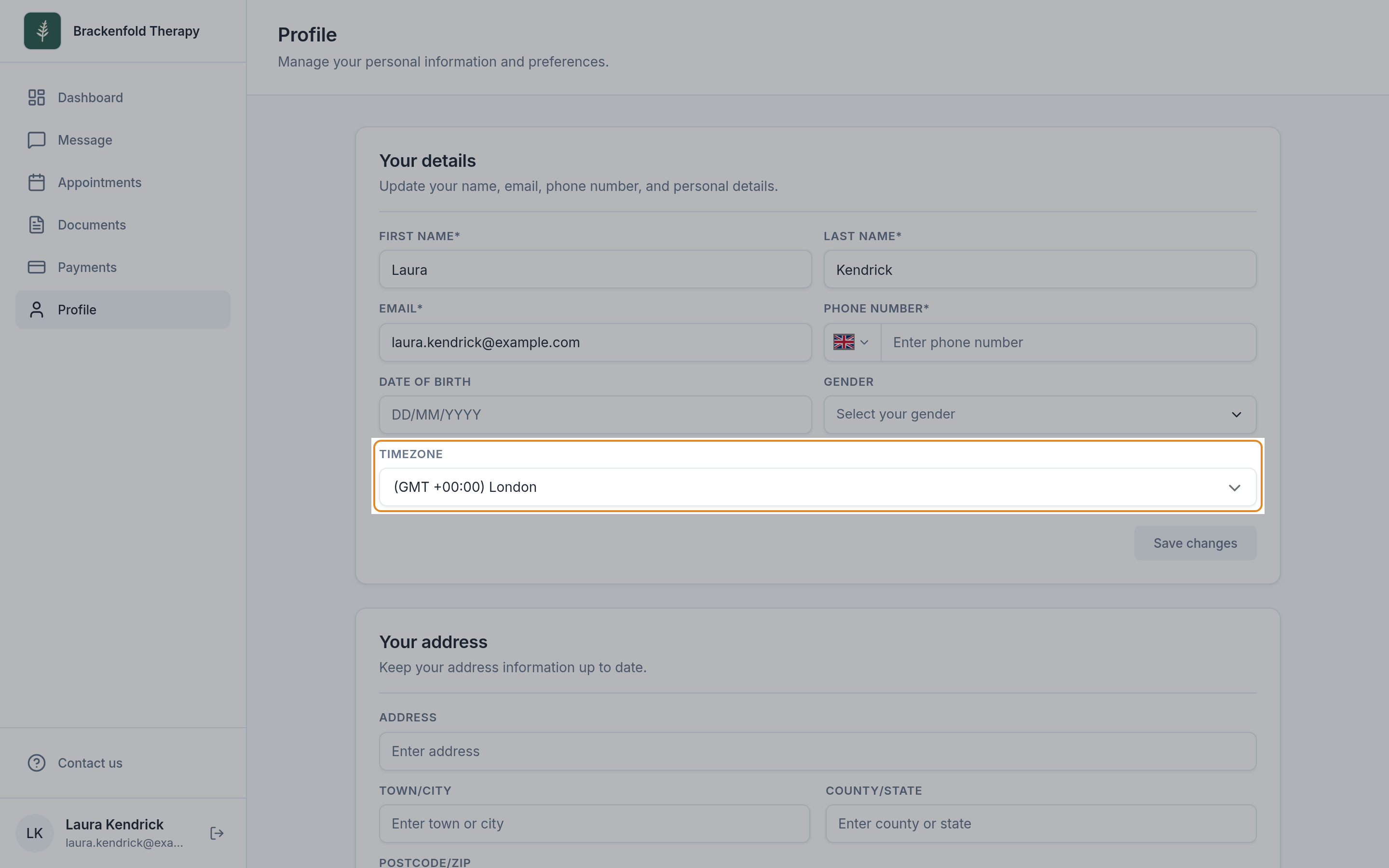
A client who lives abroad or moves can set their Timezone on the Profile page of their portal, so their emails and reminders show their own local time.
Emails and notifications sent to you about appointments show times in your practice's time zone, with its label, wherever you are.
Team members each have their own hours
In a practice with more than one practitioner, everyone has their own weekly schedule, and a client booking with a particular practitioner sees only that person's times. A newly invited team member starts on Monday to Friday, 09:00 to 17:00, at the locations they were given when invited, and can change it under Settings, My settings, Availability once they sign in.
If you manage other practitioners' appointments, you can also set their hours for them. In the calendar, click Set Availability: the name under the Availability title becomes a drop-down listing everyone who appears on the calendar. Pick the practitioner, click the pencil icon, make your changes and click Save. Settings, My settings, Availability is for your own hours.
One-off changes belong somewhere else
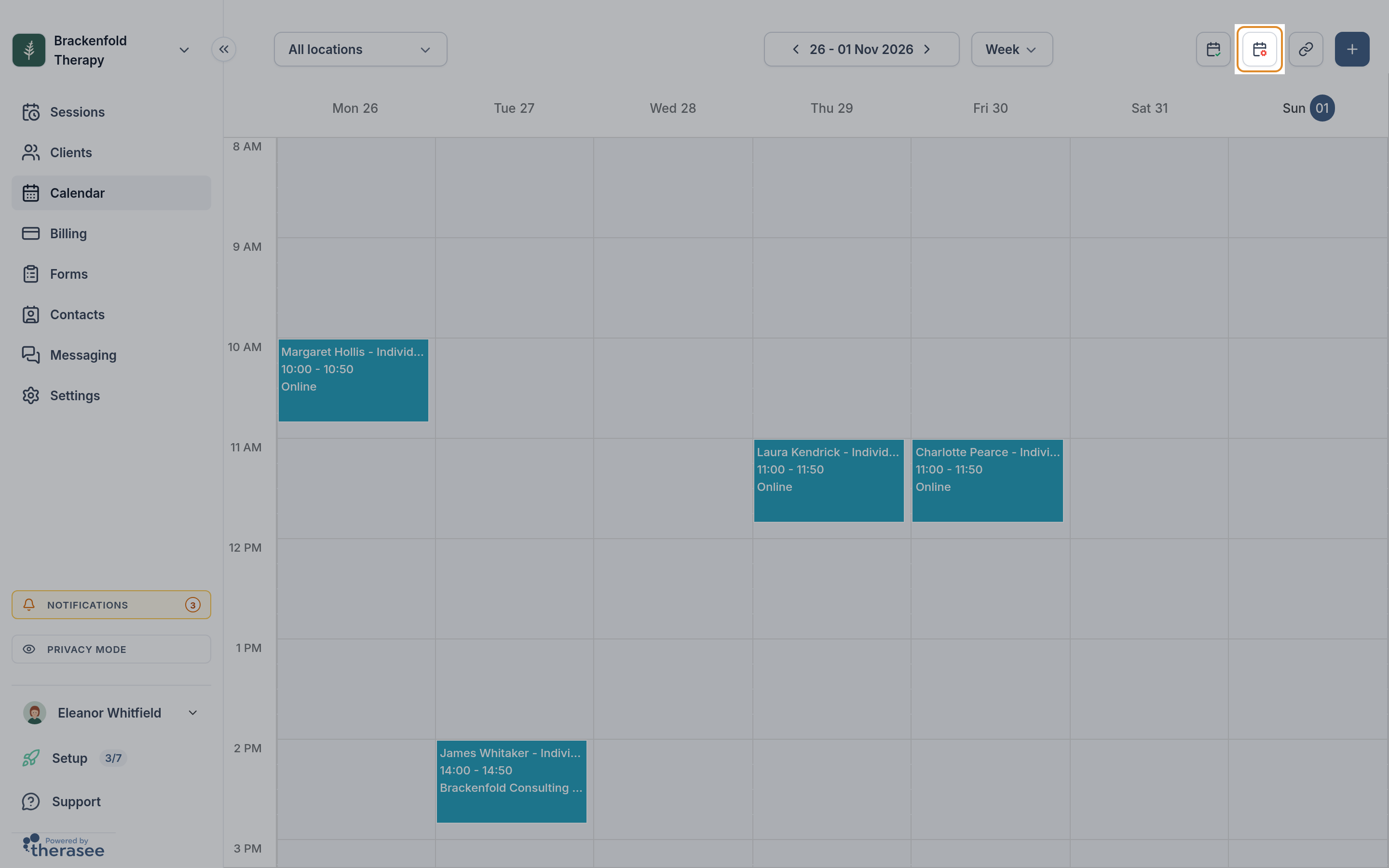
Your weekly schedule is for your normal week. For anything temporary, leave it alone and use the second icon at the top of the calendar, Block Time & Custom Hours, so there is nothing to change back afterwards:
- To work different hours on a particular date or week, add custom hours. On those dates they replace your weekly schedule completely, and like your weekly hours they are set in your practice's time zone. See Changing your availability for one week.
- To take time off, such as a holiday, a training day or a dentist appointment, block the time. See Blocking out time.
Was this helpful?