Cancelling, rescheduling and marking no-shows
Cancel one session or a whole series, move a session, mark a no-show, and see exactly what each does to notifications, invoices and payments already taken.
Updated 4 November 2026
Every session carries a status: Upcoming, Ongoing, Completed, No show or Cancelled. You change it from the status badge on the session. This article covers what each change does, what clients can do themselves, and where Therasee stops and you take over.
What happens automatically, and what does not
- Cancelling frees the time for online booking, stops reminders for that session, and sends the client a cancellation message if you choose to.
- Cancelling, deleting or marking a no-show never changes an invoice. An invoice already raised for the session stays exactly as it was, paid or unpaid.
- Refunds are made in your Stripe account. The invoice in Therasee stays as it is.
- If you charge for a late cancellation or a missed session, you raise that invoice yourself.
- Marking a session No show or Completed sends the client nothing.
Changing a session's status
- Go to Sessions. The same badge also appears on the client's profile, in their appointments, and at the top of the panel that opens when you click a session in the Calendar, next to the client's name.
- Click the badge in the Status column. It has a small arrow.
- Choose Completed, No show or Cancelled.
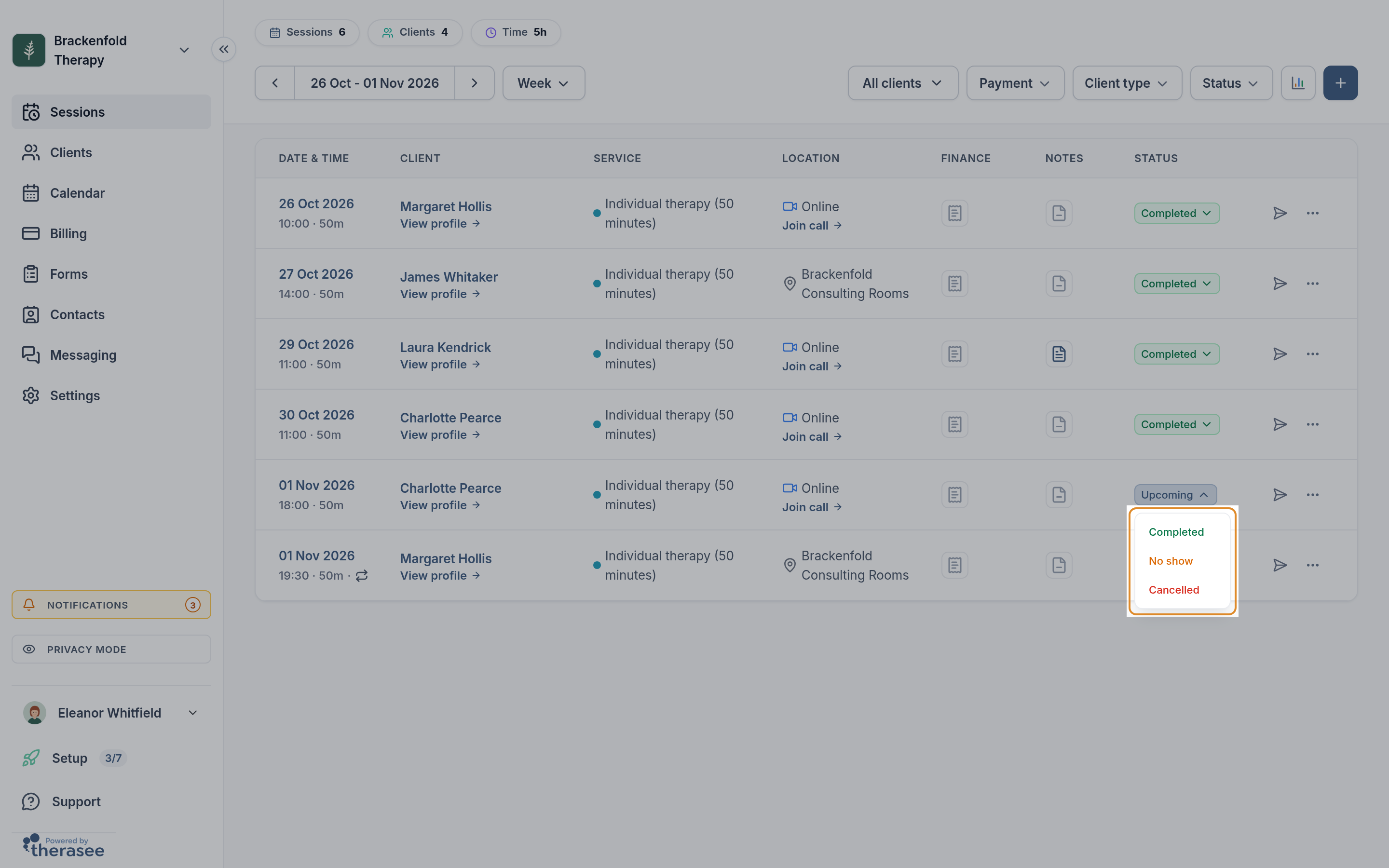
Completed and No show take effect straight away, with the message "Appointment status updated". A session that has finished shows Completed on its own, so you only need to change past sessions that did not happen as planned. Cancelled asks you to confirm first, as below.
A cancelled session stays cancelled. If it is going ahead after all, book it again.
Cancelling a single session
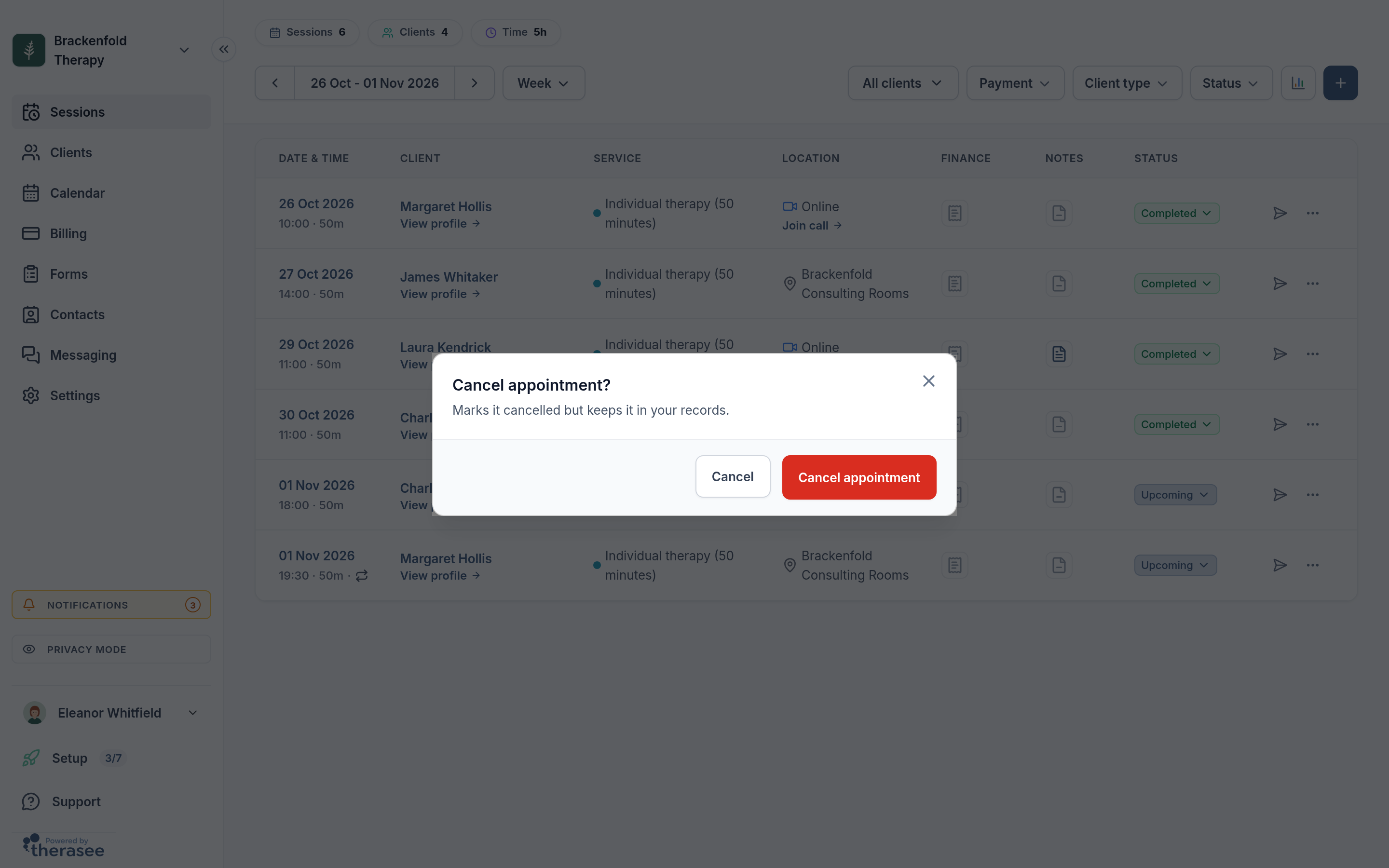
- Choose Cancelled from the badge.
- The dialog Cancel appointment? reads "Marks it cancelled but keeps it in your records." If the session has a note or an invoice, it lists them, and for an invoice it adds a reminder to review it in Billing. Click Cancel appointment.
- Next you are asked Who should hear about this cancellation? Tick Email, SMS or both for each person who should be told, type an Optional message if you like, and click Send. To tell nobody, click Don’t send.
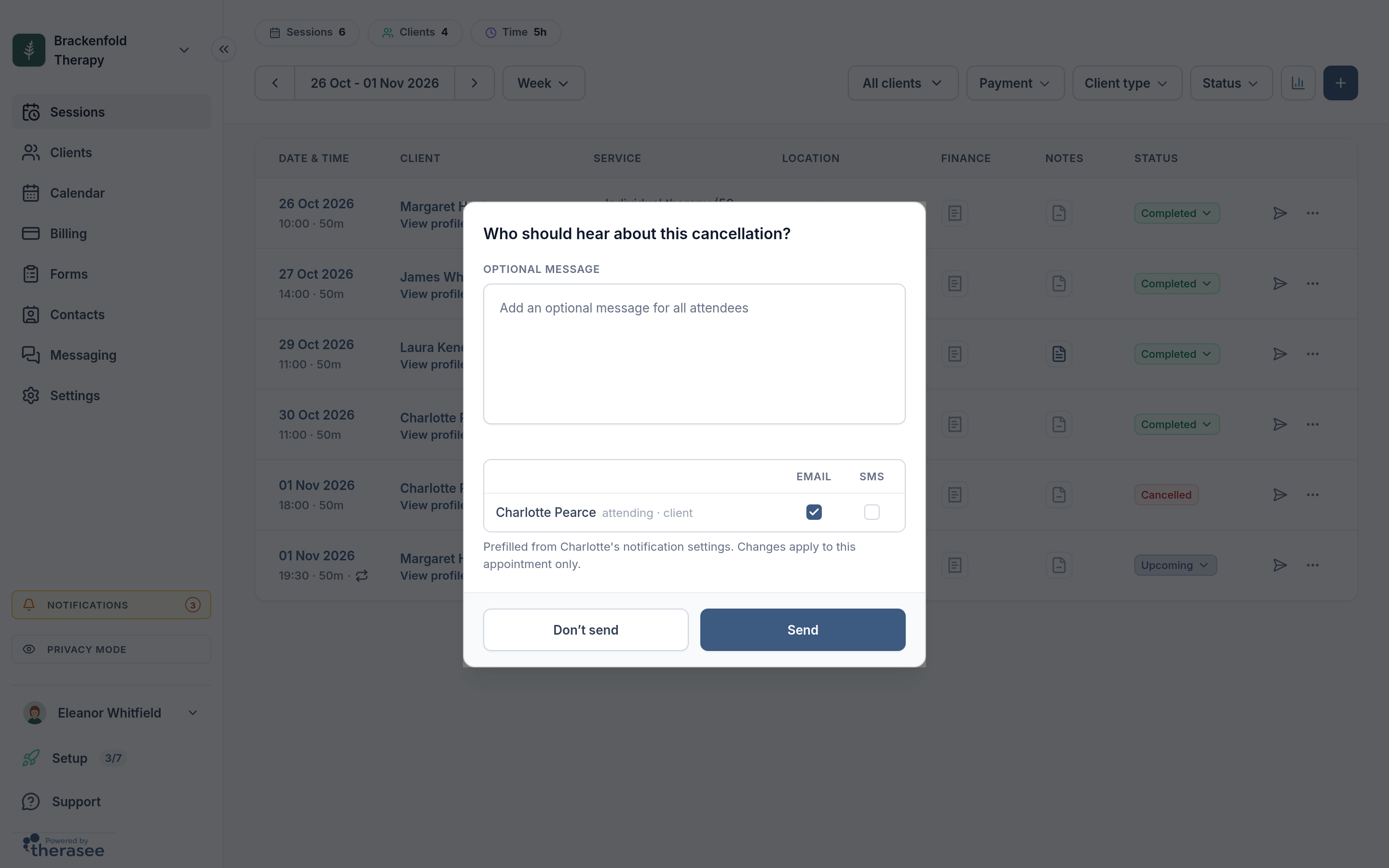
Send stays greyed out until at least one tick is on. The ticks start from your practice defaults, covered at the end of this article, and the client's notification settings, and apply to this cancellation only. Your optional message goes into the email. The text message is a fixed one-line notice that the appointment has been cancelled, and does not include it.
Cancelling sessions in a repeating series
Choosing Cancelled on a session that belongs to a series first opens Cancel recurring event, with three choices:
- This event: only the session you clicked.
- This and following events: this session and every later one. Earlier sessions are untouched. This is how to end a series.
- All events: every session in the series, including past ones that have no status yet.
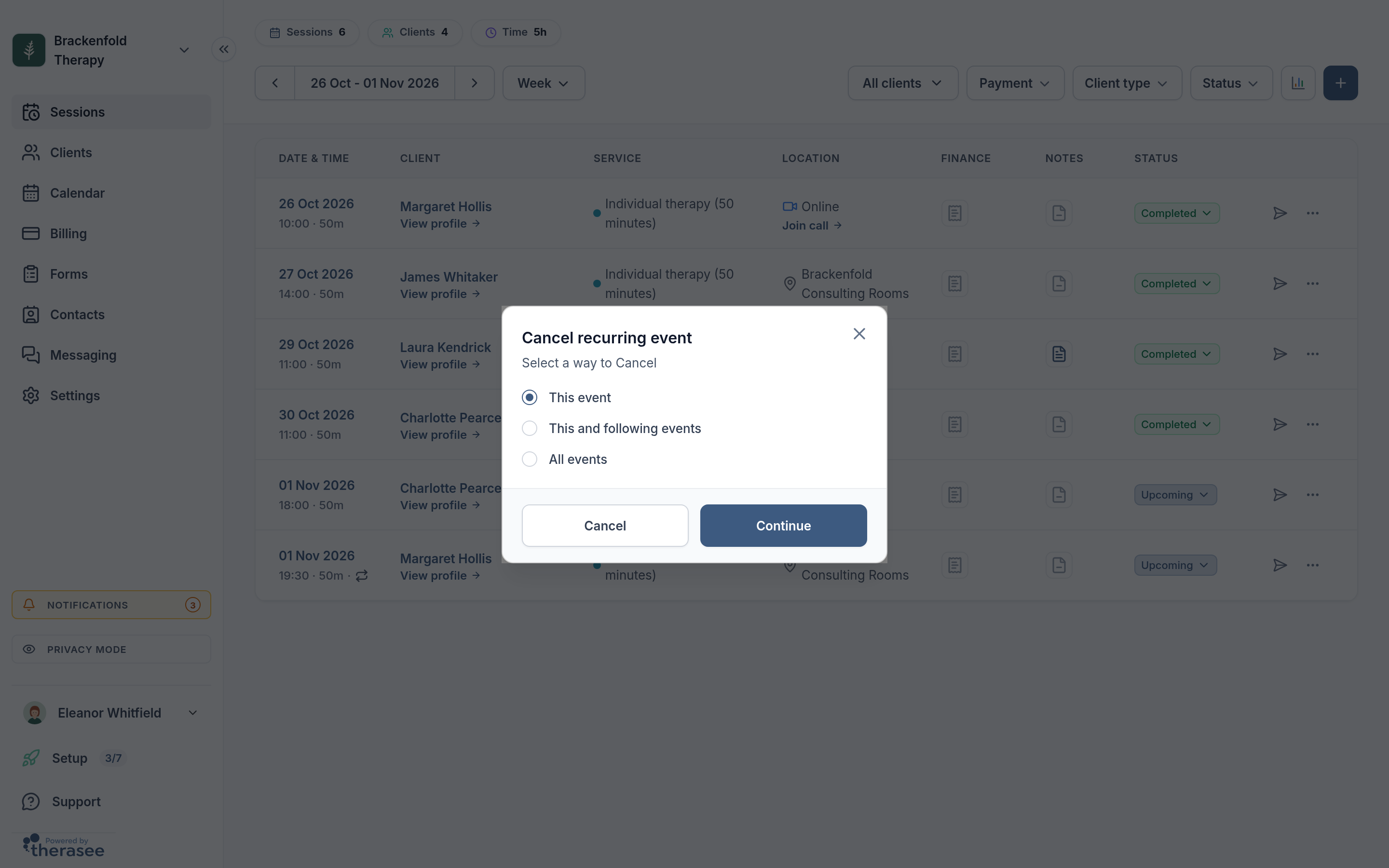
Click Continue. Before anything changes, the confirmation gives you the count, for example Cancel 6 sessions? with "2 past, 4 upcoming. Past sessions will show as cancelled instead of completed." A series with no end date says so, and every later session is included. Sessions you have already marked keep their status and are listed as such. If every session in the scope already has a status, you see "Nothing to cancel" and nothing changes. Then the same message step appears as for a single session.
Be careful with All events on a series that has been running for a while: past sessions you never marked switch from Completed to Cancelled. To stop a series from today, open the next upcoming session and choose This and following events.
Cancel or delete?
The ... menu at the end of each row in Sessions, and the bin icon in the calendar panel, offer Delete. The warning says it: "This removes the appointment entirely. To keep a record, cancel it instead." Deleting offers the same cancellation messages and also leaves any invoice in place. Cancel instead, so the session stays in the client's history.
Moving a session to another time
- In Sessions, open the ... menu on the row and choose Edit. In the calendar, click the session, then the pencil icon.
- In Edit appointment, change the date or time and click Save.
- If the session is part of a series, Edit recurring event asks which sessions change. Moving to another date offers This event ("Only this session moves to" the new date) and This and following events. Changing only the time also offers All events.
- You are then asked Who should hear about this change?, with ticks for each person and Send and Don’t send, exactly as for a cancellation. The ticks start from your practice defaults for modifications.
Moving a session changes the existing appointment rather than rebooking it, and does not change its invoice: the invoice keeps the original session date. If it is still unpaid, you can edit it in Billing. You can move a session to any time, including blocked time, and you are warned if it overlaps another appointment. For more on the booking form itself, see booking an appointment.
No-shows and late cancellations
Mark No show when a client does not turn up. The session stays on your calendar with a No show tag, and nothing is sent to the client.
There is no separate late-cancellation status. Mark the session Cancelled, and if your policy charges for it, raise the fee yourself from Billing, as in creating and sending an invoice.
If you invoice automatically, three things are worth knowing:
- A cancelled session is never invoiced automatically.
- Each later session in a series is invoiced an hour after the session before it ends, so for a weekly client the invoice has usually gone out before they cancel. It stays unless you deal with it.
- A no-show is invoiced like any other session.
To deal with an invoice for a session that did not go ahead, find it in Billing. An unpaid invoice can be edited or deleted from the ... menu on its row. If the client has already paid and you want to refund them, do that in your Stripe account. The invoice in Therasee stays marked paid.
What clients can do from their portal
Clients who can sign in to your client portal see Reschedule and Cancel on each upcoming appointment. You decide whether they can use them:
- Go to Settings, Practice settings, Appointments.
- In Appointment policies, choose Cancel or reschedule anytime, No cancellation or rescheduling, or Cancel or reschedule up to a time limit. For a time limit, enter a number and pick Minutes, Hours or Days. Leaving the number empty gives "Enter a valid time".
- Click Save. You will see "Appointment policies saved".
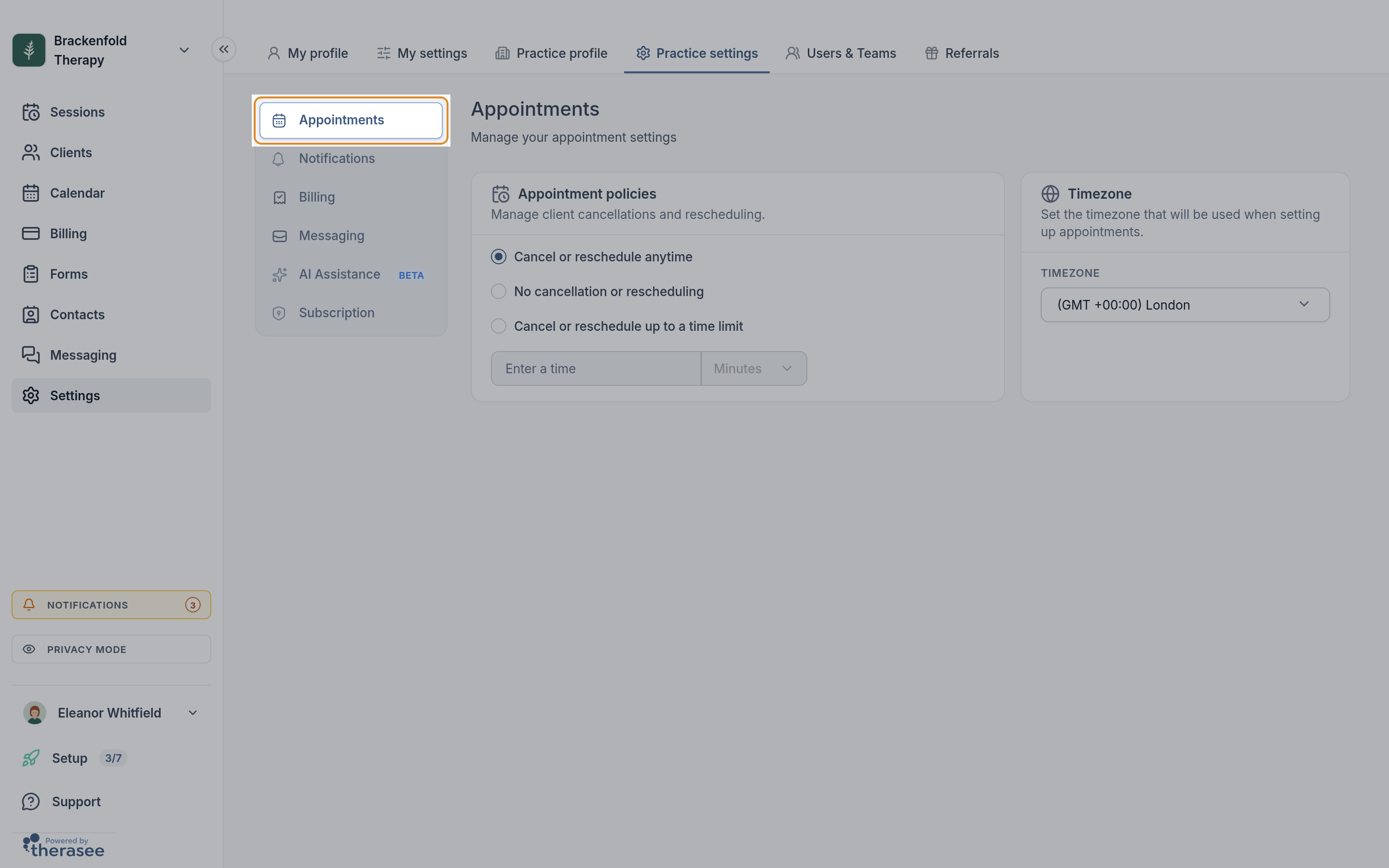
The rules only apply to clients. You can always cancel or move any session. Inside the time limit, the client's buttons are replaced by a note such as "Cancellations and rescheduling are not permitted within 24 hours of the appointment. Please contact the practice if you need assistance." Nobody can change a session from the portal once it has started. The check is made on the server as well, so it cannot be worked around.
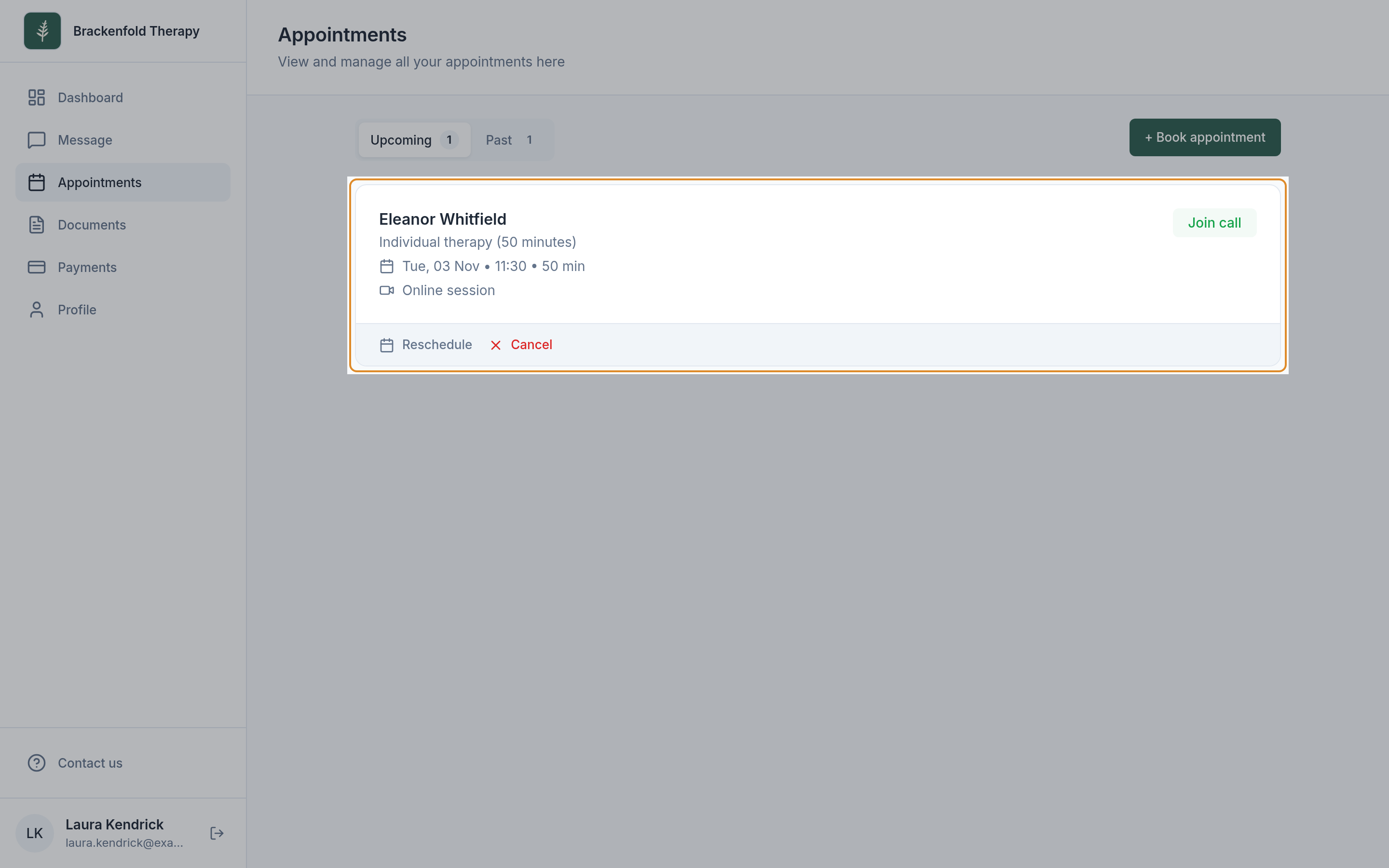
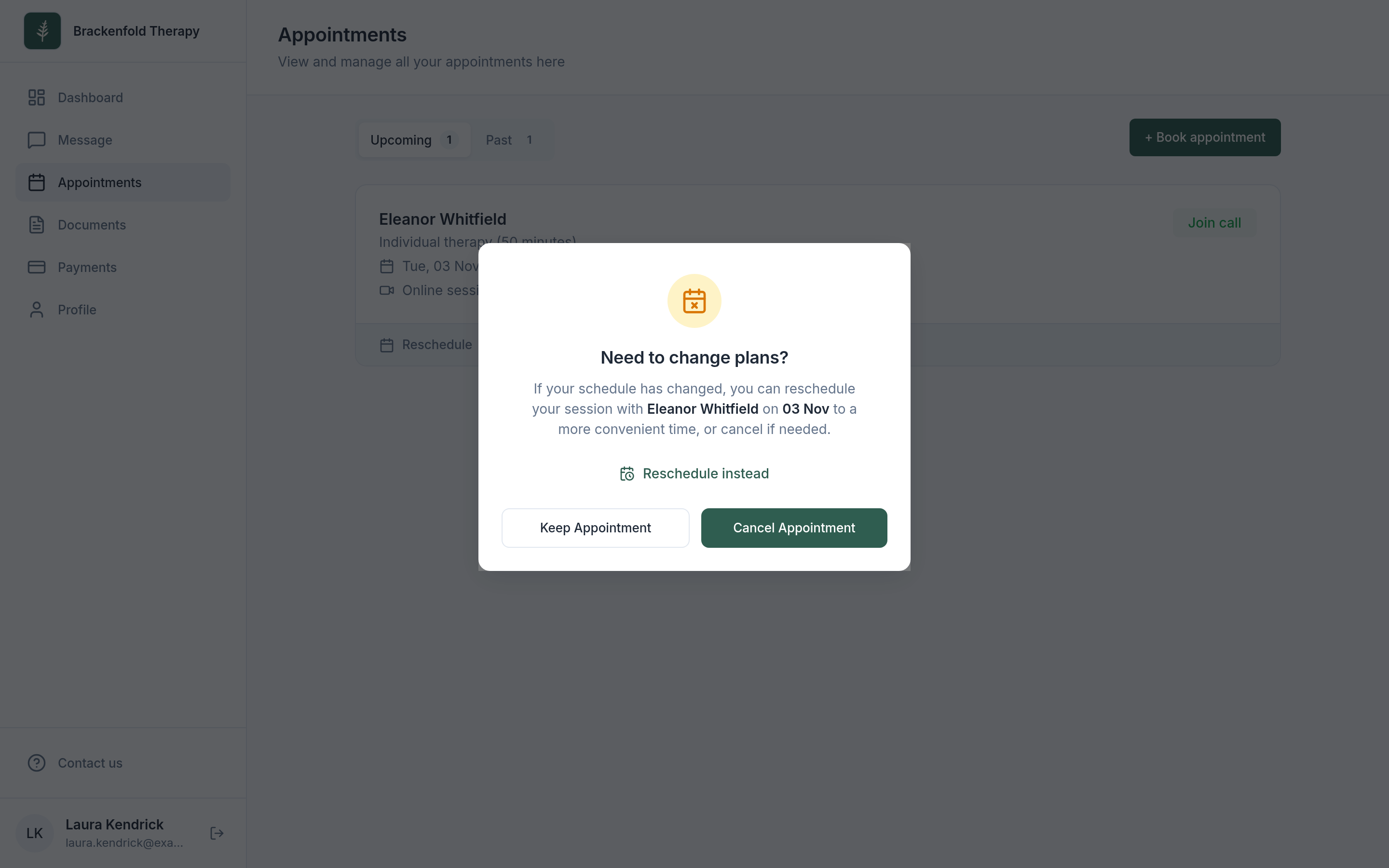
A client always changes one session at a time, never a whole series. A cancelled session stays in their list, marked Cancelled, and a past session you marked No show appears as Missed. Cancelling asks "Need to change plans?" with Keep Appointment, Cancel Appointment and Reschedule instead. If the session has been paid for, they also see "Note: this appointment has been paid for. Please contact the practice regarding any refund." Rescheduling takes them through location, then date and time, then confirmation, choosing only from the times your online booking would offer.
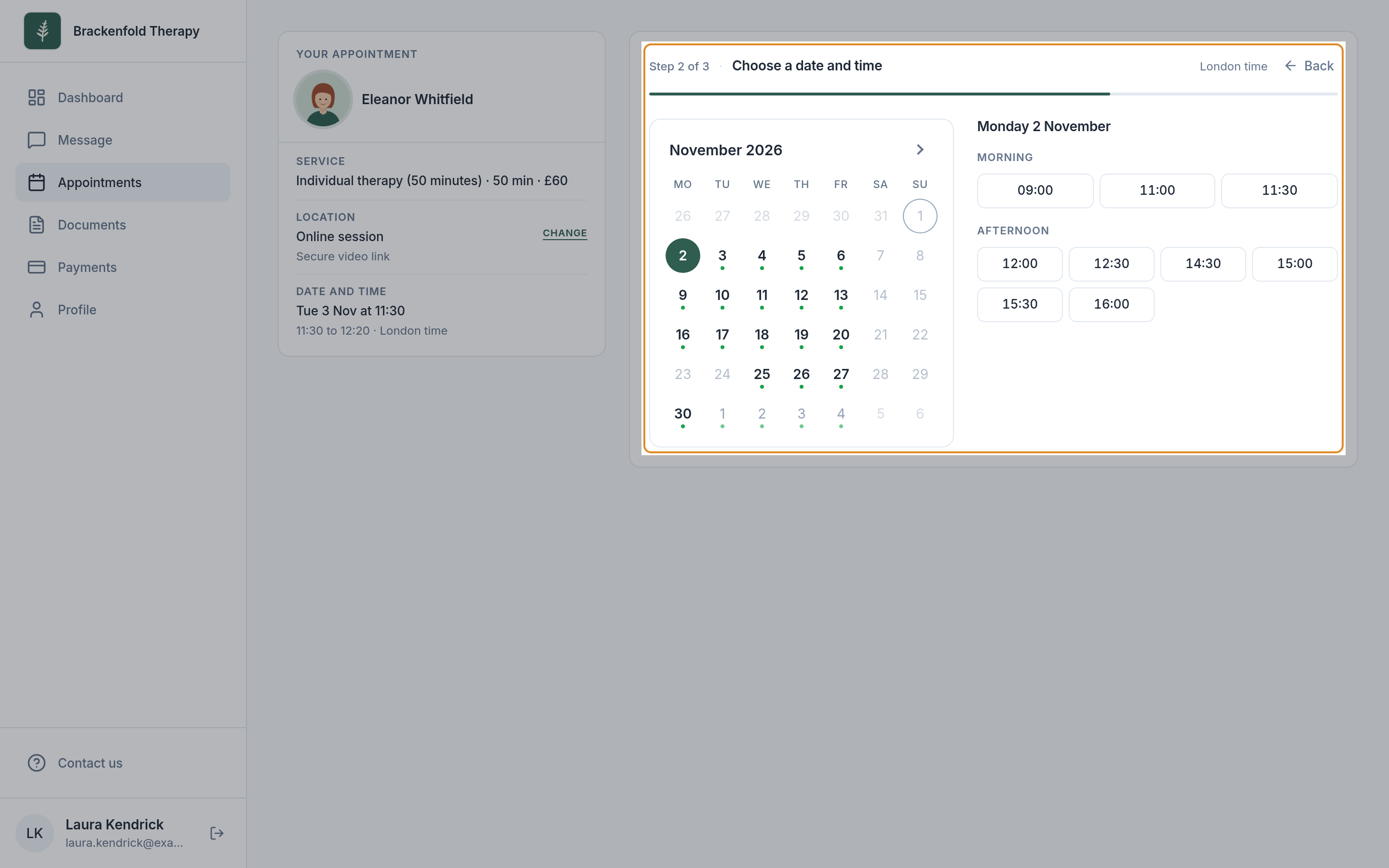
When a client cancels or reschedules, they are sent a notice according to your practice defaults. You get an in-app notification, a push notification if you use them, and an email unless you have switched off Appointment cancelled or Appointment rescheduled under Settings, My settings, Notifications. As with your own cancellations, the invoice is untouched.
Setting what clients are sent by default
Go to Settings, Practice settings, Notifications. In Appointment notifications, the rows Appointment cancellations and Appointment modifications each have an Email and an SMS tick. Click Save when you are done.
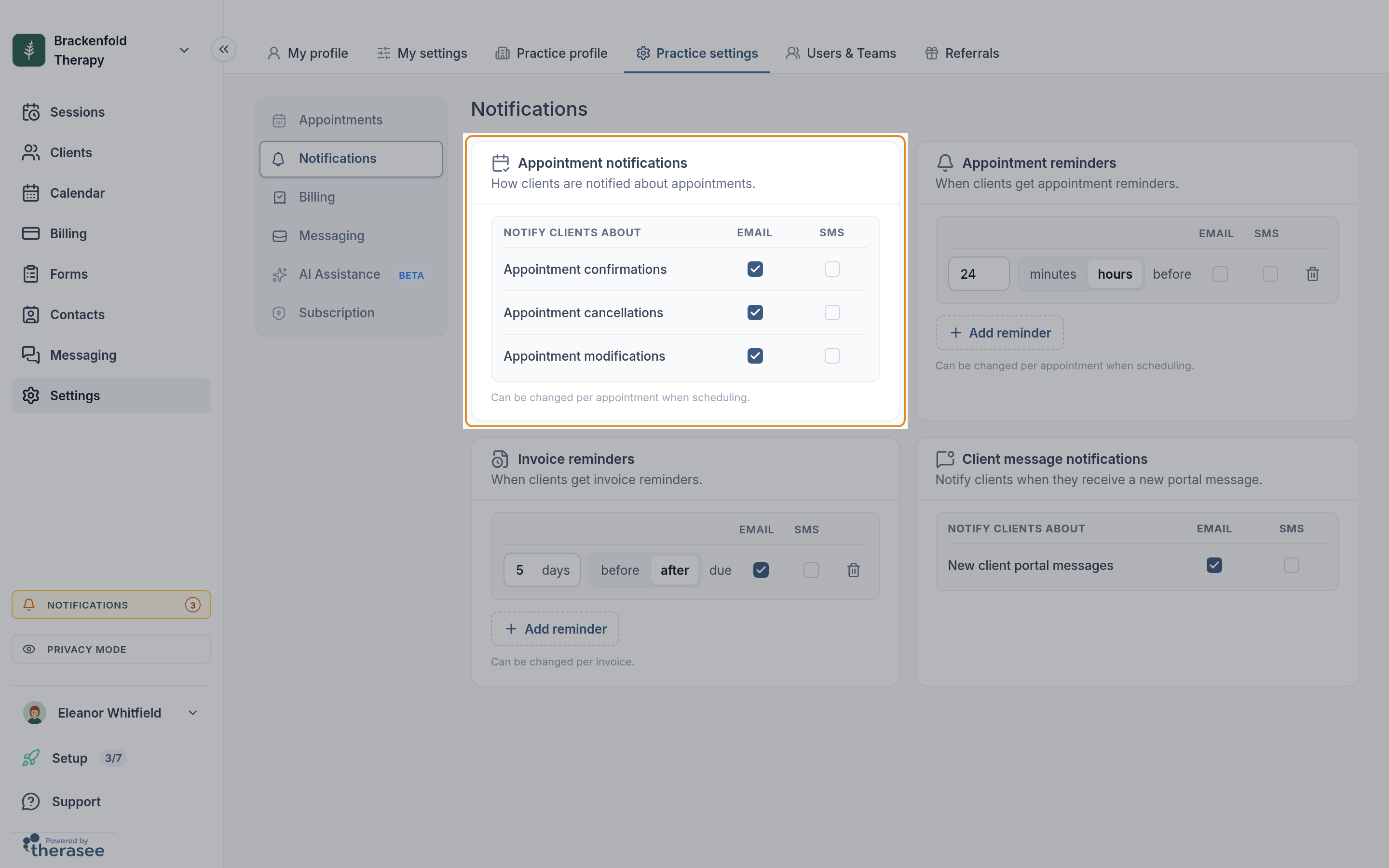
You can override these each time you cancel or move a session. When a client cancels or reschedules from the portal there is no such step, so these defaults decide what they are sent. The wording of the messages is fixed: see what your clients are sent.
Was this helpful?