Practising part-time alongside another job
For therapists with a small private practice around another job: open only the hours you have, keep your calendars apart, decide when you hear from clients, and plan around your leave.
Updated 19 November 2026
Many therapists keep a small private practice alongside another job: a role in a health service, a university or school, an agency, or something outside therapy altogether. The private work is often the part they love most, and the part most at risk of spilling into everything else. This page follows one fictional therapist who sees a handful of clients on two evenings and a Saturday morning, and shows how to set Therasee up so the practice stays exactly the size and shape you choose.
The workflow in one breath: open only the hours you really have, split by where you see clients, and add booking rules so nothing lands the same day or too far ahead. Let your own calendar block the times you are busy without sharing your clients with it, decide when you are told about messages, switch on a waitlist when you are full, and block out your leave from the day job as soon as you book it.

Is this you?
This page is for you if your private practice runs around another commitment, you see a small number of clients at fixed times, and you want firm edges: no bookings creeping into your working day, no client messages buzzing during meetings, no overflow when you are full. If you are just starting out, Starting out: building your first caseload covers the first steps, and the two pages work well together.
Meet Ruth
Ruth works four days a week as a counsellor in a university wellbeing service. Her private practice is small on purpose: six to eight clients, online on Tuesday and Thursday evenings and in a rented room on Saturday mornings. She wanted three things from Therasee. Clients should only ever be able to book the hours she has, her day job and her private practice should stay separate, and her phone should stay quiet while she is at work.
The screenshots on this page come from our demo practice, so the names in them are different, but every setting is the one Ruth uses.
1. Open only the hours you have
Your weekly schedule is the only set of times clients can book online, so this is where your edges begin. Under Settings, My settings, Availability, Ruth turned every day off except three:
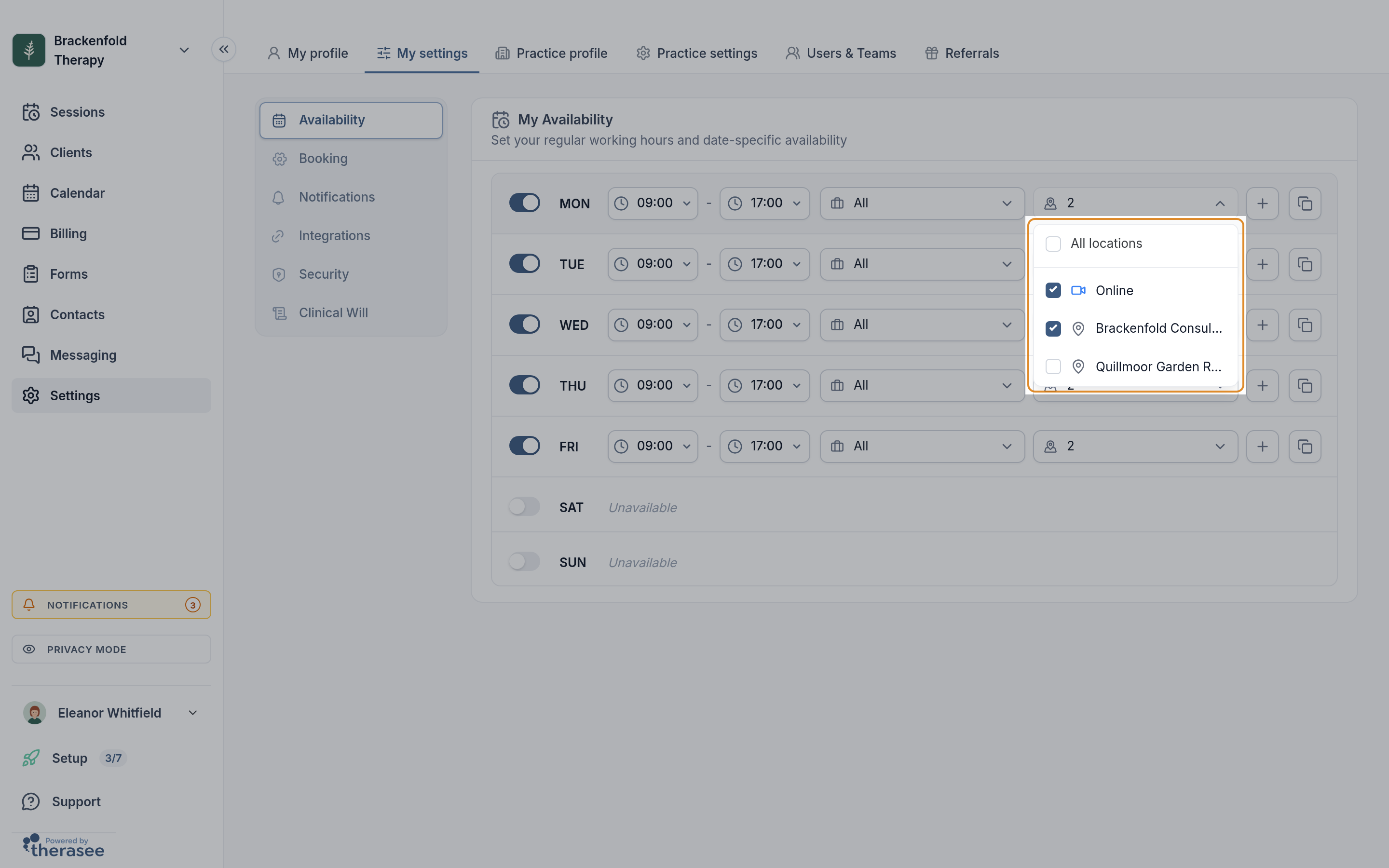
- Tuesday and Thursday, 18:00 to 21:00, with only her online location ticked.
- Saturday, 09:00 to 13:00, with only her room ticked.
Each time range has its own location drop-down (the one with a map pin), so the evenings can be online only and the Saturday in person only. Select the time range's location drop-down, untick what you don't offer then, and select Save.
Your schedule only limits what clients can book. You can still book a client into any time yourself, which is useful for the occasional one-off. See Setting your working hours.
2. Booking rules that protect your evenings
Under Settings, My settings, Booking, the Client Booking Settings card decides how close, how far ahead and how tightly clients can book. Ruth's choices:
- Minimum Lead Time: 24 hours. Nothing can be booked for the same evening, so she never finds a surprise session when she gets home.
- Maximum Advance Booking: 60 days. Far enough for clients to plan, near enough that she can change her hours without a diary full of old bookings.
- Buffer Time: 10 minutes. A breather between sessions, and room to note a thought before the next client.
- Time Increments: 60 minutes. Sessions start on the hour.
Here is what that gives a new client looking at a Tuesday evening, with Ruth's 50-minute sessions: 18:00, 19:00 and 20:00. A 20:00 session ends at 20:50, inside her 21:00 finish, and each start leaves a 10-minute gap after the session before. That is three sessions an evening at most, which is exactly what she wants. See Letting clients book online.
3. Keep your calendars apart
Ruth's day job runs on her employer's calendar, and her life runs on her personal one. She wanted her personal plans to stop clients booking over them, without any of her clients appearing in a calendar anyone else can see.
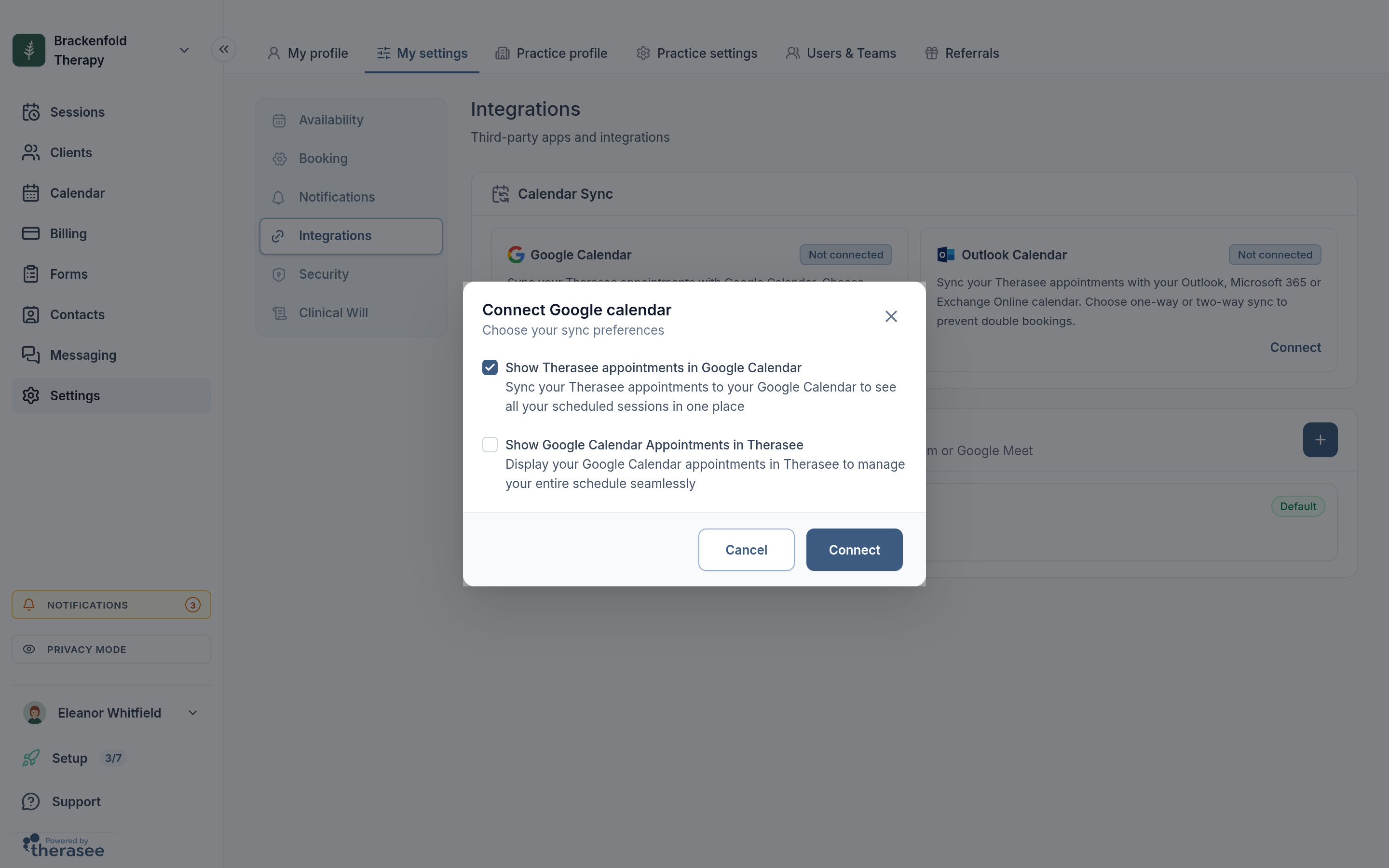
- Under Settings, My settings, Integrations, she selected Connect on Google Calendar, using her own personal account, not a calendar her employer manages.
- In Choose your sync preferences, she unticked Show Therasee appointments in Google Calendar and ticked Show Google Calendar Appointments in Therasee.
- She selected Connect and signed in to Google.
Her personal events now appear in her Therasee calendar, and those times are no longer offered to clients. None of her sessions are copied to Google, so they stay in Therasee alone. Clients never see her events either: times that clash are simply not offered.
Two details worth knowing. Every timed event counts as busy, whatever its free or busy setting, but all-day events don't block booking, so block a whole day in Therasee instead (see section 6). Outlook works the same way, with the same two choices. See Syncing Google Calendar or Outlook.
4. Decide when you hear from clients

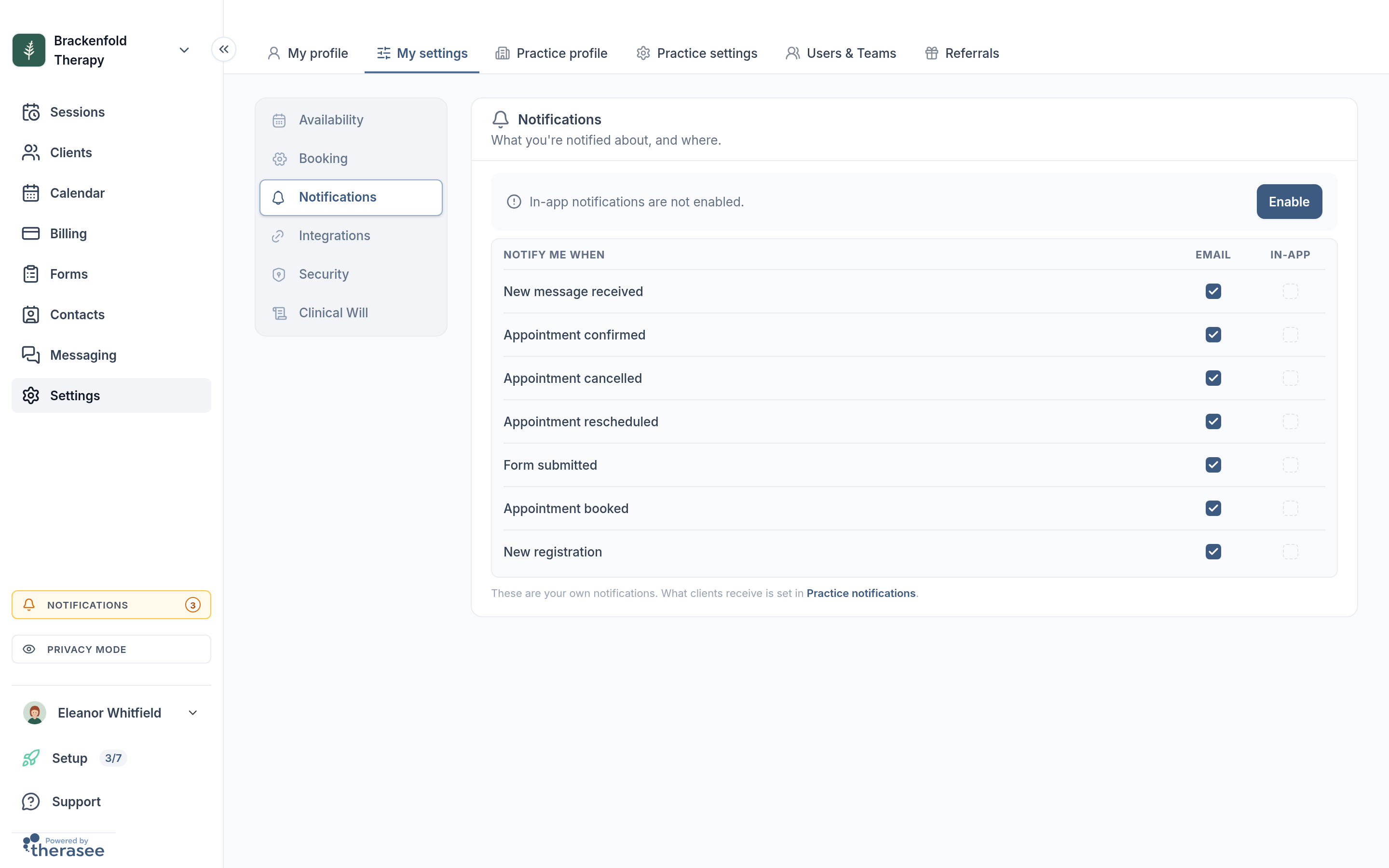
Clients can message you at any time; what you choose is when you are told. Under Settings, My settings, Notifications, each event has an Email and an In-app tick. Ruth kept email for New message received, Appointment booked and Appointment cancelled, and installed Therasee on her phone, turned on notifications there with Enable and ticked In-app for the rest. During her working day she simply turns notifications for the Therasee app off in her phone's settings, and back on in the evening. See Installing Therasee and getting notifications.
The other half of a boundary is telling clients what to expect. Ruth says it in her therapy agreement and in her welcome message, and keeps this as a message template for when anyone asks:
Reply-times template: "Thank you for your message. I read messages on Tuesday and Thursday evenings and on Saturday mornings, and I'll reply then. If you need support before that, please contact your GP, call NHS 111, or call the Samaritans free on 116 123, any time of day or night. In an emergency, call 999."
Templates are created under Settings, Practice settings, Messaging. See Messaging a client.
5. When you are full
A small practice fills quickly, and an always-open booking page sends the wrong message when it does. Under Settings, Practice profile, Public Pages, Ruth switches on the Waitlist card when her last place is taken. New clients who visit her booking page then see a short waitlist form instead of booking times, and her existing clients can still sign in and book as usual. The waitlist works while the Booking page card is on, and a link you have sent for one particular service still lets people book. She edits the PAGE HEADING and SUBHEADING (optional) to say, warmly, when she expects to have space again, and selects Save on the card.
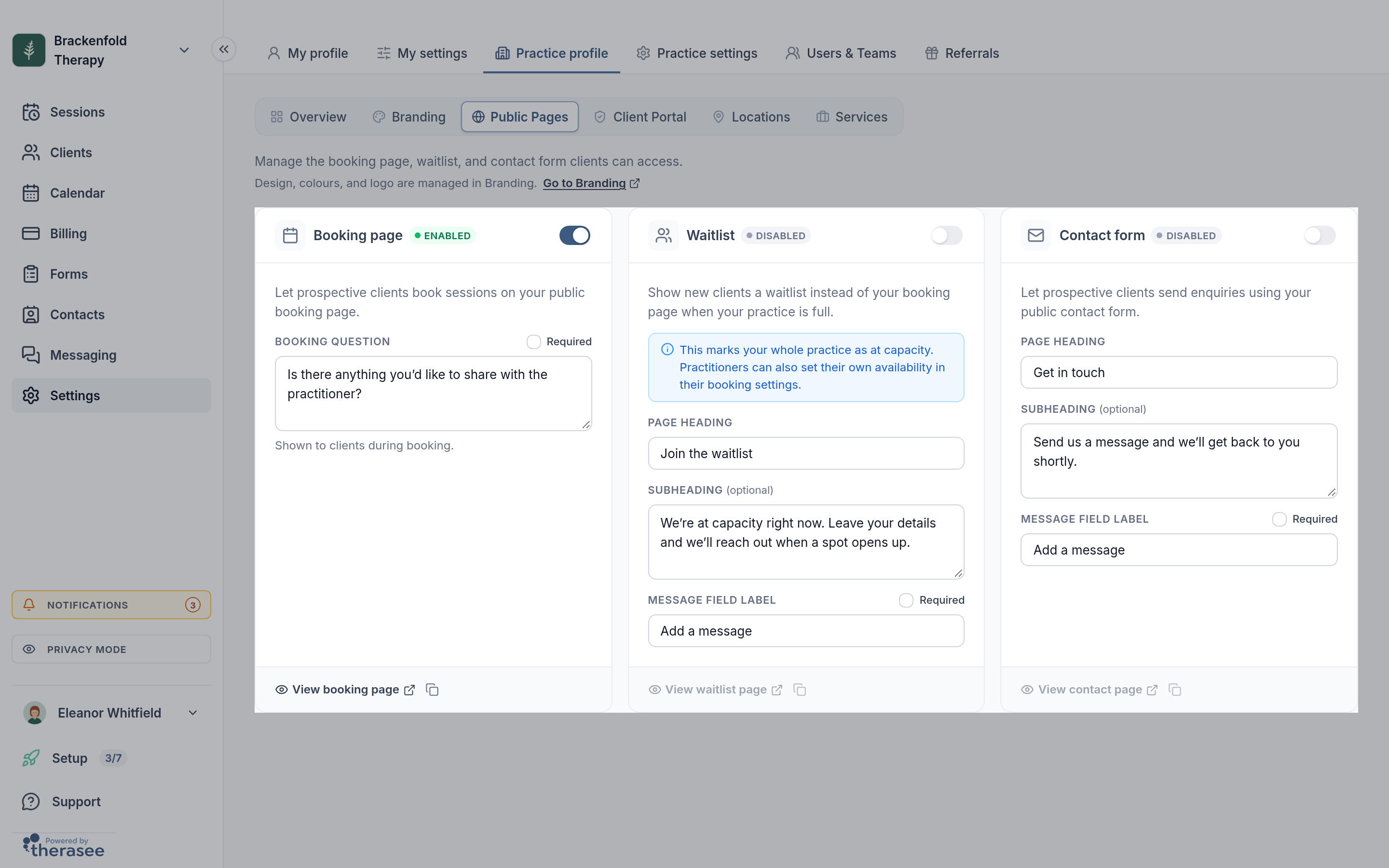
People who join the waitlist are added to your client list with the status Waitlist, so you have their details when a place opens. When it does, switch the waitlist off again.
6. Plan around your leave

Ruth's holidays follow her day job, and she blocks them out in Therasee the moment they are agreed at work.
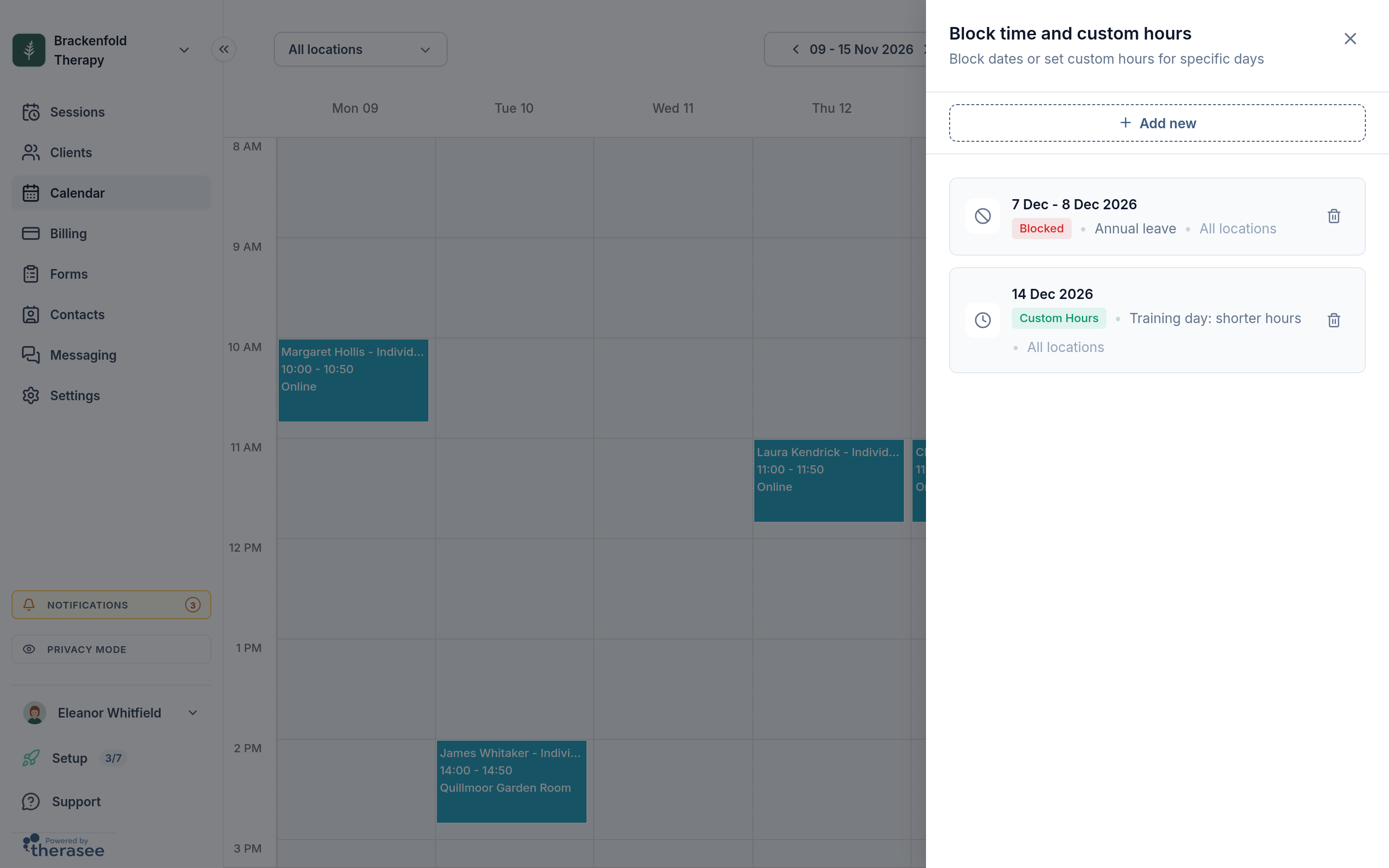
- On the Calendar, select the Block Time & Custom Hours button at the top right, then Add new.
- Pick the first day, select + Add end date, pick the last day and select Save. Clients can no longer book any time in those dates.
- Look at the calendar for those dates. A block doesn't move or cancel sessions already booked, and weekly series carry straight through it. Move or cancel each session yourself. For a session that is part of a series, choose This event when asked, so the rest of the series carries on after the break.
- Send each client a short note from a message template with your dates, so nobody is surprised.
See Blocking out time and Cancellations and no-shows.
A week in Ruth's practice
- Monday to Friday, daytime: the day job. Therasee notifications are off on her phone, and nothing can be booked into her hours.
- Tuesday and Thursday, 18:00 to 21:00: up to three online sessions, each note written in the 10 minutes after.
- Saturday, 09:00 to 13:00: in-person clients in her room, then twenty minutes on messages, invoices and the week ahead.
- Sunday: nothing. That is the point.
Make it yours
- One evening only. Turn on a single day, and set Maximum Advance Booking longer so clients can still find a slot.
- A lunchtime slot. If your day job allows it, add a short online range in the middle of a day, with its own location ticked.
- Telephone sessions. Turn on Telephone under Settings, Practice profile, Locations, and tick it in the ranges where you take calls.
- No online booking at all. Some part-time practitioners book every session themselves. Switch the Booking page card off on Public Pages, and switch the Contact form card on so new clients can still send you an enquiry.
- Weekly clients. Once a client settles into a regular slot, book their sessions as a series, as in A weekly practice, start to finish.
Questions part-time practitioners ask
Will my clients see my other appointments?
No. Clients never see your events or their titles. Times that clash are simply not offered when they book.
Can I stop clients booking during my working day?
Yes. Clients can only book inside the hours on your weekly schedule, so leave your working days switched off.
Can I stop clients messaging me at work?
Clients can send a message at any time, but you choose when you are told. Turn notifications off on your phone during the day, and set expectations with a reply-times message.
What happens to booked sessions when I block out a holiday?
They stay booked, and reminders still go out. Move or cancel each one yourself after adding the block.
Can I pause new clients without turning everything off?
Yes. Switch on the waitlist. New clients join a list instead of booking, and your existing clients carry on as normal.
A small practice can be a deeply rewarding one. Give it clear edges, and it will fit around the rest of your life rather than the other way round.
Was this helpful?