Syncing Google Calendar or Outlook
Connect Google Calendar or Outlook so your Therasee sessions show in your own calendar and your own events stop clients booking over them.
Updated 4 November 2026
You can connect your Google Calendar or your Outlook calendar (including Microsoft 365 and Exchange Online) to Therasee. Your Therasee sessions can then appear in your own calendar, and your own events can appear in Therasee and stop clients booking over them. Each practitioner connects their own calendar, and you can connect Google, Outlook or both.
Choose how you want it to sync
When you connect, you pick one or both of two options. Together they make one-way or two-way sync.
- Show Therasee appointments in Google Calendar (or in Outlook Calendar). Therasee creates a separate calendar called Therasee in your Google or Outlook account and keeps your sessions in it. This is ticked for you when you start.
- Show Google Calendar Appointments in Therasee (or Show Outlook Calendar Appointments in Therasee). Events from your main calendar appear in your Therasee calendar, and those times are no longer offered to clients who book online.
Tick only the first for one-way sync out of Therasee, only the second for one-way sync into Therasee, or both for two-way sync. The key point: your own events only block online booking when the second option is ticked. With the first option alone, clients can still book a time you have a personal event in your Google or Outlook calendar.
Connect Google Calendar
Go to Settings, My settings, Integrations. The Calendar Sync card has a Google Calendar box and an Outlook Calendar box, each with a Not connected badge until you connect.
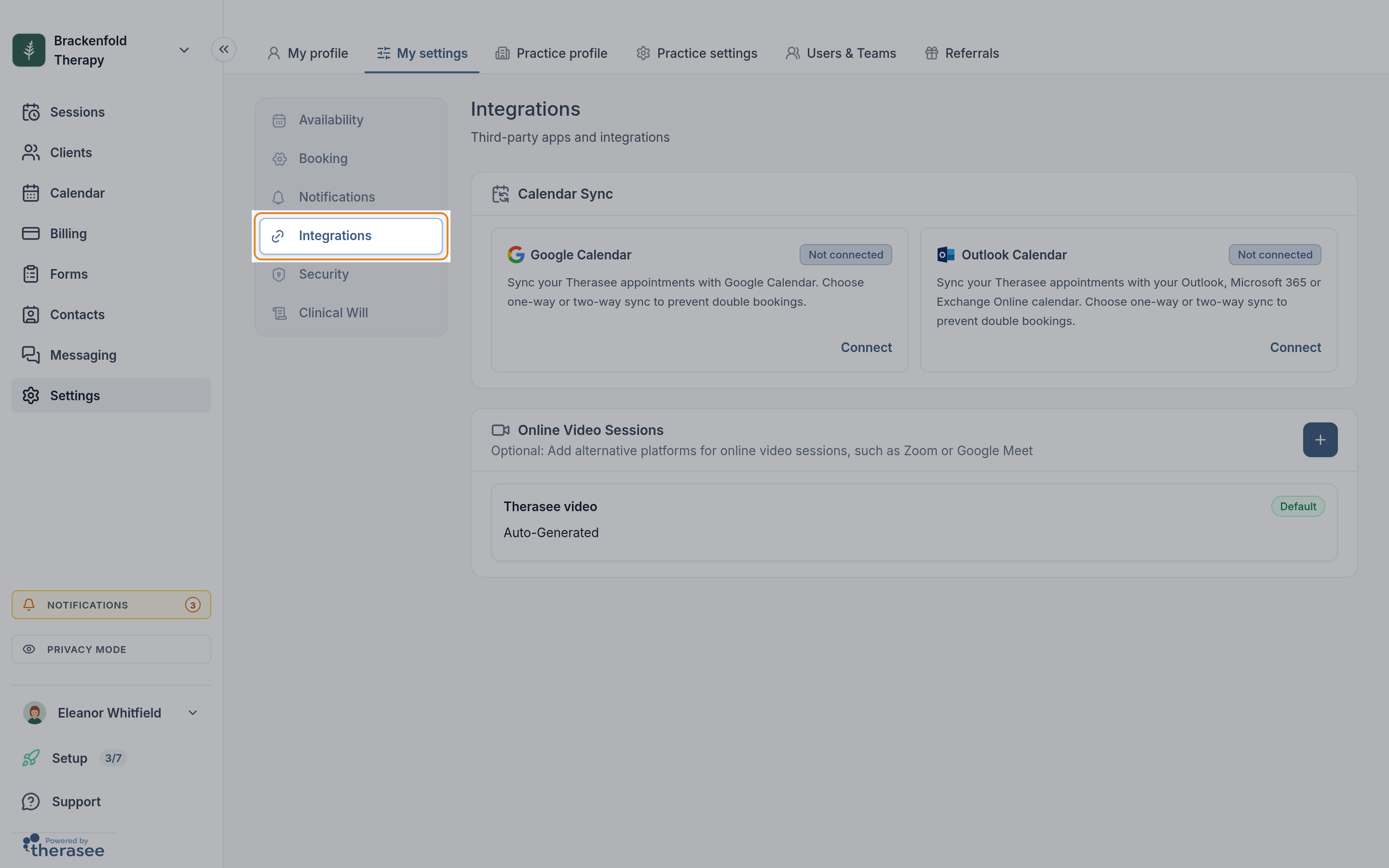
In the Google Calendar box, click Connect. The Connect Google calendar window opens, headed Choose your sync preferences.
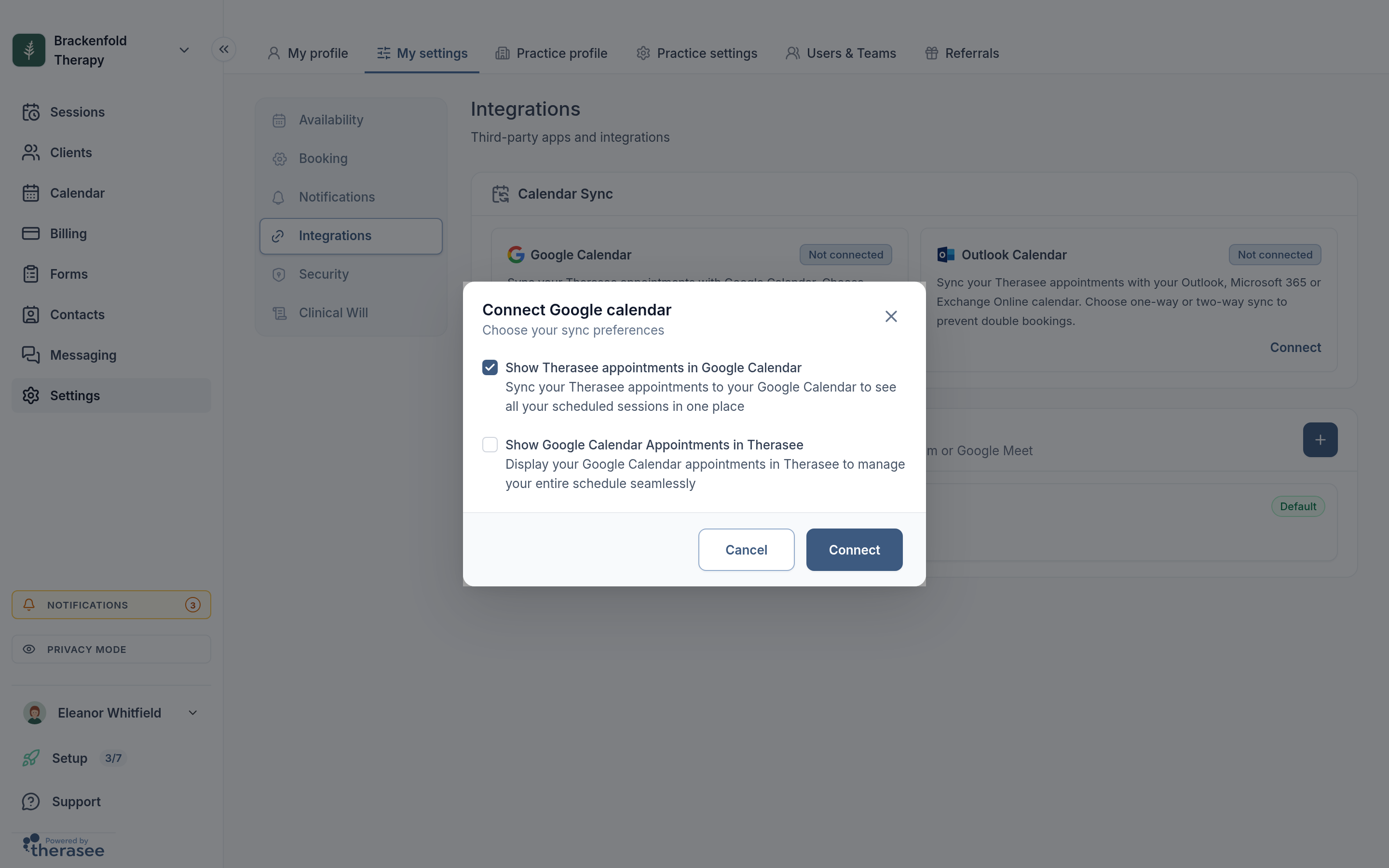
- Tick the options you want (see above). At least one must be ticked.
- Click Connect. A Google sign-in window opens. If nothing appears, allow pop-ups for Therasee in your browser and try again.
- Choose the Google account whose calendar you want to use, and allow Therasee access to your calendars. Therasee asks for permission to see and edit your Google calendars, because it needs to create the Therasee calendar, write your sessions into it and read your main calendar.
- Back in Therasee, you will see Google Calendar connected! Your appointments are syncing in the background. (or Google Calendar connected successfully if you only chose the second option).
The box now shows a green Connected badge with One-way or Two-way and an arrow for the direction, plus the Google account it is linked to. Hover over the badge to see the direction in full, such as Therasee ↔ Google Calendar.
Connect Outlook or Microsoft 365
- Go to Settings, My settings, Integrations.
- In the Outlook Calendar box, click Connect. The Connect Outlook calendar window opens.
- Tick the options you want and click Connect.
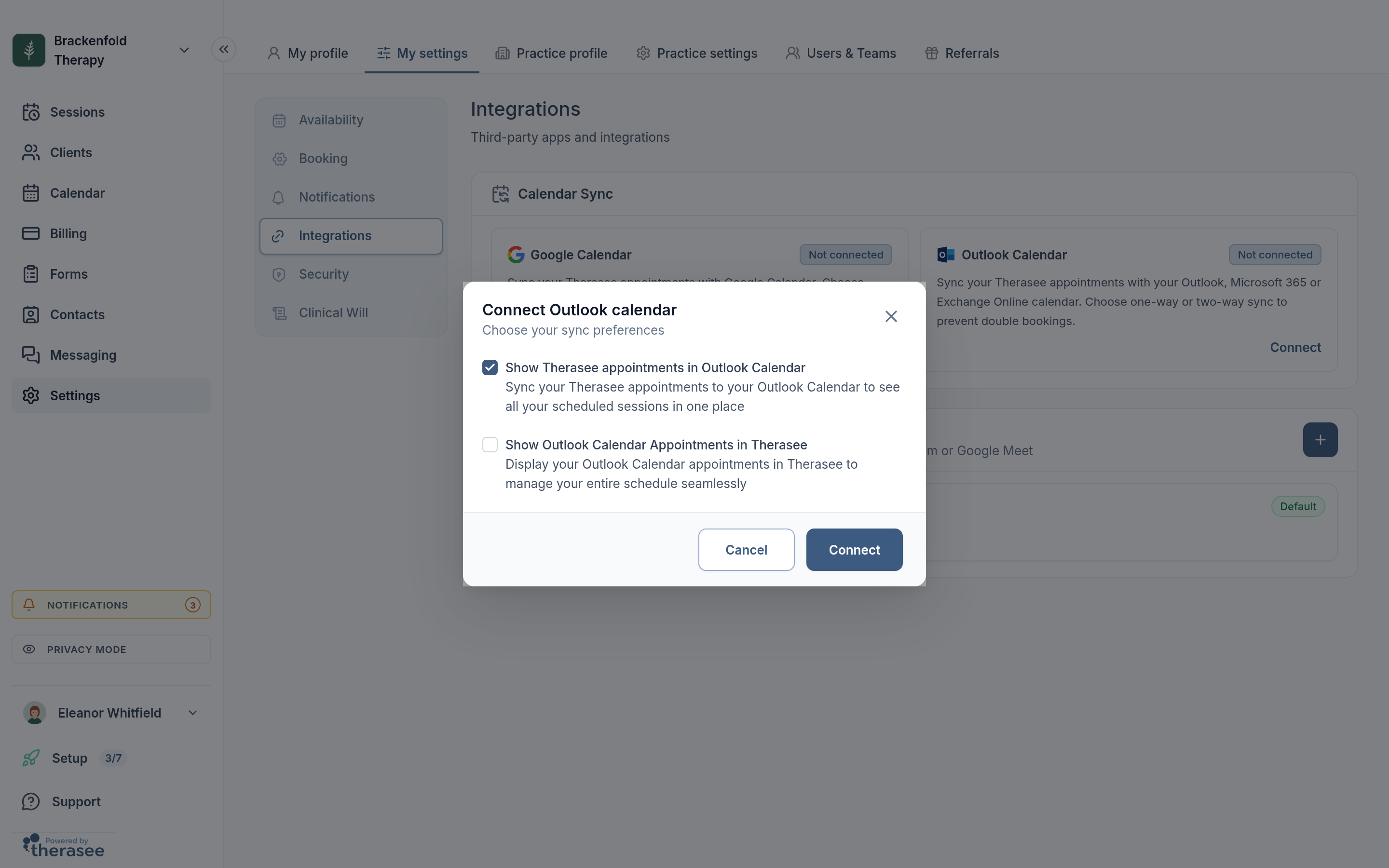
- A Microsoft sign-in window opens. Pick the account you want (a work or school Microsoft 365 account or a personal Outlook.com account both work), sign in and accept the permissions. Therasee asks to sign you in and read your basic profile, to read and write your calendars, and to keep that access so it can sync while you are not signed in.
- The window closes itself and you will see Outlook Calendar connected! Your appointments are syncing in the background. (or Outlook Calendar connected successfully). The box shows Connected, the sync direction and your Microsoft account's email address.
If you close the Microsoft window before finishing, nothing is connected and you can click Connect again. If your browser blocks the window, allow pop-ups for Therasee and try again.
If your Microsoft 365 account is managed by your organisation, Microsoft may say an administrator needs to approve Therasee first. Ask your IT administrator to approve it, then click Connect again.
What appears in your Google or Outlook calendar
With Show Therasee appointments in... ticked, your sessions go into the calendar named Therasee, kept separate from your other calendars so you can colour it, hide it or show it as you like. Each event contains:
- Title: the client's initials and the service, for example E.W. - Individual therapy. The initials are the first letter of the client's first name and of their last name; if only one name is on their record, you see one initial.
- Time: the session's start and end, and its repeat pattern for a recurring series.
- Location: this depends on the kind of session.
- Video session: your join link for the session.
- In-person session: the location's name, street and postcode, as set up in your practice's locations.
- Phone session: left empty. The event has the title and time only.
- Description: in Google, left empty. In Outlook, a video session's description reads Telehealth session: followed by the join link; other sessions have no description.
Session notes, forms and payment details are never included. Clients are not added as guests, so Google and Outlook send them nothing; your clients keep receiving only what your practice sends them (see What your clients are sent).
The video link in the event
For a session using Therasee video, the link in the event is your own practitioner link for that session, not the link your client is sent. Clicking it from Google or Outlook takes you into the session as the practitioner, so you can start it and admit your client from the waiting room (see Running a video session). If you are not signed in to Therasee on that device, you are asked to sign in first.
If the session uses one of your own video links instead, such as a Zoom or Google Meet room you have added in the Online Video Sessions card, the event carries that link.
Keeping client details private
Every synced event follows the format above: initials rather than names, plus the service, the time and, for video sessions, the join link. The format is the same for everyone, and the title and link are always included. If you would rather keep session details out of Google or Outlook altogether, connect with only Show Google Calendar Appointments in Therasee (or the Outlook equivalent) ticked. Your own events then still block online booking, and nothing is written to your Google or Outlook calendar.
Because your sessions sit in their own Therasee calendar, you choose separately whether to share it with anyone or hide it, whatever you do with your main calendar.
Only sessions you are the practitioner for are synced. When you first connect, Therasee copies your sessions from the last six months and all upcoming ones. This runs in the background and can take a few minutes if you have a lot of sessions.
After that, when a session is booked, moved or cancelled in Therasee, the change reaches your calendar in the background within moments of saving. Cancelled sessions are removed. Make your changes to sessions in Therasee: the Therasee calendar in Google or Outlook is a copy, and editing an event there does not change the session.
What appears in Therasee, and how it affects booking
With Show Google Calendar Appointments in Therasee (or the Outlook equivalent) ticked:
- Events from your main calendar appear in your Therasee calendar alongside your sessions. For Google this is your primary calendar; for Outlook it is your default calendar. Other calendars in the account, including shared ones, are not read. Your Therasee calendar's own events are left out, so sessions are never shown twice.
- Click one of these events to see its date and time, location and description, with Open in Google or Open in Outlook to edit it there.
- Therasee reads your calendar each time your Therasee calendar loads and each time a client looks for a time, so a change you make in Google or Outlook counts straight away.
- A button with the Google or Outlook logo appears in the calendar toolbar. Click it to Hide or Show Google Calendar events (or Outlook Calendar events). This only changes what you see: the events still block online booking while they are hidden.
For online booking, every timed event in your main calendar counts as busy, whatever its free/busy setting. All-day events do not block booking, so an all-day reminder such as a birthday leaves the day open. To keep a whole day free of bookings, block it in Therasee instead (see Blocking out time). The buffer time you set in your booking rules applies around these events too, just as it does around your sessions (see Letting clients book).
What clients see
Clients never see your events, their titles or which calendar they came from. When they book from your public booking page or their portal, times that clash with an event are simply not offered, just like times you already have a session.
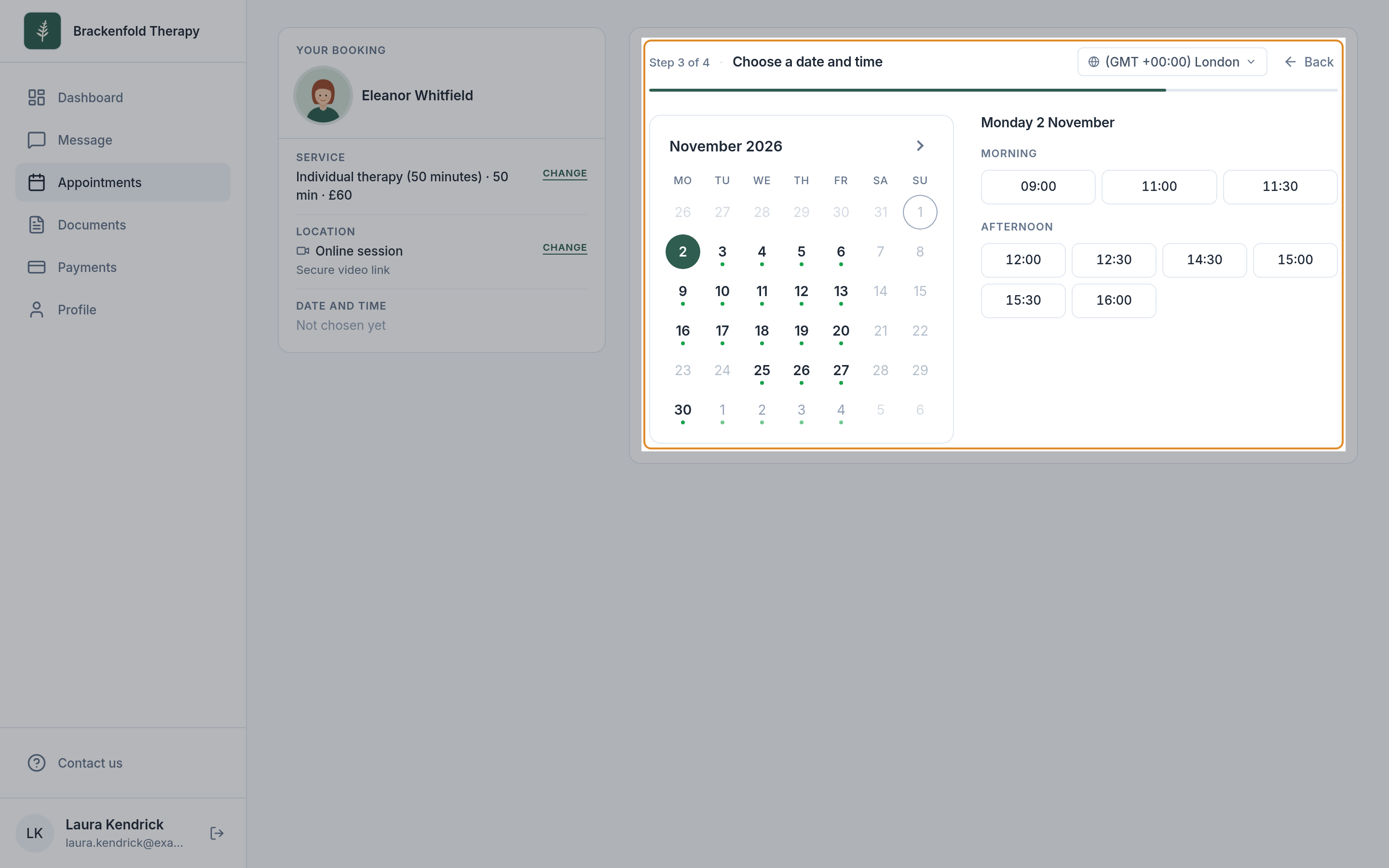
Syncing does not affect sessions you book yourself. You can still book a client into any time from your Therasee calendar (see Booking an appointment).
Changing your sync options or disconnecting
- Go to Settings, My settings, Integrations.
- In the Google Calendar or Outlook Calendar box, click Disconnect. You will see Google account disconnected or Outlook account disconnected.
Disconnecting removes the Therasee calendar and its events from your Google or Outlook account, stops your own events showing in Therasee, and stops them blocking online booking. Your sessions in Therasee are not changed and clients are not told. To switch between one-way and two-way sync, disconnect and then connect again with the options you want; your sessions are copied across again.
If the Outlook box shows Reconnect required, Microsoft has asked for you to sign in again (for example after a password change). Syncing with Outlook is paused until you click Reconnect and sign in.
Was this helpful?