Installing Therasee and getting notifications
Add Therasee to your phone or computer like an app, use the notifications panel, turn on notifications for each device, and choose which events reach you by email or on your devices.
Updated 8 November 2026
You can add Therasee to your phone's home screen or your computer so it opens like an app, and you can choose which events reach you by email or as notifications on your devices. The notifications panel inside Therasee shows them too. This guide covers installing Therasee, the notifications panel, turning on notifications for a device, and choosing which events reach you.
Installing Therasee on your phone or computer
Therasee runs in your web browser, and you can also install it so it has its own icon and opens in its own window, without the browser's address bar. You install it with your browser's own option; there is nothing to download from an app store. Sign in as usual once it opens.
iPhone or iPad
- Open Therasee in Safari.
- Tap the Share button.
- Tap Add to Home Screen, then Add.
Open Therasee from the new icon on your Home Screen. On iPhone and iPad, notifications from Therasee work in the Home Screen app, so install it first if you want notifications on that device.
Android
- Open Therasee in Chrome.
- Open the browser menu and choose Install app or Add to Home screen.
- Confirm, then open Therasee from its icon.
Windows or Mac, in Chrome or Edge
Open Therasee, then click the install icon at the right of the address bar, or choose the install option in the browser menu. Therasee then opens in its own window and can be pinned to your taskbar or Dock.
Mac, in Safari
Open Therasee, then choose File, Add to Dock.
The installed app shows the same Therasee as your browser, with the same account and data, and it needs an internet connection in the same way.
The notifications panel
At the bottom of the left-hand menu, above Privacy Mode, is Notifications with a bell. The number beside it counts your unread notifications plus your conversations with unread messages. When the menu is collapsed, a dot on the bell shows that something is unread.
Click Notifications to open the panel. It lists things that happened in your practice that you may want to act on:
- a client booked an appointment with you, or a new client booked for the first time
- a client cancelled or rescheduled an appointment (a reschedule shows the old and new time)
- a client assigned to you or your team completed a form
- a client paid an invoice
- a client was assigned to you or your team, or a client's status changed
- for practice owners, a new client registered through your client portal
- a new enquiry or waitlist sign-up came in from your practice's public pages
When you have unread messages, the top of the panel shows a row such as 2 new messages. Click it to go to Messaging; the row goes once you have read the messages there. Messages themselves are read and answered in Messaging (see Messaging a client).
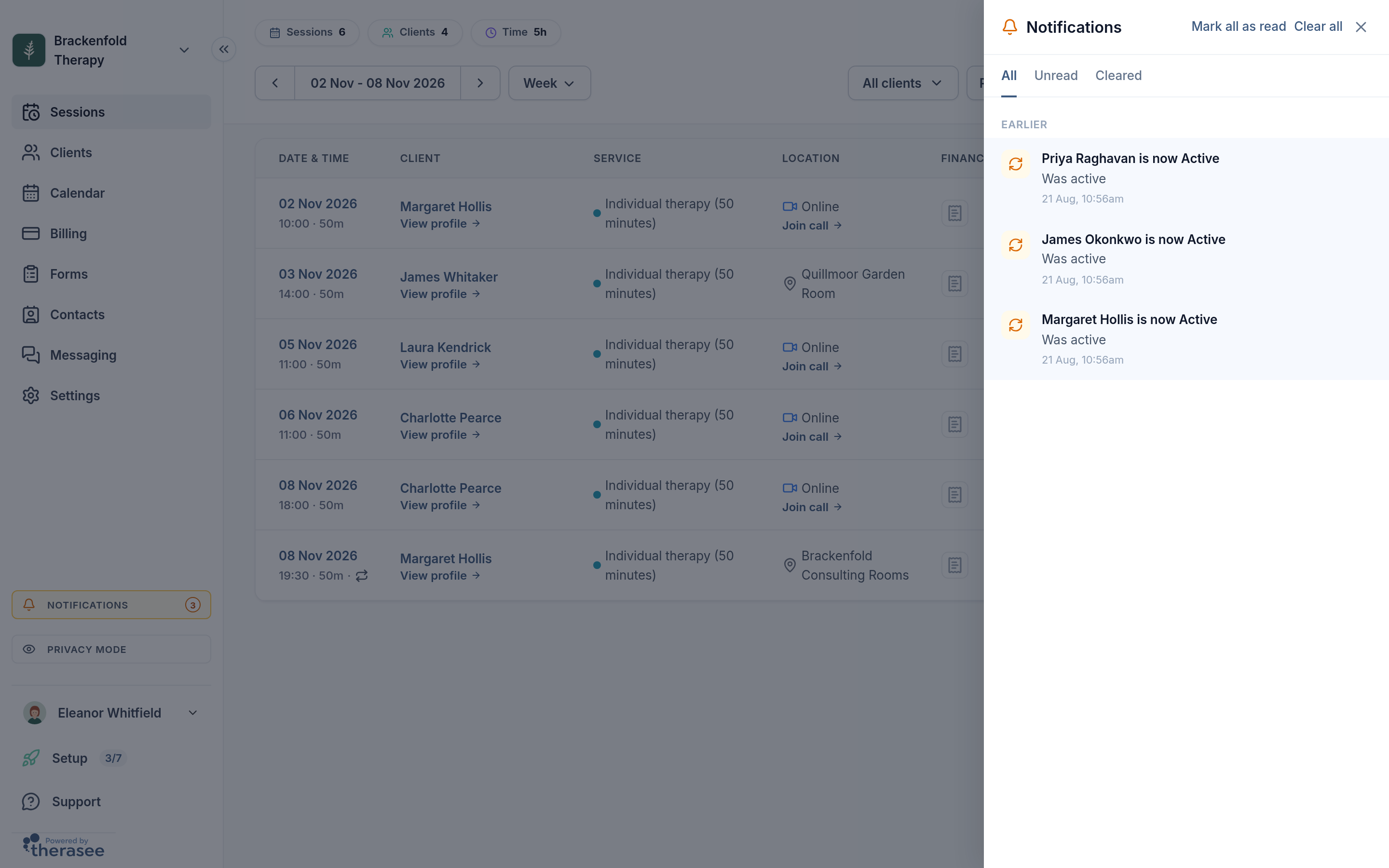
Notifications are grouped into Today and Earlier, newest first, each with how long ago it happened and the time (for anything older than a week, the date and time). Use the tabs to switch between All, Unread and Cleared.
- Open one: click it. It is marked as read and Therasee takes you to the client's record, or to Billing for a payment.
- Mark every notification read: click Mark all as read. The unread messages row stays until you read the messages in Messaging.
- Clear one: click the X on its right. Clear all clears the whole list.
- Bring one back: open Cleared and click Restore, or Restore all.
Unread notifications stay until you read or clear them. Read and cleared notifications are removed automatically 180 days after you read or clear them.
The panel always records these events. The settings below choose what reaches you by email or on your devices. With Privacy Mode on, client names in the panel are shown as initials.
Turning on notifications for a device
Therasee can send notifications to your phone or computer, so you hear about a booking or a message without having Therasee open. You turn them on for each browser or device you want them on: your phone and your laptop are set up separately.
- On the device, open Therasee (on iPhone or iPad, from the Home Screen icon).
- Go to Settings, My settings, Notifications.
- If the page shows In-app notifications are not enabled., click Enable.
- When your browser or device asks whether Therasee may send notifications, choose Allow.
Therasee confirms with Notifications enabled, and the In-app ticks on that page become available. From then on, Therasee keeps that device set up each time you open it.
Each notification names the client by their initials in its title, for example New message from AB or Appointment cancelled by AB, so a client's full name isn't shown in the heading on your lock screen. A message notification doesn't include the message itself; open Therasee to read it. A form notification includes the form's name.
Clicking a notification opens Therasee at the right place: Messaging for a message, the Calendar for an appointment, the client's record for a completed form, and Clients for a new registration. Where your device supports it, the Therasee app icon also shows a count of new notifications, which clears when you open Therasee.
Choosing what you're notified about
Go to Settings, My settings, Notifications. Under Notify me when there is a row for each event and two columns:
- Email: an email to your Therasee sign-in address.
- In-app: a notification on each device where you have turned notifications on.
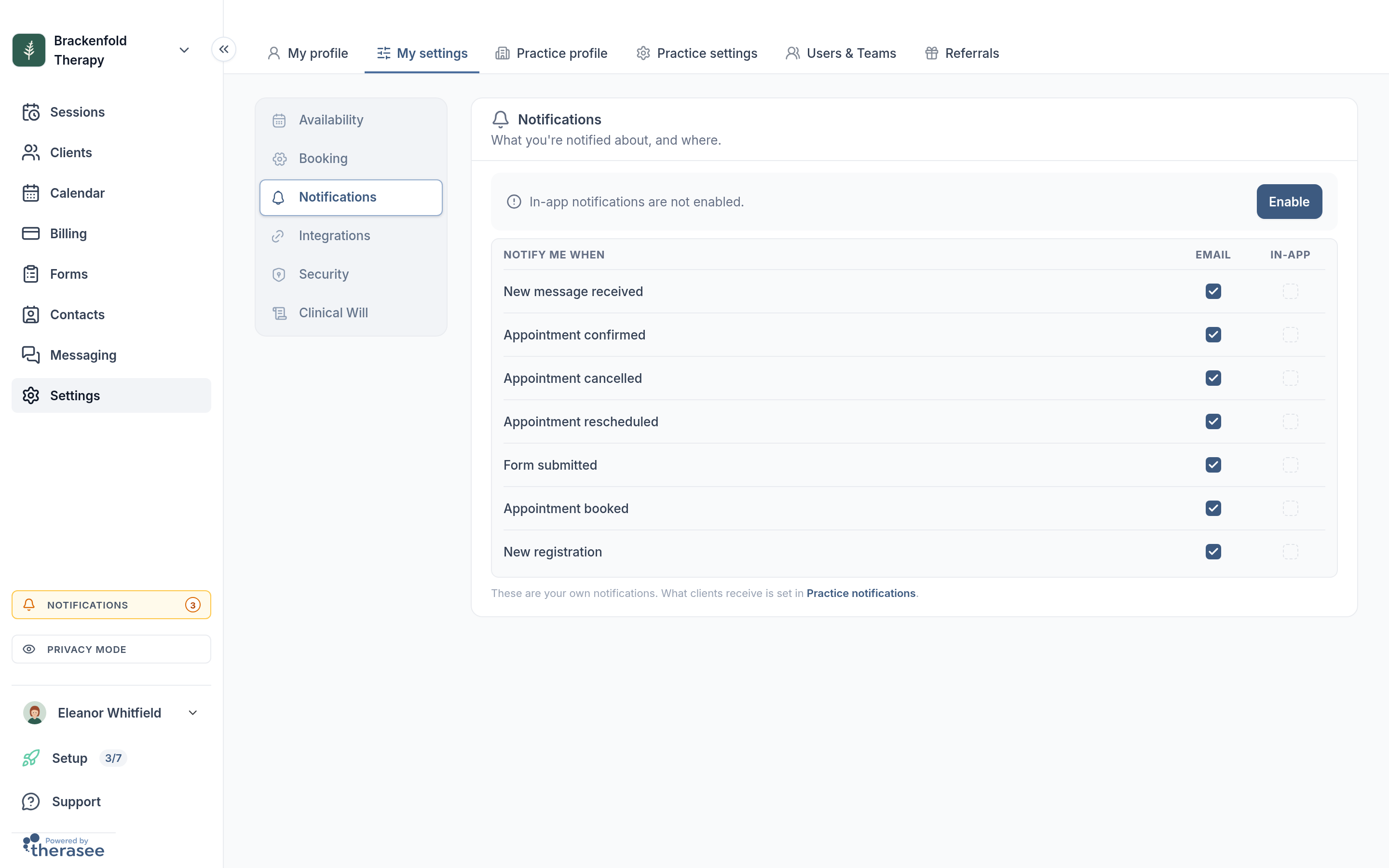
The rows are:
- New message received: a client sends a message in a conversation assigned to you or your team. The email isn't sent if you have used Therasee in the last 15 minutes; the device notification is sent either way.
- Appointment confirmed: an appointment is added for you in Therasee. The email includes a calendar invite and is sent for appointments you add yourself too; the device notification is sent only when someone else in your practice adds it.
- Appointment cancelled: an appointment with you is cancelled. Device notifications are sent when someone other than you cancels it.
- Appointment rescheduled: an appointment with you is moved. Device notifications are sent when someone other than you moves it.
- Form submitted: a client assigned to you or your team completes a form.
- Appointment booked: a client books an appointment with you (see Letting clients book).
- New registration: a new client registers through your client portal. Practice owners receive these notifications.
Click a tick to turn it on or off, then click Save at the top of the card (or Cancel to undo). Therasee confirms with Notification settings updated successfully. When a client is assigned to you or your team, you are always emailed; there is no tick for this. These choices belong to your account, so they apply on every device where you have turned notifications on.
The In-app ticks can be changed once notifications are turned on for the browser you're using. Until then they are greyed out.
These settings are only about what you receive. What your clients are emailed or texted is set in Practice notifications, linked at the bottom of the page; see What your clients are sent.
Turning notifications off
- For one kind of event: untick it in the Email or In-app column and click Save.
- On one device: turn off notifications for Therasee in that browser's site settings, or in your phone's notification settings for the Therasee app. Your other devices carry on as before.
The notifications panel inside Therasee keeps working whatever you choose here.
If notifications don't arrive
Open Settings, My settings, Notifications on the device and look at the top of the card:
- In-app notifications are not enabled. Click Enable and allow notifications.
- In-app notifications are blocked. Please enable them in your browser settings. Notifications were declined for Therasee on this device. Allow them for Therasee in the browser's site settings (or, for an installed app, in your device's notification settings), then reload Therasee.
- In-app notifications are not supported in this browser. Use a current version of Chrome, Edge, Firefox or Safari. On iPhone or iPad, install Therasee to your Home Screen and open it from there.
If none of these shows, check that the event's In-app tick is on, and that your device isn't in Focus, Do Not Disturb or a battery-saving mode that holds back notifications. Email notifications go to the address you sign in with; it's worth checking your spam or junk folder too. New message emails aren't sent if you have used Therasee in the last 15 minutes, so if you have been active recently, look for the message in Messaging instead.
Was this helpful?