Adding team members and choosing what they can see
Invite practitioners and admin users to your practice, choose what each person can see and change, see what it costs, and what happens when someone leaves.
Updated 8 November 2026
You can bring colleagues into your practice: other practitioners who see clients, and admin users who help run the practice. You choose what each person can see and change, from all clients to only the clients assigned to them. This guide covers adding someone, choosing their access, what it costs, and what to do when someone leaves.
Practitioners and admin users
Everyone you add is one of two member types:
- Practitioner: sees clients and can be booked. Practitioners are part of your subscription, so adding one can change what you pay (see What it costs below).
- Admin: runs the practice for everyone, for example a practice manager or receptionist. Admin users are free and can't be booked.
A paid plan can include up to 25 practitioners and any number of admin users. The Free plan includes 1 practitioner and 1 admin user.
Where your team lives
Go to Settings, Users & Teams. The Users tab lists everyone in your practice with their Email, Access level (Owner or User, and Practitioner or Admin), Status (Active, Pending or Deactivated) and Last login. For practitioners who can be booked, Copy link in the Booking URL column copies their personal booking link. The Teams tab is for grouping people (see Teams below).
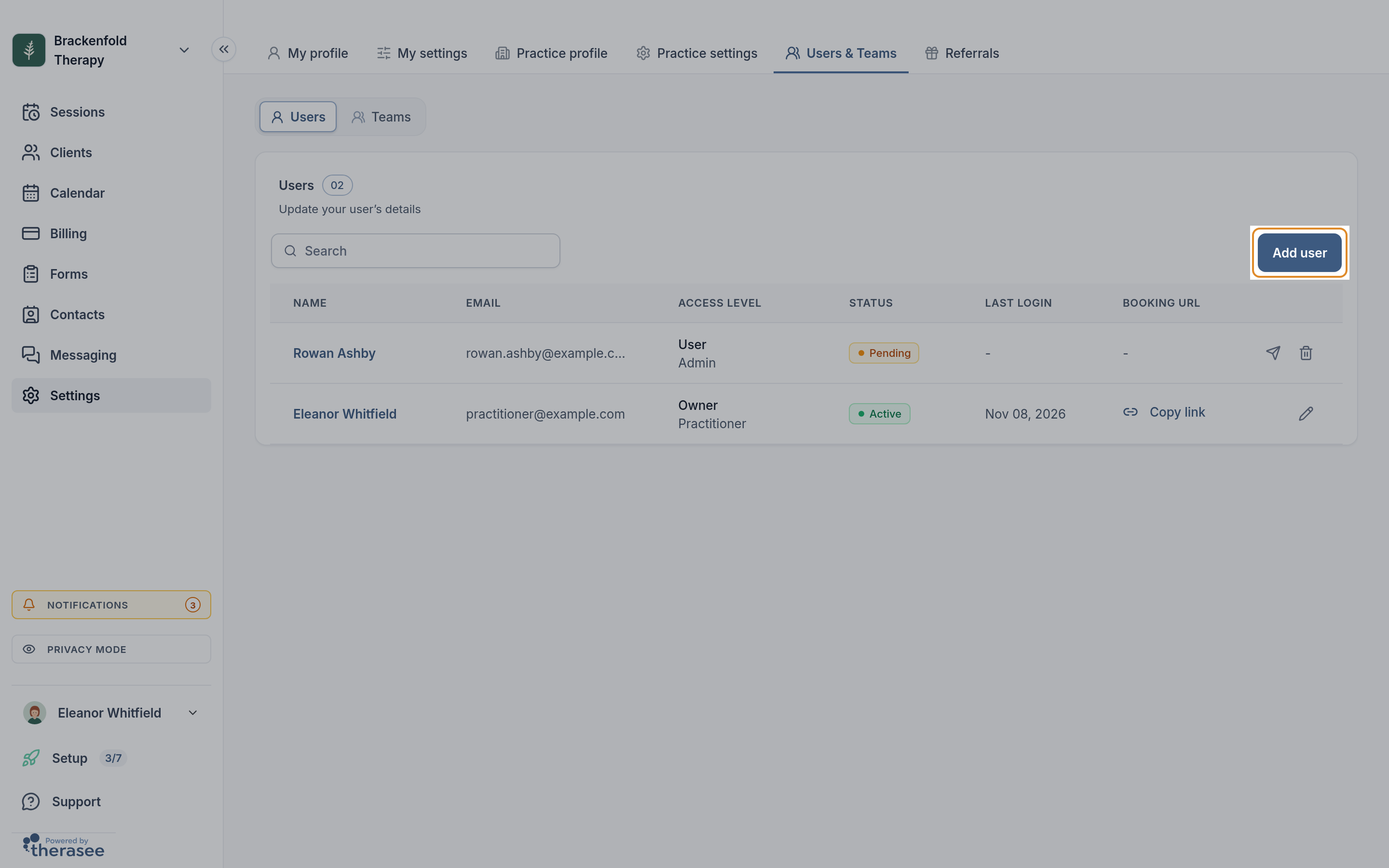
Adding people and changing their access needs permission to change practice settings. The practice owner has it. Only an Owner can make someone an Owner or change what they can see.
Adding someone
- On the Users tab, click Add user. A panel titled Add team member opens.
- Under Details, enter their First name, Last name and Email. The invitation goes to this address, and they must sign up with it. Phone number and Professional title (for example Psychotherapist) are optional.
- For a practitioner, choose the services they offer under Add services and where they work under Location. These start as All services and All locations; remove that and pick specific ones if they offer only some. Admin users can't be booked, so these don't appear for them.
- Under Role and access, choose the Member type: Practitioner or Admin. Each starts with sensible access, which you can change (see the next section).
- Check the cost shown beside the buttons at the bottom of the panel, then click Send invitation. If adding them costs something today, the button reads Send invitation and pay followed by the amount.
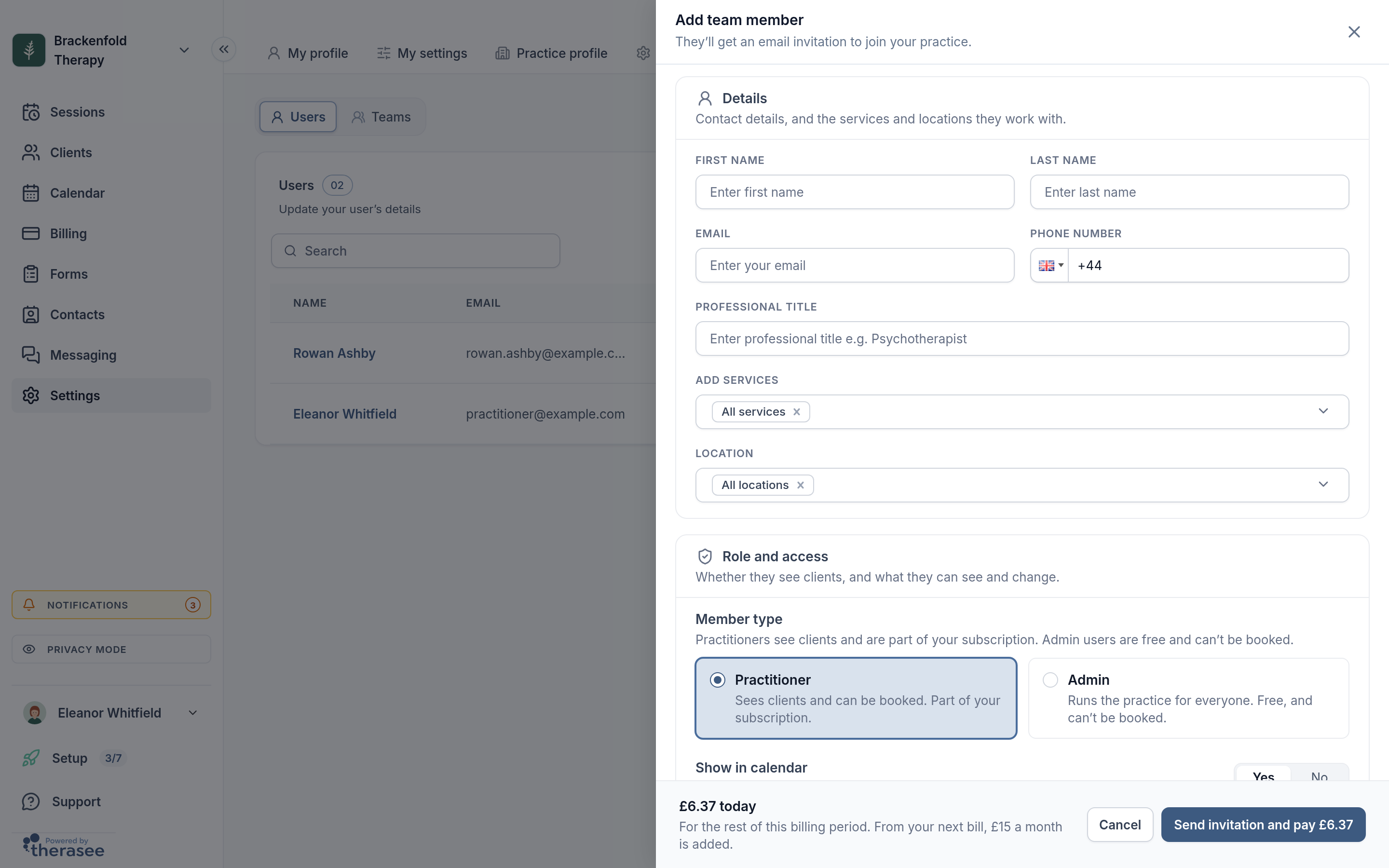
They appear on the Users tab with the status Pending until they join.
Choosing what they can see and change
Below the member type, the Role and access card has three more settings.
Show in calendar
Choose Yes if this person takes sessions. They can then be booked in your calendar and, if they offer services and online booking is on, by clients online. Choose No for someone who doesn't see clients. Admin users are always set to No.
Role: Owner or User
An Owner gets full access, including your Therasee subscription and referrals. Choose User for everyone else, and set their access with the permissions below. Only an Owner can choose Owner, and once someone is an Owner, they stay an Owner.
Permissions
For each area you choose View access (what they can see) and Edit access (what they can change).
- Clients & Contacts: All clients, only Assigned clients, or None.
- Client documents & notes: session notes, forms and files, for All, Assigned or None of your clients.
- Invoices & payments: All, Assigned or None.
- Calendars & scheduling: their Own calendar, or All calendars. Changing another practitioner's working hours needs Edit access to All.
- Practice settings: All or None. Edit access here also lets them add and manage team members and teams.
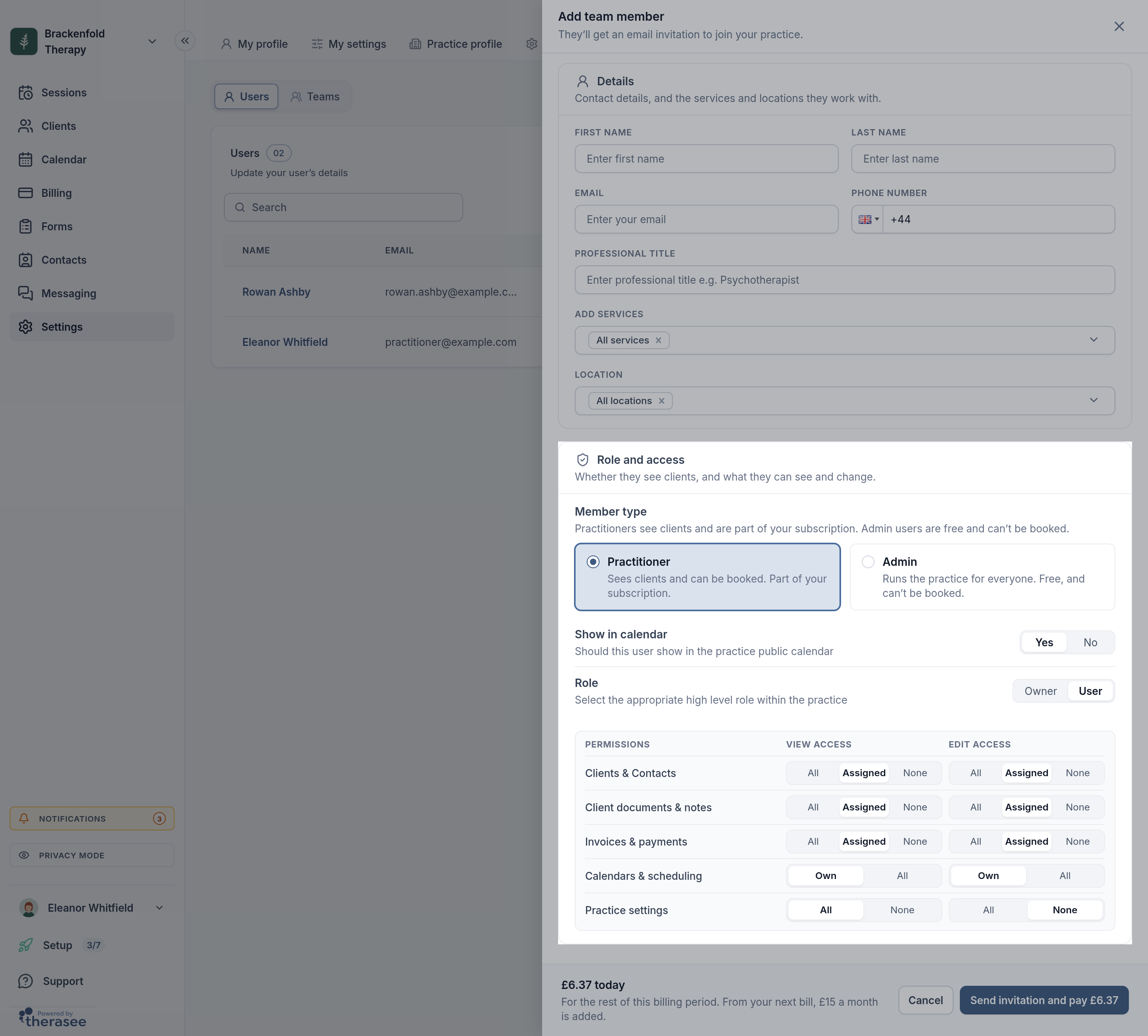
Assigned clients are the clients assigned to that person with the Assigned to field on the client's record. When someone with Assigned access adds a client, that client is assigned to them. They can also open the record of a client they have a session with, for example from their calendar. Messages follow the same rule: people see a client's conversation when they can open that client.
The settings keep each other consistent. Edit access can't be wider than View access: raising Edit raises View, and lowering View lowers Edit. Client documents & notes can't be wider than Clients & Contacts, so narrowing client access narrows document access too.
Each member type starts like this, and you can change any of it:
- Practitioner: Clients, documents and invoices for Assigned clients only; their Own calendar; Practice settings view only.
- Admin: All clients and invoices; All calendars, so they can book for any practitioner; full Practice settings; no access to client documents & notes.
What it costs
Admin users are always free. For a practitioner, the panel shows the cost before you send:
- No extra cost: your practice has no practitioner yet, and your subscription already pays for one.
- No charge today: they fill a practitioner seat you have already paid for this billing period. From your next bill, their price is added.
- An amount today: you pay for the rest of the current billing period now, and their price is added from your next bill.
- Practitioner limit reached: your practice has 25 practitioners. Contact us to add more.
The charge is taken when you send the invitation, not when they accept, because the invitation holds their seat. If you later delete the invitation or deactivate them, the seat stays paid until your renewal, and filling it again before then is free. The Users tab tells you when you have paid seats that are empty.
On monthly billing, practitioners cost £19 a month for the first, £15 for the second, £10 each for the third to fifth, £8 each for the sixth to twelfth, and £6 each for the thirteenth to twenty-fifth. Annual billing charges twelve months for the price of ten. For your plan and bills, see Managing your Therasee plan.
On the Free plan, the panel shows Included in the Free plan while there is a place for the person you're adding. If the practitioner place is taken, it says Your Free plan is full: upgrade, or add them as an admin user if the admin place is free. Once both places are taken, Add user offers you an upgrade.
What they receive
They get an email from Therasee with the subject "You're invited to collaborate on Therasee with" followed by your practice name, and an Accept Invitation button. The link works for 14 days.
- If they are new to Therasee, they click Accept invitation on the page that opens, then create a password on the sign-up page using the email address you invited, tick to accept the terms and click Get started. The password needs at least 8 characters, including an uppercase letter, a number and a special character. They need to do this within 30 minutes of clicking Accept invitation, in the same browser. If they miss that, they open the email and click the button again.
- If they already have a Therasee practitioner account, they click Accept invitation, which takes them to the sign-in page. Signing in opens your practice.
Once they have joined, their status changes to Active.
Pending invitations
On a Pending row you can:
- Resend invite: sends a fresh email with a new link. The earlier link stops working, so tell them to use the newest email.
- Delete invite: removes the invitation. To add them later, invite them again.
Changing someone's details or access
On their row, click Edit details. You can change their name, phone number, professional title, services, locations and Show in calendar; their email address can't be changed. An Owner can also change their member type, role and permissions.
When their access changes, they are signed out and sign back in with the new access.
To change a practitioner to an admin user, first move their upcoming sessions to another practitioner. Their practitioner seat stays paid until your renewal. Changing an admin user to a practitioner needs a practitioner seat and is priced like a new practitioner. If you are an Owner who doesn't see clients, you can change your own member type to Admin. As for anyone, move your upcoming sessions first, and your practitioner seat stays paid until your renewal.
To set their working hours, see Setting your working hours.
Teams
Teams group people so you can share and filter work. On the Teams tab, click Add team. In the New Team window, enter a Team name, choose people under Add members, click Add to team, then click Save.
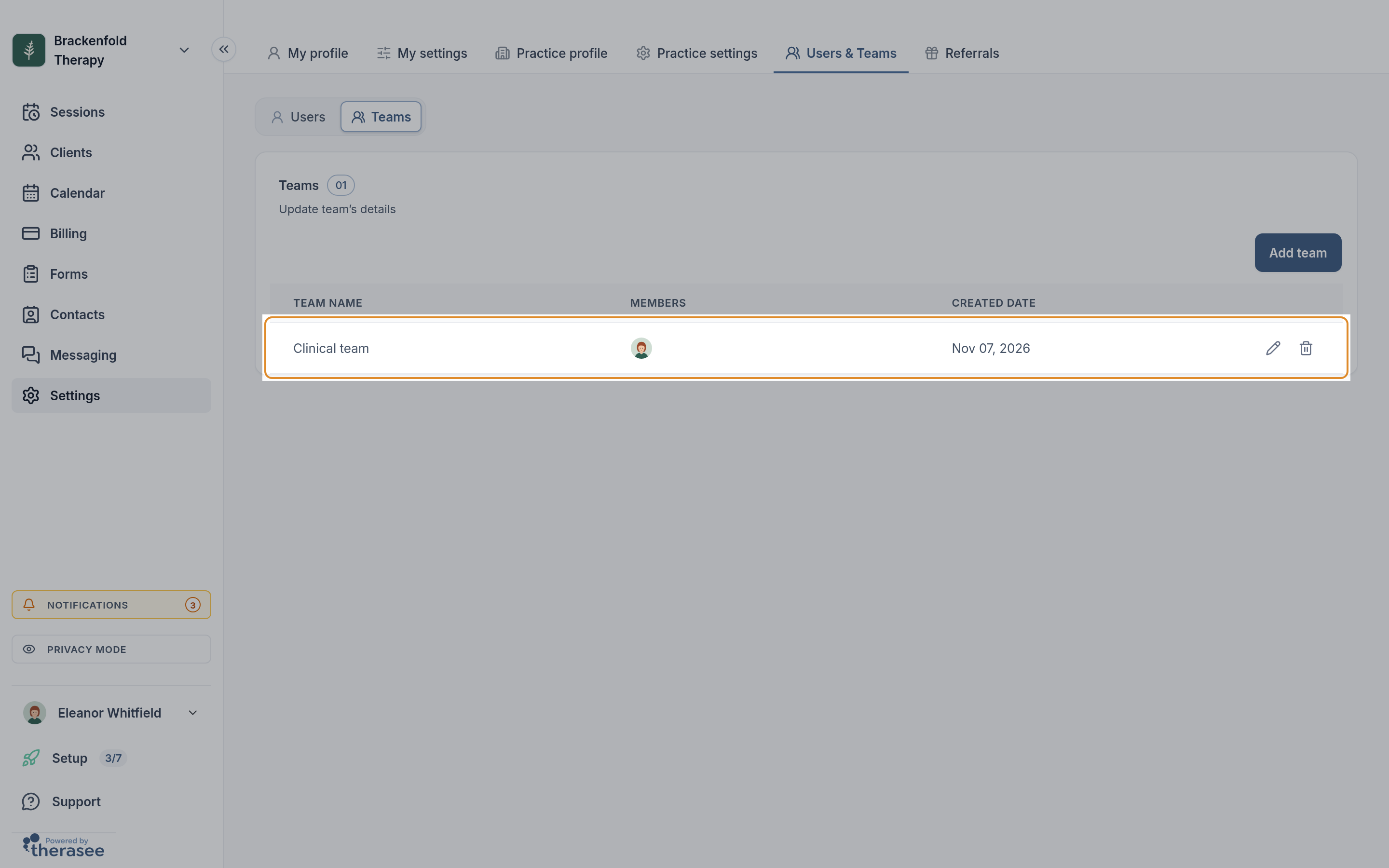
You can assign a contact to a team instead of a single person. Everyone in the team with Assigned access then sees that contact. To change or delete a team, use the Teams tab.
When someone leaves
On their row, click Deactivate account. In the window that opens, tick Transfer upcoming appointments to your practice owner if you want their upcoming sessions moved rather than cancelled. When you deactivate someone:
- They are signed out, can't sign in to your practice any more, and get an email saying their account has been deactivated.
- Their clients are assigned to the practice owner.
- Their upcoming sessions are cancelled, or moved to the practice owner if you ticked the box.
- They are taken off your services, locations and teams.
- For a practitioner on a paid plan, their seat stays paid until your renewal, and filling it again before then is free.
Their past sessions, notes and messages stay in your practice.
To bring them back, click Reactivate account. This needs a free seat, and may be charged like a new practitioner. They get an email with a Sign in button. Their clients and teams don't come back automatically: add them to their teams again on the Teams tab, and reassign clients with Assigned to on each client's record.
Delete account appears once someone is deactivated. It removes them from your team list for good and can't be undone. It has the same option to transfer upcoming appointments. Their past sessions, notes and messages stay in your practice.
You can't deactivate or delete yourself.
If you move to the Free plan
The Free plan keeps 1 practitioner and 1 admin user. If your team is bigger than that when you choose to move to Free, you pick who to keep. At the end of your billing period everyone else is deactivated, with their clients going to the practice owner and their upcoming sessions cancelled, and any pending invitations are deleted. Moving back to a paid plan doesn't reactivate them; reactivate the people you want from the Users tab.
If a colleague can't sign in
They can reset their own password with Forgot password on the sign-in page. If their invitation link has expired or was replaced, use Resend invite. For more, see Signing in, resetting your password and two-factor authentication.
Was this helpful?