Signing in, resetting your password and two-factor authentication
How to sign in, reset a forgotten password, fix a sign-in page that is blank or keeps reloading, and turn on two-factor authentication with an authenticator app and recovery codes.
Updated 4 November 2026
How to sign in to Therasee, reset a forgotten password, fix a sign-in page that will not load, and protect your account with two-factor authentication (2FA). This is for practitioners and team members. Clients sign in differently, with a code sent to their phone or email; see Signing in to your client portal.
Signing in
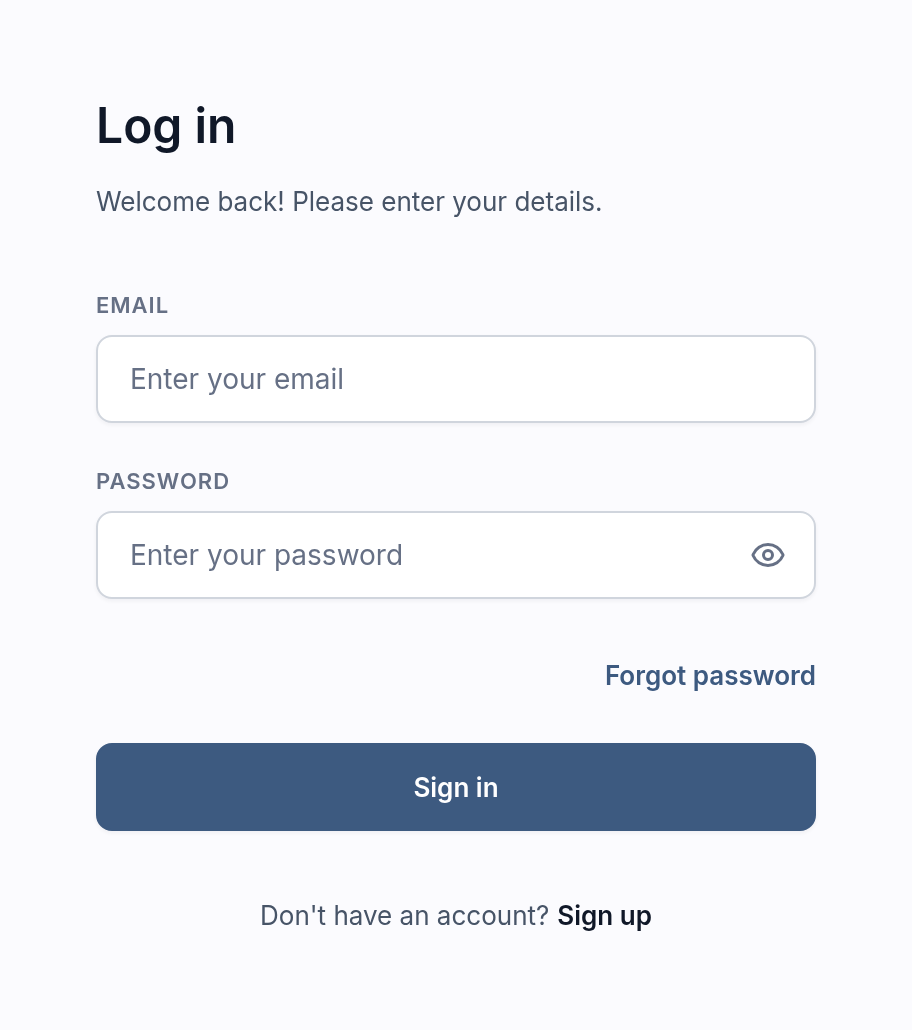
- Go to the Therasee sign-in page at app.therasee.com. You will see a page headed Log in, with Welcome back! Please enter your details. underneath.
- Enter the Email address your account uses and your Password.
- Click Sign in. You are taken to your Sessions page. If you have two-factor authentication turned on, you are asked for a code first (see below).
If you belong to more than one practice, you still have one login. Therasee opens the practice you used last; to move to another, click your practice name at the top of the left-hand menu and choose it under Switch practice.
If you see an error on the sign-in page
- "There is no account registered with the email you entered": check for typing mistakes and which address you used. If you changed your email in your profile, you now sign in with the new one. If you were invited to a practice, use the address the invitation was sent to.
- "The email and password combination you entered is incorrect": the password is wrong. Use Forgot password to set a new one.
- "Something went wrong. Please try again": try again in a minute; if it keeps happening, see the blank-page steps below.
Resetting a forgotten password
- On the sign-in page, click Forgot password (under the password box).
- Enter the email you sign in with and click Send reset link.
- You will see Check your inbox. Open the email with the subject Reset your Therasee password and click Reset Password. The link works for 15 minutes.
- On the Reset your password page, enter a new password twice. It must be at least 8 characters and include an uppercase letter, a number and a special character.
- Click Reset password. You are taken back to the sign-in page with the message Password changed, and Therasee emails you to confirm (subject Your Therasee password was changed).
No email after a few minutes? Check your spam folder and that you entered the address you sign in with, then click Resend link. Each new link replaces the previous one, so use the newest email.
Resetting your password does not turn off two-factor authentication; you will still be asked for your code.
To change your password while you are signed in, go to Settings, My settings, Security. Under Change password, enter your Current Password, then your New Password twice, and click Save at the top of the card.
If the sign-in page is blank or keeps reloading
If you cannot see the email and password boxes, or you keep landing back on the sign-in page, your browser is usually holding old sign-in information for Therasee. Clearing it fixes this without affecting other websites.
- Try a private window first. Open a private window (Chrome and Edge: Ctrl+Shift+N, or Cmd+Shift+N on a Mac; Safari: File, New Private Window) and go to app.therasee.com. If that works, clear Therasee's site data in your normal browser:
- Chrome: on the Therasee page, click the icon to the left of the web address, choose Site settings, then Delete data (or Clear data). Reload the page.
- Edge: go to Settings, Cookies and site permissions, Manage and delete cookies and site data, See all cookies and site data, search for therasee.com, delete the entries, then reload the page.
- Safari (Mac): go to Safari, Settings, Privacy, Manage Website Data, search for therasee, click Remove, then reload. On an iPhone or iPad: Settings, Apps, Safari, Advanced, Website Data, search for therasee and delete it.
- Still stuck? Try another browser, then contact support with your browser and device.
Clearing site data signs you out and makes your browser forget that it is trusted for 2FA, so you will be asked for a code at your next sign-in.
Two-factor authentication (2FA)
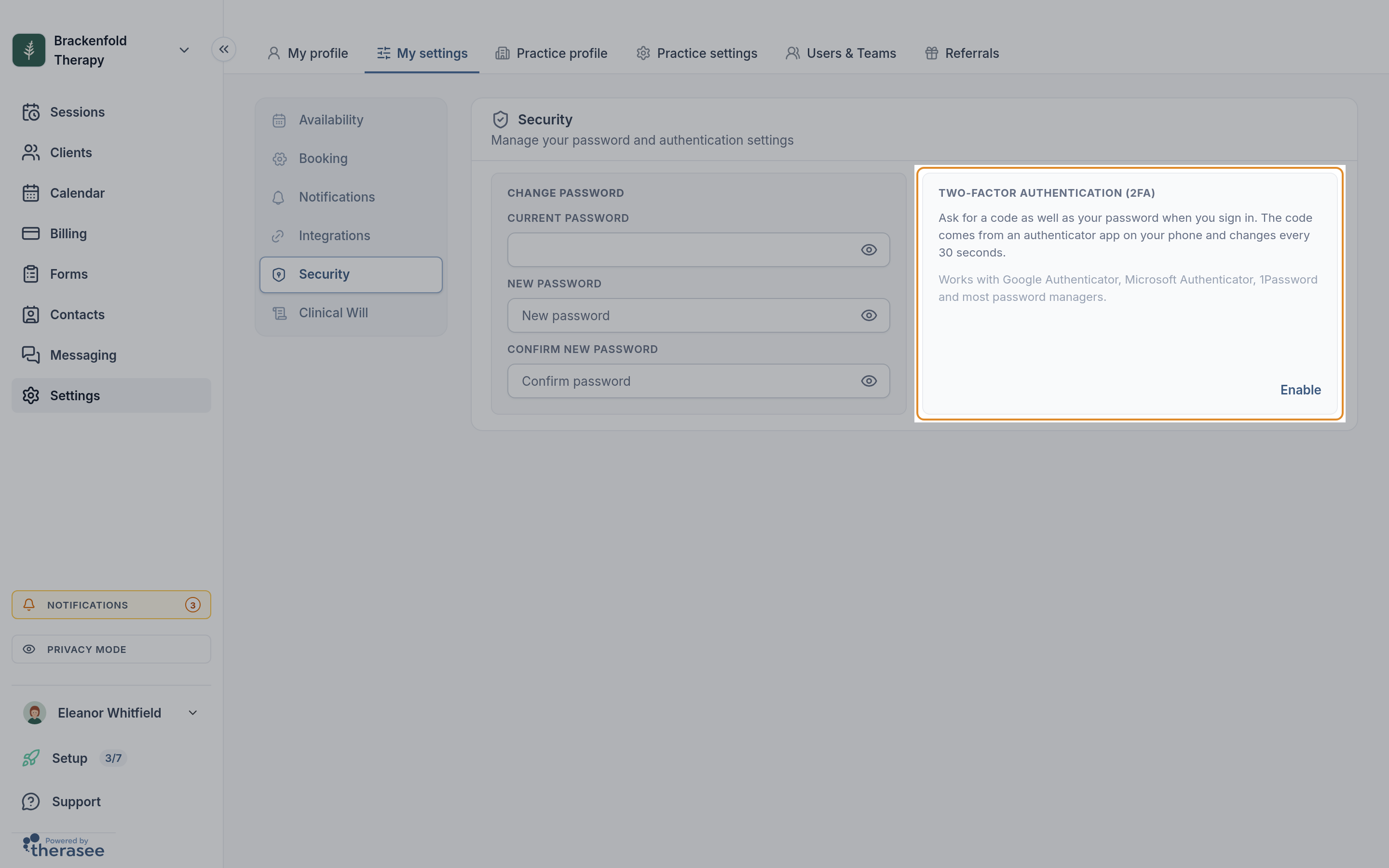
With 2FA on, signing in needs a code as well as your password, so someone who learns your password still cannot get in. The code comes from an authenticator app on your phone (Google Authenticator, Microsoft Authenticator, 1Password and most password managers work) and changes every 30 seconds. Codes are not sent by text or email. 2FA is optional, and each person turns it on for their own login.
Turning on 2FA
- Install an authenticator app on your phone if you do not have one.
- Go to Settings, My settings, Security and, in the Two-factor authentication (2FA) box, click Enable.
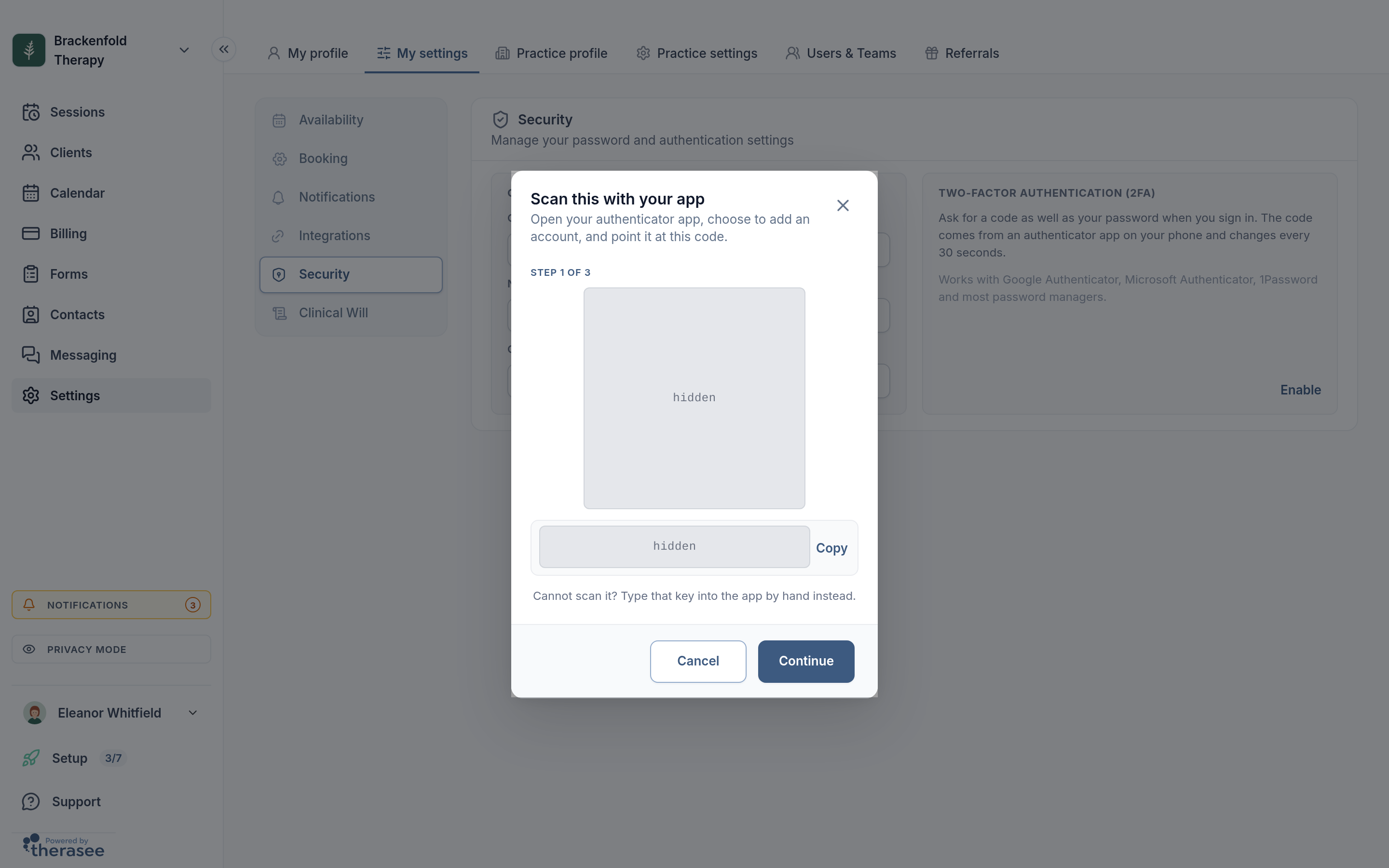
- Step 1 of 3, Scan this with your app: in your authenticator app, choose to add an account and point your phone's camera at the QR code. If you cannot scan it, click Copy next to the key under the code and type the key into the app by hand. Click Continue.
- Step 2 of 3, Enter the code from your app: type the 6-digit code your app is showing for Therasee and click Confirm. If it is not accepted, wait for the next code and try that.
- Step 3 of 3, Save your recovery codes: you are shown 10 recovery codes. Click Download or Copy and keep them somewhere safe and separate from your phone, such as a password manager. Tick I have saved these somewhere safe, then click Finish.
Nothing changes until you confirm a code in step 2, so closing the window earlier leaves 2FA off. Once it is on, the Security page shows your Authenticator app and how many Recovery codes you have left.
Signing in with two-factor authentication
- Sign in with your email and password as usual.
- On the Enter your code screen, open your authenticator app and type the 6-digit code for Therasee.
- If you are on your own computer, you can tick Trust this browser for 14 days so you are not asked for a code there for the next 14 days. Your password is still needed every time. Do not tick it on a shared computer.
- Click Continue.
If you wait more than 5 minutes on the code screen, sign in again. After 5 wrong codes, code entry pauses for 15 minutes. Clicking Logout (under your name at the bottom of the left-hand menu) makes that browser ask for a code next time.
Recovery codes
Without your phone, click Use a recovery code instead on the code screen and type one of your saved codes (XXXX-XXXX). Each works once, and Therasee reminds you when 2 or fewer are left. For a fresh set, go to Settings, My settings, Security, click Get new codes next to Recovery codes, and confirm your password. Your old codes stop working straight away.
New phone, lost phone, or turning 2FA off
- New phone: on the Security page, click Replace next to Authenticator app, confirm your password and scan the new QR code with your new phone. If the old phone is lost, sign in with a recovery code first.
- Lost your phone and your recovery codes: email support@therasee.com from the address you sign in with. Support will check it is really you, then turn 2FA off; you will get an email saying Two-factor authentication was turned off. Sign in with your password and turn it back on.
- Turning 2FA off: click Disable, enter your password and click Turn off. Your recovery codes stop working, trusted browsers are forgotten, your other devices are signed out, and you are emailed to confirm.
Changing your email address
The email on your profile is also the email you sign in with, so changing one changes the other.
- Go to Settings, My profile and click the pencil icon on the My profile card.
- Change EMAIL ADDRESS and click Save. If the address is already used by another Therasee account, you will see The email you have entered is not available; choose a different one.
- From then on, sign in with the new address. Your password stays the same, and password reset emails go to the new address.
Team members need their own sign-in
Never share your login, including with a practice manager or admin assistant. Invite them as a team member from Settings, Users & Teams instead: they get an email to set up their own account, with their own password and 2FA, they see only what their role allows, and their actions are recorded under their own name.
Was this helpful?