Managing your Therasee plan
Compare the Free and Premium plans, upgrade, switch between monthly and annual billing, change your payment card, find subscription invoices, and move back to Free without losing your records.
Updated 4 November 2026
Every Therasee practice is on one of two plans: Free or Premium. This article covers what each plan allows, upgrading, paying monthly or annually, your payment card and invoices, and moving back to Free.
Before you start
- Who can manage the plan. Only the practice owner can open the Subscription page and change the plan. If you are not the owner, ask the person who runs your practice. When someone without access reaches a plan limit, Therasee asks them to contact whoever manages the plan.
- Each workspace has its own plan. If you run more than one workspace (you can add one with + Add new workspace from the practice switcher at the top of the sidebar), each workspace is billed separately and every new workspace starts on Free. The Subscription page always shows the plan for the workspace you are in, so switch to the right workspace first.
- Subscription billing is separate from client billing. The Billing page in Practice settings is about invoicing your clients. Your own Therasee plan lives on the Subscription page.
What each plan includes
Go to Settings, Practice settings, Subscription. The page opens with three cards: Free plan, Premium monthly and Premium annual. Your current plan is marked Current, and each card shows its price and what it includes.
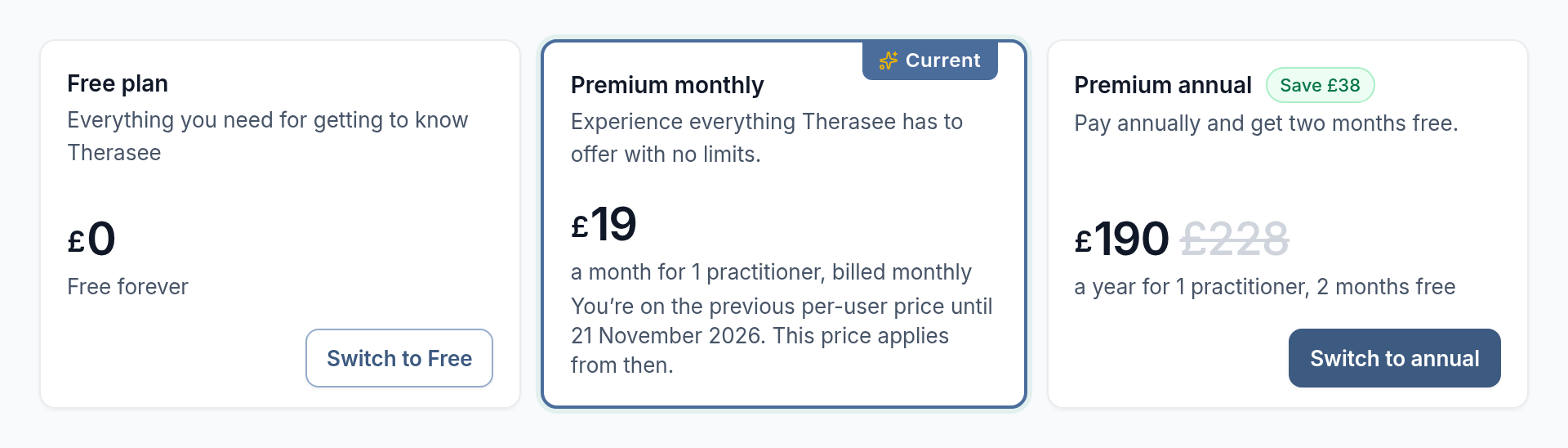
- Free is free with no time limit. It allows up to 3 active clients, 1 practitioner and 1 admin user. Appointments, secure messaging, one-to-one video sessions and your branded client portal are all included.
- Premium removes the client limit and allows up to 25 practitioners and as many admin users as you need. It is priced per practitioner: each practitioner after the first costs less, and admin users are free. You can pay monthly or annually. Annual billing charges 10 months for the year; the annual card shows how much you save.
Each person in your practice is either a Practitioner, who sees clients and can be booked, or an Admin user, who helps run the practice and can't be booked. You choose this as the Member type when you add them in Settings, Users & Teams. The plan cards show the price for the number of practitioners you have now.
On Free, the client limit covers clients you add yourself and clients who sign up through your client portal. The test client created with a new practice and any archived clients do not count. When you reach a limit, Therasee shows a message such as To add more clients you will need to upgrade your account to premium, with an Upgrade link that brings you to the Subscription page.
Upgrading to Premium
- Go to Settings, Practice settings, Subscription.
- On the Premium monthly or Premium annual card, select Upgrade.
- A secure Stripe checkout opens inside Therasee, headed Upgrade to Premium. You are charged for the practitioners in your practice, including any you have invited (at least one); admin users are free. The total is shown before you pay.
- If you have a promotion or coupon code, select Add promotion code in the checkout, enter it and apply it before paying.
- Enter your card details and confirm. You see Processing your upgrade... and then Upgrade successful!, and you are taken back to the Subscription page with Premium marked Current.
To leave without paying, select Back to subscription; nothing changes until payment goes through.
If you moved back to Free in the past and chose clients to archive, upgrading brings those clients back automatically.
Referral, coupon and student discounts
- Joined through a referral link? If another practice invited you and you signed up through their link, your referral discount is applied at checkout automatically, and the Premium monthly card shows a green discount badge. You do not need to enter a code. A referral discount and a promotion code cannot be combined, so the checkout does not offer a code box when a referral discount is already applied.
- Refer others. Premium practices can invite other practitioners from Settings, Referrals.
- Students and trainees. There is no student option on the Subscription page. If you are training and would like to ask about a discount, contact support using the chat in Therasee before you upgrade.
Paying monthly or annually
Both Premium options include the same features; only the billing period changes. Your plan renews automatically at the end of each period (each month, or each year on the annual plan) and is charged to your saved card.
- Go to Settings, Practice settings, Subscription.
- On the plan you want to move to, select Switch to annual or Switch to monthly.
- A secure Stripe page opens showing the change and the amount due. Check it and confirm. You are brought back to the Subscription page.
Your new billing period starts on the day you switch, and the time you have already paid for is credited against it. Moving from annual to monthly can leave you with account credit, which is used for your next bills before your card is charged. You can't switch while a move to Free is scheduled; cancel the downgrade first.
On Premium, the Your plan card below the plans shows what you pay for each practitioner, any admin users (free), the total, any account credit, and the date your plan renews (Renews on).
Users and what you pay
On Premium you pay for each practitioner in the practice, including invited practitioners; admin users are free. When you add someone from Settings, Users & Teams, Therasee shows what it will cost before you send the invite. For a practitioner that is usually a pro-rata charge today for the rest of the current billing period, plus the amount added to your bill from your next billing date. If a seat you have already paid for is empty, filling it costs nothing until your renewal. When you deactivate a practitioner, their seat stays paid until your next renewal and can be filled again at no charge before then. A practice can have up to 25 practitioners; contact support if you need more. Clinical will executors who only have executor access are not counted.
Changing your payment card
- Go to Settings, Practice settings, Subscription. On Premium, a card below the plans shows the card you pay with, for example Visa ending in 4242, and its expiry date.
- Select Manage. A secure Stripe page opens in a new tab.
- Add your new payment details and save them. Stripe returns you to the Subscription page, and future payments are taken from the new card.
If a payment fails, Therasee shows Please Update Your Payment Info when you sign in. Select Change payment method and add a working card. If a payment stays unpaid, access may be restricted and you are asked to Make a Payment or Contact Support.
Invoices and receipts for your subscription
Every subscription invoice is listed under Billing history on the Subscription page, with its Date, Amount and Status. Select Download next to an invoice to open it on a secure Stripe page, where you can download the invoice and receipt as PDFs. Invoices are in pounds sterling. If you have not paid for a plan yet, the table shows No invoices to show.
Moving back to the Free plan
Moving to Free (downgrading) stops your Premium charges from the end of the period you have already paid for. It does not delete your practice or your records. You keep full Premium access until the end of that period.
- Go to Settings, Practice settings, Subscription.
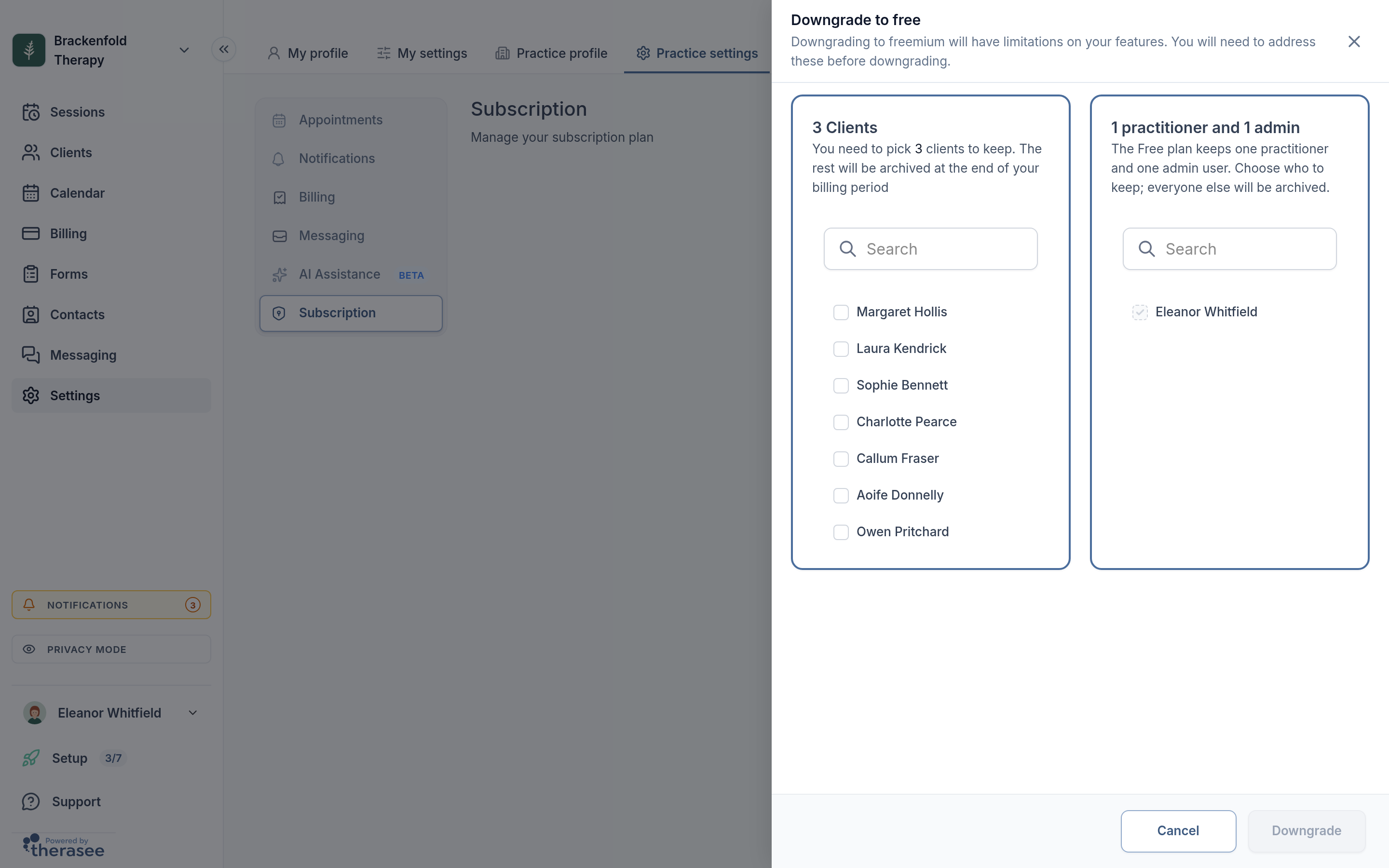
- On the Free plan card, select Switch to Free. A panel called Downgrade to free opens.
- If you have more than 3 active clients, tick the 3 clients you want to keep. Use Search to find a client by name.
- If you have more than one practitioner or admin user, tick who to keep: Free keeps 1 practitioner and 1 admin. As the owner you are always kept, so your own name cannot be unticked.
- Select Downgrade. The button becomes available once you are within the Free limits.
- Read the confirmation, then select Yes, downgrade.
The Subscription page now shows Your plan will downgrade to Free on followed by the date, and the Free card reads Downgrade Pending. Changed your mind? Select Cancel Downgrade at any time before that date and nothing changes.
What happens on the downgrade date
- Clients you did not keep are archived. Their records and message threads are kept but hidden, they can no longer sign in to your client portal, and appointments with them are removed from your calendar. If you upgrade again, archived clients are restored automatically.
- Users you did not keep are deactivated. They receive an email saying their account has been deactivated, they are signed out, and their upcoming appointments are cancelled. After upgrading again, you can reactivate them from Settings, Users & Teams.
- Pending user invites are deleted. Invite those people again later if you need to.
- Payments stop. You are not charged for Premium again unless you upgrade.
Downgrading is not closing your account
Downgrading keeps your practice running on Free, with your records kept. There is no option to cancel the subscription outright; moving to Free is how you stop paying. If you want to stop using Therasee altogether and have your data deleted, see Closing your account. Deleting your practice account cancels your subscription straight away, with no refund for the rest of the period you have paid for.
Was this helpful?