Finding your way around a client's record
A tour of a client's record: the header and status, each tab, the Client profile cards, the client ID, privacy mode, the Timeline, exporting and deleting a client.
Updated 8 November 2026
Each client in Therasee has one record that holds everything about them: their details, appointments, notes, invoices, forms, files and a running history. This page shows you what's on the record and what each part is for. The detailed articles linked below explain how to do each task.
Opening a client's record
Go to Clients and click a client's name. The record opens on the Client profile tab, with a header at the top and a row of tabs underneath.
If you've edited the Client profile and try to switch tabs before saving, Therasee asks what to do. Choose Save & switch, Discard or Keep editing.
The header

The header shows the client's name, followed by a status badge and, if your practice works with couples and dependants, a type badge.
Status
The status badge is also a menu. Click it to move the client to Active, Prospect, Waitlist or Inactive. The change saves straight away and appears on the client's Timeline.
- Active is the status for current clients and is the default for anyone you add.
- Prospect is for someone who isn't a client yet. A person who books online without being a client, or who sends your contact form, arrives as a Prospect.
- Waitlist is for someone waiting for a space. People who send your waitlist form arrive here.
- Inactive is for clients you're no longer seeing. On the Clients list, inactive clients are hidden unless you click the Inactive filter.
Status is a label for organising your list. It doesn't control portal access: whether a client can sign in depends on their Portal access setting, not their status.
Type
If your practice works with couples and dependants, a second badge shows whether the record is an Individual, a Couple or a Dependant. See Working with couples and Working with dependants.
Session summary
- Next session shows the date, time and location of the client's next appointment, or No upcoming sessions. During a session it shows Ongoing.
- Last seen shows the date of their most recent past appointment.
- Total sessions counts their past appointments, leaving out cancellations and no-shows.
Cancelled and no-show appointments are left out of all three.
Schedule, Call and Message
- Schedule opens a new appointment with this client already filled in. See Booking an appointment.
- Call starts an instant video call. It opens an Instant call window where you choose who to notify. Email is ticked for the people who normally receive confirmations, and you can tick text messages too. The change applies to this call only. Click Launch and the call opens in a new browser tab. Each person you ticked gets their own link to join: by email, with the subject "your first name is inviting you to an online session", or by a text saying you're online and inviting them to join. An instant call is separate from scheduled appointments, which have their own join links. If video sessions are switched off for your practice, the button is greyed out. See Running a video session.
- Message opens Messaging with this client's conversation selected. It appears when your client portal is switched on. See Messaging a client.
If the client came to you through a booking, enquiry or waitlist form, a banner under the header shows what they wrote (New booking, New enquiry or New waitlist). Click File once you've read it. It moves to an Initial enquiry card on the Client profile.
The tabs
The tabs appear in this order.
- Client profile: the client's details and settings, described below.
- Relationships: the people linked to this client, such as a partner, parent, emergency contact or whoever pays their invoices. Use Add relationship to link someone.
- Appointments: the client's Upcoming sessions and Past sessions, with filters for date, status and payment.
- Notes: your session notes for this client. Use Add note to write one. See Writing session notes.
- Billing: the client's invoices and whether each is paid. Use Create invoice to raise one. See Creating and sending an invoice.
- Forms: forms you've sent the client and their answers. Use Add form to send one. See Creating and sending forms.
- Files: documents on the client's record, including files you've uploaded and files sent in messages. See Files on a client's record.
- Timeline: a dated history of what has happened with this client, described below.
Every record has the same tabs, whatever its type. What you can see depends on your role in the practice. A team member who can't view appointments, notes, invoices, forms or files won't see that tab. Some roles see Notes, Billing, Forms and Files only for clients assigned to them. See Adding team members.
The Client profile tab
Client details
The Client details card is the main card on the record. Click the pencil in its corner to edit, then Save or Cancel. The left side shows:
- the record type, for example Client · Individual, and the client's ID
- their email, phone number, date of birth (with their age) and gender. Anything missing says so, for example "No email added".
- ASSIGNED TO: the practitioner responsible for the client, shown as "You", a team member's name or Unassigned. Change it while editing, under Assigned to.
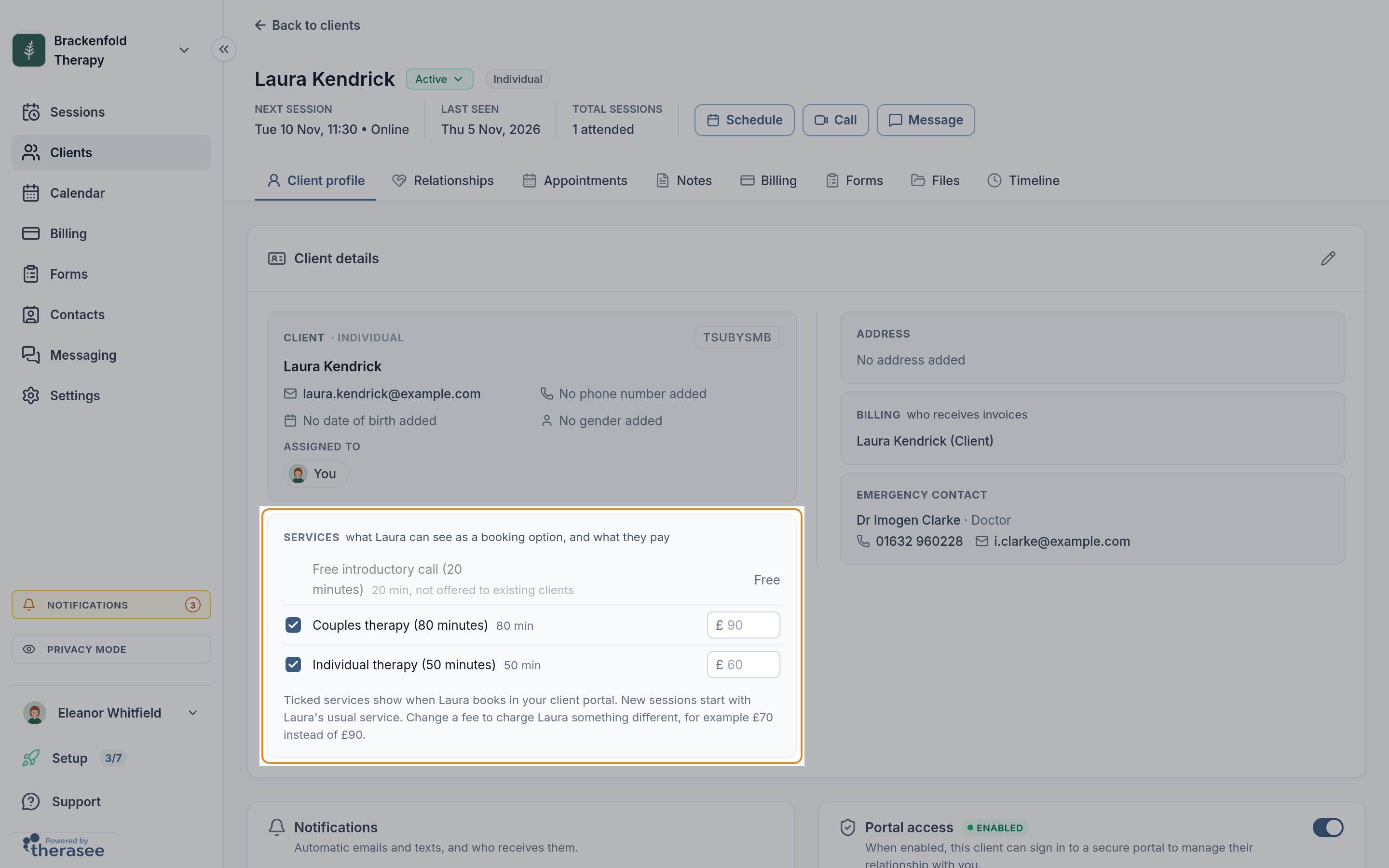
- the Services box: which of your services this client can book in your client portal, which one is their usual service, and any fee that is special to them. See Setting up your services.
The right side shows:
- Address
- Billing: who receives the client's invoices. This is the client unless you choose someone else while editing. To bill someone else, such as a parent or an insurer, add them on the Relationships tab first.
- Emergency contact: anyone on the Relationships tab marked as an emergency contact, with their phone number and email. You change emergency contacts on the Relationships tab.
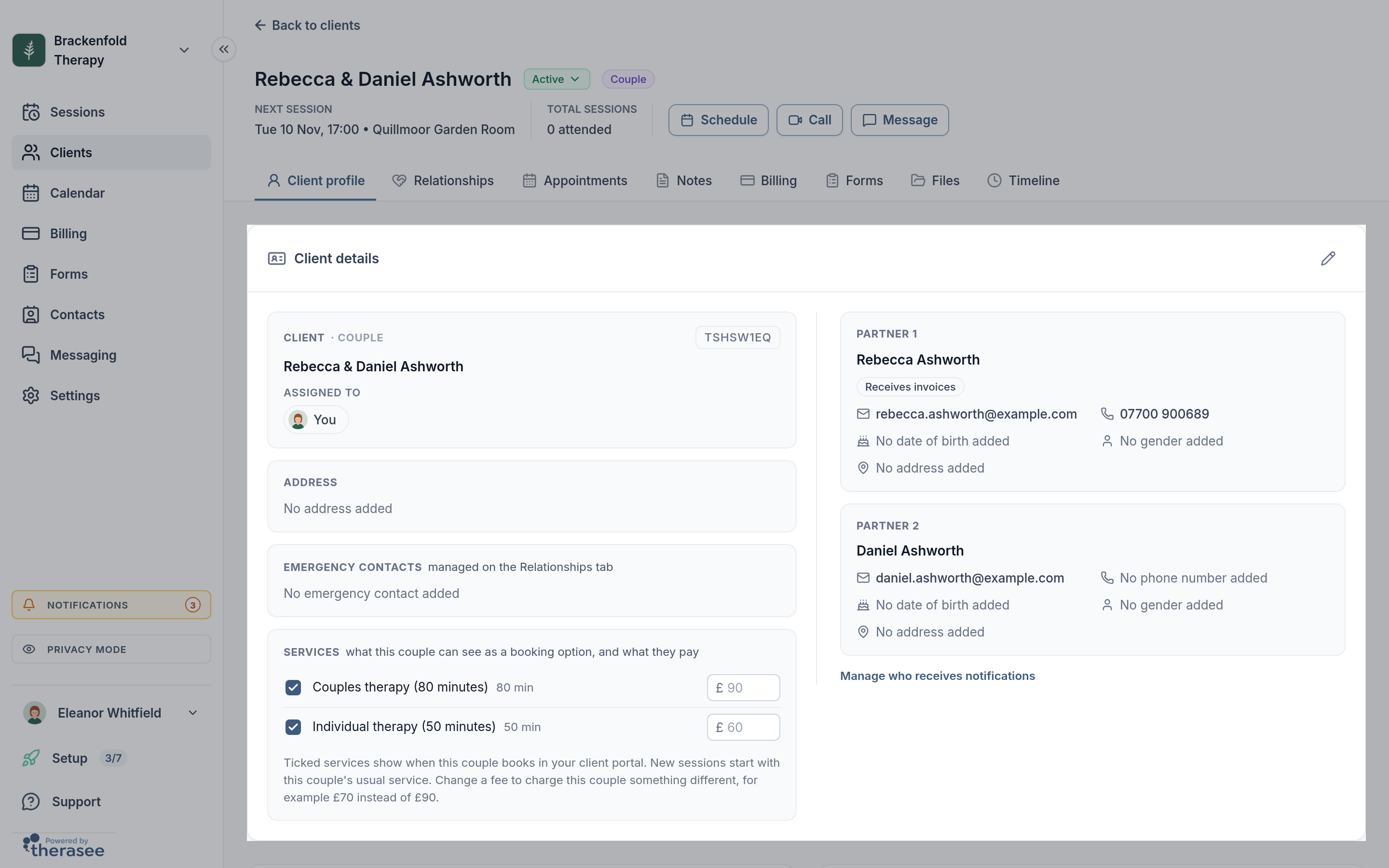
A couple's record shows each partner on the right. A dependant's record shows each responsible adult on the right.
The client ID
Every client gets an 8-character ID when you add them, such as TS4K7Q2M. It appears next to the record type on the Client details card. When you start a note for an appointment, the ID also appears at the top of the note, after the client's name. You can change it while editing the card: it must be exactly 8 letters and numbers, and no other client can have the same ID.
Notifications
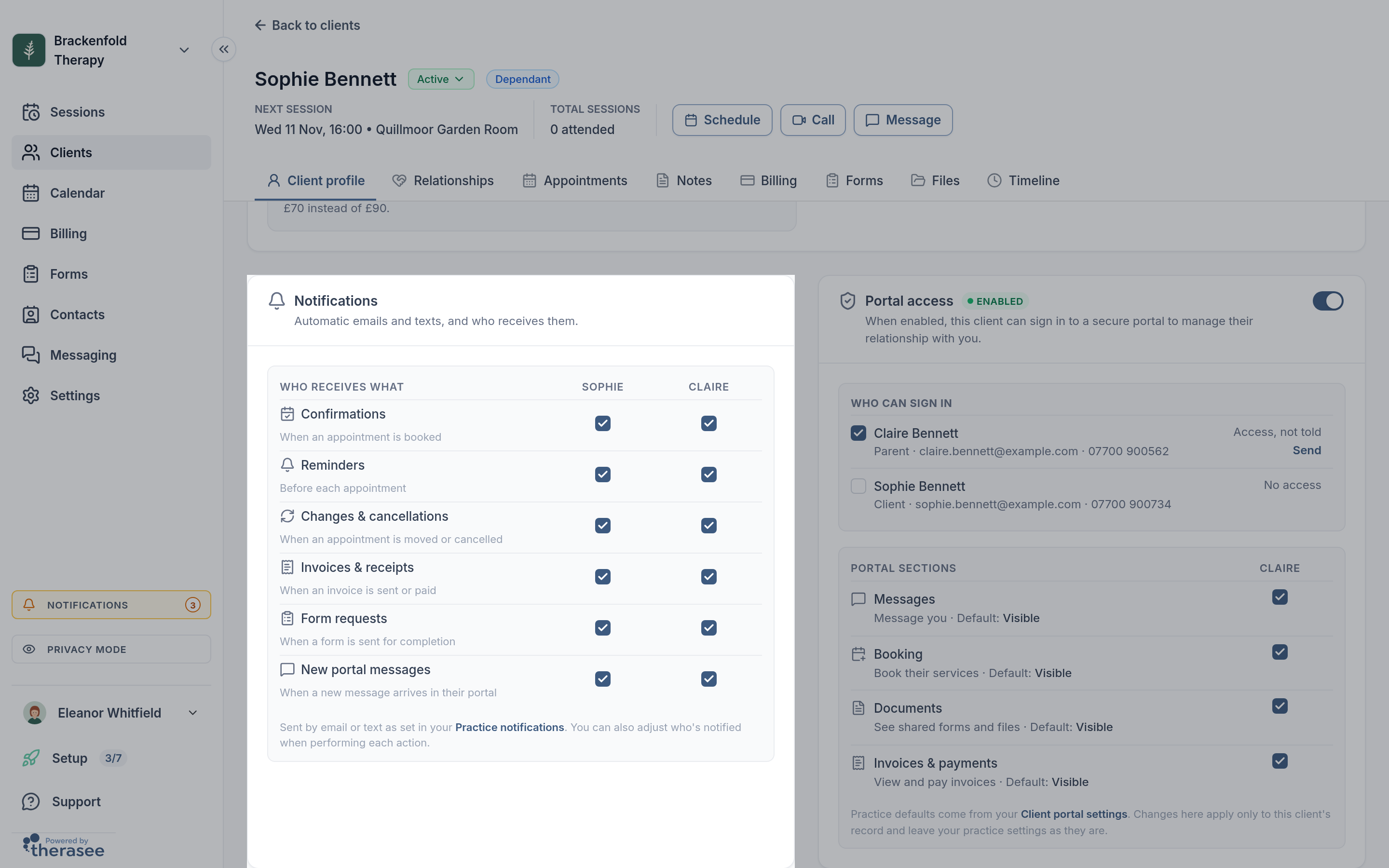
If your practice works with couples and dependants, the Notifications card shows Who receives what. For each type of automatic email and text, such as confirmations, reminders and invoices, you can tick who receives it. Each tick saves straight away. The card starts with the choices made when the client was added, and you can change them at any time. How each message is sent is set in Practice notifications. See What your clients are sent.
Portal access
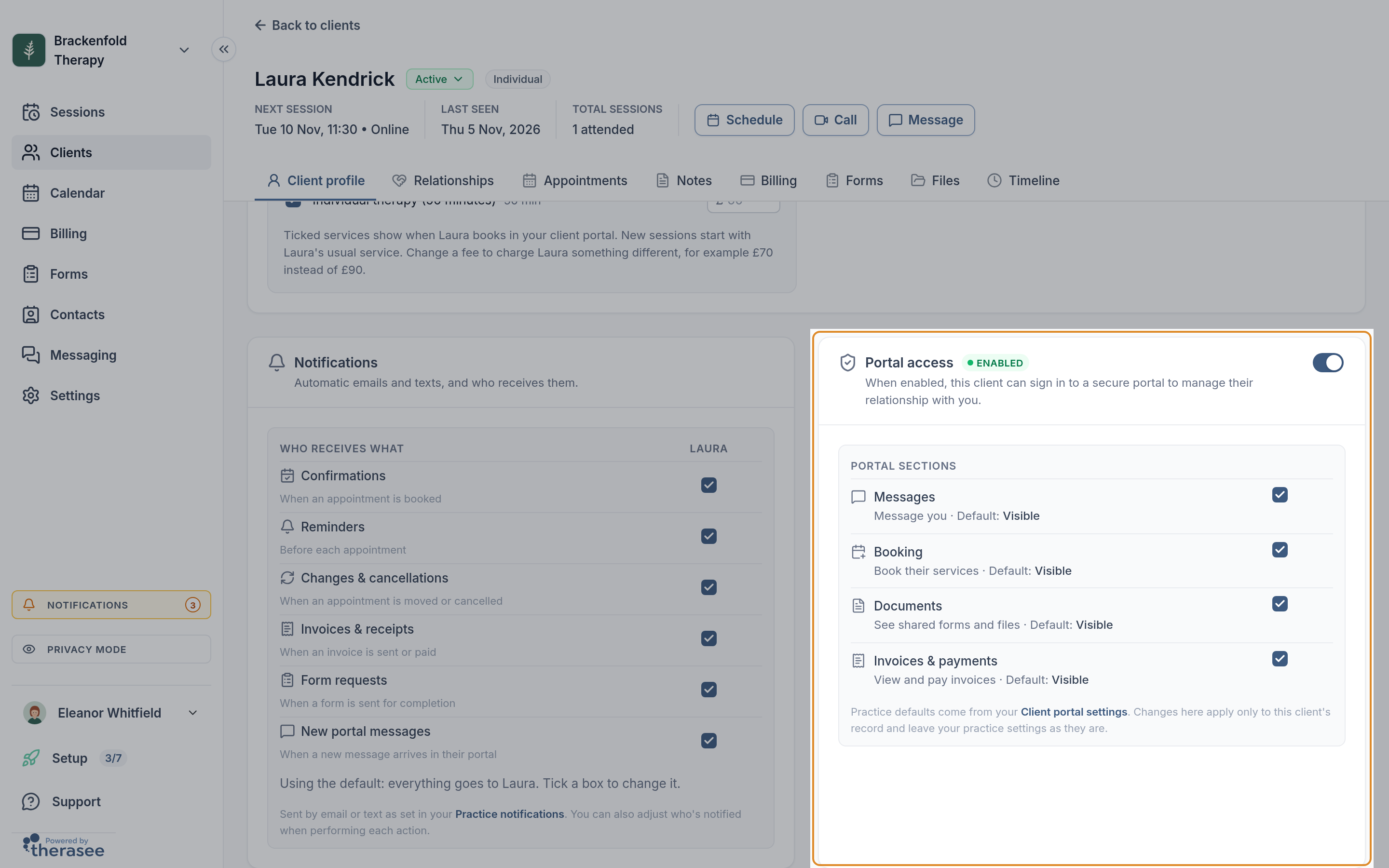
If your client portal is switched on, the Portal access card shows Enabled or Disabled. Use its switch to invite the client to the portal or remove their access, and choose which sections of the portal they see. The client needs an email address or phone number first. See Turning on the client portal.
Additional information
The Additional information card holds free text about the client, up to 1,200 characters. It has its own pencil.
The Timeline tab
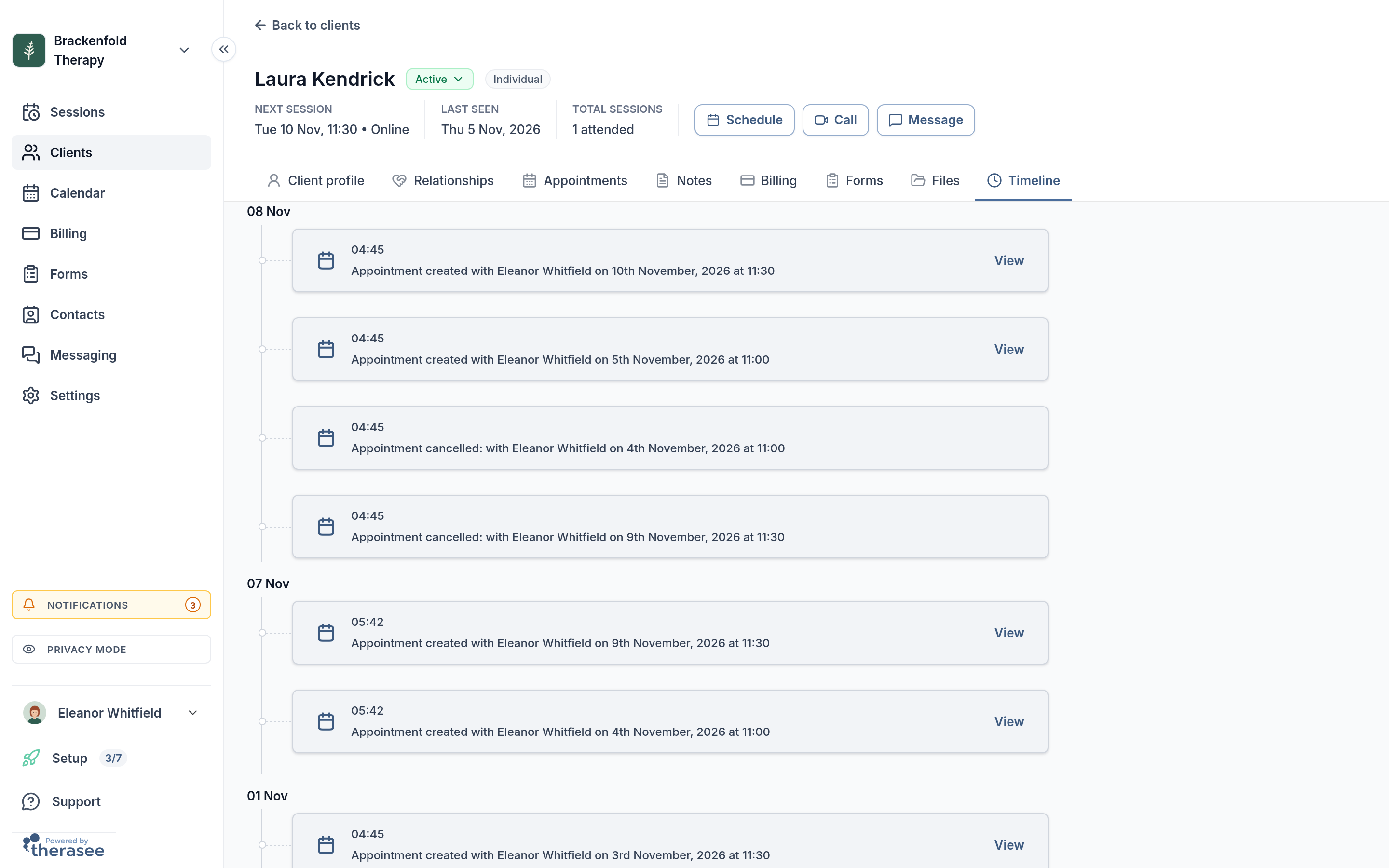
The Timeline lists events in date order, grouped by day, each with the time it happened. Scroll down to load older events. Some events have a View button that opens the invoice, form or appointment. The Timeline shows:
- the client being added, invited to the portal, signing up and signing in for the first time
- contact form and waitlist requests
- status changes, with who made them
- team members being assigned or unassigned
- appointments booked, changed or cancelled, whether by you, the client or Therasee
- appointment reminders sent by email or text
- instant video calls
- forms created, sent and submitted
- invoices created and shared, payments received and invoice reminders
Privacy mode
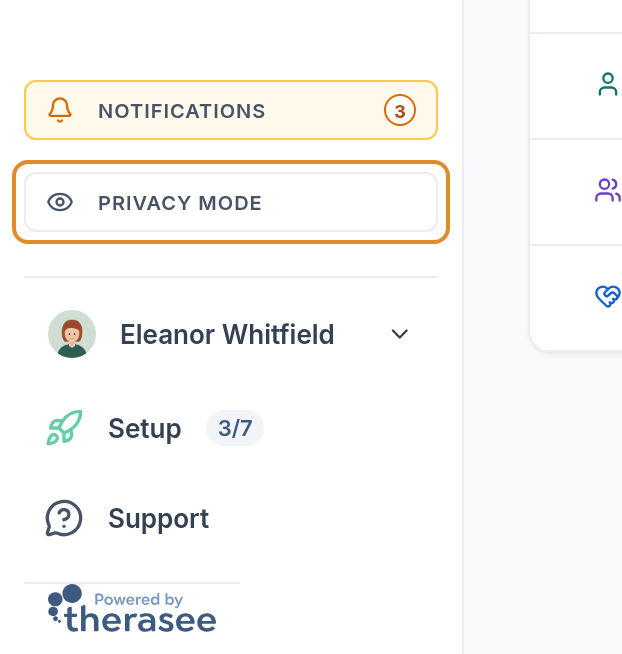
Privacy mode hides personal details on screen. Use it when someone else can see your screen, such as during screen sharing or when working in a shared space. Click PRIVACY MODE near the bottom of the sidebar to turn it on or off. With the sidebar collapsed, hover over the eye icon to see whether it's on.
When privacy mode is on:
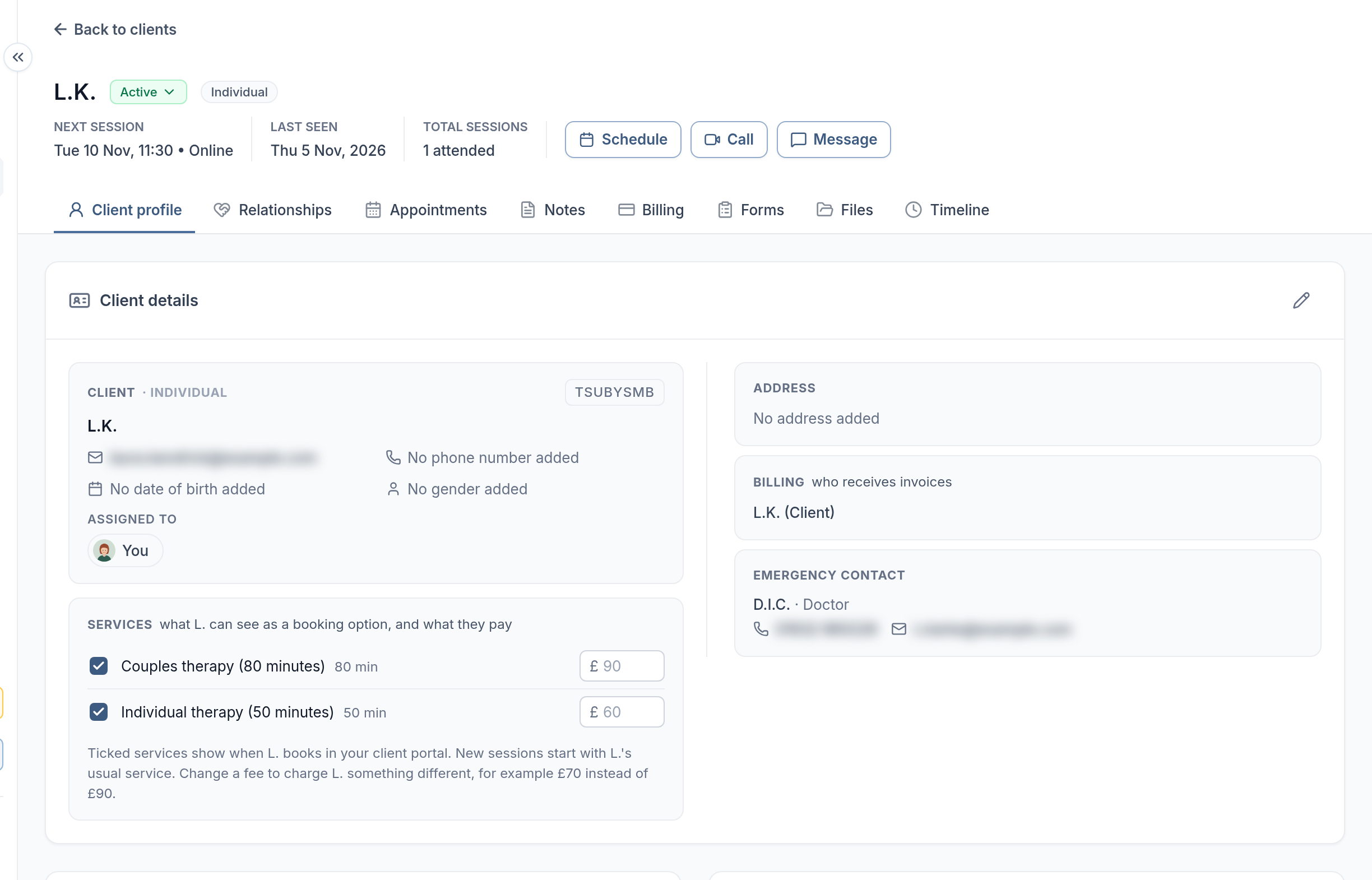
- names show as initials, so Jane Doe becomes J.D. This applies across the app: the client record, Clients list, calendar, sessions, messages, billing and forms.
- other personal details, such as email addresses, phone numbers, dates of birth, addresses and additional information, are blurred. Click one to reveal it, and click again to hide it. Everything is hidden again when you leave the page.
- the client ID stays visible, so you can still tell records apart.
Privacy mode is saved to your login, so it stays on when you sign in on another device. It only changes what you see. Your teammates' screens aren't affected. Screenshots show the screen as it is, so names appear as initials. Exports and anything Therasee sends to clients are not affected.
Exporting client data
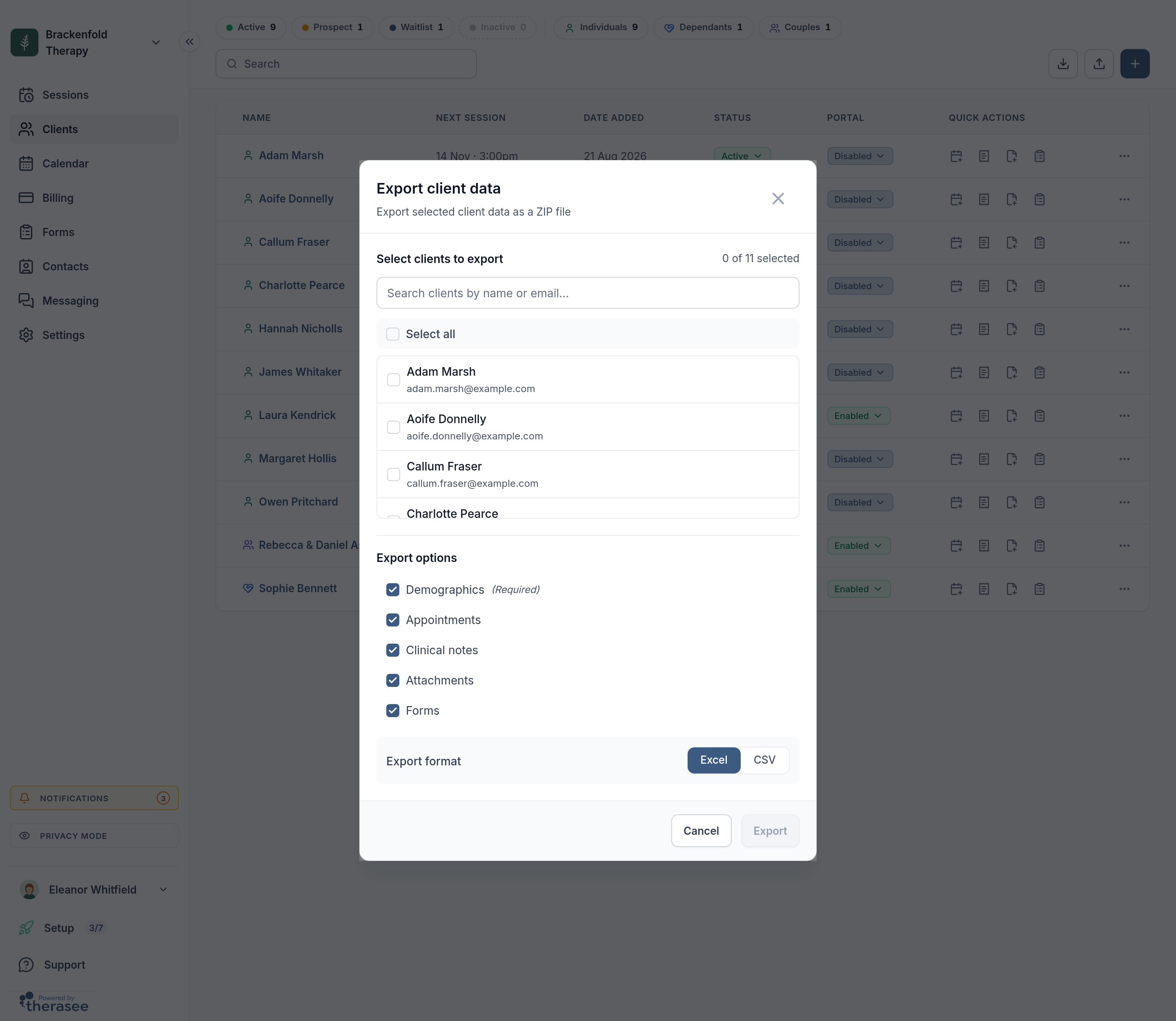
To export a client's record, go to Clients and click the download icon (Export clients). Choose one or more clients, then choose what to include: Demographics (always included), Appointments, Clinical notes, Attachments and Forms. Choose Excel or CSV and click Export.
You get a ZIP file with a folder for each client:
- their details: name, date of birth, contact details, address, NHS and insurance numbers, gender, status, GP details, additional information and billing contact
- their appointments
- each note and each form as a PDF
- their files, as described in Files on a client's record
The download link lasts 48 hours. Exporting is only available to people who can edit every client in the practice. See Security, GDPR and your data.
Deleting a client
You delete a client from the Clients list, not from their record. Find the client, open the menu at the end of their row and choose Delete client. If you'd simply like them off your main list, set their status to Inactive instead. Their record stays as it is.
Deleting a client:
- removes them from your client lists
- removes your message history with them
- stops them signing in to your client portal
- removes their links to the people on their Relationships tab
The confirmation has a Keep this client's data box. Tick it to keep the client's appointments. Leave it unticked to delete their appointments too. Click Delete client to confirm. You can't undo a delete.
If the person is a partner in a couple's record or a responsible adult for a dependant, Therasee shows Can't delete this client and lists the records that rely on them.
Was this helpful?