Keeping contacts
Keep GPs, referrers, emergency contacts, payers and other professionals on the Contacts page, link them to clients, choose who receives invoices, and add contacts to appointments.
Updated 8 November 2026
Contacts are the people and organisations around your clients: a GP or surgery, a referrer, an emergency contact, someone who pays the bill such as an employer, an EAP or insurer, or a parent, and others like interpreters or other professionals. You keep them on the Contacts page and link them to clients, so their details are one click away from the client's record. This page covers adding and editing contacts, linking them to clients, and what a contact receives.
The Contacts page
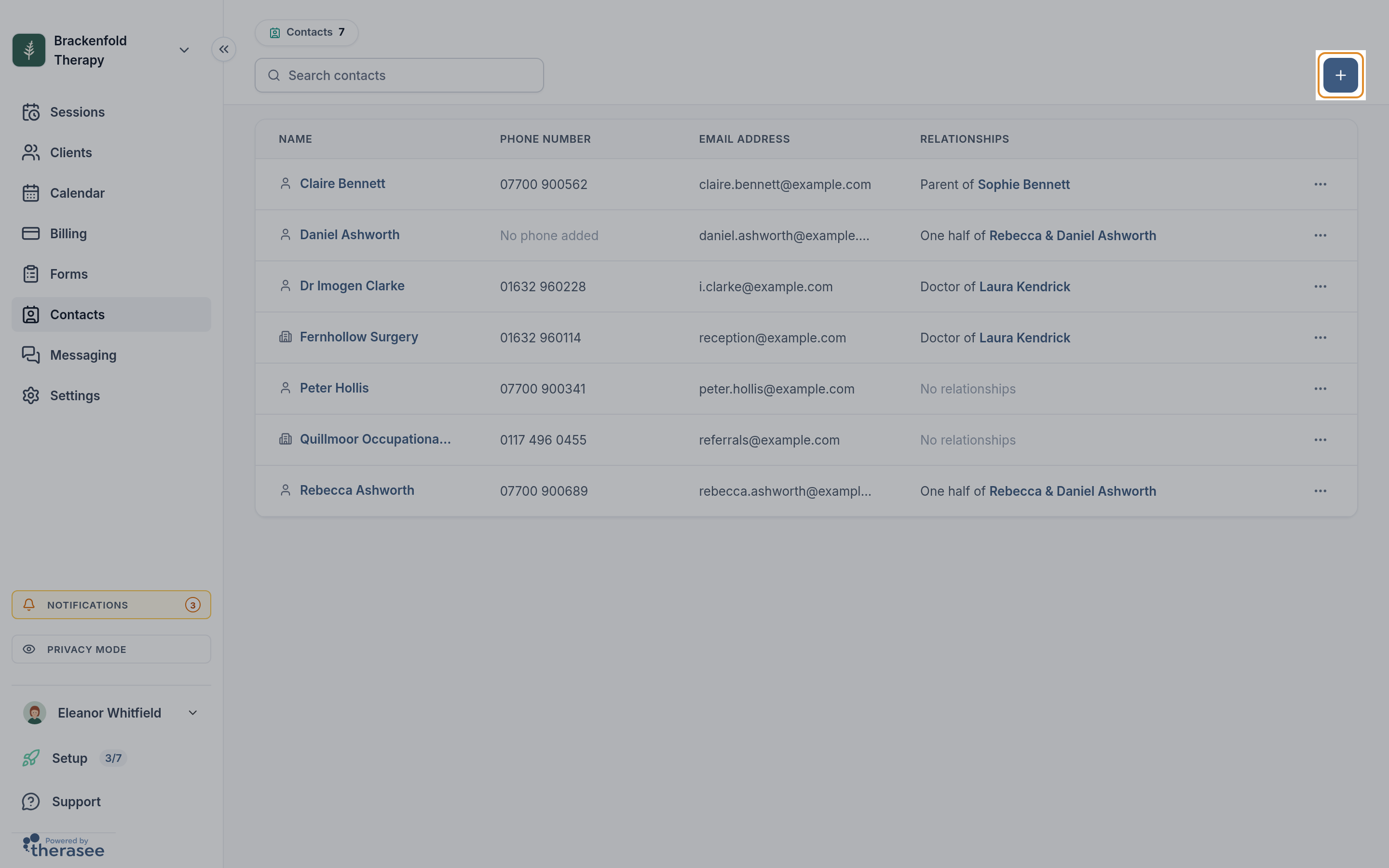
Click Contacts in the sidebar. The page shows how many contacts you have and lists them with these columns:
- Name: a small icon shows whether the contact is a person or an organisation. Click the name to open the contact's record.
- Phone number and Email address.
- Relationships: who the contact is linked to, written from the contact's side, for example "Doctor of Sam Taylor". If they're linked to several people, you see up to three names and a count of the rest. Click a linked client's name to see a preview of that client without leaving the page.
Use Search contacts to find someone by name. The list keeps loading as you scroll.
Adding a contact
- On the Contacts page, click the + button (Add contact).
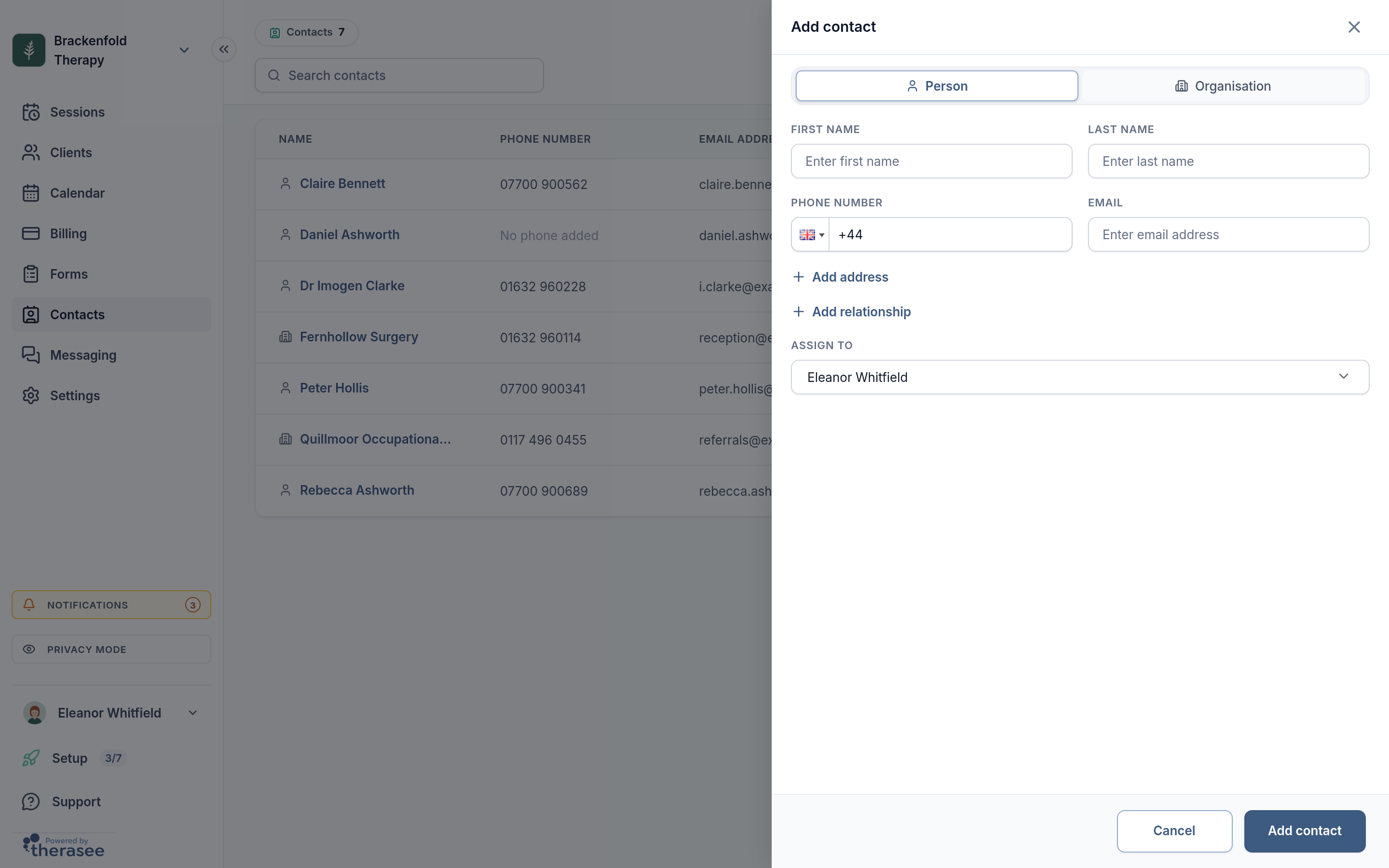
- Choose Person or Organisation. Use Organisation for a surgery, an insurer, an employer or an EAP provider.
- For a person, enter the First name and Last name. For an organisation, enter the Organisation name.
- Add a phone number and Email if you have them. Both are optional.
- To record a postal address, click Add address and fill in Address, Town / City, County / State and Postcode / ZIP. An address matters for anyone you'll invoice, because it appears on the invoice.
- To link the contact to a client straight away, click Add relationship. Pick the client under Related client or contact, choose or type the Relationship, and tick Emergency contact if they are one. The link is saved only when you've chosen both the client and the relationship. You can also link them later from the client's record.
- If your practice has more than one practitioner or a team, choose who to Assign to. It starts as you.
- Click Add contact.
Each email address and phone number can belong to only one client or contact. If the one you enter is already in use, Therasee names who it belongs to and won't add a second record. Link the existing one instead. For a GP surgery with one shared email, add the surgery once as an organisation.
Relationship types
The Relationship list includes family and personal roles (such as Mother, Father, Parent, Guardian, Partner, Spouse, Son, Daughter, Sibling and Friend) and these professional ones: Doctor, Employer and Insurer. If none fits, type your own, for example GP, Referrer, EAP or Interpreter, and choose it.
A contact's record
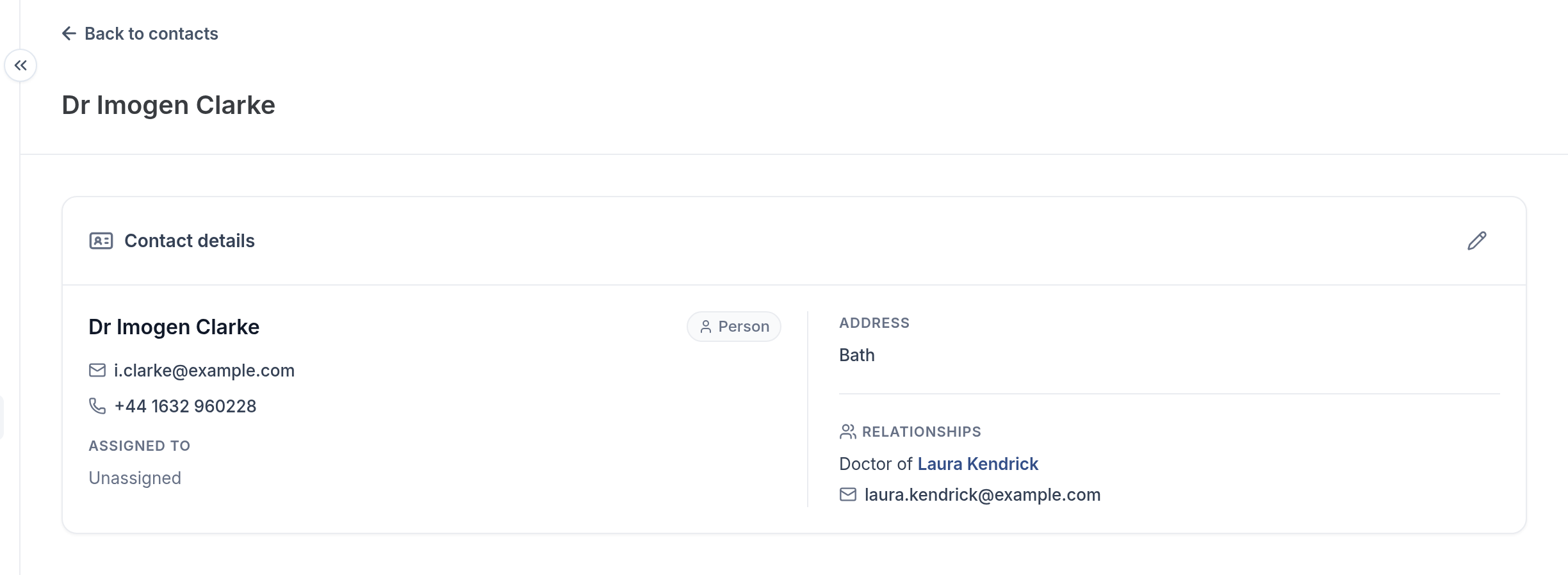
Click a contact's name to open their record. The Contact details card shows:
- their name and whether they're a Person or an Organisation
- their email and phone number
- Assigned to: the practitioner or team the contact belongs to
- their Address
- Relationships: everyone they're linked to, with each person's phone and email. Click a name to go to that record.
A contact's record holds their details and links only. Notes, files and messages belong on the client's record.
Editing a contact
- Open the contact's record. You can also choose Edit contact from the row menu on the Contacts page, which takes you there.
- Click the pencil (Edit contact details).
- Change what you need. You can switch between Person and Organisation, and reassign the contact under Assign to.
- Click Save.
Relationships aren't edited here. You manage them from the client's Relationships tab, as described below.
Deleting a contact
On the Contacts page, open the row menu and choose Delete contact, then confirm with Delete contact. This removes the contact and all their relationships, and can't be undone.
If the person is a responsible adult for a dependant or one of the partners in a couple, Therasee shows Can't delete this contact and lists the records that depend on them. See Working with dependants and Working with couples.
Linking a contact to a client
Open the client's record and go to the Relationships tab. It lists everyone linked to the client, with their phone number, email and relationship, and marks emergency contacts and responsible adults.
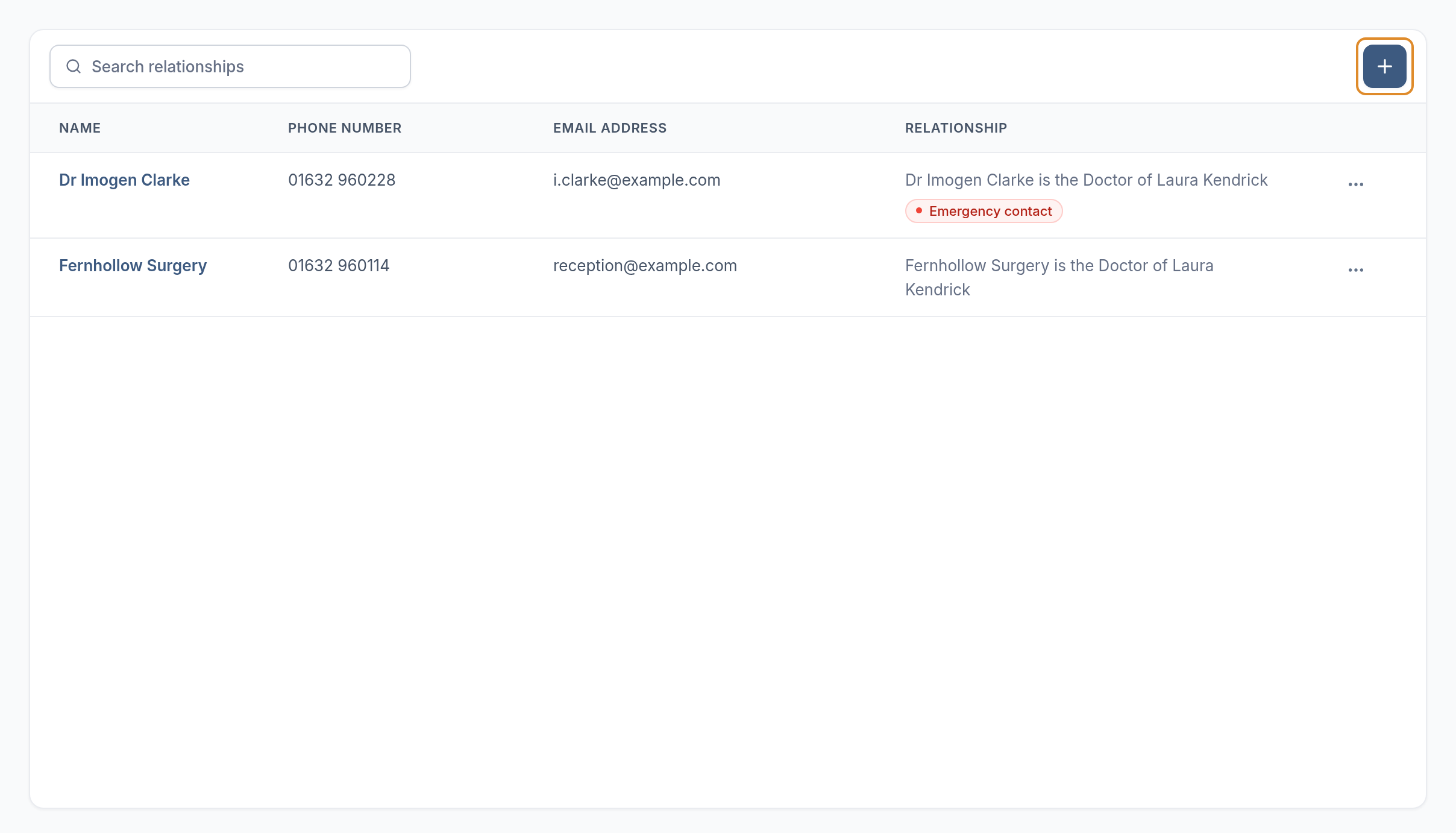
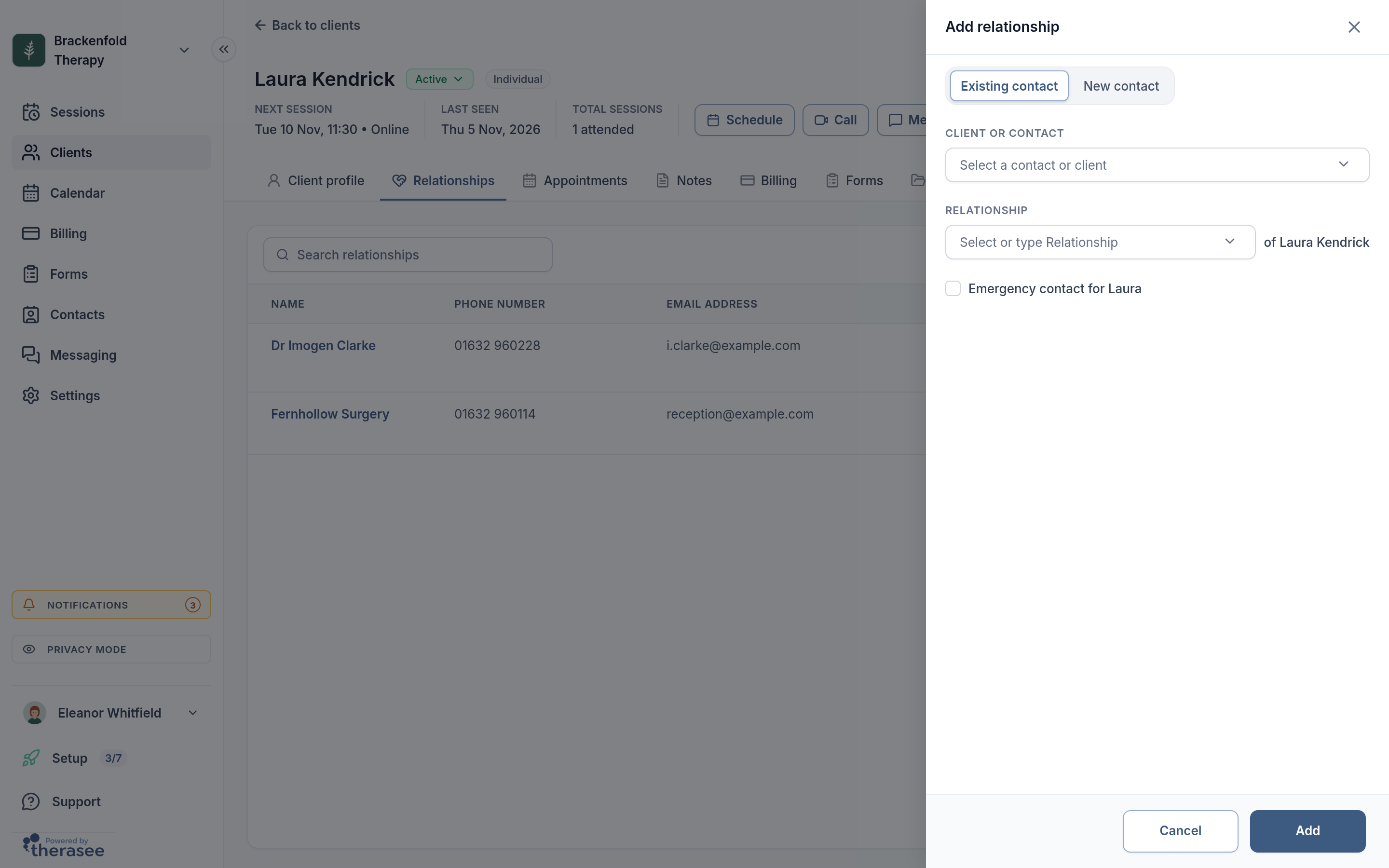
- Click the + button (Add relationship).
- Choose Existing contact to pick someone already in Therasee under Client or contact, or New contact to create them here with their name, phone number, email and who they're assigned to. A contact created here has no address yet. If you'll invoice them, add their address on their contact record afterwards.
- Choose or type the Relationship. The field reads as a sentence, for example "Doctor of Sam Taylor".
- If this person is an emergency contact, tick the Emergency contact for box, which names the client.
- Click Add.
You can link a client to another client too, for example two siblings you see separately. The link shows on both records.
To change a link, open the row menu and choose Edit relationship. You can change the relationship type and the emergency contact tick, then click Save. To unlink someone, choose Remove relationship. This keeps the contact and removes only the link. If the person receives the client's invoices, is on upcoming appointments or is an emergency contact, the confirmation tells you before you remove them.
For a parent or guardian of a young client, see Working with dependants. For partners, see Working with couples.
Emergency contacts and GPs
The client's Client profile tab has an Emergency contact card. It shows everyone you've ticked as an emergency contact on the Relationships tab, with their phone number and email. To add or change one, use the Relationships tab. An emergency contact you enter when adding a client, or one a client gives in the client portal, is added as a contact and appears here too.
To record a client's GP, add the GP or the surgery as a contact and link them with the relationship Doctor, or type GP. Their details then appear on the client's Relationships tab.
Who receives the client's invoices
When someone else pays, such as an employer, an insurer or a parent, link them on the Relationships tab first. Then, on the Client profile tab, click the pencil (Edit client details), choose them on the Billing card (who receives invoices) and save. The list shows the client and everyone on their Relationships tab.
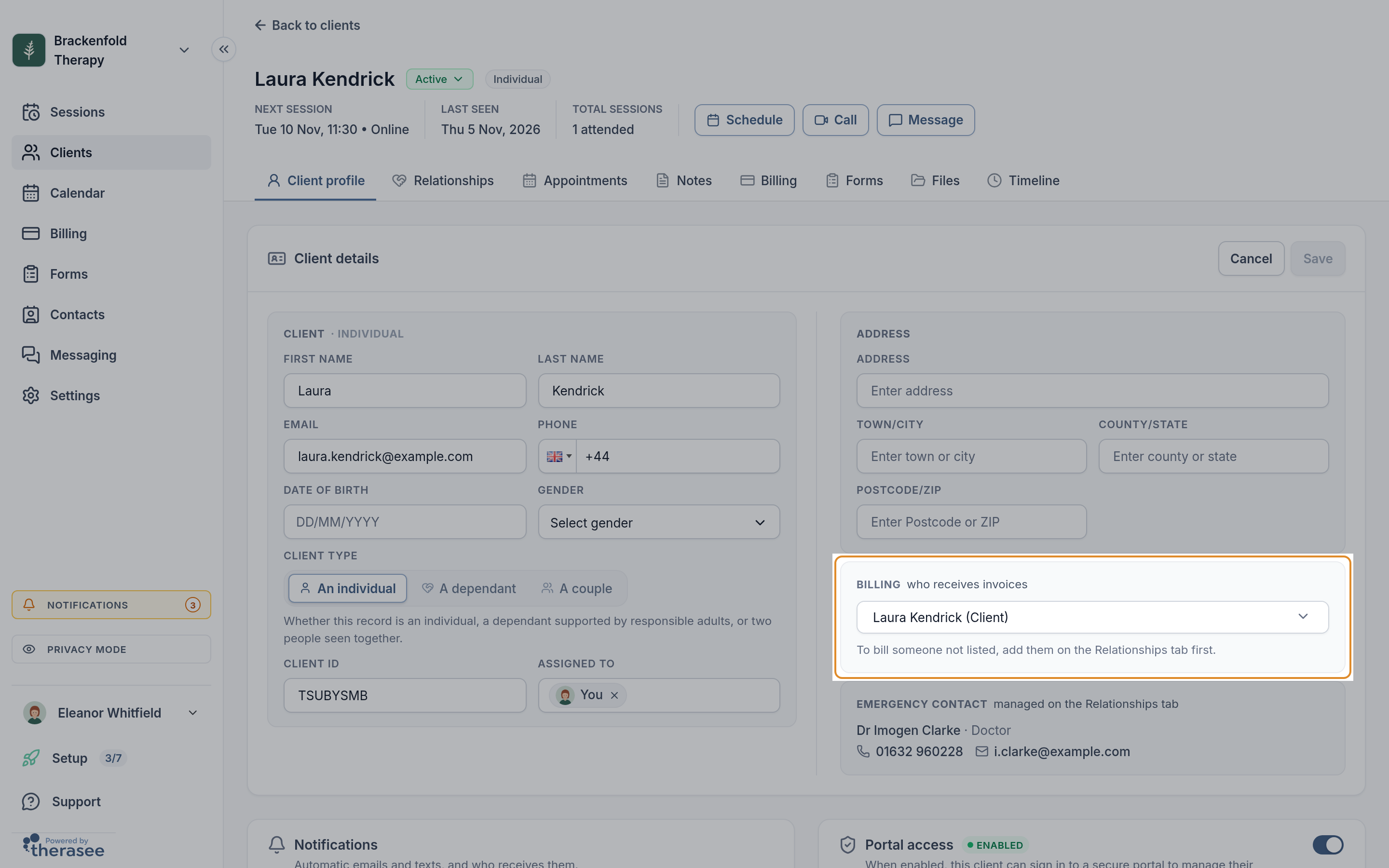
Invoices then show the contact under Billed to, with their address, and the invoice email goes to the contact's email address. If the contact has no email address, the email goes to the client. For more about invoices, see Creating and sending an invoice.
Adding a contact to an appointment
When you book an appointment, you can add people from the client's Relationships tab as attendees, for example an interpreter or a parent who joins the session. Only people linked to the client are offered, so link them first.
Attendees with an email address are emailed about the appointment, including reminders and changes. For a video session, their email carries a link to join. Attendees aren't sent text messages. See Booking an appointment and Running a video session.
What contacts can and can't do
A contact doesn't have a message thread in your Inbox, because conversations belong to clients. An ordinary contact also has no client portal login. Therasee contacts them only when you add them to an appointment, make them the person who receives a client's invoices, or choose them as a recipient when you send one of the client's invoices. The send window lists the client and everyone on their Relationships tab.
Forms are sent to clients. A young client's responsible adults are the exception: they can be given portal access and sent the client's notifications and forms, as described in Working with dependants.
Who can see and change contacts
Contacts follow the Clients & Contacts permission that's set for each team member, under View access and Edit access.
- Team members who can view all clients see every contact. Those who can view only assigned clients see the contacts assigned to them or to a team they belong to.
- Adding a new contact needs edit access to all clients.
- Editing or deleting a contact needs edit access to all clients, or edit access to assigned clients when the contact is assigned to you or one of your teams.
Assigning a contact matters for team members who can view only assigned clients. To share a contact with a team, choose the team under Assign to, and everyone in that team who has assigned-only access can then see it. The practice's default team doesn't count for this. See Adding team members for setting permissions.
Importing contacts
Contacts are added one at a time: from the Contacts page, from a client's Relationships tab, or when you add a client with an emergency contact or a responsible adult. The client import adds clients only, so add each client's contacts after importing them. See Adding a client.
Was this helpful?