Closing your account and deleting your data
How closing your account differs from downgrading your plan, what to download first, how to delete your practice account, and what happens to your clients, team and records afterwards.
Updated 19 November 2026
Closing your account permanently removes your practice from Therasee: your clients, appointments, notes, forms, files, invoices and messages are deleted and cannot be brought back. This guide explains how that differs from simply stopping your paid plan, what to download first, how to delete your practice account, and what your clients and team see afterwards. Take it at your own pace; nothing is deleted until you confirm the deletion yourself.
Closing your account or changing your plan?
These are two different things, and many people only need the first.
- Downgrading to the Free plan stops your paid subscription but keeps your account. When you confirm the downgrade, you are told: Your data will be saved but you will have limited number of clients, users, and payment transactions. Your records stay available to you, and you can upgrade again later. You do this yourself from Settings > Practice settings > Subscription; see Managing your Therasee plan.
- Closing your account deletes the practice and everything in it, cancels your subscription straight away with no refund, and removes your sign-in. It is permanent. The practice owner does this in the app, from the Delete practice account card (steps below).
If you are taking a break, stepping back for a while, or are not sure yet, downgrading keeps your options open. If you are closing because you can no longer practise, or planning for that possibility, have a look at Setting up your clinical will, which covers who contacts your clients and what they can reach.
Before you close: let your clients know
Your clients' relationship is with you, and Therasee does not contact them about your account closing, so tell them yourself while you can still reach them through the app.
- Send each client a message explaining what is happening and, where it applies, where they can get support next. See Messaging a client.
- Cancel any upcoming appointments you will not be holding, so clients are not left expecting a session. See Cancellations and no-shows for how to cancel and whether the client is notified.
- Settle any outstanding invoices, or mark them as paid if a client has paid you another way. See Creating and sending an invoice.
- If you sync your calendar with Google or Outlook, disconnect it. See Syncing Google or Outlook calendar.
- Let your team know. Therasee does not email them when the practice is deleted.
Download your client records
You are responsible for your clients' records, and you may need to keep them for a set period after your practice closes (your professional body or insurer can tell you how long). Download them before you delete your practice account; Therasee does not keep a copy, and once it is closed there is nothing left to download.
- Go to Clients. Check the status filters at the top of the list: Inactive clients are hidden by default, so select the Inactive filter too if you want them included, and clear any search. The export lists the clients the page is showing.
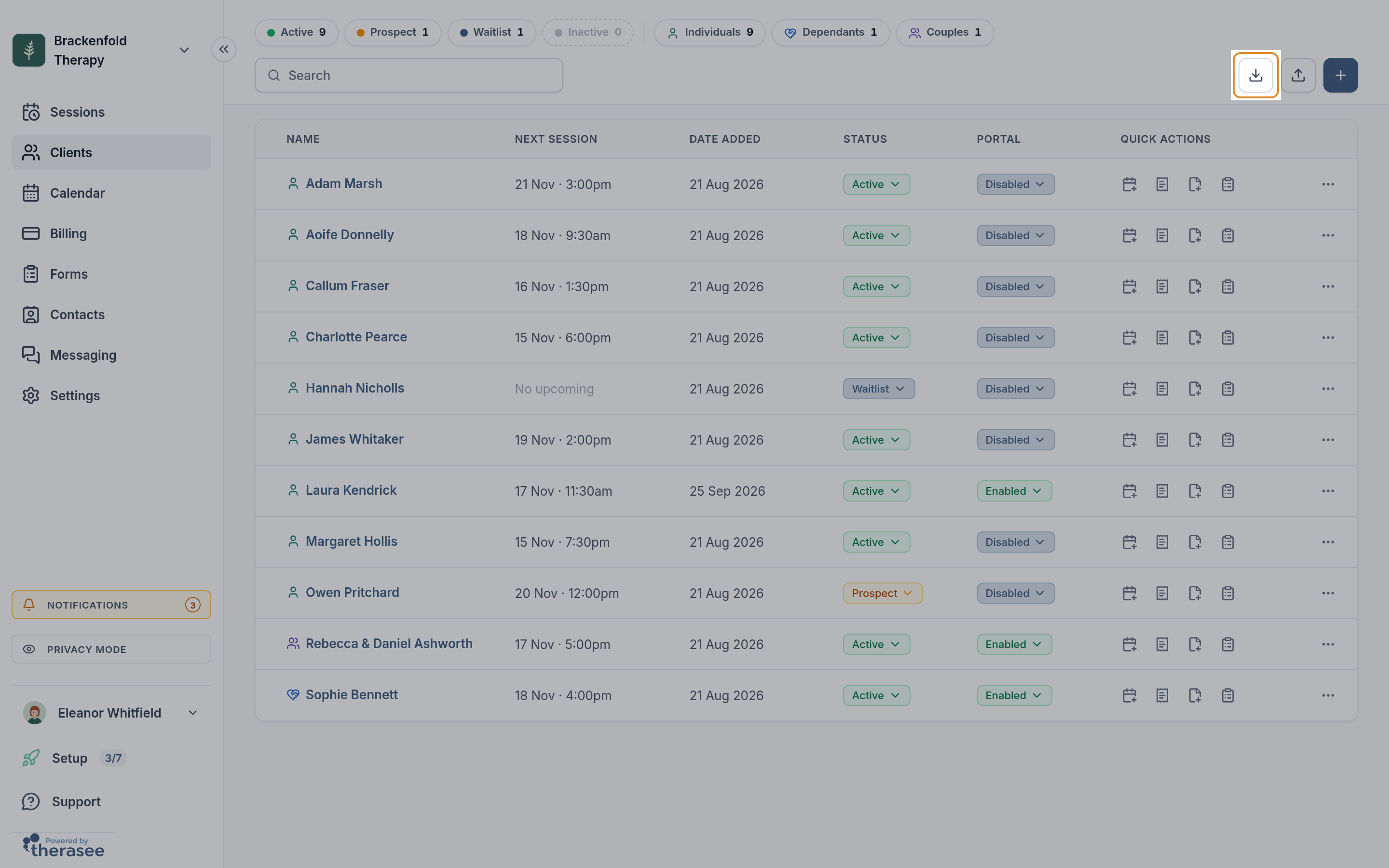
- Select the download button at the top right (its label is Export clients). It is shown on a computer-sized screen to people whose permissions let them edit all clients, which includes the practice owner.
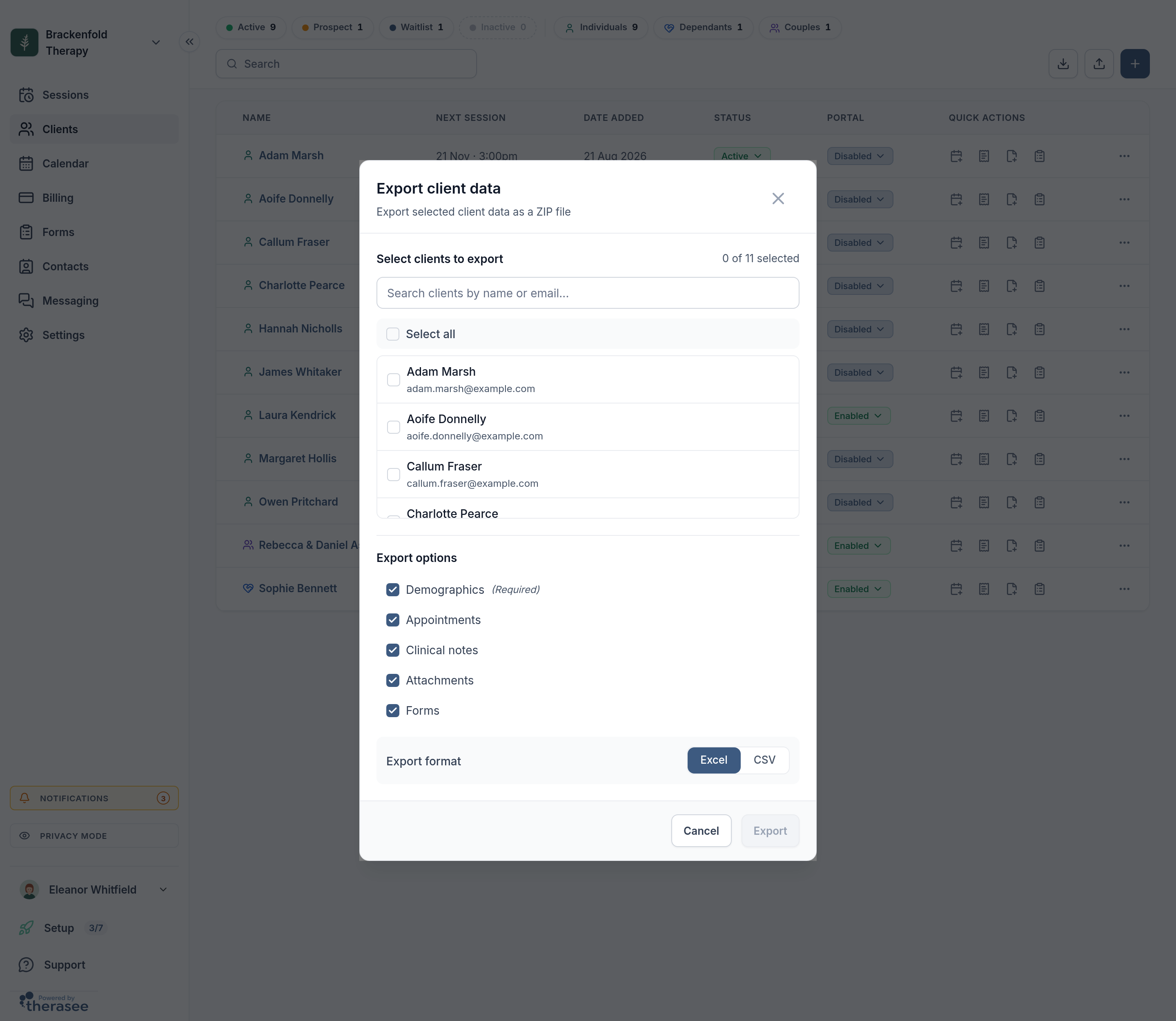
- In Export client data, under Select clients to export, choose Select all or tick the clients you want. The count beside the heading shows how many are selected.
- Under Export options, keep Appointments, Clinical notes, Attachments and Forms ticked. Demographics is always included.
- Choose Excel or CSV under Export format, then select Export.
- Keep the window open while you see Generating export.... When it says Export ready!, copy the Download URL, paste it into your browser, and save the ZIP file somewhere secure.
The ZIP holds a folder for each client with their details and appointment history as a spreadsheet, a notes folder with each note as a PDF, a forms folder with each form as a PDF, and a files folder with anything uploaded to their record. A summary spreadsheet lists every client in the export. The download link expires after 48 hours, so save the file straight away; you can run the export again if you need a fresh link. For more about the notes in the export, see Writing session notes.
The client export does not include invoices or secure messages, so download invoices separately (below) and keep a copy of anything in your messages you need for your records.
Download your invoices
- Go to Billing and clear any filters, so the list covers all time and every status.
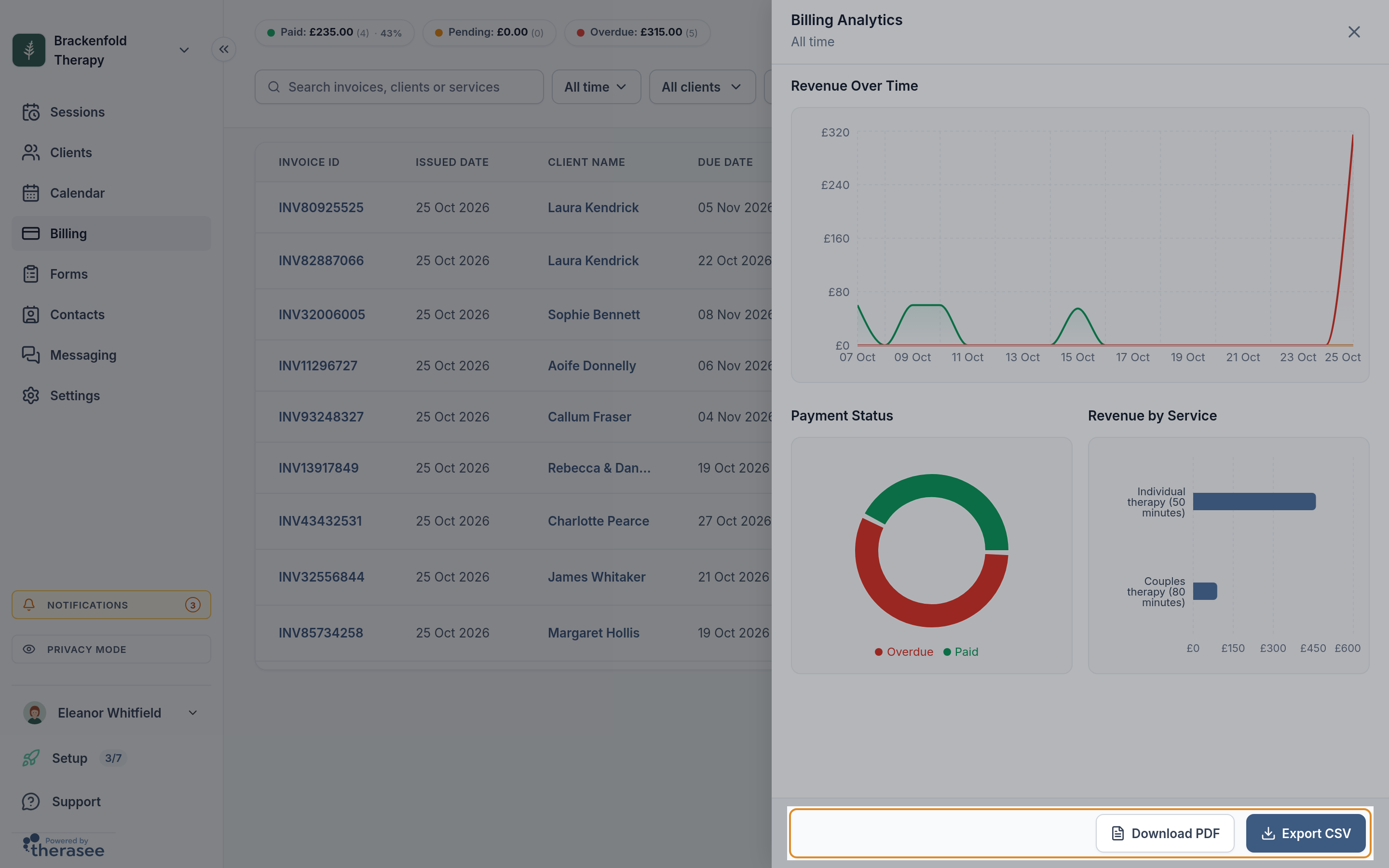
- Select the chart button at the top right (Analytics & Export). The Billing Analytics panel opens, with the period it covers under the title.
- Select Export CSV for a spreadsheet of every invoice (number, issued and due dates, client, date received, services, status and amount), or Download PDF for a printable summary.
If you take card payments, your Stripe account belongs to you. Closing Therasee disconnects it from your practice but does not close it, and your payment history stays in your Stripe dashboard. See Connecting Stripe.
If you have team members
When the practice closes, everyone's access to it ends. If you would like to remove a colleague sooner, or they are leaving before you close:
- Go to Settings > Users & Teams.
- On their row, select Deactivate account.
- In Deactivate user?, decide whether to tick Transfer upcoming appointments to you. If you leave it unticked, their upcoming appointments are cancelled. Any clients assigned to them are reassigned to you either way.
- Select Deactivate.
They are signed out and emailed that their account has been deactivated. On Premium, a practitioner's seat stays paid until your next renewal. If they sign in again, they see You are currently not associated with any practice ! with the option to Create practice of their own. If you are a team member in someone else's practice rather than the owner, ask the practice owner to deactivate you; the practice's records stay with them.
Deleting your practice account
Only the practice owner can delete the practice account. If you are not the owner, ask them.
- Make sure you have downloaded everything you need.
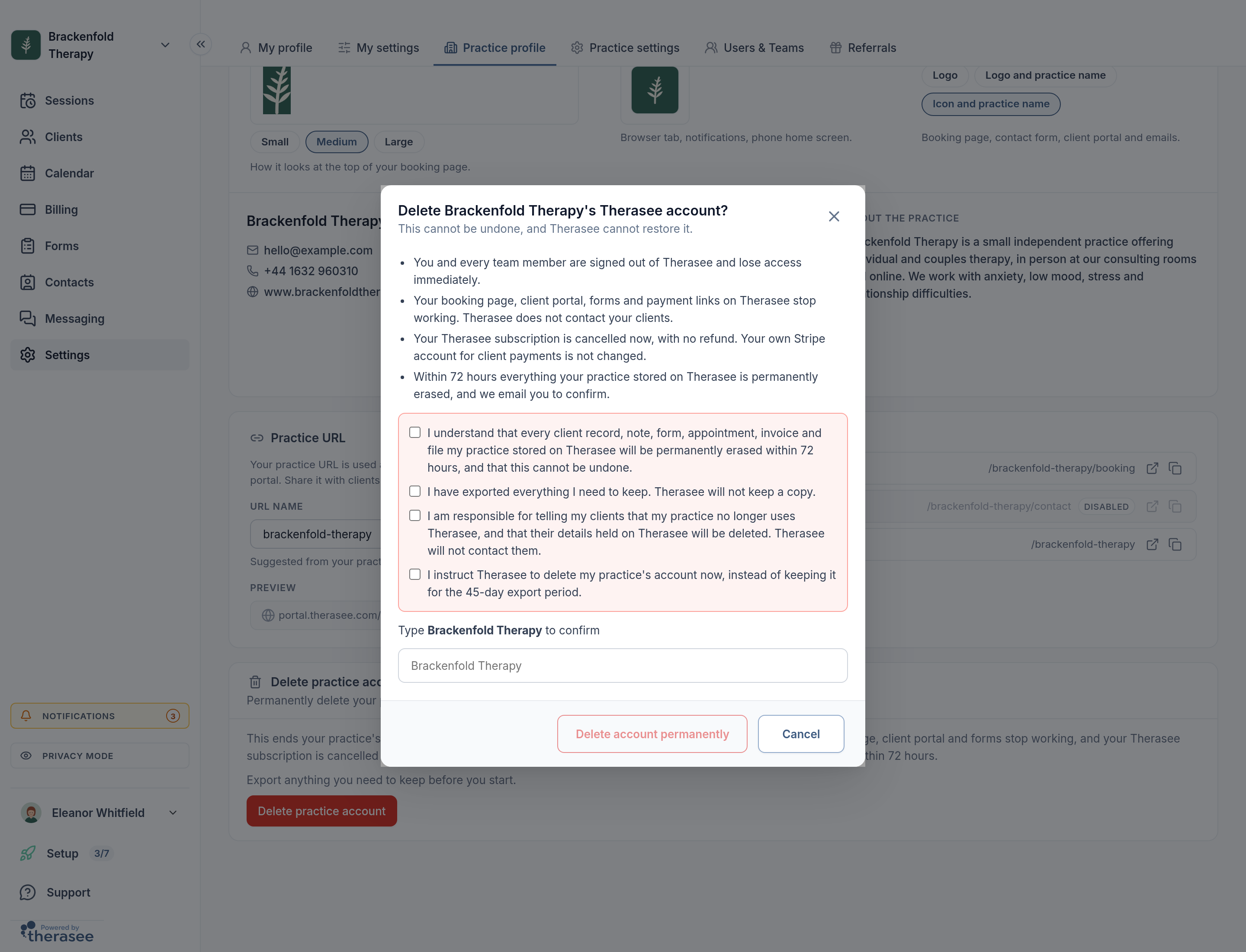
- Go to Settings > Practice profile. On the Overview tab, find the Delete practice account card and select Delete practice account.
- A window opens asking whether to delete your practice's Therasee account, with a list of what will happen. Read it, then tick all four statements: that everything your practice stored will be permanently erased within 72 hours, that you have exported everything you need, that you will tell your clients yourself, and that you want the account deleted now instead of kept for the 45-day export period.
- Type your practice name in the box to confirm.
- Select Delete account permanently.
You are signed out straight away and see Your practice's Therasee account has been deleted, with an optional question about why you are leaving. We email you to confirm, with the day your data will be erased, and again once it has been erased. If you did not mean to do this, contact support@therasee.com straight away.
Deleting removes one practice at a time. If you also belong to another practice on Therasee, your sign-in stays and you keep your access there.
What happens when your account is closed
- Straight away: you and everyone in your team are signed out and lose access, and your Therasee subscription is cancelled, with no refund for the rest of the period you have paid for.
- Within 72 hours, deleted: your practice profile, clients and contacts, appointments, notes, forms, files, invoices and payment records, messages, services, locations and availability, and the sign-ins of everyone who is not in another practice.
- Your Stripe account, if you take card payments, is yours and is not changed. It is simply no longer linked to Therasee.
- Your clients: your client portal, booking page, forms and payment links stop working, and your clients' sign-ins to your portal are removed. A client who also sees another practitioner on Therasee keeps their access to that practice.
- Your team: everyone in the practice loses access to it.
- What we keep: the billing history of your Therasee subscription, held with our payment provider for tax purposes, and a minimal record that the deletion took place. Neither contains any information about your clients. Copies in our encrypted backups are never restored and are deleted as those backups expire.
Because closing cannot be undone, if you think you might want to come back, downgrade instead and keep your records in place.
Was this helpful?