Bilateral stimulation for EMDR: setting it up
Open bilateral stimulation in a video session and set its speed, path, look and sound before your first set.
Updated 19 November 2026
In a video session you can show your client a moving object for bilateral stimulation, and set its speed, path, look and sound. It's one of the Tools, and only you can open it. This article covers setting it up. To run sets and record SUD and VoC, see Bilateral stimulation for EMDR: running sets and recording SUD and VoC.
Open it
In the call, select Tools in the toolbar. Only practitioners have this button.
Select Bilateral stimulation.
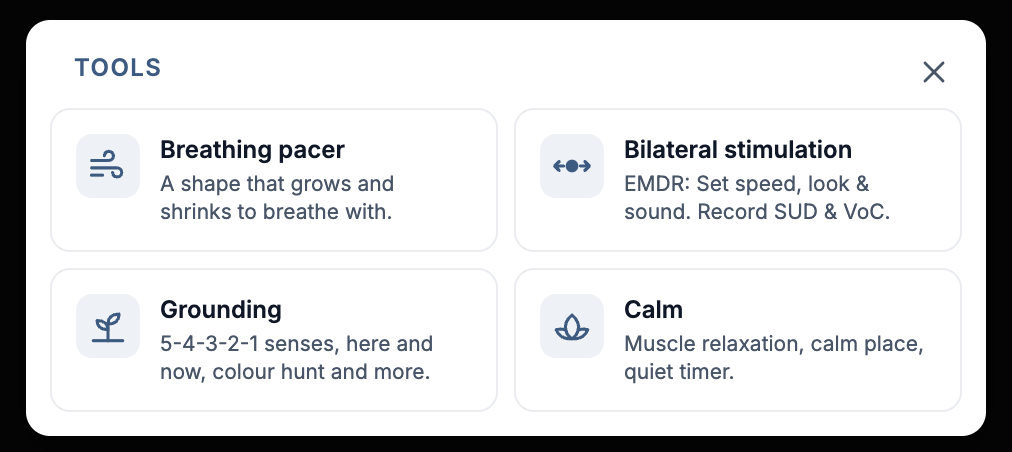
The Tools card in a video session.
It opens beside the video, and hidden from your client: the top of the preview reads Hidden from client, with a Show to client button. Your X closes it on both screens.
Movement
Speed: 20 to 140 passes a minute. It starts at 60, and Slow, Medium and Fast set 40, 60 and 90.
Path: Side to side, Up and down, Diagonal or Figure of eight.
End the set after: a number of passes (24 to start with), a number of seconds (30 to start with), or I'll end it to end each set yourself.
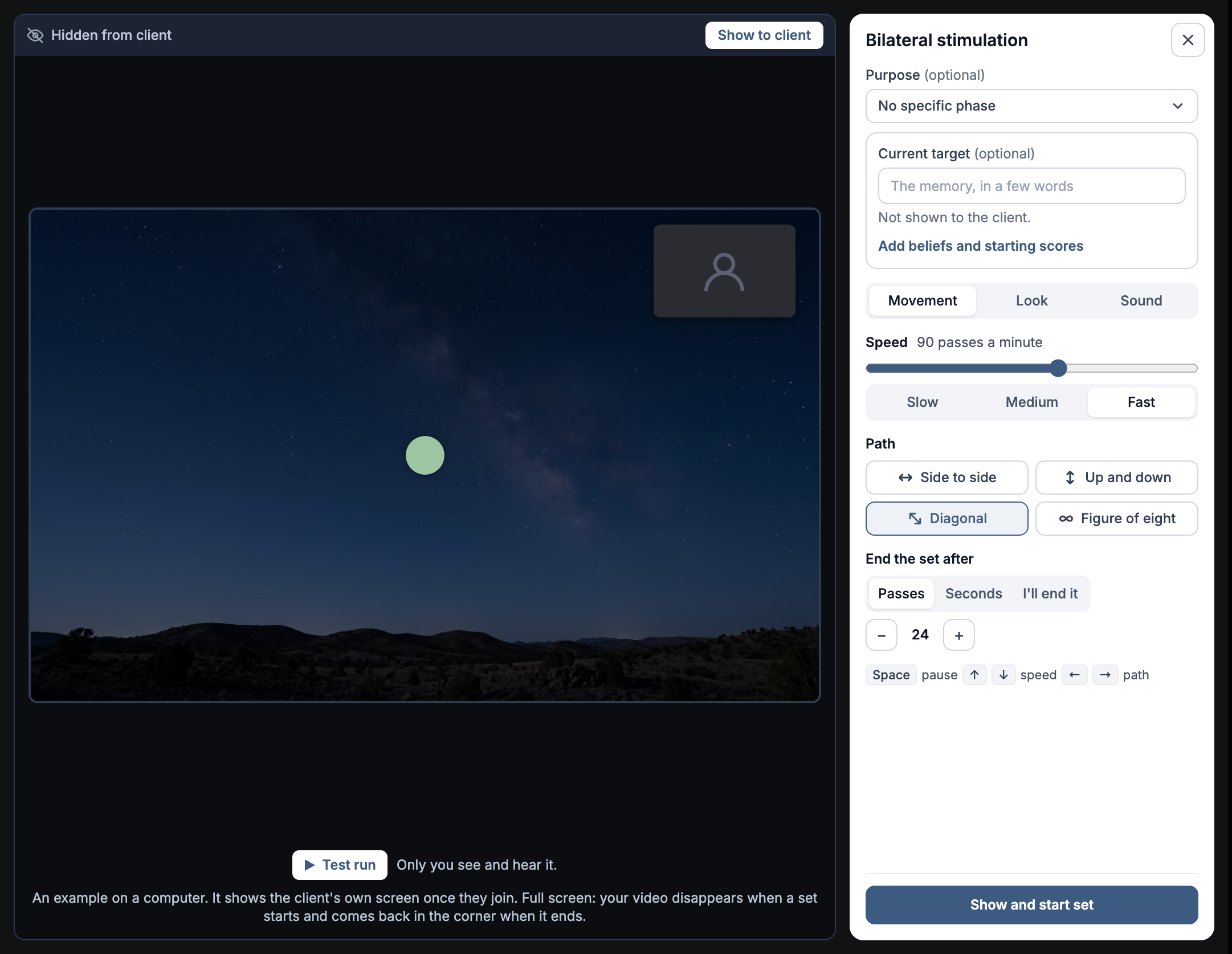
The Movement tab: speed, path and when the set ends. The preview on the left shows what your client will see.
Look
Shape: Dot, Ring, Star, Heart, Diamond or Leaf, with a Size slider.
Colour and background: eight of each, or your own with +. Under Picture you can put a sky picture behind the shape instead, and Dim darkens it.
On the client's screen: Full screen hides your video while a set runs, so your client sees just the shape, and your video comes back in a small box in the corner when the set ends. Beside the video keeps your video on screen.
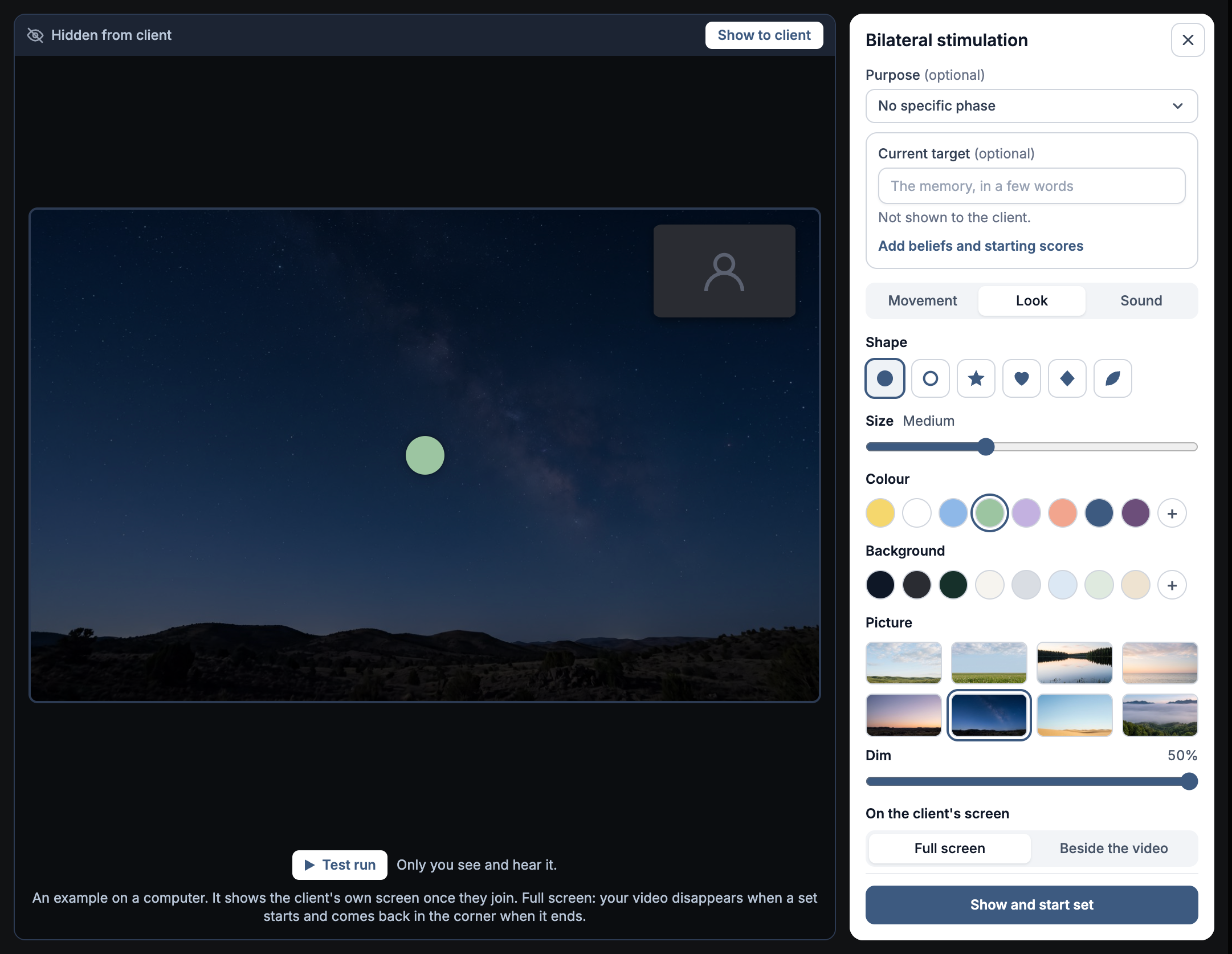
The Look tab.
Sound
Sound to the client is off at the start of every session. Select Turn on next to Sound is off to add it. It works best when your client wears headphones; on speakers, left and right sound the same.
Left ear, then right ear: a short sound in one ear as the shape reaches that side, then in the other. Choose Tone, Chime, Singing bowl, Marimba, Harp, Click, Drum or Water drop.
Glides between the ears: one steady sound that moves from ear to ear with the shape. Choose Tone, Warm hum, Soft rain or Ocean.
Pitch (Low, Middle or High) and Volume set how it sounds. Hear it on my computer plays it for you too.
To make sure your client hears both sides, select Check they hear left and right. Your client is asked to put their headphones on and tap Play, then answers Left, then right or Something was off. If something was off, you see what to try next.
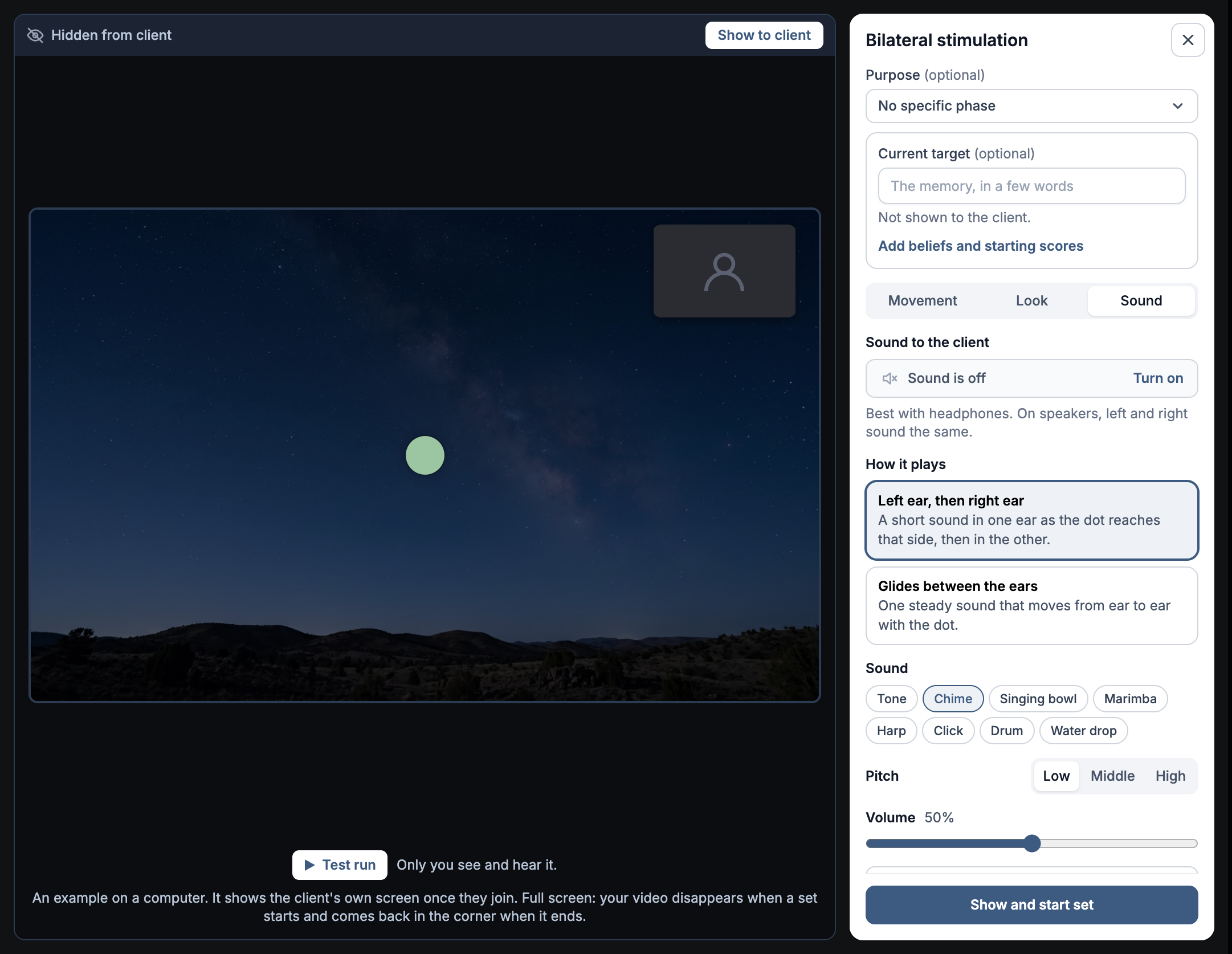
The Sound tab.
Try it before your client sees it
Select Test run under the preview to watch and hear a set with your settings. Only you see and hear it.
What's remembered
Your speed, path, end setting, look and sound choices are remembered on this computer for your next session. They're kept in this browser, not in your account, so another computer starts with the standard settings. Sound to the client always starts off.
Was this helpful?