Bilateral stimulation for EMDR: running sets and recording SUD and VoC
Run bilateral stimulation sets in a video session, record SUD and VoC after each one, and add a summary to the session note.
Updated 19 November 2026
Once bilateral stimulation is set up, you run it in sets and record SUD and VoC as you go. At the end you can add a summary of the sets to the session note. To open the tool and choose its speed, look and sound, see Bilateral stimulation for EMDR: setting it up.
Before the first set
These are optional, and they go into your summary at the end:
Purpose: Preparation and resourcing, Desensitisation, Installation, Body scan, or No specific phase.
Current target: the memory, in a few words. It's not shown to the client.
Add beliefs and starting scores: the negative and positive beliefs in your client's exact words, and their SUD and VoC before you start.
Run a set
Select Show and start set. This shows the tool to your client and starts the first set. The top of the preview changes to Client can see this, with Stop showing.
The panel counts the passes, for example Set 1. 6 of 24 passes. The set ends by itself after the passes or seconds you chose, or when you select End set now.
While a set runs you can Pause it or mute the sound. If you started too soon, Started too soon? Stop and don't keep this set stops it without counting it.
Keyboard shortcuts: Space pauses and resumes, the up and down arrows change the speed, and the left and right arrows change the path.
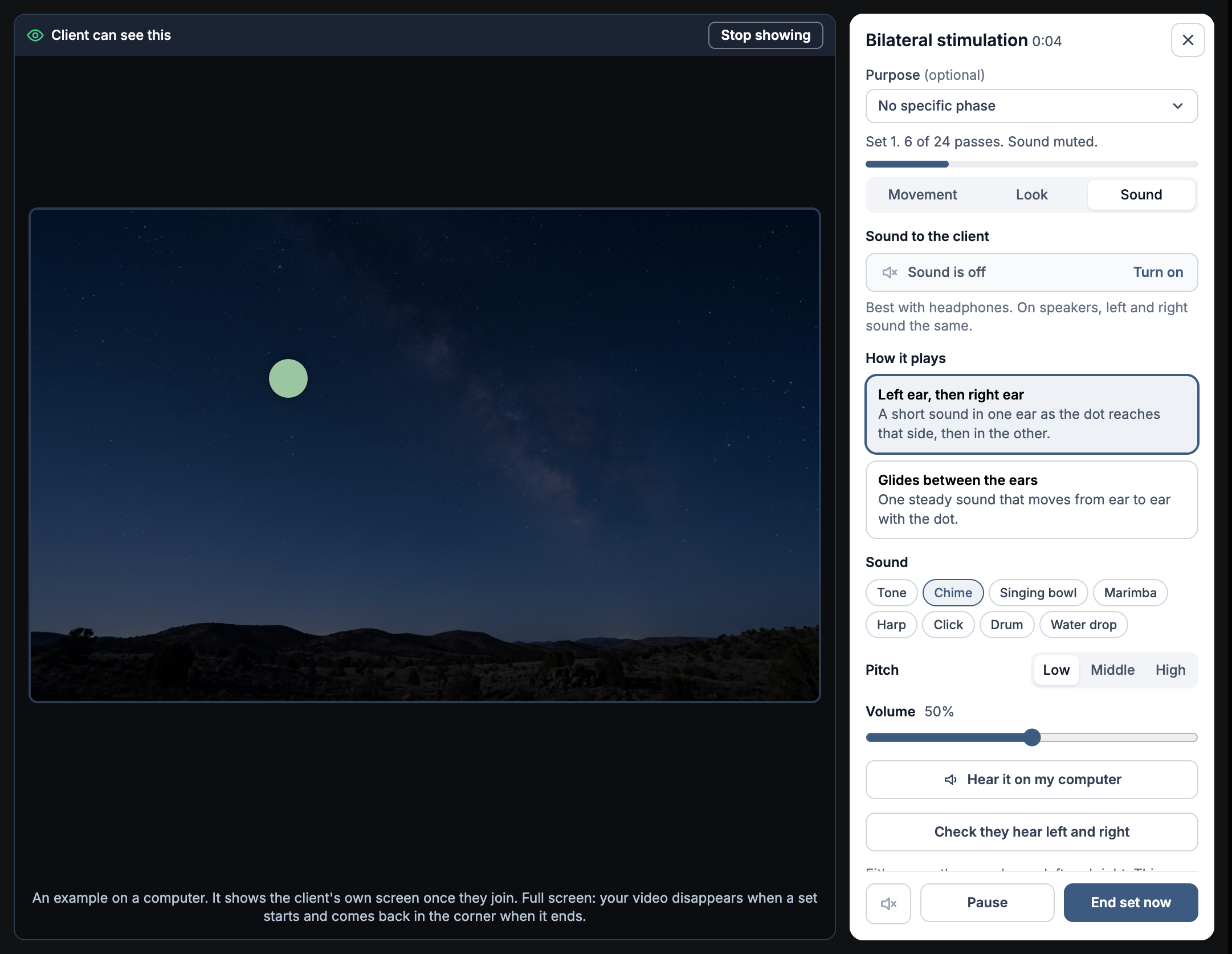
A set running.
What your client sees
With Full screen chosen, your video disappears during a set and your client sees just the moving shape. Your video comes back in a small box in the corner when the set ends.
Your client always has a Stop button, with the line You can stop at any time. Your practitioner sees it straight away. If they press it, the set ends and your panel shows The client pressed Stop.

What your client sees during a set.
After each set: ratings and a note
When a set ends, the panel shows Set 1 done with how many passes it took.
Note on set 1: what they noticed, or anything for you. It's not shown to the client.
Record a rating: shows SUD after set 1 (0 is not at all, 10 is the worst it could be) and VoC after set 1 (1 is not true at all, 7 is completely true). Tap the number your client tells you, or select Ask on their screen.
Next set: the settings the next set will use. Select Change to adjust them.
This session: every set so far, with its ratings. Edit changes one, and Clear all removes them.
Select Start set 2 for the next set, or Finish sets when you're done.
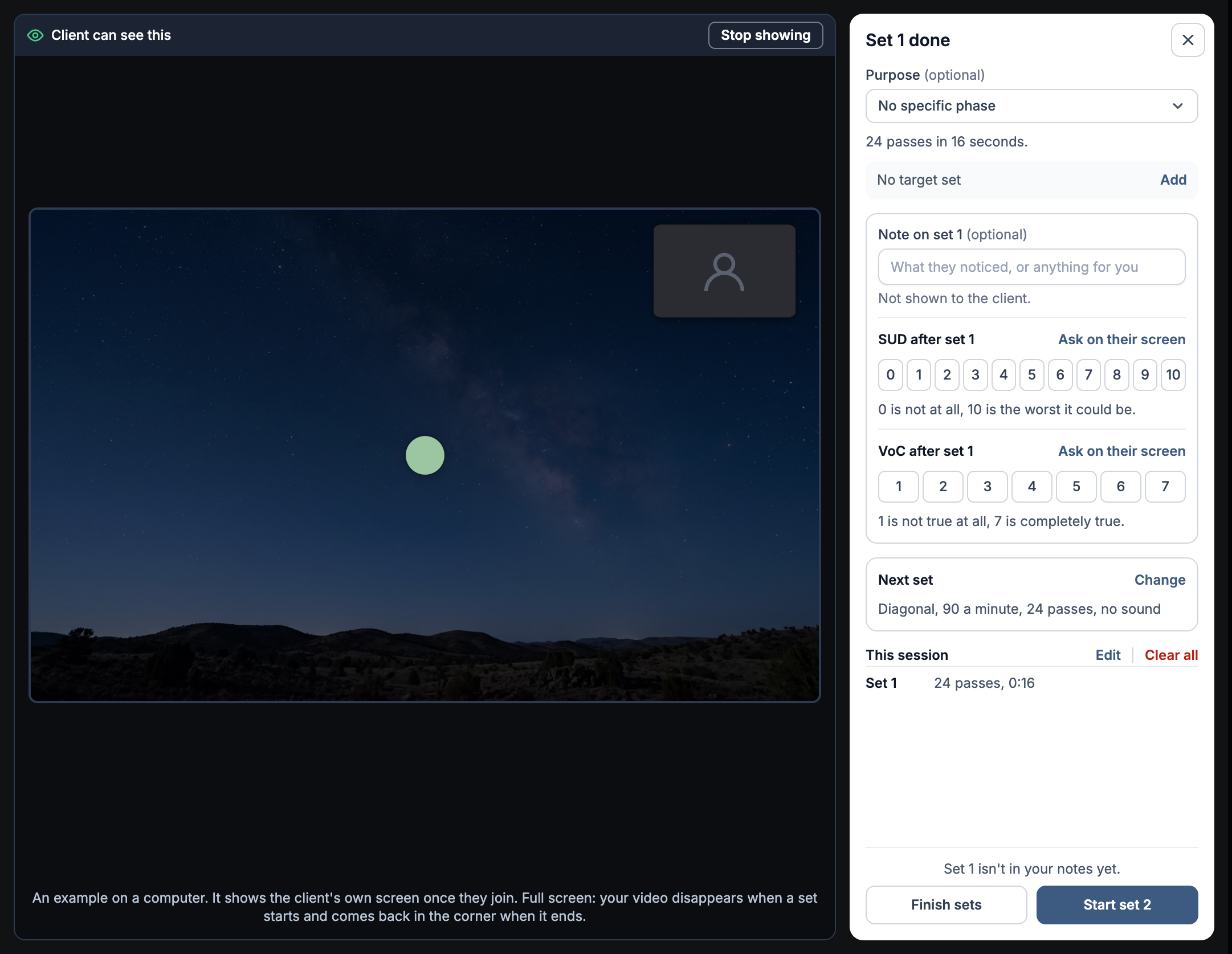
After a set: the note and the SUD and VoC ratings.
Asking on their screen
With Ask on their screen, your client sees How upsetting does it feel now? (for SUD) or How true does their positive belief feel to you now? (for VoC), with the numbers to tap and Go with your first feeling. You can also just say it out loud. They can also choose I'd rather not say. The number they tap fills in your rating straight away.
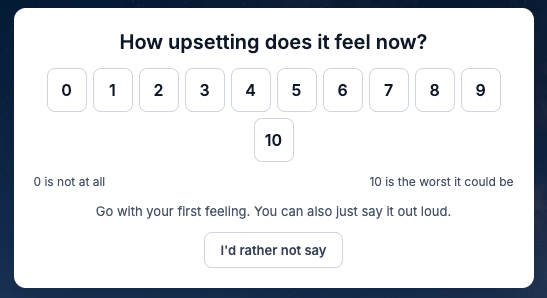
The SUD question on your client's screen.
Finish and add it to your notes
Select Finish sets. You see Bilateral stimulation: this session, listing each set with its purpose, passes, path and sound, your note and the ratings, and How it will read in your session notes.
Add to session notes puts the summary into this appointment's session note, where you can edit it like any other text.
Copy copies it, and Back to sets returns to the sets.
If you close the tool with its X instead, you see the same summary with Add to notes and close and Close without adding. Nothing is saved unless you add it.
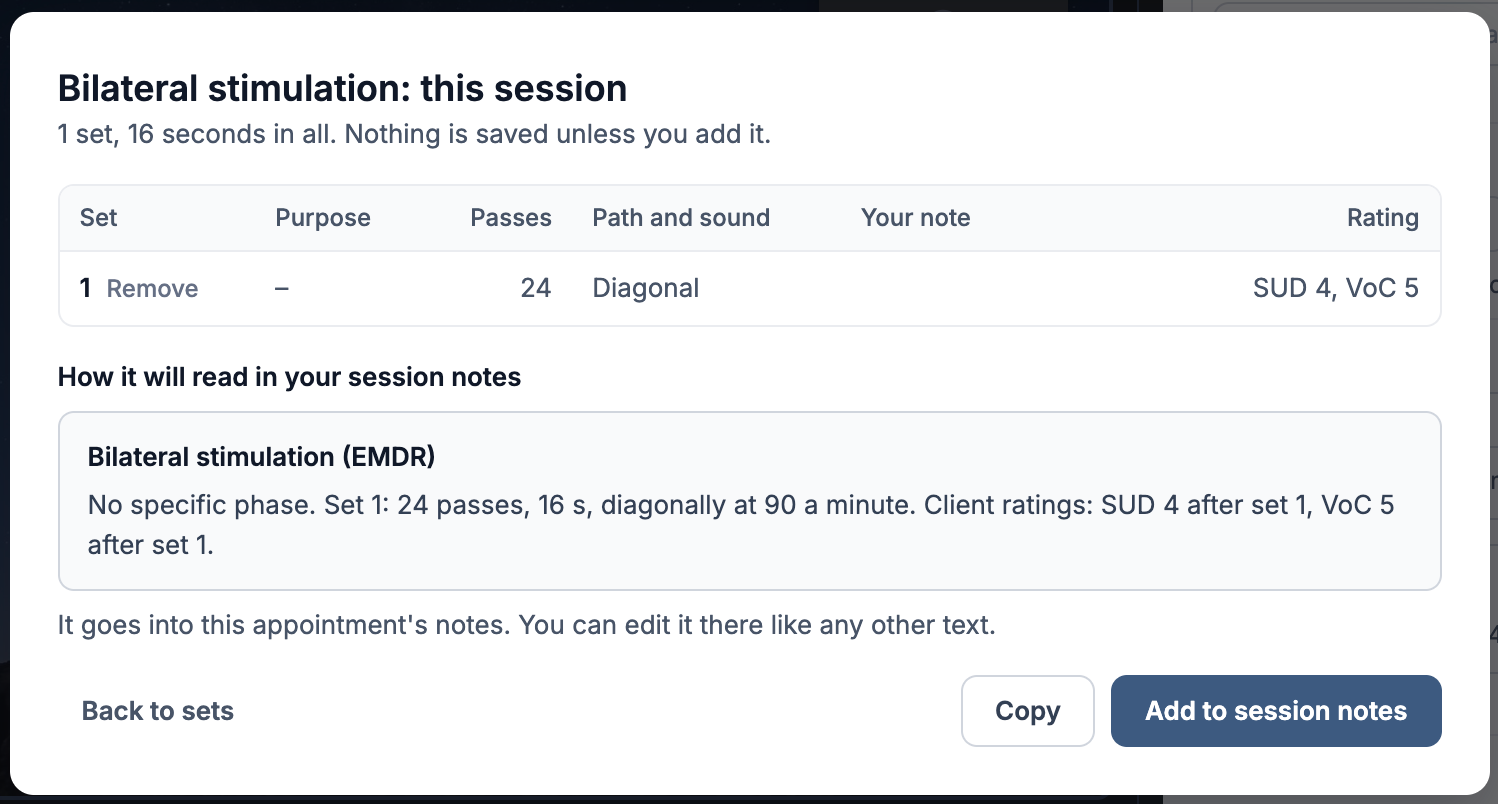
The end-of-session summary.
What's kept, and for how long
Your sets are kept in this browser while you work, so a page refresh or rejoining the call doesn't lose them. They're cleared at the end of the day. Once you add them to the session note, the ratings, notes and target are removed from the browser and stay only in the note.
Was this helpful?