Selling a package and using its sessions
Sell a package on an invoice, see how many sessions are left, book sessions from it, and change, cancel or check a client's package.
Updated 19 November 2026
Once a package is set up (see Setting up session packages), you can sell it to a client yourself, or they can buy it online. Either way it shows on the client's Billing tab, and its sessions are used as you book them.
Selling a package to a client
Open the client from Clients, go to the Billing tab and select Packages.
Select Add package. A Create invoice panel opens with your packages at the top of the Service list. Pick the package. The description fills in, for example "6 sessions: Individual Therapy. Use within 6 months.", and the price and quantity are fixed.
Select Create, or Create and send to email or text the invoice to the client.
You can also add a package to any invoice you create from Billing: open the Service list (it reads Choose a service or package) and pick it under Packages.
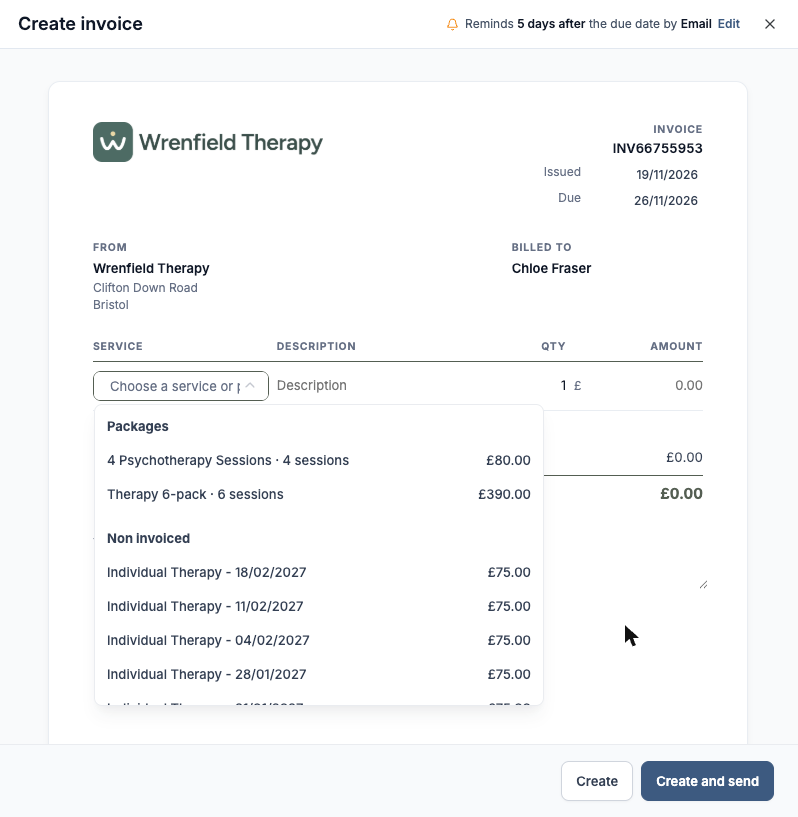
Add package opens Create invoice with your packages at the top of the list.
The package shows straight away as Waiting for payment, with "Start when" and the invoice number "is paid" under Sessions. It starts when the invoice is paid, by card online or when you mark it as paid (see Creating and sending an invoice). Its use-by date counts from that day.
A package invoice can't be edited. If it won't be paid, delete the invoice: the package on it is cancelled too.
When a client buys online
Clients can buy a package on your booking page or in your client portal if you offer it to them (see Setting up session packages). They pay by card, and the package starts as soon as the payment goes through. You get a Package bought by notification with the client's name; select it to open their Billing, Packages. Their side is explained in Buying and using a session package.
Seeing a client's packages
The Packages switch on the Billing tab shows how many are active, for example 1 active. Each package shows:
Sessions: how many are left, for example 3 of 4 left, with how many are used and upcoming.
Use by: the last date its sessions can be used, or No use-by date.
Status: Waiting for payment, Active, Used up (no sessions left), Expired or Cancelled.
The ... menu on a package has Session history, Edit package, View invoice and Cancel package. Edit package and Cancel package are there while the package is active.
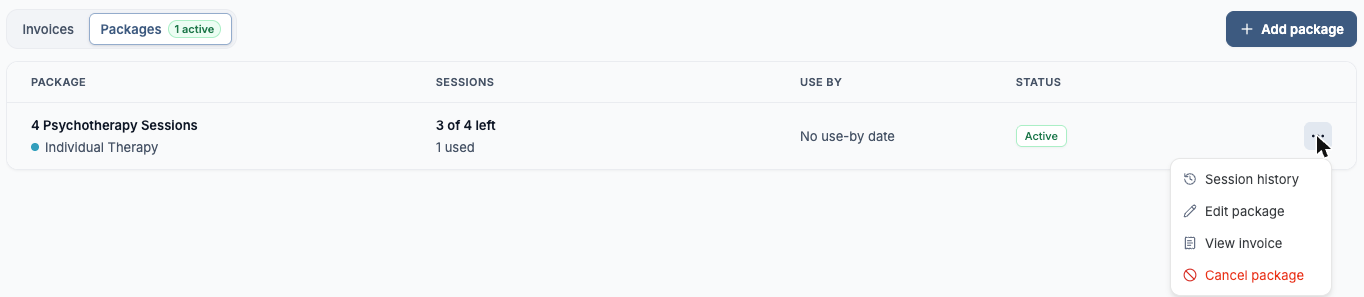
A client's Packages tab, with the ... menu open.
While a client has an active package, the top of their record shows Package and how many sessions are left across all their active packages. Select it to open Billing, Packages.

Sessions left, at the top of the client record.
Booking sessions from a package
When you schedule a client whose active package covers the service, the Payment card on the booking form shows Pay from the client's package, switched on, with how many sessions are left. Below it you see No invoice for this session.
To invoice the session as usual instead, switch it off.
If more than one package fits, select Change to pick another. Otherwise the one that expires first is used.
For a repeating appointment, the package pays for as many sessions as it has left, and the card says how many will be invoiced as usual.
A package that expires before the session date is greyed out, with Expires and its date.
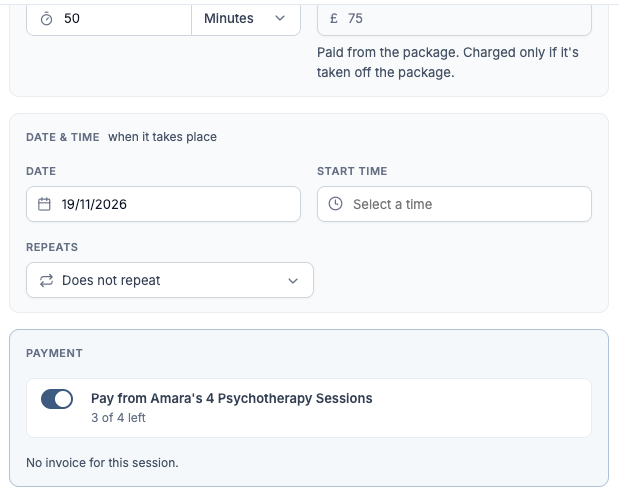
The Payment card when booking a client who has a package.
When clients book in your client portal, a session the package covers uses it automatically.
On the session itself, Fee shows Package and "Paid with a credit", with the usual price, and a Package card shows which package it uses and how many are left. On Sessions and the client's Appointments tab, the Finance column shows a package icon instead of an invoice.
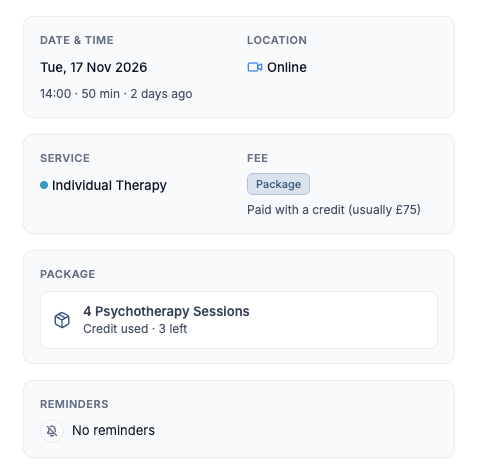
A session paid from a package.

The package icon in the Finance column.
Taking a session off the package
To charge an upcoming session as usual instead, open it, select Remove on its Package card and confirm with Remove. The session goes back to the package, and this session is charged at its usual price and invoiced as usual.
Cancellations and no-shows
Cancelled in good time: the session goes back to the package by itself.
Late cancellation: when you cancel inside your cancellation window, the cancel window explains the package's rule and asks what happens to The credit: Lose it (package rule) or Give it back. It starts at the package's rule.
No-show: when you mark a session as no show, Mark as no show? gives the same choice.
If you set a no-show back, a lost session goes back to the package. When a client cancels in your client portal in good time, the session goes back to their package. See Cancellations and no-shows.
Session history
Select ... on the package, then Session history.
Sessions: each session with its date, time and service, a badge (Upcoming, Completed, Cancelled, Late cancellation or No show) and what it did to the package, such as 1 used or Given back.
Package: when it started (for example Invoice paid: package started, with the invoice), sessions added or removed, use-by date changes, and when it expired or was cancelled.
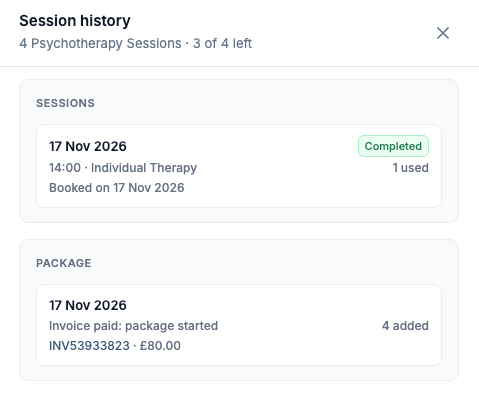
Session history for a package.
Changing one client's package
Select ... on an active package, then Edit package. The changes apply to this client's package only, not to the package in Settings.
Sessions in package: add sessions, for example a goodwill session, or take some off. It can't go below the number already used or booked. When you change it, give a Reason: it shows in the session history.
Can be used for: which services the sessions can be. Sessions already booked stay paid for.
Use by: a new date after today, or tick No use-by date.
Select Save. You see Package updated.
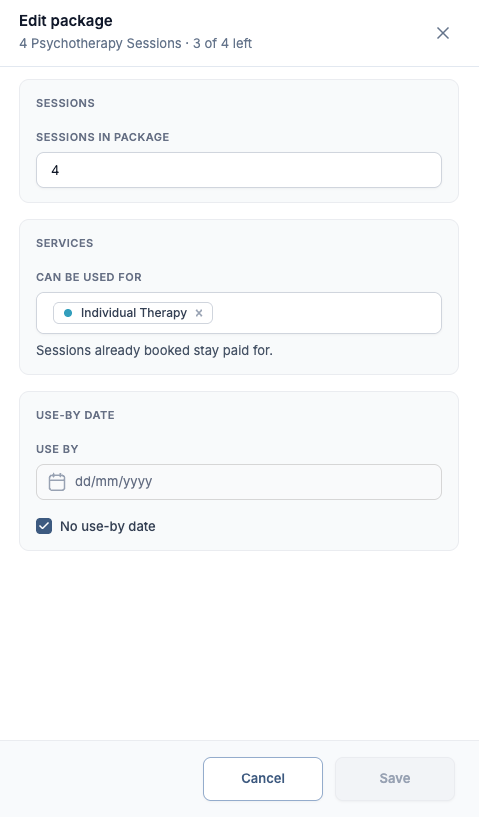
Edit package.
Cancelling a package
Select ... on an active package, then Cancel package. The window explains what happens:
The client can't use the sessions left.
Upcoming sessions stay booked, but the package no longer pays for them, so they're invoiced as usual.
No money is refunded. Refund the client yourself if you need to, for example in Stripe (see Connecting Stripe and taking card payments).
It can't be undone.
Enter a Reason, for example refunded, and select Cancel package. Keep it closes the window without changing anything.
When sessions run out or the package expires
When every session is used, the package shows Used up. If a session comes back, for example after a cancellation in good time, it becomes active again.
On its use-by date the package expires, and any sessions left can't be used. Sessions booked for before that date still use the package. Sessions after it are invoiced as usual.
If they're switched on, clients are emailed 14 days before their package expires and when they have one session left. See Setting up session packages.
Who can do this
Selling, changing and cancelling a client's packages needs edit access to their invoices, and the sessions left at the top of the record only show to people who can view invoices. Whoever manages your team sets this in the Invoices & payments permissions under Settings, Users & Teams.
Was this helpful?