Setting up session packages
Create a package of sessions at a set price, choose who can buy it online and what happens when a session is cancelled or missed.
Updated 19 November 2026
A package is a set number of sessions sold together at one price, for example 6 sessions for £390. Once a client has paid for a package, its sessions are used as you book them, so there's nothing to invoice for each session. This article covers setting packages up. Selling them and using their sessions is in Selling a package and using its sessions.
Where packages are
Go to Settings, Practice profile, Packages. The list shows each package with the services it covers and its description, then Sessions, Price, Who can buy online, Valid for and Active (how many clients have it in use).
If you don't see a Packages tab, packages aren't switched on for your practice yet. Contact us through Support in the sidebar and we'll turn them on.
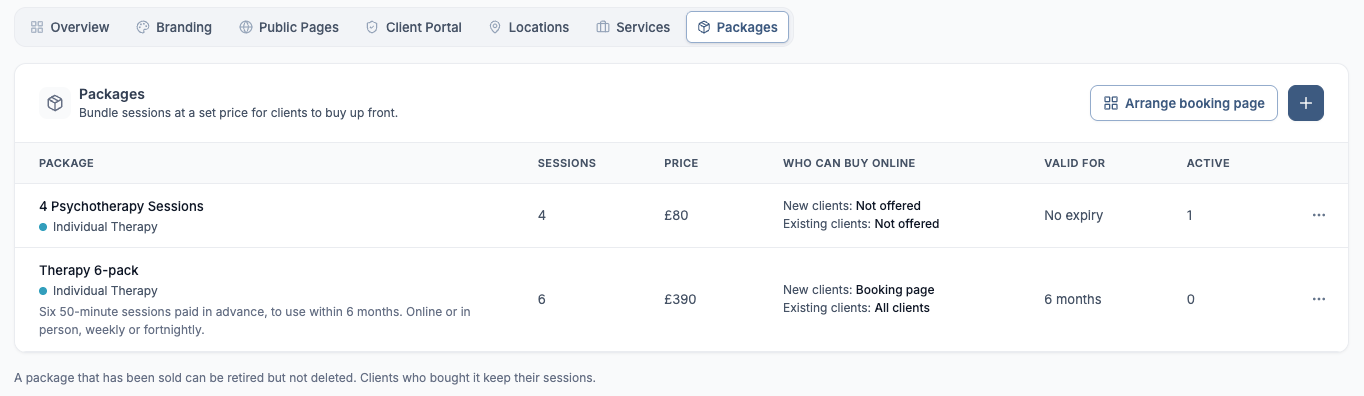
Settings, Practice profile, Packages. The + button adds a package.
Before you start
A package covers one or more of your services, so set those up first. See Setting up your services.
To let clients buy packages online, connect Stripe under Settings, Practice settings, Billing. See Connecting Stripe and taking card payments. Packages you sell yourself, on an invoice, don't need Stripe.
What counts as a late cancellation comes from your cancellation window, under Settings, Practice settings, Appointments.
Add a package
Select the + button (Add package). The Add package panel has four cards. Select Save when you're done.
Package: what clients buy
Package name: what clients see, for example Therapy 6-pack.
Price: the price of the whole package.
Add tax/VAT?: choose Yes to add the tax rate from your billing settings to the price.
Description (optional): clients see this when they book and on their Packages page, so it's the place to say who the package is for and how often sessions usually happen. Up to 500 characters.
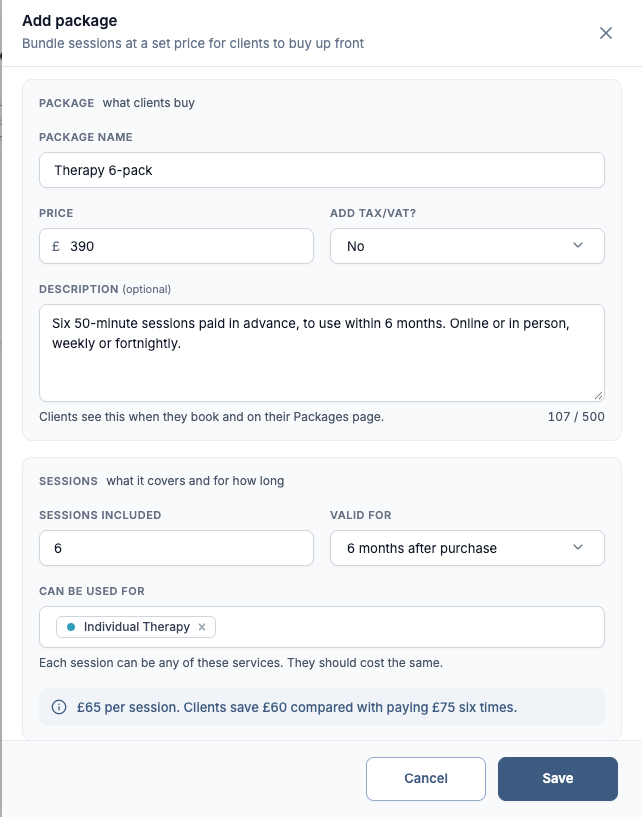
The Package and Sessions cards. The blue line works out the price per session.
Sessions: what it covers and for how long
Sessions included: between 1 and 100.
Valid for: No expiry, or between 1 and 24 months. The time counts from when the package is paid for, not from when you sell it. New packages start at 6 months.
Can be used for: the services a package session can be. Each session can be any of the services you choose, so they should cost the same.
Practitioners (group practices only): who the sessions can be with. Leave it empty for any practitioner who offers these services.
Under the services, a line compares the package with your usual fee, for example £65 per session. Clients save £60 compared with paying £75 six times.
Who can buy it online: on your booking page and client portal
New clients: Booking page lists the package on your public booking page for anyone to buy. Not offered keeps it off.
Existing clients: All clients offers it to every existing client once they've signed in to your client portal. Selected clients offers it only to clients you tick on their profile (see "Offering a package to one client" below). Not offered keeps it off.
Both start at Not offered. A package that isn't offered online can still be sold from a client's record. Clients only see a package if they can also book at least one of the services it covers.
Cancellations and no-shows
Cancelled in good time: the session always goes back to the package.
Late cancellation: cancelled inside your cancellation window. Choose Session used (it counts as one of their sessions) or Session given back (they get it back to use again). This row only shows if you have a cancellation window.
No-show: a session marked as no show, with the same two choices.
Both start at Session used. With no cancellation window, a cancelled session always goes back. Whatever the rule, you can still give a session back when you cancel it or mark it as a no-show.
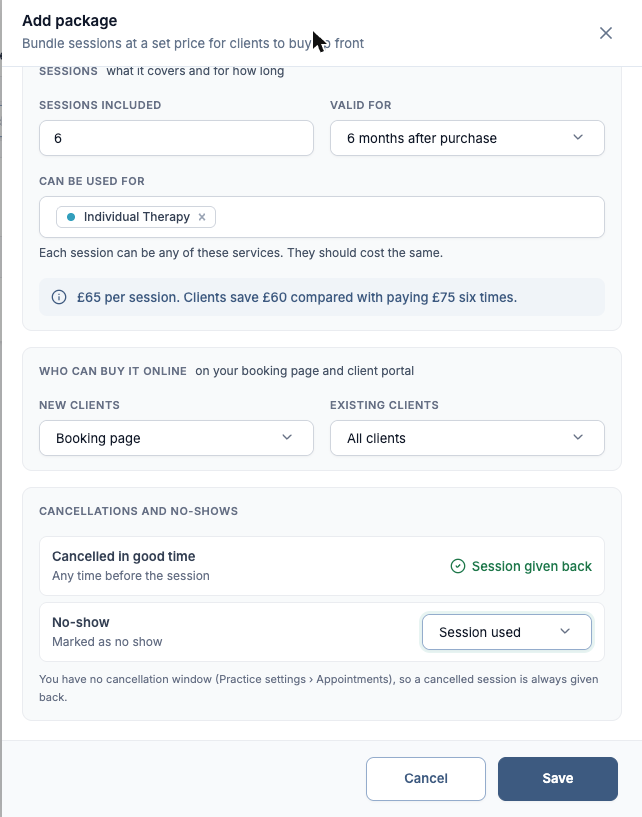
Who can buy it online, and the rules for cancellations and no-shows.
Changing a package
Select ... on its row, then Edit, and save your changes. They apply to the package from now on. Clients who already have it keep it as it was when they got it. To change one client's package, see Selling a package and using its sessions.
Retiring a package
To stop selling a package, select ... on its row, then Retire, and confirm with Retire package. Nobody can buy it after that, and clients who bought it keep their sessions. The row shows Retired and Not on sale. To sell it again, select ... and Put back on sale.
Packages can't be deleted, only retired. A service that's part of a package can't be deleted either: take it out of the package first.
Choosing the order on your booking page
Select Arrange booking page at the top of the Packages list and drag a service or package to where you want it. Your booking page shows your services first, then your packages, in this order, left to right and then down. It saves as you go. Select Done when you've finished.
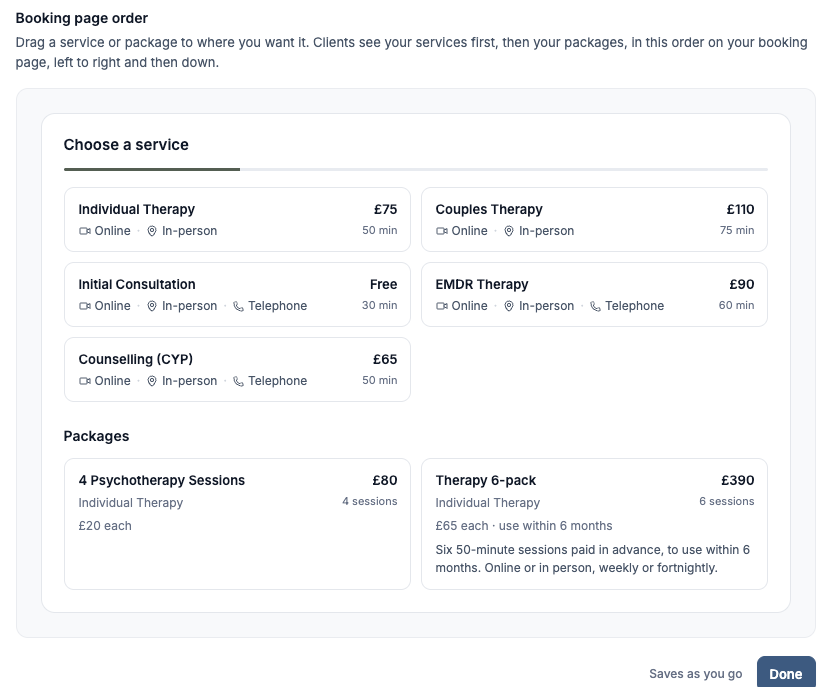
Arrange booking page. Packages show below your services.
Offering a package to one client
Open the client from Clients. On Client profile, the Services and packages card lists what they can book and buy in your client portal, with your packages under Packages. Tick a package to offer it to this client, or untick it to hide it from them. It saves straight away.
Packages set to All clients start ticked, and packages set to Selected clients start unticked. A package can only be ticked once at least one of its services is ticked for the client.
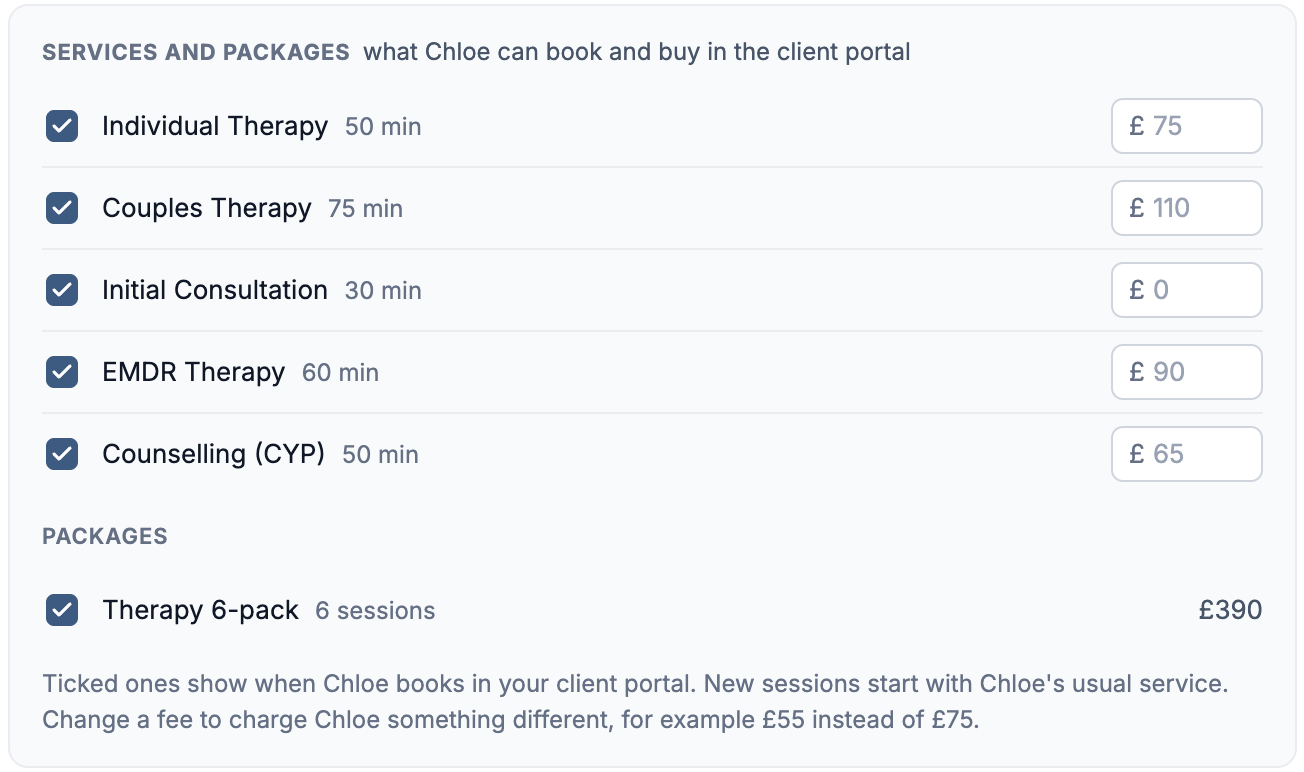
The Services and packages card on a client profile.
Group practices
In a group practice, the Who can buy it online choices in a package are your own. Each practitioner sets theirs under Settings, My settings, Booking, in the What clients can book card, which lists your packages under Packages with the same New clients and Existing clients choices.
Reminder emails to clients
Under Settings, Practice settings, Notifications, the Client package emails card has two emails. Both start on.
Package expiring soon: emailed 14 days before a client's package expires.
Last package credit: emailed when a client has one session left.
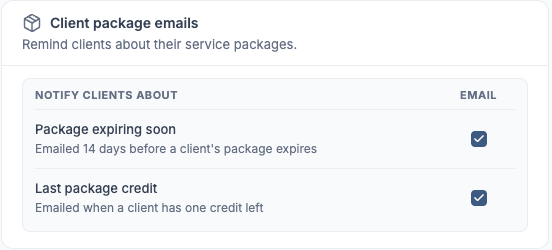
The Client package emails card.
Was this helpful?